
PNG, JPG, SVG · Max 500KB
| Description | Details | Qty | Price | Amt |
|---|
| Description | Details | Qty | Unit Price | Amount |
|---|---|---|---|---|
| Add line items to see them here | ||||
How to Use the Free Invoice Generator
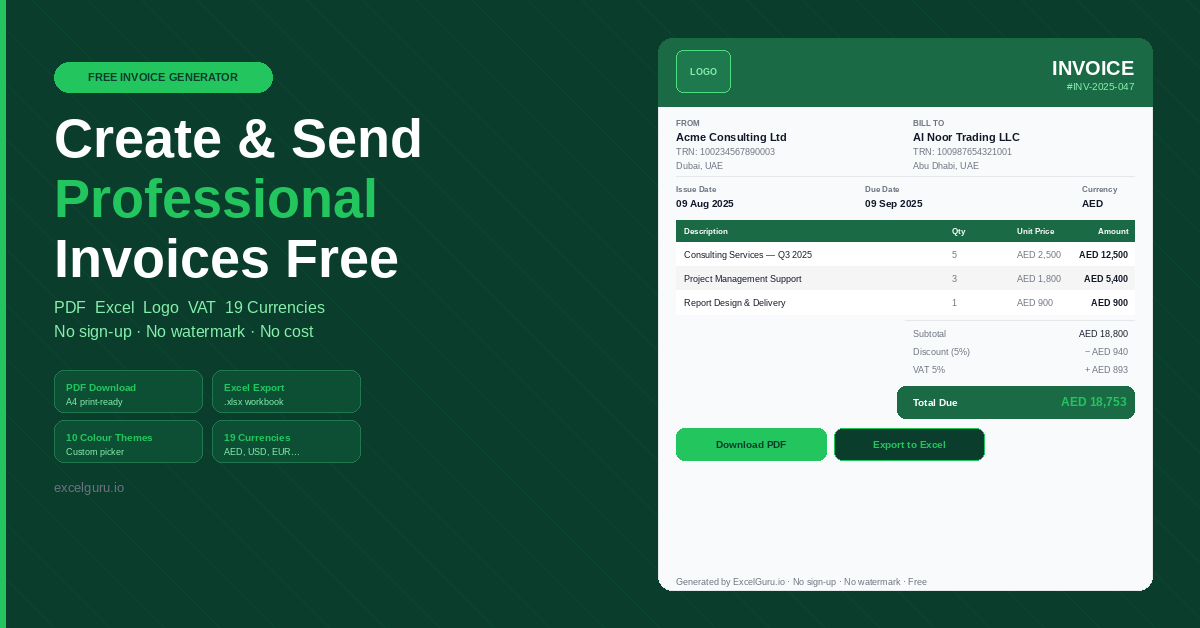
Create a professional invoice in under two minutes. Add your logo, fill in business and client details, build line items with auto-calculated totals, and download as PDF or Excel. No account or sign-up needed.
Set your brand, logo, and business details
Pick one of the 10 preset colour themes or open the custom colour picker to match your brand. Upload your logo — PNG, JPG, or SVG up to 500 KB. It appears on the PDF and Excel export. Next, fill in your business name, email, phone, Tax or VAT number, and address. The live preview updates instantly as you type.
Add invoice details, client, and line items
Enter the invoice number, issue date, due date, and an optional PO reference. Choose from 19 currencies including AED, USD, EUR, GBP, and SAR. Fill in the client name, email, and address. Click Add Line Item for each product or service. Enter a description, quantity, and unit price. Each row calculates its total automatically. Add a discount and a VAT percentage as needed — the tool deducts the discount first, then applies VAT on the reduced amount.
Download PDF or export to Excel
Notes and payment terms go in the final section — both appear on the invoice and in the export. Click Download PDF for a print-ready A4 file to send to your client. Use Export to Excel to download a formatted .xlsx file for your records. Both reflect your theme, logo, and all invoice data. Hit Reset to start a new invoice — it confirms first so no data is lost.
PDF files are locked, so clients cannot edit amounts or payment terms. Excel files suit your own records. You can copy line item data into your accounting spreadsheet or build an invoice archive. Generating both from the same invoice takes two clicks and gives you both formats at once.
Invoice Generator Guide — Features, VAT, and Best Practices
What a professional invoice must include, how UAE VAT invoicing works, when to use PDF versus Excel, and which features this tool offers that most free generators do not.
What is an online invoice generator?
An online invoice generator is a free browser-based tool for creating professional invoices without installing software. You enter your business details, build line items, set taxes and discounts, and download the result as a PDF or spreadsheet. Freelancers and small business owners have traditionally used Word or Excel templates for invoicing. That approach works but has real drawbacks. Calculations are manual and error-prone. Formatting breaks when you edit content. Sending a document to a client looks less polished than a dedicated invoice layout.
An online generator solves all three problems. Totals calculate automatically. The layout stays consistent regardless of how many line items you add. Start to finish, the process takes under two minutes. This ExcelGuru tool adds Excel export on top of PDF — a feature almost no other free invoice generator offers. Because ExcelGuru is built for spreadsheet users, the .xlsx export is a full first-class feature, not an afterthought.
What every professional invoice must include
A valid invoice — whether sent to a UAE client, a UK business, or an international customer — must contain specific fields. Missing any of them can delay payment or create compliance issues with tax authorities.
UAE VAT invoicing — what you need to know
If your business is VAT-registered in the UAE, the Federal Tax Authority requires your invoices to meet specific criteria. To generate a compliant UAE Tax Invoice with this tool, select AED as the currency. Enter your Tax Registration Number (TRN) in the Tax / VAT Number field. Set the VAT percentage to 5%. The tool calculates the VAT amount and includes the TRN on the invoice.
For supplies above AED 10,000, a full Tax Invoice is legally required under FTA regulations. It must include the customer's TRN if they are VAT-registered. For smaller amounts, a simplified invoice may be acceptable. Always verify your invoicing obligations with a qualified accountant before sending invoices to clients.
PDF vs Excel — which export to use when
Both formats export the same invoice data — the difference is in how they are used after download. PDF is better for the client — it is locked, so no one can accidentally change amounts or terms. Files print cleanly on A4 and attach directly to an email. Excel is better for your own records. You can copy line items into your accounting software, build a running invoice register, or filter and sort invoices by date or client.
Download the PDF first to send to the client. Then click Export to Excel to save the structured data for your records. Both files reflect the same invoice — the same colour theme, logo, line items, totals, and notes. There is no need to fill in the form twice.
Key features of this invoice generator
Forest Green, Ocean Blue, Royal Purple, Crimson, Burnt Orange, Teal, Slate, Rose, Indigo, and Amber — or pick any hex colour with the custom picker.
Upload PNG, JPG, or SVG up to 500 KB. Your logo appears in the live preview, on the PDF, and in the Excel export header.
AED, USD, EUR, GBP, SAR, INR, PKR, EGP, QAR, KWD, BHD, OMR, JOD, CAD, AUD, CHF, CNY, JPY, and SGD — all update totals instantly.
Each line item calculates automatically. Set a discount percentage and a VAT rate. Discount applies first, then VAT on the reduced subtotal.
Clean A4 PDF preserving your theme, logo, and all invoice data. Email it directly to your client or print it for physical records.
Formatted .xlsx workbook with a full invoice layout. Almost no other free generator offers this. Ideal for record-keeping and accounting integration.
Frequently Asked Questions — Invoice Generator
Common questions about creating invoices, VAT support, currencies, logo upload, and data privacy.