
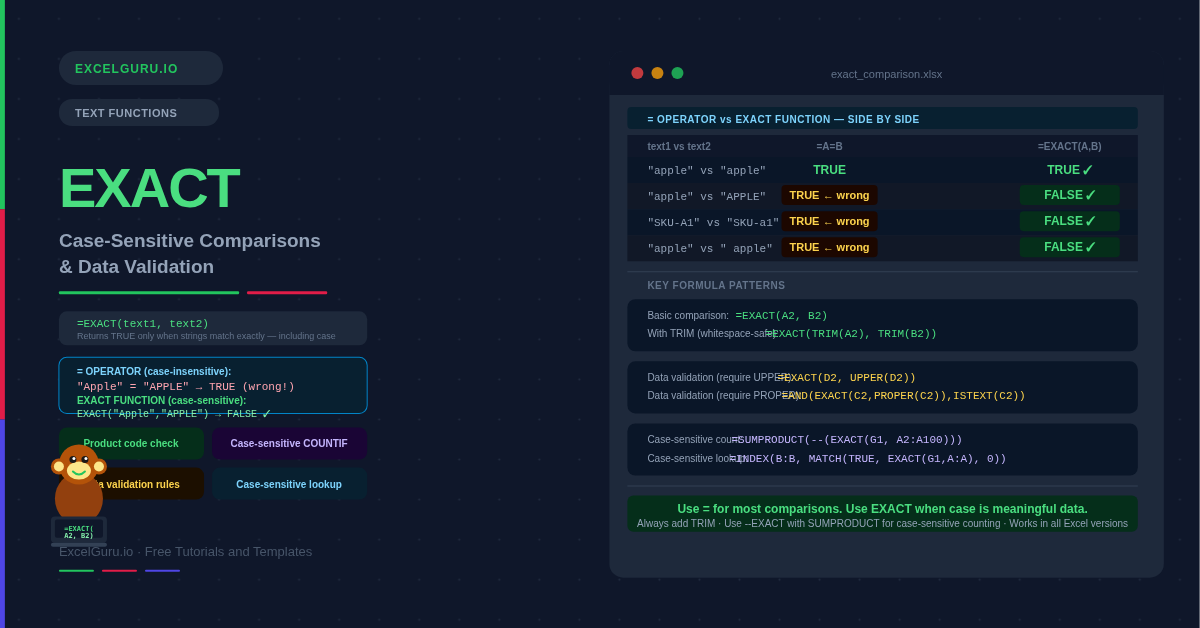
Excel's equals operator (=) is not case-sensitive. It treats "APPROVED", "Approved", and "approved" as identical — which is correct for most tasks, but wrong when case is meaningful. Product codes like "SKU-A1" and "sku-a1" should not match. Status values like "FINAL" and "Final" have different meanings in some workflows. The EXACT function is Excel's solution. It compares two text strings character by character, including case, and returns TRUE only when every character matches precisely.
Beyond basic comparisons, EXACT powers case-sensitive data validation rules, case-sensitive lookups, and case-sensitive counting — tasks that the standard equals operator, VLOOKUP, COUNTIF, and SUMIF cannot handle correctly on their own.
What Is the EXACT Syntax?
EXACT takes exactly two arguments — the two text strings to compare.
| Argument | Required? | What it does |
|---|---|---|
| text1 | Required | The first text string to compare. Can be a cell reference, a hardcoded string in double quotes, or a formula result. |
| text2 | Required | The second text string to compare against text1. EXACT returns TRUE when both strings match exactly — same characters, same case, same length. |
EXACT is case-sensitive but ignores cell formatting. It compares the stored value, not the displayed value. Consequently, a cell formatted to show "£1,000" but containing 1000 returns FALSE when compared to the text "£1,000" — the underlying values differ. Additionally, leading and trailing spaces count as differences, which makes TRIM an important companion function.
EXACT vs the Equals Operator — When Does It Matter?
The equals operator (=) and EXACT look similar but behave differently. Use EXACT whenever case is meaningful data — not just cosmetic. Use the equals operator for all other comparisons.
| Comparison | =A1=B1 result | =EXACT(A1,B1) result |
|---|---|---|
| "apple" vs "apple" | TRUE | TRUE |
| "apple" vs "APPLE" | TRUE — ignores case | FALSE — case differs |
| "apple" vs "Apple" | TRUE — ignores case | FALSE — case differs |
| "apple" vs " apple" | TRUE — ignores space | FALSE — space differs |
| "SKU-A1" vs "SKU-a1" | TRUE — ignores case | FALSE — case differs |
Examples 1–4: Core Comparisons and Labels
Product codes, order IDs, and reference numbers are often case-sensitive. "SKU-A1" and "SKU-a1" should not match — but the equals operator treats them as identical. EXACT correctly flags the difference.
Wrapping EXACT in IF produces a readable label instead of TRUE or FALSE. This pattern is useful for audit columns, QC checklists, and status displays where "Match" and "Mismatch" are more meaningful than raw boolean values.
Standard Excel data validation is case-insensitive — a list rule allows "approved", "APPROVED", and "Approved" equally. EXACT in a custom formula makes validation case-sensitive. Users must enter the value in precisely the correct case or they see an error message.
Combining EXACT with PROPER creates a validation rule that enforces title case — first letter of every word capitalised, everything else lowercase. This is useful for customer name fields, city fields, or any column that must follow consistent capitalisation rules.
Examples 5–8: Advanced Combinations
Case-Sensitive Lookups and Counting
Standard Excel lookup and count functions — VLOOKUP, XLOOKUP, COUNTIF, SUMIF — are not case-sensitive. They treat "Apple" and "APPLE" as identical. EXACT solves this by generating an array of TRUE/FALSE values that other functions can use to locate or count exact case matches.
Nesting EXACT inside INDEX MATCH creates a fully case-sensitive lookup. EXACT returns an array of TRUE/FALSE values for each row. MATCH finds the first TRUE — which is the first row with an exact case-sensitive match. INDEX then retrieves the corresponding return value.
Case-Sensitive Counting with SUMPRODUCT
COUNTIF is not case-sensitive — it counts "apple", "Apple", and "APPLE" equally. SUMPRODUCT combined with EXACT fixes this. EXACT returns an array of TRUE/FALSE values. The double negative (--) converts them to 1s and 0s. SUMPRODUCT then sums the 1s, producing an exact case-sensitive count.
EXACT combined with LEFT validates that an entry begins with a specific exact prefix. This is useful for order IDs, reference codes, and file names where the prefix must be in a specific case format. "AA-001" is valid, but "aa-001" and "Aa-001" are not.
A three-way comparison using both the equals operator and EXACT distinguishes three types of differences: exact matches, case-only errors, and completely different values. This is particularly useful for data migration audits, where imported data often contains the right content but wrong capitalisation.
Common EXACT Issues and How to Fix Them
EXACT returns FALSE when strings look identical
The most common cause is invisible whitespace. A leading space, trailing space, or non-breaking space makes two strings appear identical on screen but different to EXACT. Wrap both arguments in TRIM before comparing: =EXACT(TRIM(A2), TRIM(B2)). Additionally, check whether one cell contains a non-breaking space (character code 160 from web-pasted content) — TRIM does not remove these. Use SUBSTITUTE to eliminate them first: =TRIM(SUBSTITUTE(A2, CHAR(160), " ")).
Data validation rule using EXACT is not working
Check that the cell reference in the formula matches the first cell of the selected validation range. Data validation formulas must reference the top-left cell of the selection. If your selected range is D2:D100, the formula must reference D2 — not D1 or an absolute reference like $D$2. The rule then applies relatively to every cell in the range.
EXACT + SUMPRODUCT returns zero when matches exist
Confirm that the double negative (--) is present before the EXACT call. Without it, SUMPRODUCT receives an array of TRUE/FALSE values rather than 1s and 0s, and returns zero. The correct pattern is =SUMPRODUCT(--(EXACT(G1, A2:A100))). Additionally, check that the range in EXACT matches the range in any other SUMPRODUCT arrays — mismatched range sizes return #VALUE!.
Frequently Asked Questions
-
What does the EXACT function do in Excel?+EXACT compares two text strings and returns TRUE if they are identical in every character — including uppercase and lowercase letters. If the strings differ in any way, including case, it returns FALSE. For example, =EXACT("Apple", "apple") returns FALSE because the first letters differ in case. The standard equals operator (=A1=B1) is not case-sensitive and would return TRUE for the same comparison. EXACT is specifically for situations where case is meaningful data.
-
How do I make data validation case-sensitive using EXACT?+Select the cells you want to protect, go to Data → Data Validation, and in the Allow dropdown choose Custom. In the Formula box, enter a formula using EXACT that references the first cell in your selection. For example, to require exactly "APPROVED" in all caps, enter =EXACT(D2, "APPROVED"). To enforce proper case, enter =AND(EXACT(C2, PROPER(C2)), ISTEXT(C2)). Go to the Error Alert tab and add a clear message explaining the required format. The rule applies to every cell in your selected range.
-
How do I do a case-sensitive VLOOKUP or XLOOKUP with EXACT?+Standard VLOOKUP and XLOOKUP are not case-sensitive — they treat "Apple" and "APPLE" as identical. To make them case-sensitive, use INDEX MATCH with EXACT: =INDEX(B2:B100, MATCH(TRUE, EXACT(G1, A2:A100), 0)). EXACT returns an array of TRUE/FALSE values. MATCH finds the first TRUE — which is the first row with an exact case-sensitive match. In Excel 2019 and earlier this requires Ctrl+Shift+Enter. In Excel 365, XLOOKUP(TRUE, EXACT(G1, A2:A100), B2:B100, "Not found") is a cleaner alternative.
More Questions About EXACT
-
Does EXACT ignore spaces?+No. EXACT is sensitive to every character including spaces. A leading or trailing space makes two otherwise identical strings return FALSE. For example, =EXACT("apple", " apple") returns FALSE because of the leading space in the second string. Always wrap both arguments in TRIM before comparing if your data may contain extra whitespace: =EXACT(TRIM(A2), TRIM(B2)). For non-breaking spaces (character 160, common in web-pasted data), use SUBSTITUTE to replace them before TRIM.
-
Can I use EXACT to do a case-sensitive count?+Yes — use SUMPRODUCT with EXACT. COUNTIF is not case-sensitive and cannot be made so directly. The workaround is: =SUMPRODUCT(--(EXACT("APPLE", A2:A100))). The double negative (--) converts the TRUE/FALSE array from EXACT into 1s and 0s, which SUMPRODUCT then sums. Replace "APPLE" with a cell reference for a dynamic version: =SUMPRODUCT(--(EXACT(G1, A2:A100))). For a case-sensitive conditional sum, multiply by the value range: =SUMPRODUCT(--(EXACT(G1, A2:A100)) * B2:B100).
-
What is the difference between EXACT and the equals operator?+The equals operator (=) compares values without regard to case — "Apple" = "APPLE" returns TRUE. EXACT compares values including case — EXACT("Apple", "APPLE") returns FALSE. Additionally, the equals operator coerces data types, so the number 100 equals the text "100". EXACT does not coerce types — EXACT(100, "100") returns FALSE. Use = when case and type coercion do not matter (which is most of the time). Use EXACT when both strings must match precisely in every character, including upper and lower case.