
How to Use the Smart Calendar Suite
Four planning tools in one browser tab — calendar, leave planner, project tracker, and countdown timers. No download, no account, and no sign-up. Here is how to get started in under two minutes.
Select your country and view
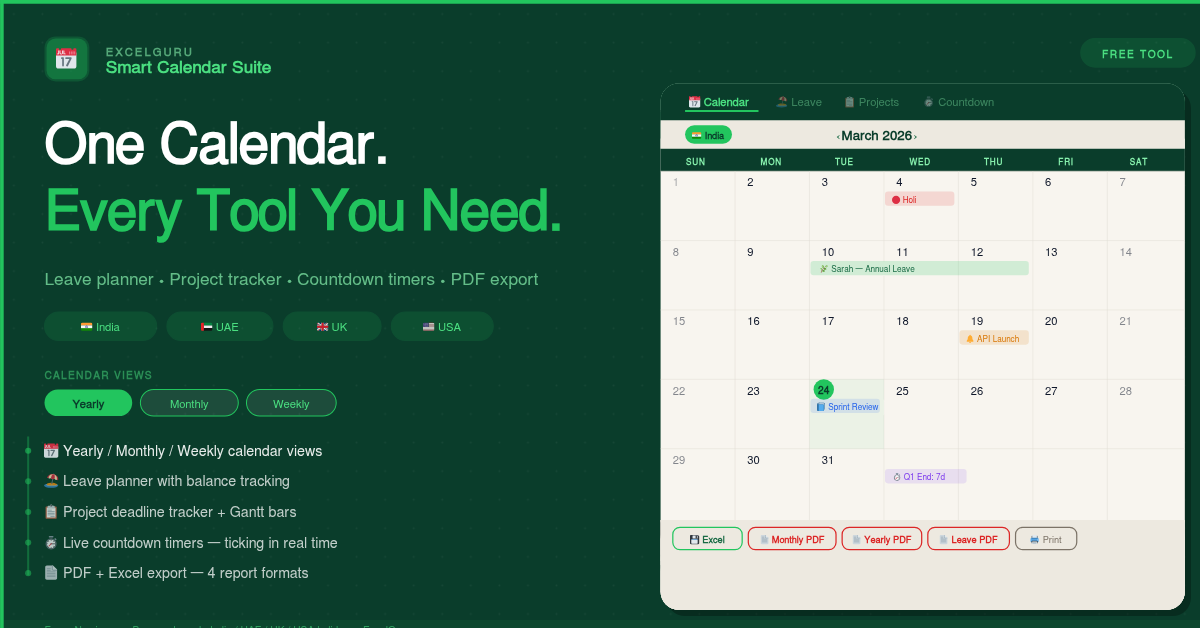
Open the tool in any browser. At the top bar, choose your country — India, UAE, UK, or USA. Public holidays for 2025 and 2026 load instantly. Then choose your calendar view: Yearly for the full-year picture, Monthly for daily planning, or Weekly for short-term scheduling. Use the left and right arrows to navigate between periods, or click Today to return to the current date at any point.
Add events, leave, and projects
Click any date on the monthly calendar to open the Quick Add side panel. Enter a title, select an event type — Event, Leave, Deadline, or Shift — and click Add. For team leave, switch to the Leave Planner tab, add each employee with their annual allowance, and mark leave periods by selecting a start date, end date, and leave type. The working-day count updates automatically, excluding weekends and public holidays. In the Projects tab, add deadlines with owner, priority, and a progress slider that updates status badges in real time.
Set countdowns and export
Open the Countdown tab and add any milestone — product launch, exam, holiday departure, or client presentation. Live timers start ticking immediately in days, hours, minutes, and seconds. When you are ready to share or save your data, use the Export bar: choose Excel for a four-sheet workbook covering all events, leave, projects, and countdowns, or choose a PDF format for a print-ready report. The Print button produces a clean calendar grid with no navigation chrome — suitable for wall mounting or filing.
Start with the Yearly view to identify months already heavy with holidays, deadlines, or leave pressure. Switch to Monthly view for any specific month to add events and mark leave in detail. Finally, use Weekly view during the working week to focus on day-to-day commitments. All three views draw from the same data — nothing needs to be re-entered when switching between them.
The Complete Guide to the Smart Calendar Suite
A detailed walkthrough of every feature — calendar views, leave planning, project tracking, countdown timers, public holiday coverage, and export options.
What is the Smart Calendar Suite?
The Smart Calendar Suite is a free, browser-based planning tool that combines four functions most teams manage across separate apps: a full interactive calendar, an employee leave planner, a project deadline tracker, and live countdown timers. Everything runs in a single browser tab with no installation, no account creation, and no subscription.
Most free calendar tools serve one audience well — individuals with events, or HR teams tracking leave, or project managers chasing deadlines. However, the reality for most working people is that all three overlap constantly. An HR manager needs to know which team members are on leave before approving a project deadline. Freelancers need to see client deadlines alongside personal commitments. A project manager needs leave periods visible on the same calendar as milestone dates. This tool was built specifically for that overlap.
Three calendar views for three planning horizons
All 12 months side by side on one screen. Public holidays appear in red, leave periods in green, and project deadlines in amber. Click any month to jump straight to its monthly detail. Particularly useful for spotting crowded periods before committing to new work.
Standard calendar grid for daily interaction. Each day cell shows up to three colour-coded events — holidays in red, leave in green, deadlines in amber, general events in blue. Click any day to open the detail panel and Quick Add form without navigating away from the calendar.
Seven days with time slots from All Day through 6 PM. Ideal for shift planners and consultants who need granular visibility. The week layout adjusts automatically for UAE users — Saturday through Friday instead of the standard Sunday through Saturday.
Public holidays — pre-loaded for four countries
Rather than asking you to enter holidays manually — a step that every other free calendar tool requires — this tool pre-loads the correct public holidays for all four supported countries across 2025 and 2026. Switching country takes one click and the calendar redraws instantly, with holidays updated, weekends adjusted, and leave calculations recalculated for the correct region.
Republic Day, Holi, Independence Day, Gandhi Jayanti, Diwali, Dussehra, Christmas, and all major national holidays for 2025–2026.
New Year, Isra Mi'raj, all Eid Al Adha days, Arafat Day, Islamic New Year, and National Day (Dec 2–3). Weekend shading adjusts to Friday–Saturday automatically.
Good Friday, Easter Monday, all Bank Holidays, Summer Bank Holiday, and Boxing Day for England and Wales across 2025–2026.
All 11 federal holidays including MLK Day, Memorial Day, Juneteenth, Labor Day, Thanksgiving, and Christmas for 2025–2026.
The UAE working week runs Saturday through Thursday — Friday and Saturday are the weekend. When UAE is selected, the calendar automatically adjusts the column order, weekend shading, and leave calculations to reflect this. It is the only browser-based calendar that handles this correctly out of the box for Dubai and Abu Dhabi teams.
Leave planner — track up to five employees
The leave planner is designed for small teams that need something more reliable than a shared spreadsheet but do not need the complexity of full HR software. Click Add Employee, enter a name, department, and annual leave allowance (25 days by default), and a progress card appears showing days used versus remaining as a live bar.
To mark leave, click Mark Leave or the Add Leave button on the employee card. Select the employee, choose start and end dates, and pick a leave type. The tool automatically calculates working days in the selected range — subtracting weekends and the public holidays for your chosen country — then deducts the result from the employee's allowance. All leave periods appear on the main calendar in green, so it is immediately visible when any team member is away.
Annual Leave (deducted from allowance) · Sick Leave (tracked separately, not deducted) · Casual Leave (tracked separately) · Work From Home (visible on calendar, not deducted) · Maternity Leave (tracked separately) · Unpaid Leave (tracked separately). Additionally, the leave report PDF shows every entry with working-day counts per employee — useful for end-of-year HR reviews or monthly team reports.
Project deadline tracker — live status badges
The project tracker lets you add work items with a start date, deadline, owner, and priority level — High, Medium, or Low. Each project card shows a live countdown badge (for example, "14 days left", "Due today", or "3 days overdue"), a colour-coded progress slider you drag from 0 to 100%, and a status badge — On Track, Due Soon, Overdue, or Done — that updates automatically as the deadline approaches.
Project deadlines also appear on the monthly calendar as amber events. This means you can see which weeks carry multiple deliverables alongside team leave — a view that is genuinely impossible in tools that keep calendar and project data in separate applications. Badge colour changes from green when time is comfortable, to amber under 30 days, to red under 7 days, and finally to a solid red badge when overdue.
Live countdown timers — ticking in real time
The Countdown tab shows ticking real-time counters updating every second in days, hours, minutes, and seconds. Add countdowns for product launches, client presentations, job interviews, holiday departures, exam dates, or birthdays. Six categories are available: Work Deadline, Birthday, Holiday Trip, Product Launch, Meeting, and Personal. Multiple countdowns run simultaneously on the same screen.
Past events flip to a red "passed" style — the counter continues running backward so you can see how many days ago the event occurred. This is especially useful for project post-mortems and tracking how much time has elapsed since a milestone.
Export options — four PDF formats and one Excel workbook
- Monthly PDF — full A4 calendar grid with colour-coded events, print-ready
- Yearly PDF — all 12 mini-months plus a full public holidays list
- Leave Report PDF — per-employee summary with working-day calculations
- Project Report PDF — deadline table with status badges and progress
- Calendar Events sheet — all custom events with date, title, type, and notes
- Leave Summary sheet — all employees with allowance, used, remaining, and every entry
- Projects sheet — all cards with owner, priority, dates, progress, and status
- Countdowns sheet — all timers with target date, category, and days remaining
All data lives in your browser session memory. Nothing is sent to any server. However, closing or refreshing the tab clears everything. Always use the Excel export to save a copy of your data before closing. The exported .xlsx file is a complete snapshot of all four modules and can be reopened in Excel for offline reference.
Who uses the Smart Calendar Suite
HR managers and team leads use the leave planner to track up to five employees, detect leave overlap before approving requests, and generate leave reports at month end. Freelancers and consultants use the project tracker combined with countdown timers to stay on top of multiple client deadlines without paying for project management software. Project managers monitor milestone progress, see deadlines alongside team leave on the same calendar, and export a clean Excel report for stakeholder updates. Students use the countdown timers alongside the monthly calendar to track assignment deadlines and exam dates across a semester. Anyone planning ahead uses the yearly view with pre-loaded public holidays to identify capacity before committing to new commitments.
Frequently Asked Questions
Common questions about the Smart Calendar Suite's calendar, leave planner, project tracker, and export options.