
Col D–H: Options A–E (for multiple choice) · Col I: Category (optional)
Format: Question [Tab] Type (MC/TF/SA) [Tab] Correct Answer [Tab] Option A [Tab] Option B [Tab] Option C [Tab] Option D [Tab] Category
How to Use the Excel to Quiz Generator
Three input methods, three export formats, and a live scored quiz — all from a single spreadsheet upload. No account, no installation, no question limit.
Add Your Questions
Choose the input method that suits your workflow. Upload File accepts any .xlsx, .xls, .csv, or .tsv file — drag and drop it onto the upload zone or browse to select it. If your questions are already in Google Sheets or an open Excel file, use Paste Data — copy the rows, click the tab, and paste directly. For fresh question sets, Type Manually lets you build each question using a structured form that adapts automatically to the question type you choose.
Configure Your Quiz Settings
Before generating, set the quiz details in the settings panel. Give your quiz a name — this appears in the question bank, PDF export, and Excel filename. Set a pass mark percentage (the default is 70%). Choose a timer per question if you want a time-pressured session, or leave it off for self-paced use. Decide whether to keep the original question order or shuffle randomly. Toggle Skip header row on if your first spreadsheet row contains column names. Finally, enable or disable immediate feedback depending on whether this is a practice session or a formal assessment.
Generate, Play, and Export
Click Generate Quiz to build your question bank — each card shows the question type, correct answer, and category. Then select Play Quiz to launch the live scored session with your timer, progress bar, and instant feedback. After completing the quiz, review your results question by question. Then export in whichever format you need: Kahoot CSV for gamified classroom sessions, Print PDF for physical quiz papers, or Excel for a results spreadsheet you can share and analyse.
Build your question bank in Excel using the downloadable template. Upload and click Generate Quiz to prepare the full question set. Run the live quiz projected for the class, then export Kahoot CSV to import into Kahoot for a gamified follow-up session — all from the same file, in under two minutes.
The Complete Guide to Creating Quizzes from Excel Spreadsheets
Everything teachers, trainers, HR professionals, and students need to know about converting an Excel question bank into a live interactive quiz — including format requirements, question types, and export options.
What is an Excel to quiz generator?
An Excel to quiz generator converts a spreadsheet of questions — already structured in rows and columns — into a fully interactive, scored quiz that runs directly in a browser. The core problem it solves is re-entry: most educators and trainers already maintain their question banks in Excel. Without a tool like this, turning those questions into an interactive quiz means typing every question into Kahoot or Google Forms by hand — one at a time, for every column in every row.
This tool eliminates that entirely. It reads your .xlsx or .csv file client-side — directly in the browser, without uploading it to any server — and builds a live scored quiz from the data. Multiple choice, true/false, and short answer question types are all supported. A timer, shuffle mode, instant feedback, and a full answer review are included at no cost, with no account required.
How to format your Excel file
The spreadsheet follows a straightforward column layout. Column A contains the question text. Next, Column B holds the question type — use MC for multiple choice, TF for true/false, or SA for short answer. The correct answer goes in Column C. Columns D through H contain the answer options A through E for multiple choice questions. Column I holds an optional category tag.
If your file has a header row — a row of column labels at the top — enable Skip header row in the quiz settings before generating. Dates in the file, extra columns beyond Column I, and blank rows are all ignored automatically. Download the built-in template to see a pre-filled example with multiple choice, true/false, and short answer questions across several subject areas.
The tool accepts several natural variations so you do not need to memorise exact syntax. Multiple choice accepts: MC, MULTIPLE, or M. True/false accepts: TF, TRUE/FALSE, T/F, or TRUEFALSE. Short answer accepts: SA, SHORT, S, or OPEN. The correct answer column for true/false also accepts Yes, No, 1, 0, T, and F.
Three ways to add your questions
Drag and drop any .xlsx, .xls, .csv, or .tsv file onto the upload zone. SheetJS reads the file entirely in your browser — nothing is transmitted to any server. Files with hundreds of rows parse in under a second, and the separator for CSV files is detected automatically.
Select the relevant rows in Excel or Google Sheets, press Ctrl+C, click the Paste tab, and press Ctrl+V. The tool detects your separator and parses the data without requiring an intermediate export step. This is the fastest path for anyone working in Google Sheets who wants to skip a file download entirely.
Use the structured form to add questions one at a time. Selecting True/False makes the option fields disappear automatically. When you type the answer options for a multiple choice question, the correct answer dropdown updates in real time so you click to select rather than retype. This removes any risk of a mismatch between the correct answer and the option text.
Live quiz mode — what each feature does
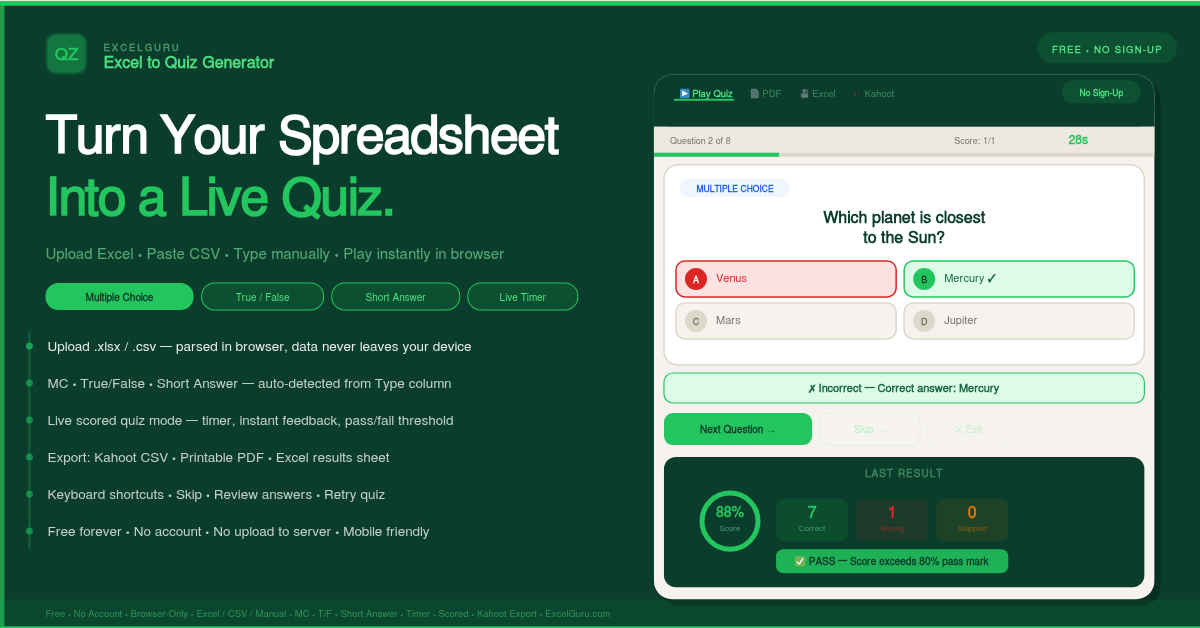
Clicking Play Quiz launches a full-screen session where every quiz element is visible and interactive. A green progress bar fills as you advance through questions, and your running score updates in the top bar after each answer. The per-question timer — set in Quiz Settings — turns amber at 10 seconds remaining and red at 5 seconds. When time runs out, the correct answer is shown automatically and the quiz advances. Turning the timer off switches the quiz to fully self-paced mode.
Multiple choice questions display A/B/C/D buttons. True/false questions show two large side-by-side buttons. Short answer questions show a text input field where pressing Enter submits. After submitting any answer, the correct option turns green and any wrong selection turns red. A feedback bar below shows the verdict and the correct answer text. This immediate feedback can be disabled before generating if you want to simulate a formal exam environment instead.
Keyboard shortcuts make the quiz practical in projected classroom settings. Use 1, 2, 3, 4 to select multiple choice options, T or F for true/false, Enter to submit, → to skip, and Esc to exit at any point. After the last question, a results screen shows your percentage score, a pass or fail verdict based on your configured threshold, and a breakdown of correct, wrong, and skipped answers.
This tool is a single HTML file. Every step — file parsing, quiz generation, session scoring, and export — runs entirely in your browser using JavaScript. No file is uploaded to any server. Your question data is never stored, transmitted, or logged anywhere outside your own device. This makes it safe for confidential HR training materials, school assessments with student data, and proprietary corporate question banks that should not leave the organisation.
Export options — Kahoot CSV, PDF, and Excel
Three export formats are available after generating your quiz. Kahoot CSV produces a CSV formatted exactly to Kahoot's import specification — question text, four answer options, time limit pulled from your timer setting, and the correct answer number. Copy the output, save it as a .csv file, and import it directly in Kahoot Creator. Multiple choice and true/false questions are included; short answer questions are excluded since Kahoot does not support that type.
The PDF export generates a printable HTML version of your quiz — complete question set, answer options, question type labels, category tags, and an answer key at the bottom. Open it in a browser and print with Ctrl+P to produce physical quiz papers for a classroom. The Excel export writes a .xlsx file with two sheets: a Questions sheet containing the full question bank, and a Results sheet — generated only if you played the quiz — showing every question, your answer, the correct answer, and a Correct/Wrong/Skipped status. This results file is practical for trainers and HR teams who need to collect and compare quiz outcomes across multiple participants.
Who uses this tool and why
Teachers and tutors use it to avoid re-entering question banks they have already built in Excel. A question bank compiled over years of teaching can be turned into a live quiz in under 30 seconds. Corporate trainers and HR professionals use it to run compliance assessments, onboarding tests, and product knowledge checks from existing question spreadsheets — without paying for a learning management system. Students use it for timed self-testing on vocabulary lists, formula sets, definition tables, and practice question banks in shuffle mode. Exam preparation candidates — MCAT, CPA, CFA, CompTIA — use the shuffle and review modes to practice from structured question banks repeatedly until they are ready.
Frequently Asked Questions
Answers to the most common questions about converting Excel spreadsheets to interactive quizzes online.