
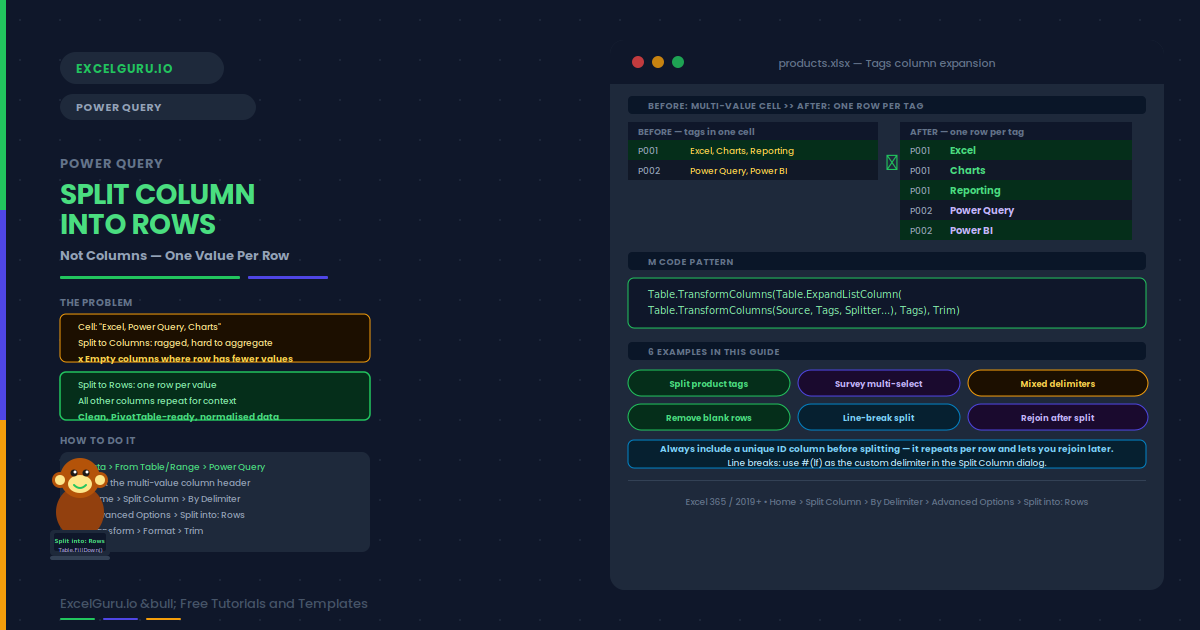
A cell holds "London, Paris, Berlin". You need three separate rows — one city per row. That is the challenge Power Query’s Split Column by Delimiter into Rows solves in just a few clicks. Unlike Split to Columns, which spreads values horizontally and creates a messy variable-width table, Split to Rows stacks every value vertically under the same column header. The result is clean, normalized data that works perfectly with PivotTables, VLOOKUP, and Power Pivot relationships.
This guide walks through exactly how to perform this transformation. It covers the full step-by-step process, the difference between splitting to columns versus rows, handling multiple delimiters, dealing with blank values, and six practical worked examples. These range from splitting comma-separated product tags to expanding multi-value survey responses into an analysis-ready table.
Why Split Into Rows Instead of Columns?
Most people’s first instinct is to split text into columns. That works when every row has exactly the same number of values. In practice, data is rarely that clean. One order may have three tags; another may have seven. Splitting to columns creates a wide table with dozens of mostly empty columns — a format that is nearly impossible to aggregate or filter.
Splitting to rows normalizes the data instead. Each value gets its own row, and all other columns in the same row repeat to preserve context. This is called a one-to-many expansion, and it transforms the multi-value cell into a proper relational structure. As a result, you can count, filter, and group by any individual tag or value without workarounds.
| Approach | Result shape | Best for | Drawback |
|---|---|---|---|
| Split to Columns | Wide: one new column per value | Fixed-width data (dates, codes) | Ragged columns; empty cells; hard to aggregate |
| Split to Rows | Tall: one new row per value | Variable-length lists; tags; categories | Row count multiplies; need OrderID to rejoin |
How to Split a Column into Rows in Power Query
Examples 1–4: Split Column into Rows in Practice
An e-commerce product table has a Tags column where each product carries multiple comma-separated tags. The goal is to produce one row per tag so that a PivotTable can count how many products belong to each tag category. This is the most common split-to-rows use case.
After splitting Tags by comma into rows (with Trim applied), the result becomes:
Survey tools often export multi-select question answers as semicolon-separated strings in a single cell. For example, a "Which tools do you use?" question might export "Excel; Power BI; Tableau" in one cell. Splitting to rows produces one answer per row, enabling you to count how many respondents selected each tool.
Real-world data frequently mixes delimiters. Some rows use commas; others use semicolons; some use both. A single delimiter split misses the other type and leaves compound values unsplit. The solution is to use a custom split with a regular expression, or to chain two splits sequentially in Power Query.
When source data has trailing delimiters (e.g. "Excel, Charts, ") or double delimiters ("Excel,,Charts"), splitting produces blank rows. These blanks inflate counts and break aggregations. Filtering them out immediately after the split keeps the data clean.
Examples 5–6: Advanced Split-to-Rows Scenarios
Some exports separate values with line breaks (Alt+Enter in Excel, or CHAR(10)). These cells appear multi-line in Excel. In Power Query, you split them by selecting "Custom" as the delimiter and typing #(lf) — the Power Query M notation for a line feed character. This expands each line into its own row.
A common pattern is to split, aggregate, and then rejoin the result back to the original table. For example: split tags into rows, count how many products use each tag, then merge that tag-count table back to the product list. This gives each product its tag popularity score without permanently expanding the original table.
Common Issues and How to Fix Them
The "Split into: Rows" option is not visible
The Rows option only appears under Advanced Options inside the Split Column by Delimiter dialog. It is not visible in the main dialog view. Click Advanced Options at the bottom of the dialog to expand the section. If you are using an older Excel version (2016 with the Get & Transform add-in), the Advanced Options section may not be available. In that case, use the M code approach: add a custom column that applies Text.Split([Column], ",") to produce a list, then use Add Column → Expand to expand it into rows.
The row count is too high after splitting
Row multiplication is expected behaviour — each original row produces as many rows as it has values. However, if the count is higher than expected, check for: trailing delimiters (e.g. "Excel," with a trailing comma producing a blank row), blank cells in the split column (producing one empty row per blank), and double delimiters (e.g. "Excel,,Charts" producing a blank middle row). Fix by applying a filter on the expanded column to exclude null and empty-string values immediately after the split step.
Frequently Asked Questions
-
How do I split a column into rows (not columns) in Power Query?+Select the column you want to split. Go to Home → Split Column → By Delimiter. Choose or enter your delimiter (comma, semicolon, etc.). Click Advanced Options at the bottom of the dialog. Under "Split into", select Rows instead of Columns. Click OK. Each delimited value in the column gets its own row, and all other columns in the row repeat to preserve context. Apply Transform → Trim afterward to remove whitespace from the split values.
-
What is the difference between Split to Columns and Split to Rows?+Split to Columns creates new columns (one per value), keeping the same number of rows but widening the table. It works well when every row has the same fixed number of values. Split to Rows creates new rows (one per value), keeping the same columns but increasing the row count. It is the correct choice when rows have variable numbers of values, such as product tags, survey answers, or category lists. Splitting to rows produces normalized data that works cleanly with PivotTables and aggregations.
-
How do I split by a line break (Alt+Enter) into rows?+In the Split Column by Delimiter dialog, select Custom as the delimiter type. Type #(lf) in the delimiter box. This is Power Query’s M notation for a line feed (CHAR(10) in Excel). Then select Rows under Advanced Options and click OK. Each line in the multi-line cell becomes its own row. If the cells also contain carriage returns (CHAR(13), common in Windows line endings), type #(cr)#(lf) instead to match the Windows line break sequence.
-
How do I remove blank rows created by trailing delimiters?+After splitting, blank rows appear where trailing or consecutive delimiters existed. Filter them out immediately: click the dropdown arrow on the split column and uncheck (blank). Alternatively, add a filter step in M code: Table.SelectRows(table, each Text.Trim([ColumnName]) <> ""). The Trim call ensures space-only values are also treated as blank. This filter step persists on every refresh so new trailing-delimiter rows are automatically removed.