
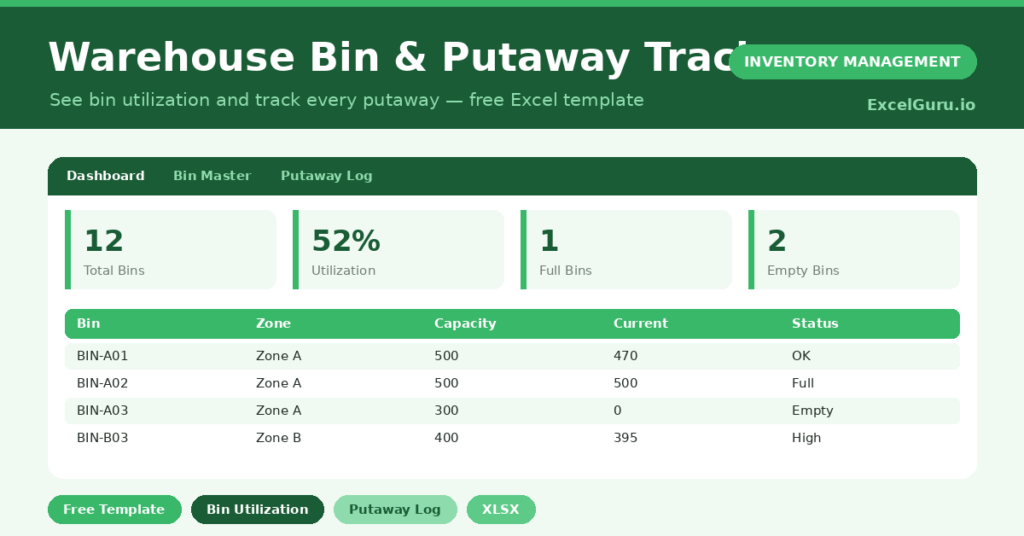
A full warehouse is not the same as an organised one. When bins overflow and putaways go unrecorded, picking slows and stock goes missing. This free bin and putaway tracker brings order to your storage. It shows how full each bin is and logs exactly where stock lands.
Below, we explain the layout, the formulas, and how to fit the tracker to your own warehouse. You will also find realistic sample data already inside the file. Therefore, you can explore every formula, dropdown and chart first, and then replace the samples with your own records in minutes.
What Is a Bin and Putaway Tracker?
A bin tracker records the capacity and current quantity of every storage location. From those numbers, it calculates utilization and a status. A putaway log records each movement of stock into a bin. Together, they give you a live map of your warehouse.
Why Does Bin Management Matter?
Storage space is expensive, and disorganised bins waste it twice over. First, overfull bins slow every pick and frustrate your team. Second, half-empty bins lock up space you have already paid for. Tracking capacity and utilization shows you exactly where both problems live. Consequently, you can rebalance stock, speed up picking, and delay a costly warehouse expansion.
Why Use This Template?
Better storage data means faster, calmer work on the floor. This template helps because it:
- Shows which bins are full, high, empty or fine.
- Calculates utilization automatically.
- Logs every putaway with date and owner.
- Summarises utilization by zone.
- Keeps storage decisions out of people’s heads.
What’s Inside the Template?
The workbook has five tabs:
- How to Use — a built-in guide.
- Dashboard — bin status and zone utilization.
- Bin Master — capacity and current quantity per bin.
- Putaway Log — every stock move into a bin.
- Lists — zone and status dropdowns.
What Formulas Does the Template Use?
The tracker uses clear Excel formulas:
| Formula | What it does |
| =Current Qty / Capacity | Calculates each bin’s utilization percentage. |
| =IF(Current>=Capacity,”Full”,…) | Sets the bin status from utilization. |
| =COUNTIF(Status,”Full”) | Counts the full bins. |
| =SUM(Current) / SUM(Capacity | Calculates overall warehouse utilization. |
| =SUMIF(Zone,z,Current)/SUMIF(Zone,z,Capacity) | Calculates utilization for each zone. |
How Do You Use the Template?
Getting started is easy. Just follow these steps:
- Open the Bin Master and list every bin with its zone and capacity.
- Enter the current quantity in each bin.
- Let utilization and status calculate automatically.
- Record each stock move on the Putaway Log.
- Open the Dashboard to balance load across zones.
What Are the Best Use Cases?
The template suits many operations, such as:
- Small warehouses without a WMS yet.
- Stockrooms organising by zone and aisle.
- Fulfilment teams tracking putaway tasks.
- Workshops storing parts by bin.
- Audits checking storage utilization.
How Can You Modify the Template?
You can adapt it quickly. To add zones, edit the Lists tab and the dropdown updates everywhere.
You can also change the High threshold. Adjust the 0.85 value in the status formula if you prefer a tighter or looser limit.
Furthermore, both sheets cover 40 rows by default, and you can copy the formulas down for larger sites.
What Mistakes Should You Avoid?
A few habits quietly undermine the template. Therefore, avoid these common mistakes:
• Setting capacity in the wrong unit, which breaks utilization.
• Letting bins pass 85 percent, which slows every pick.
• Skipping putaway entries, so stock becomes hard to find later.
• Leaving empty bins idle instead of reclaiming the space.
Tips to Get the Most From It
• Keep bins below 85 percent so picking stays fast.
• Log putaways the moment stock moves.
• Use the zone chart to rebalance crowded areas.
• Review empty bins to reclaim wasted space.
Frequently Asked Questions
What does the High status mean?
High means a bin is at least 85 percent full. Therefore, it is a signal to slow further putaways there before it overflows.
Can I link the putaway log to bin quantities?
You can, with a SUMIF, although the template keeps them separate for simplicity. Many teams prefer to update current quantity directly after a cycle.
How many bins can it handle?
It is set up for 40 bins. However, you can copy the formula row downward to track many more.
Does it work in Google Sheets?
Yes, with minor adjustments to dropdowns and conditional formatting after importing.
How do I set the right capacity for a bin?
Use the realistic number of units the bin holds for its typical product. If a bin stores mixed items, set capacity to a sensible average. You can refine it as you learn how each location behaves.
Download the Template and Get Started
An organised warehouse picks faster and loses less. This tracker gives you the live view that makes that possible. Download the Warehouse Bin & Putaway Tracker and map your storage today.