
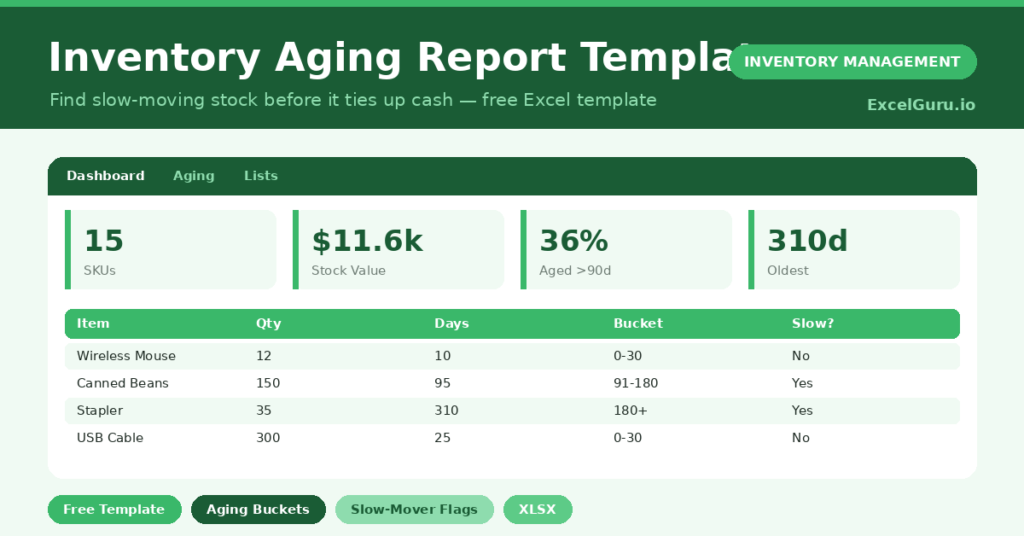
Old stock is quiet. It does not demand attention, yet it quietly locks up cash and clutters your shelves. This free inventory ageing report makes that stock visible. It measures how long each item has sat and groups it into clear age buckets.
Below, we explain the formulas, the buckets, and how to adapt the report to your business. You will also find realistic sample data already inside the file. Therefore, you can explore every formula, dropdown and chart first, and then replace the samples with your own records in minutes.
What Is an Inventory Ageing Report?
An inventory ageing report shows how long stock has been on hand. It groups items into time buckets, such as 0 to 30 days and over 180 days.
It also values each bucket. As a result, you can see exactly how much cash is tied up in slow or dead stock.
Why Does Inventory Ageing Matter?
Every day stock sits on the shelf, it costs you money in space, handling and tied-up cash. Worse, aging stock often loses value or expires entirely. Yet old stock rarely announces itself, so it slips quietly out of sight. An ageing report drags it back into view and ranks it by urgency. As a result, you can clear slow movers while they still hold value, rather than writing them off later.
Why Use This Template?
Aging data drives sharper buying and clearance decisions. This template helps because it:
• Calculates days in stock automatically.
• Sorts items into clear ageing buckets.
• Values each bucket so you see the cash impact.
• Flags slow movers over 90 days.
• Highlights the oldest item at a glance.
What’s Inside the Template?
The workbook has four tabs:
• How to Use — a built-in guide.
• Dashboard — value by bucket and by category.
• Ageing — the working sheet, one row per item.
• Lists — the category dropdown.
What Formulas Does the Template Use?
The report uses dependable Excel formulas:
| Formula | What it does |
| =TODAY() – Receipt Date | Calculates the days each item has been in stock. |
| =IF(Days<=30,”0-30″,…) | Assigns each item to an ageing bucket. |
| =IF(Days>90,”Yes”,”No”) | Flags slow movers over 90 days. |
| =SUMIF(Bucket, b, Stock Value) | Totals stock value for each ageing bucket. |
| =SUMIF(Days,”>90″,Stock Value) | Totals the value aged beyond 90 days. |
How Do You Use the Template?
The report builds itself from a few inputs. Just follow these steps:
1. Open the Ageing tab and list your items.
2. Enter the receipt date, quantity and unit cost.
3. Let days in stock and the bucket calculate from today.
4. Watch the slow-mover flag appear for aged items.
5. Review value by bucket and category on the Dashboard.
What Are the Best Use Cases?
The report fits many businesses, such as:
• Retailers clearing seasonal stock.
• Food and pharma teams watching shelf life.
• Distributors managing slow lines.
• Finance teams valuing inventory for accounts.
• Buyers deciding what to discount.
How Can You Modify the Template?
You can adjust it easily. To change the buckets, edit the nested IF in the Aging Bucket column; some teams prefer 30, 60, 90 and 120.
You can also change the slow-mover threshold. Edit the 90 in the flag formula to match your product life.
In addition, the sheet covers 40 items, and you can copy the formulas down for a larger catalogue.
What Mistakes Should You Avoid?
A few habits quietly undermine the template. Therefore, avoid these common mistakes:
• Leaving the receipt date blank, which stops the age calculating.
• Running the report once and then forgetting it.
• Ignoring the 180-plus bucket because it feels hard to clear.
• Buying more of a category that already ages on the shelf.
Tips to Get the Most From It
• Run the report monthly to track the trend.
• Attack the 180+ bucket first, because it costs the most.
• Pair ageing with discounts to convert dead stock to cash.
• Review buying habits for categories that keep aging.
Frequently Asked Questions
What is an ageing bucket?
An ageing bucket is a time band, such as 31 to 60 days. Items fall into a bucket based on how long they have been in stock, which makes patterns easy to see.
How does the report know the age?
It subtracts the receipt date from today’s date. Therefore, the age updates every time you open the file.
Can I use it for FIFO decisions?
Yes. Older buckets show what to sell or use first, which supports a first-in, first-out approach.
Does it work in Google Sheets?
It does, with minor adjustments to formatting after importing.
What should I do with stock in the 180-plus bucket?
Treat it as urgent. Consider discounts, bundles, supplier returns, or a write-off. The longer it sits, the more it costs you in space and tied-up cash, so act before the next report.
Download the Template and Get Started
Dead stock will not clear itself. This report shows you exactly where your cash is sleeping so you can wake it up.
Download the Inventory Ageing Report and find your slow movers today.