
Stock moves all day, yet most records only get updated now and then. Between updates, nobody truly knows the balance, and small errors pile up fast.
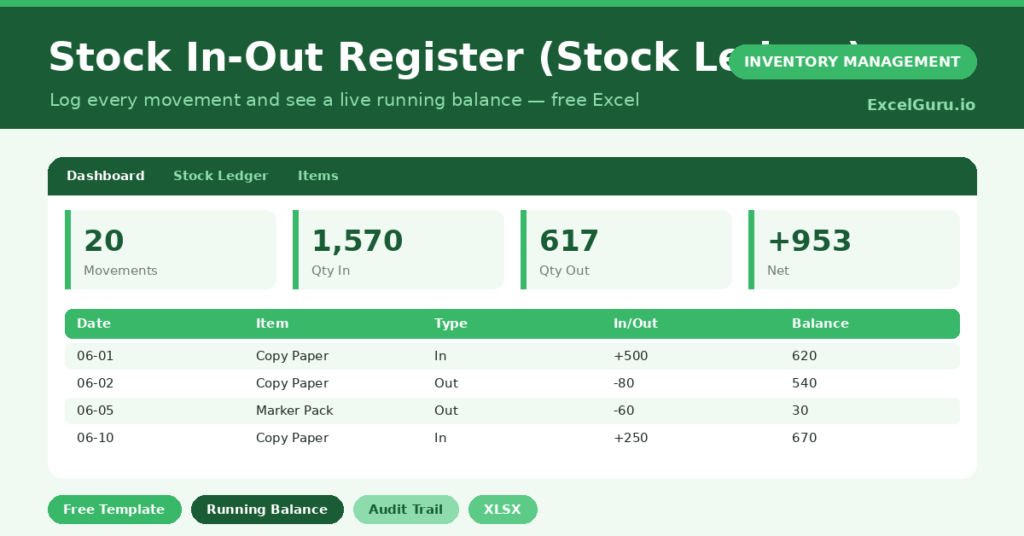
This free stock in-out register fixes that. You log each movement once, and the sheet keeps a running balance for every item automatically. You will also find realistic sample data already inside the file. Therefore, you can explore every formula, dropdown and chart first, and then replace the samples with your own records in minutes.
Below, we explain the formulas, the workflow, and how to adapt the ledger to your own stockroom.
What Is a Stock In-Out Register?
A stock in-out register, or stock ledger, records every movement of stock in one place. It captures receipts, issues and adjustments with a date and reference.
From those entries, it calculates a running balance for each item. As a result, you can trace exactly how a balance changed and why.
Why Does a Stock Ledger Matter?
A ledger turns scattered notes into a single source of truth. Without one, two people can hold two different stock figures, and both can be wrong.
It also creates an audit trail. Every increase and decrease links to a document, so you can investigate shortages instead of guessing. Consequently, trust in your numbers grows, and month-end checks become far less painful.
Why Use This Template?
A clean ledger saves hours and prevents disputes. In particular, this one helps you:
- See a live running balance for every item.
- Trace each movement back to a reference document.
- Separate receipts, issues and adjustments clearly.
- Spot unusual movements before they cause problems.
- Keep one trusted record your whole team can share.
What’s Inside the Template?
Once you download this template file, the workbook has five simple tabs:
- How to Use — a built-in quick start guide.
- Dashboard — totals plus current stock by item.
- Stock Ledger — the running log of every movement.
- Items — opening balances and unit costs.
- Lists — the movement-type dropdown.
We have tried our best to incorporate and simplify the template.
What Formulas Does the Template Use?
The ledger relies on a few dependable Excel formulas:
| Formula | What it does |
| =VLOOKUP(SKU, Items, 2, 0) | Pulls the item name from the Items sheet. |
| =Opening + SUMIFS(In) – SUMIFS(Out) | Calculates the running balance for each item. |
| =SUM(Qty In) | Totals all stock received. |
| =SUM(Qty In) – SUM(Qty Out) | Calculates the net movement across the period. |
| =COUNTIF(Type,”Out”) | Counts how many issues you have logged. |
How Do You Use the Template?
Getting started takes only a few minutes. Just follow these steps:
- Open the Items tab and list each item with its opening quantity and cost.
- Move to the Stock Ledger and log your first movement.
- Enter the date, SKU, type and quantity in or out.
- Add a reference code so the line ties to a document.
- Watch the running balance update automatically.
- Open the Dashboard to see current stock by item.
What Are the Best Use Cases?
The register suits many settings, such as:
- Small stores recording daily receipts and sales.
- Workshops issuing parts to jobs.
- Stockrooms tracking supplies in and out.
- Projects drawing materials from a central store.
- Any team that needs a clear audit trail.
How Can You Modify the Template?
The ledger adapts easily. To add items, type them on the Items tab, and the ledger will recognize them at once.
You can also add columns, such as a location or batch reference, then summarize them on the dashboard.
Moreover, the ledger handles 50 movements by default, and you can copy the formula row downward for a far longer history.
What Mistakes Should You Avoid?
A few habits quietly undermine the ledger. Therefore, avoid these common mistakes:
- Logging movements out of date order, which clouds the trail.
- Leaving the reference blank, so lines cannot be traced.
- Forgetting to set opening balances on the Items tab.
- Recording an issue as a receipt, which reverses the balance.
Tips to Get the Most From It
- Log every movement the moment it happens.
- Use consistent reference codes for receipts and issues.
- Reconcile the ledger against a physical count monthly.
- Review the current-stock chart to catch negative balances early.
Frequently Asked Questions
How does the running balance work?
Each line adds the opening balance for that item to every receipt and subtracts every issue up to that row. Therefore, the balance always reflects the item’s true position at that point.
Can I track many items in one ledger?
Yes. The running balance is calculated per item, so you can mix dozens of items in the same log without confusion.
What is an adjustment movement?
An adjustment corrects the record after a count, breakage or error. It keeps the ledger honest without pretending stock was sold or received.
How many movements can it hold?
It is ready for 50 movements. However, you can copy the formula row downward to record hundreds more.
Does it work in Google Sheets?
It does, with small tweaks. After importing, re-check the dropdown and the running-balance formula.
Download the Template and Get Started
A reliable ledger is the backbone of stock control. This register gives you one, with a live balance you can trust. Download the Stock In-Out Register and start logging your movements today.