
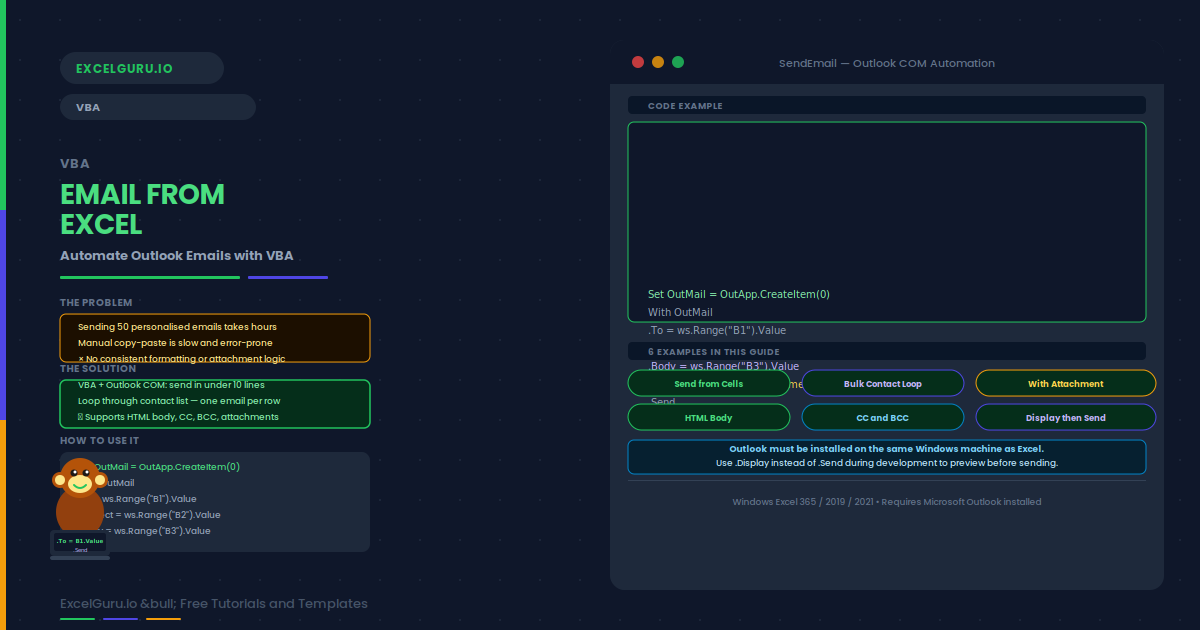
Sending emails manually from Excel is slow and error-prone. Excel VBA with Outlook automates this completely. A macro can send a formatted email — with recipient, subject, body, and attachment — in under 10 lines of code. Combined with cell values, each email can be personalised per row in a contact list.
This guide covers how VBA connects to Outlook, the MailItem properties, and six practical examples. These include a basic single email, a loop through a contact list, an email with attachment, an HTML-formatted body, CC and BCC recipients, and a safe Display-before-send pattern.
How VBA Connects to Outlook
VBA communicates with Outlook through the Outlook Application Object. You create an Outlook instance, then create a MailItem object. Each MailItem represents one email. Set its properties — To, Subject, Body — then call .Send to send or .Display to open it for review first.
Examples 1–4: Email Automation in Practice
Reading the recipient address and body from worksheet cells makes the macro flexible. Operations teams can update email content directly in the spreadsheet without touching any VBA code.
When column A holds names and column B holds email addresses, a Do While loop sends one personalised email per row. Each email uses the name from column A in the greeting line. The loop stops at the first blank row.
The Attachments.Add method attaches any file to the email. The most common use is attaching the current workbook. Save the workbook first — otherwise the attachment reflects the last saved state, not the current unsaved changes.
Set the HTMLBody property instead of Body to send a formatted HTML email. Bold text, colours, tables, and line breaks all work. Note that HTMLBody overrides the Body property — use one or the other, not both.
Examples 5–6: CC/BCC and Safe Display Pattern
MailItem has separate CC and BCC properties. Separate multiple addresses with semicolons. This matches Outlook’s own behaviour when typing multiple addresses in the To or CC field manually.
Replace .Send with .Display to open the email in Outlook for manual review. This is the safest approach during testing. Users can also modify the body or add attachments before dispatching.
Common Issues and How to Fix Them
Run-time error 429: ActiveX component can’t create object
This error means Outlook is not installed or registered on the machine. Verify that Microsoft Outlook is installed and opens normally. If Outlook is running already, try using GetObject("", "Outlook.Application") instead of CreateObject to attach to the existing instance.
Outlook shows a security warning for every email
Outlook’s Programmatic Access Security blocks automated sending in some IT configurations. To resolve this, go to File → Options → Trust Center → Macro Settings and trust the VBA project. Alternatively, ask your IT administrator to adjust Outlook’s security policy. Another option is to use a digital code-signing certificate.
Frequently Asked Questions
-
How do I send an email from Excel VBA?+Use CreateObject("Outlook.Application") to create an Outlook instance, then call CreateItem(0) to create a MailItem. Set the To, Subject, and Body properties, then call .Send to dispatch the email. Outlook must be installed on the same Windows machine. For safety, use .Display instead of .Send during development to preview the email before it is sent.
-
Can I send an HTML email from VBA?+Yes. Use the .HTMLBody property instead of .Body. Set it to a valid HTML string. For example: .HTMLBody = "<html><body><h1>Title</h1></body></html>". Do not set both .Body and .HTMLBody in the same email — the last property assigned wins and overrides the other.
-
How do I add an attachment to the email?+Use .Attachments.Add followed by the full file path. For example: .Attachments.Add "C:\Reports eport.xlsx". To attach the current workbook, use .Attachments.Add ThisWorkbook.FullName. Always save the workbook before attaching it so the file reflects the latest changes.
-
How do I send emails to multiple recipients?+Separate email addresses with semicolons in the .To, .CC, or .BCC properties. For example: .To = "alice@example.com; bob@example.com". To send a personalised email per row in a contact list, use a loop that creates a new MailItem for each row, sets .To from the cell, and calls .Send before moving to the next row.