
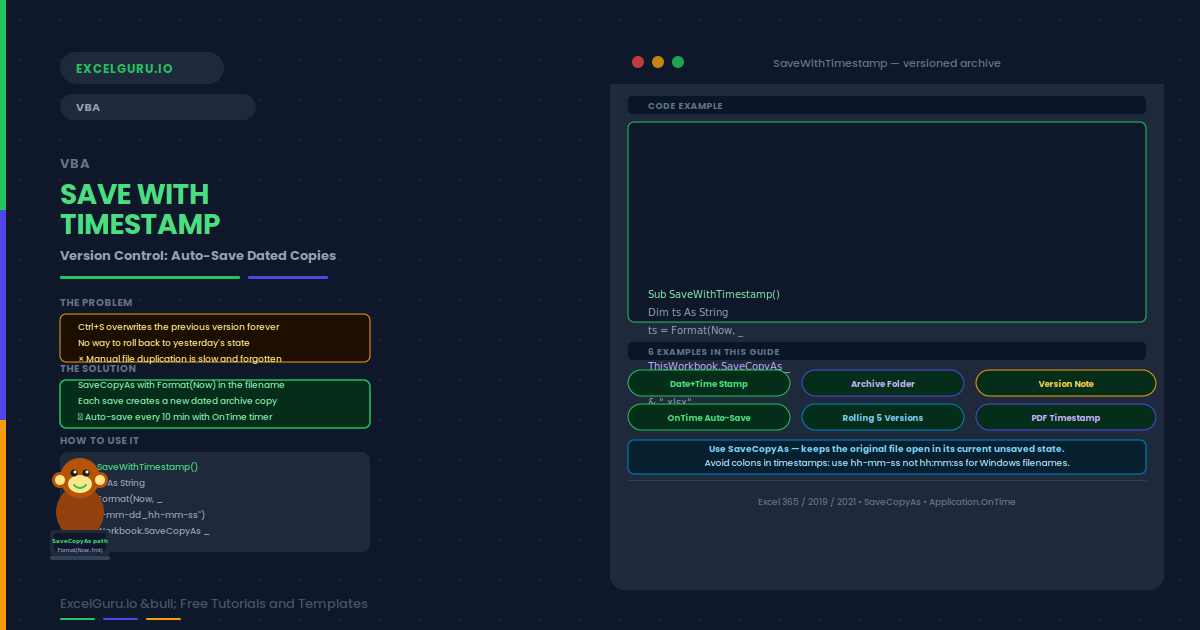
How many times have you saved a workbook over a previous version by mistake? A timestamp in the filename solves this. VBA can save a copy of your workbook automatically with the current date and time appended to the name. The result is a simple version-control system: every save creates a new file, and your edit history is preserved as a dated archive of copies.
This guide covers the key VBA methods for saving with a timestamp and six practical examples. These include saving a copy with date and time, saving to a specific archive folder, prompting the user for a version note, auto-saving on a timer, a rolling archive that keeps only the last five versions, and saving as PDF with a timestamp.
Key VBA Methods for Saving
There are three VBA methods for saving workbooks. The right choice depends on whether you want to archive a copy, rename the active file, or overwrite in place.
| Method | What it does | Active workbook changes |
|---|---|---|
| Workbook.Save | Saves in place, overwrites current file | Path stays the same |
| Workbook.SaveAs | Saves to a new path, renames the active workbook | Path changes to new name |
| Workbook.SaveCopyAs | Creates a copy at a new path, active workbook unchanged | Path stays the same |
Examples 1–4: Timestamp Saving in Practice
The simplest timestamp pattern uses Format(Now, ...) to build a date-time string, then appends it to the base filename. SaveCopyAs creates the archive file in the same folder as the original. The original file remains open and unchanged.
Keeping archives in a separate subfolder keeps the main project folder clean. This macro checks whether the archive folder exists and creates it if not. It then saves the timestamped copy there automatically.
Adding a short version note to the filename makes the archive more meaningful. InputBox prompts the user for a label. The label is appended after the timestamp. For example, "Report_2025-06-15_v3_final-draft.xlsx" is far more readable than a plain timestamp.
Application.OnTime schedules a macro to run at a specified future time. Calling it from a setup macro starts a repeating auto-save cycle. Each run creates a timestamped copy and then schedules the next run 10 minutes later. A separate stop macro cancels the cycle.
Examples 5–6: Rolling Archive and PDF Export
Saving every version indefinitely can fill up a folder quickly. A rolling archive saves a new copy, then deletes the oldest file if more than five copies exist. This keeps the archive folder tidy while preserving recent history. The macro sorts the archive files by date and removes the earliest one.
The ExportAsFixedFormat method exports the workbook or a single sheet as a PDF file. Adding a timestamp to the PDF filename creates a versioned PDF archive alongside the Excel archive. This is especially useful for financial reports that are distributed as PDF snapshots.
Common Issues and How to Fix Them
SaveCopyAs fails with a path/file name error
Colons, slashes, and asterisks are invalid in filenames. The Format() function can produce a time string with colons (e.g. "09:30:45") — always replace colons in your timestamp format with hyphens. Use Format(Now, "yyyy-mm-dd_hh-mm-ss") rather than "hh:mm:ss". Also verify the destination folder exists before calling SaveCopyAs — the method does not create folders automatically.
Auto-save using Application.OnTime stops after workbook close
Application.OnTime events are cancelled when Excel closes. Additionally, closing the specific workbook that scheduled the event usually cancels it. Always call StopAutoSave before closing to avoid a ghost event error when Excel restarts. If you need persistent auto-save, place StartAutoSave in the Workbook_Open event so the schedule restarts every time the file opens.
Frequently Asked Questions
-
What is the difference between SaveCopyAs and SaveAs in VBA?+SaveCopyAs creates a copy of the workbook at the specified path without changing the active workbook's path or name. Your current session continues working with the original file. SaveAs renames and relocates the active workbook to the new path. Use SaveCopyAs for archiving and versioning. Use SaveAs when you want to change the file's name or format permanently.
-
How do I format the timestamp for a Windows filename?+Use Format(Now, "yyyy-mm-dd_hh-mm-ss") to produce a timestamp like 2025-06-15_09-30-45. Avoid colons, forward slashes, and asterisks because Windows filenames cannot contain those characters. The Format function uses hyphens and underscores as separators, which are safe for all Windows file paths.
-
How do I save a specific sheet instead of the whole workbook?+Copy the sheet to a new workbook first, then save the new workbook. For example: ActiveSheet.Copy creates a new workbook with just that sheet. Then call ActiveWorkbook.SaveAs or ActiveWorkbook.SaveCopyAs on the new workbook. Close it afterwards with ActiveWorkbook.Close SaveChanges:=False to clean up without overwriting the original.
-
Can I use Application.OnTime for auto-saving?+Yes. Application.OnTime schedules a macro to run at a specified time. Schedule it to re-schedule itself at the end of each run to create a repeating save loop. Use a module-level variable to store the scheduled time so you can cancel it later with Application.OnTime time, macroName, , False. Always cancel the schedule before closing the workbook to avoid errors.