
A project task tracker is what stops a project living in scattered emails, sticky notes and someone’s increasingly anxious memory. Any project of size is really a web of tasks, owners and deadlines. Without one place to hold them, things slip through the cracks.
This free template breaks a project into tasks, each with a phase, an owner, a due date and a status. It then tracks percent complete and flags overdue work. As a result, you always know where the project stands and what needs attention now.
What does the project task tracker include?
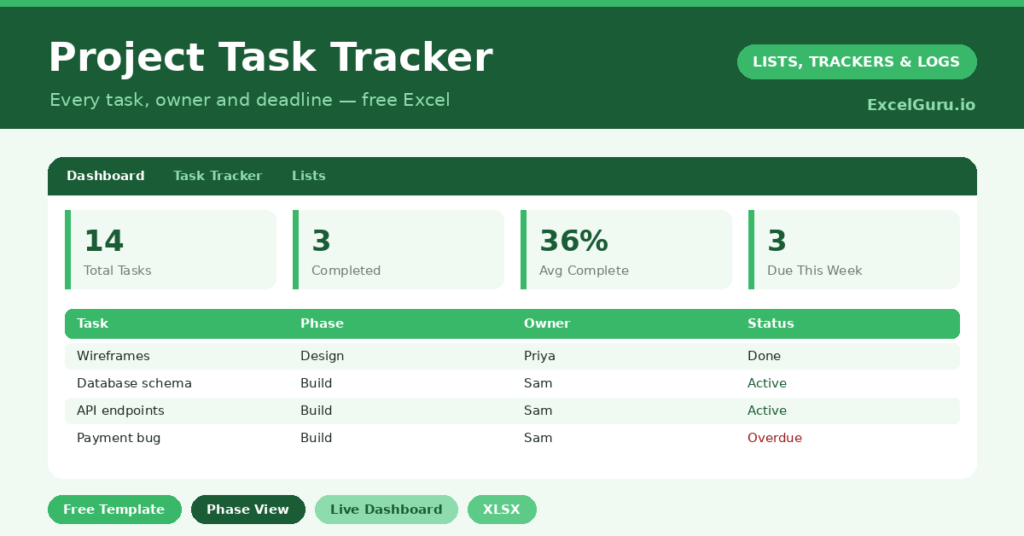
The template is one task sheet feeding a progress dashboard. Dropdowns keep phases, owners and statuses tidy. In short, you get the following:
- A task table with the task, phase, owner, priority, due date, status and percent complete.
- An automatic Days Left countdown that blanks out once a task is done.
- Drop-down lists for phase, owner, priority and status, so entries stay consistent.
- Color-coded statuses and priorities, so urgent and overdue work stands out.
- A dashboard showing total tasks, those done and in progress, overdue tasks, average percent complete and tasks due within seven days.
Which formulas power the project task tracker?
The dashboard turns a task list into a status report. The Days Left column is =IF(OR(Due=””, Status=”Done”), “”, Due – TODAY()), so it counts down to each deadline and clears once the task is finished.
A SUMPRODUCT then flags overdue tasks, and another counts those due within seven days. Your overall progress comes from an AVERAGE of the percent-complete column, giving a single headline figure. So instead of guessing whether the project is on track, you can read it directly. Because everything updates live, the picture is always current.
Why use a task tracker?
Projects fail in the gaps, where a task has no owner or a deadline quietly passes. A tracker closes those gaps. So every task has a name attached and a date that counts down in plain sight.
It also gives you a shared, honest view of progress. The average percent-complete figure cuts through optimistic status updates with an actual number. Furthermore, because the whole project sits in one place, anyone can see what is done, what is next and what is late. In short, the tracker keeps a project moving and everyone honest about where it really stands.
What does the dashboard reveal?
The dashboard answers the questions every project meeting asks. The overdue count is the first thing to check, since it shows where the project is slipping. The due-within-seven-days count is your near-term focus.
The average percent-complete figure is the headline measure of momentum, and it should climb steadily as work gets done. The done and in-progress counts then show the shape of the remaining work. Because all of it updates automatically, you walk into a status meeting already knowing the answers. So the dashboard saves time and prevents nasty surprises.
How do you run a project with it?
Start by breaking the project into tasks small enough to own and finish, then group them into phases. So the plan has structure rather than a flat wall of jobs. Assign each task a single owner and a realistic due date.
As work progresses, update the status and percent complete, which keeps the dashboard honest. Review the overdue and due-soon lists regularly, ideally at each check-in. Because the tracker shows the truth at a glance, your meetings become about solving problems rather than gathering status. In short, it turns a project into a series of clear, manageable steps.
How do you customize it?
Edit the phases, owners and statuses on the Lists tab to match your project and team. Additionally, you can add columns for estimated hours, dependencies, or a link to related files. For a longer project, a start-date column lets you build a simple timeline. The template scales from a quick personal project to a sizeable team effort.
What mistakes should you avoid?
The first mistake is creating tasks too big to track, which hide slow progress until it is too late. So break work into pieces you can finish in days, not weeks. The second mistake is letting the percent-complete and status fields drift out of date.
The dashboard is only as honest as the data behind it, so a quick update beats a perfect plan that nobody maintains. Finally, do not assign tasks to a team rather than a person, because shared ownership is how deadlines quietly die. One name per task keeps the project accountable.
Frequently asked questions
How does the project task tracker show progress?
It averages the percent-complete column into a single headline figure, and counts tasks done, in progress, overdue and due soon. So you can read the project’s status at a glance rather than guessing.
Can a whole team use it?
Yes. Keep the file in a shared location, assign each task a single owner, and update statuses as work moves. Everyone then sees the same live picture of what is done and what is late.
Does it flag overdue tasks?
It does. A Days Left countdown turns negative when a task passes its due date, and the dashboard counts overdue tasks separately, so slipping work is impossible to miss.
Break the project into owned tasks, set realistic dates, and keep the statuses current. The dashboard then shows progress and problems at a glance. A project task tracker will not do the work for you, yet it makes sure every piece of that work is visible, owned and moving toward done.