
A bug tracker is the difference between issues that get fixed and issues that get forgotten. On any project, bugs surface faster than they can be fixed, and a mention in a chat thread vanishes within hours. So a single, structured log is what keeps quality from quietly slipping.
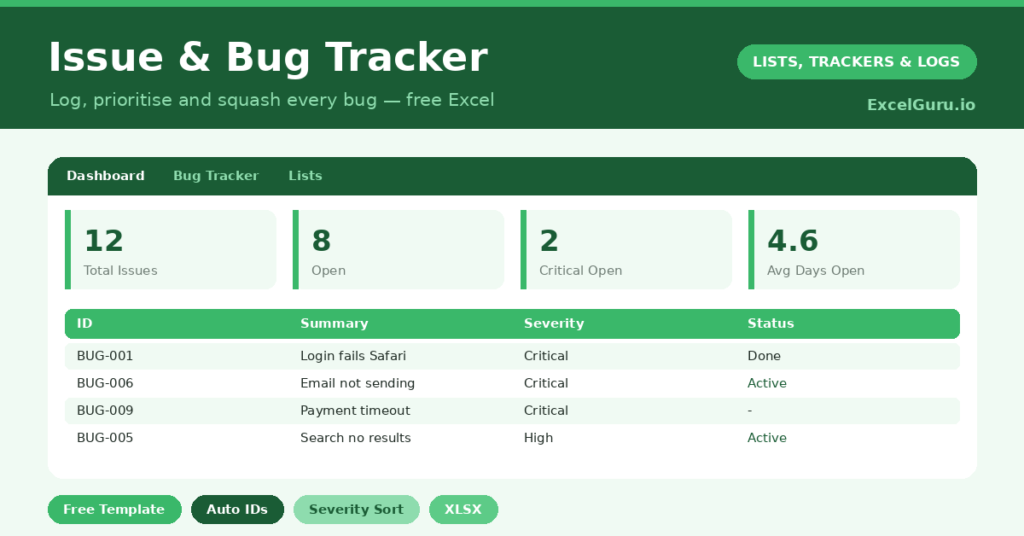
This free template gives every issue an automatic ID, a severity, a status and an assignee. It also works out how long each bug has been open. As a result, nothing gets lost, the critical issues stay visible, and you can see your team’s progress at a glance.
Also check out project task tracker in Excel.
What does the bug tracker include?
The template is one issue log feeding a status dashboard. Dropdowns keep severity and status tidy. In short, you get the following:
- A bug logwith an auto-generated ID, summary, severity, status, reporter, assignee and date reported.
- An automatic Days Opencounter that stops once a bug is closed.
- Drop-down lists for severity and status, so entries stay consistent.
- Colour-coded severity and status, so critical and open bugs stand out.
- A dashboardshowing total bugs, open and in-progress, critical open, in testing, closed and the average days open.
Which formulas power the bug tracker?
Two formulas do the housekeeping. Each ID is generated with =IF(Summary=””, “”, “BUG-“&TEXT(ROW()-3, “000”)), so every issue gets a unique reference like BUG-001 automatically. That makes bugs easy to reference in conversation.
The Days Open column uses =IF(OR(Reported=””, Status=”Closed”, Status=”Won’t Fix”), “”, TODAY()-Reported), so it counts only while a bug is genuinely live. On the dashboard, a COUNTIFS isolates the critical bugs that are still open, which is the figure that matters most. An AVERAGE of days open then reveals how quickly you really resolve issues.
Why use a bug tracker?
Without a tracker, bugs compete for attention by whoever shouts loudest, not by what matters most. A log fixes that. So the critical issues are visible and prioritised, rather than buried under trivial ones.
It also creates accountability and history. Each bug has an assignee, so it is clear who is on it. The closed bugs form a record of what was fixed and when, which is invaluable later. Furthermore, the average-days-open figure gives an honest measure of your team’s responsiveness. In short, the tracker turns firefighting into a managed process.
What does the dashboard reveal?
The dashboard gives you an instant read on quality. The critical-open count is the one to watch above all, since those are the issues that hurt users now. The open and in-progress counts then show the live workload.
The in-testing count shows what is nearly done, and the closed count records your progress. The average-days-open figure is quietly revealing, because a rising number means issues are lingering too long. Because it all updates automatically, you can spot a backlog building before it becomes a crisis. So the dashboard keeps quality under control.
How do you run it with a team?
Keep the file in a shared location, and make logging a bug the team’s reflex. So nothing relies on memory or a fleeting message. When an issue appears, capture a clear summary, set the severity honestly, and assign an owner.
Triage regularly, focusing first on the critical-open list. Update the status as a bug moves from open to testing to closed, which keeps the dashboard truthful. Because everyone works from the same log, there is no duplication and no confusion about who owns what. In short, the tracker gives a team a shared, calm way to handle a constant stream of issues.
How do you customise it?
Edit the severity levels and statuses on the Lists tab to match your workflow, adding stages like *Ready for review*. Additionally, you can add columns for the affected version, steps to reproduce, or a link to a screenshot. A priority field separate from severity is useful when business urgency differs from technical impact. The template adapts to how your team actually works.
What mistakes should you avoid?
The first mistake is vague summaries like “it’s broken,” which waste everyone’s time. So write a clear, specific summary and, ideally, the steps to reproduce. The second mistake is inflating severity, where everything is marked critical and the label loses meaning.
Be honest about impact, so the critical list stays trustworthy. Finally, do not forget to update statuses as bugs progress. A tracker full of stale “open” issues that are actually fixed is worse than none, because it hides the real picture. A quick update keeps the whole log reliable.
Frequently asked questions
How does the bug tracker generate IDs?
Each issue gets an automatic reference like BUG-001 from a formula based on its row, so you never assign IDs by hand and every bug is easy to refer to in conversation.
How does it know how long a bug has been open?
A Days Open formula counts from the date reported, but stops the moment a bug is marked closed or won’t fix. So the figure reflects only the time an issue was genuinely live.
Can a whole team use it?
Yes. Keep it in a shared location, assign each bug an owner, and update statuses as work progresses. The dashboard then gives everyone the same view of open, critical and closed issues.
Log every issue, set honest severities, and keep the statuses current. The dashboard then keeps the critical bugs front and centre. A bug tracker will not fix your code, yet it makes sure the issues that matter are seen, owned and resolved, rather than quietly forgotten.