
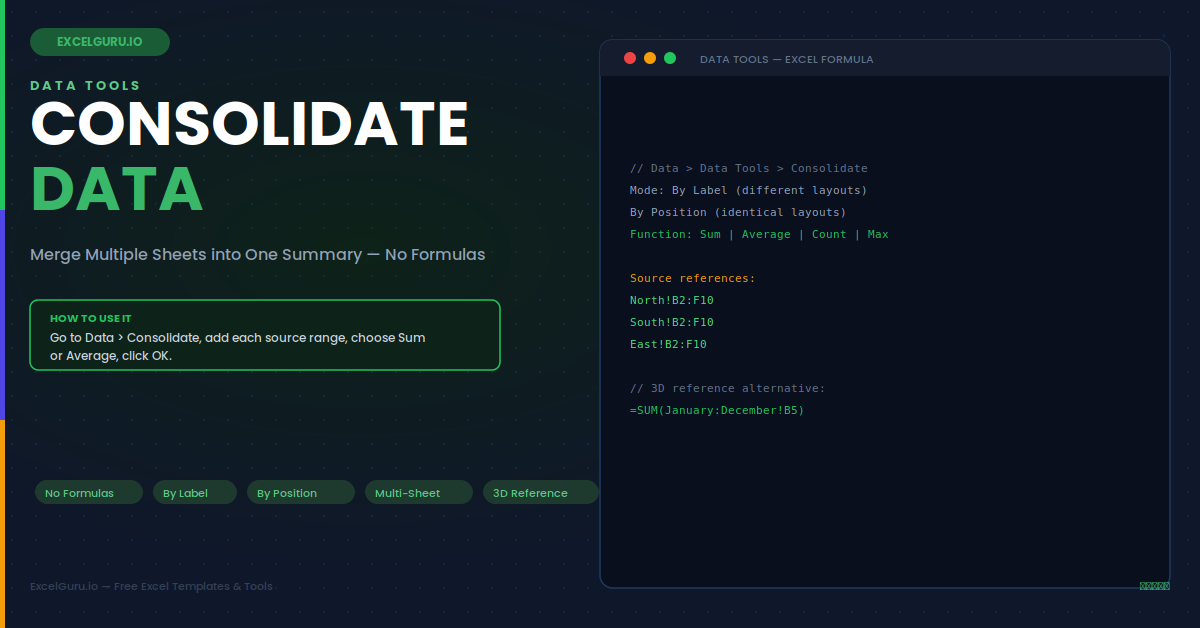
Combining data from multiple worksheets is one of the most common and time-consuming tasks in Excel. The Consolidate feature on the Data tab handles it without formulas and without manual copying. It reads data from multiple source ranges — across different sheets or across different workbooks — and merges them into a single summary table using a function of your choice. It can match data by position (requiring identical layouts) or by label (matching rows and columns by their header text, regardless of order). This guide covers both modes, all available functions, step-by-step setup, six practical examples, and every common issue.
The Two Consolidation Modes
Choosing the correct mode is the most important decision before running Consolidate. Using the wrong mode combines the wrong cells together and produces incorrect totals — even though the dialog runs without errors and produces output that looks plausible.
- By Position — combines cells at the identical row and column position across all source ranges. Requires all sheets to have exactly the same layout with the same row and column order. Fast and appropriate for identically structured sheets like 12 monthly copies of the same template.
- By Label — matches rows and columns by their header text. Correct when source sheets have the same items but in different row or column orders. Enable by checking "Top row" and "Left column" in the dialog. Headers must match exactly — including capitalisation.
=SUM(January:December!B5) creates a live link that updates automatically. Use Consolidate when source layouts differ or when you need label-based matching. Use 3D formulas when all sheets are identically structured and you need live updates.Step-by-Step Setup
Follow these six steps in order. Steps 4 and 5 are where most errors occur — the mode setting in step 5 must be correct before clicking OK.
Example 1: Regional Sales — Sum Three Sheets by Label
Three sheets — North, South, and East — each contain monthly sales figures for the same products. The products appear in different row orders on each sheet because each region manages its own data entry. By Label correctly handles the different orders. It matches rows by product name and produces a company-wide total regardless of the row order on each individual sheet. Check both "Top row" and "Left column" in the dialog before clicking OK.
Example 2: Annual Budget — Sum 12 Monthly Sheets by Position
When all 12 monthly sheets have identical layouts — cost categories in column A, budget in column B, actuals in column C — use Consolidate by Position. Each cell in the output is the sum of the identically positioned cells across all 12 sheets. No label matching is needed. This is the fastest mode and produces a clean annual summary without requiring any header matching.
Example 3: Multi-Workbook Consolidation
Consolidate works across separate workbooks, not just sheets within the same file. Both workbooks must be open at the time you run the command. In the Reference box, click inside the open source workbook window — the reference path is captured automatically in the format '[Q1_Sales.xlsx]North'!$B$2:$F$10. Close the dialog and the references remain valid even after the source workbooks are closed, though you must reopen them to refresh the consolidation.
Example 4: Create Links — Live-Updating Outline Structure
Checking "Create links to source data" before clicking OK produces a different type of output. Instead of a flat summary table, Excel creates an outline structure with grouped rows. Each group contains the individual source values with a subtotal. Clicking the outline expand button on the left reveals all source rows — particularly useful for financial consolidations where you need to drill into individual sheet details from the summary view. Note that this option prevents adding new rows to source sheets after the consolidation is created.
Example 5: Survey Response Consolidation — Count and Average
Survey data collected by multiple people, each maintaining their own sheet, is easily combined with Consolidate. Use the COUNT function to total how many responses exist for each question across all collector sheets. Use AVERAGE to calculate the mean rating across all sheets combined — without first copying all responses into a single master sheet. This works for NPS surveys, training assessments, and any multi-collector rating exercise.
Example 6: 3D Reference Formula — Live Sum Across Identical Sheets
When all sheets have identical layouts, a 3D formula is simpler than running Consolidate and updates automatically without re-running any dialog. A 3D reference spans a consecutive range of sheet names using a colon. The formula =SUM(January:December!B5) sums cell B5 across all sheets from January to December. 3D references cannot match data by label — all sheets must have the same items in the same row positions for this approach to work correctly.
Troubleshooting Consolidate
Both issues below share the same root cause: the wrong consolidation mode was selected. Identifying the source data layout and choosing the correct mode resolves both.
The consolidated result shows zeros or incorrect totals
This almost always means By Position is being used when By Label is needed. If source sheets have the same column headers but the data rows appear in different orders, position-based combining adds the wrong rows together. Re-open Consolidate, check both "Top row" and "Left column" under Use Labels In, and click OK again to rerun with label matching. The results should correctly total each product or category across all sheets.
The output does not update when source data changes
Consolidate without "Create links to source data" produces a static snapshot. To refresh it, re-open the Consolidate dialog and click OK — the saved source references run again and the output updates. For a live-updating output, enable "Create links to source data" before clicking OK. This creates an outline structure that reflects source changes automatically. Note, however, that once links are created, adding new rows to source sheets requires removing and recreating the consolidation.
A source range is missing from the consolidation
Open the Consolidate dialog and verify that all source ranges appear in the All references list. If a range is missing, click in the Reference box, navigate to the source sheet, select the range, and click Add. A common cause of missing ranges is running Consolidate from the wrong sheet — you must activate the destination sheet before opening the dialog, not the source sheets.
Frequently Asked Questions
- How do I consolidate data from multiple sheets in Excel?+Click the destination cell. Go to Data > Data Tools > Consolidate. Choose the function (typically Sum). In the Reference box, select the first source range and click Add. Repeat for each sheet. Check "Top row" and "Left column" if sheets use the same headers but in different row orders. Click OK. The consolidated summary appears at the destination, with column and row headers automatically applied when label-based matching is used.
- What is the difference between Consolidate by Position and by Label?+By Position combines cells at identical row and column positions across all source ranges. It requires all sheets to have exactly the same layout. By Label matches rows and columns by their header text, correctly handling sheets where the same items appear in different positions. Enable label matching by checking "Top row" and "Left column" in the Consolidate dialog. A mismatch between the two modes is the most common cause of incorrect results — verify which mode is correct for your data before running.
- Does Consolidate update automatically when source data changes?+By default, Consolidate creates a static snapshot. To refresh it, re-open the dialog and click OK — the saved references run again. Alternatively, check "Create links to source data" before clicking OK to create a live-linked outline structure that updates when source values change. This option is not available when the source and destination are on the same sheet, and it cannot be added to an existing consolidation — you must delete the output and re-run with the checkbox enabled.
- Can Consolidate combine data from different workbooks?+Yes. Consolidate works across separate workbooks. Both the source and destination workbooks must be open when you run the command. In the Reference box, click inside the open source workbook to select its range — Excel captures the full file path automatically. The references are saved in the dialog and persist after the source workbook is closed. To refresh the consolidation, reopen the source workbooks, open the Consolidate dialog, and click OK.