
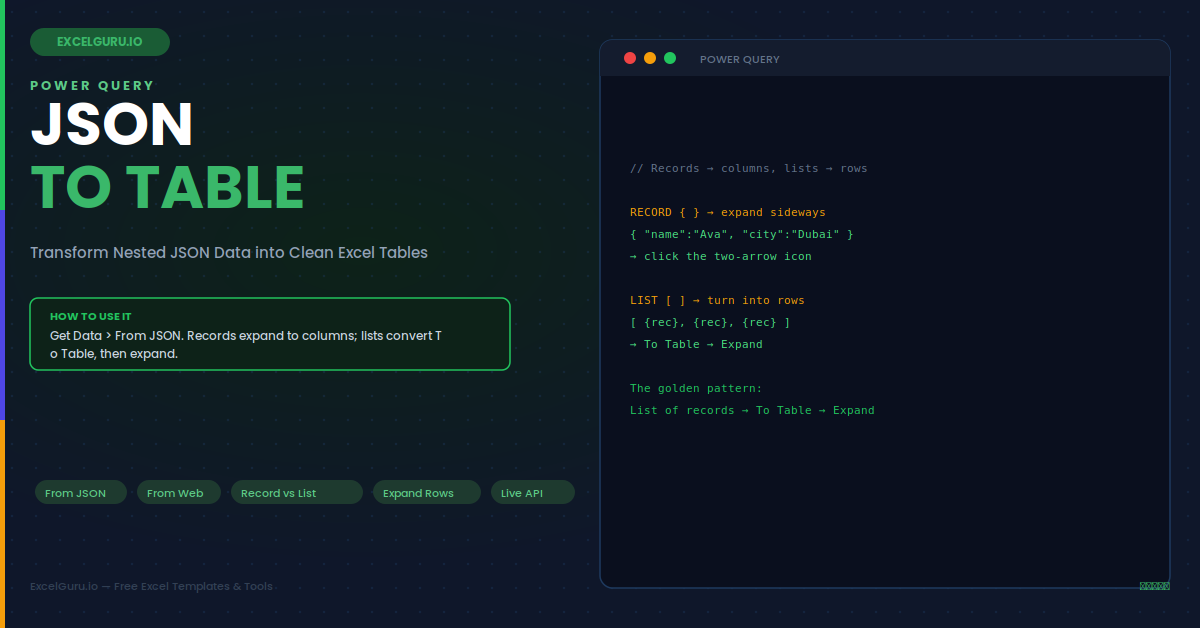
An API hands you a wall of curly braces and square brackets, and somewhere inside is the table you actually need. JSON is how nearly every modern web service returns data, but Excel wants rows and columns. Power Query is the bridge. It reads JSON — from a file, a URL, or a pasted string — and unfolds its nested structure into a clean, refreshable table with a few clicks, no coding required. Once the query is built, a single Refresh pulls the latest data and reshapes it exactly the same way every time.
This guide explains the two building blocks of all JSON (records and lists), shows exactly how to expand each one, and works through six real scenarios from a flat API response to deeply nested data with arrays inside arrays.
The Two Shapes in Every JSON File — Record and List
All JSON, no matter how complex, is built from just two structures. Learn to recognise them and every JSON file becomes readable. A record is a set of named fields (curly braces). A list is an ordered sequence of items (square brackets). Power Query shows each one differently and expands each one with a different button.
Getting JSON into Power Query — Three Sources
Power Query can read JSON from three places, and the entry point is slightly different for each. A saved file, a live web URL, and a pasted string each start the same query engine, so once the data is in, every later step is identical regardless of where it came from.
Json.Document("...") to parse it.Example 1: A Flat List of Records — The 80% Case
Most APIs return a list of records: an array where each element is one object with the same fields. A list of employees, orders, or products all follow this shape. This is the pattern you will meet most often, and it resolves in three clicks: convert the list to a table, then expand the record columns.
Example 2: Data Wrapped Inside a Parent Object
Many APIs do not return a bare list. Instead they wrap it inside a parent record with metadata — a status field, a page number, and a "data" field that holds the actual array. Here you first drill into the wrapper to reach the list, then apply the familiar To Table and Expand steps to the array you find inside.
Example 3: Nested Records — Flattening an Address Object
A record can contain another record. A customer object might hold an "address" field that is itself an object with street, city, and postcode. Expanding the outer record reveals the inner one as a [Record] value, which you then expand again. Each expansion peels back one layer, turning nested fields into flat columns with clear dotted names.
Example 4: A List Inside Each Record — One-to-Many Data
This is where JSON gets genuinely powerful. Each record can contain its own list — an order with multiple line items, or a student with multiple courses. Expanding a list column gives you a choice: expand to new rows (one row per item, duplicating the parent) or aggregate (count or sum the items). Expanding to rows is how you flatten one-to-many data into a normal table.
Example 5: A Live API Feed That Refreshes Automatically
The real payoff of Power Query is repeatability. Connect to a live API endpoint with From Web, build your expansion steps once, and every Refresh re-pulls current data and reshapes it identically. A currency-rate feed, a stock ticker, or an internal reporting API becomes a self-updating table. Furthermore, you can schedule refreshes so the data is current without anyone touching the query.
Example 6: Deeply Nested JSON — Arrays Within Arrays
Some payloads nest several levels deep: a company contains departments, each department contains teams, each team contains members. The approach never changes, no matter the depth. You expand one layer at a time, converting lists to rows and records to columns, until the structure is flat. Patience and the record-becomes-columns, list-becomes-rows rule carry you all the way down.
Troubleshooting JSON in Power Query
All three problems below are the most common JSON pitfalls. Each has a clear cause and a quick fix.
Every value shows as [Record] or [List] and will not display
This is normal, not an error. Power Query deliberately shows nested structures as clickable [Record] and [List] placeholders instead of trying to cram them into a cell. Click the two-arrow expand icon on the column header to unfold a record into columns, or use "To Table" then expand for a list. Keep expanding until no [Record] or [List] placeholders remain and every column shows plain values. If you accidentally clicked into a value and drilled too far, delete that step in the Applied Steps pane and try the expand icon instead.
Numbers or dates import as text and will not calculate
JSON has no strict date type and often stores numbers as strings, so Power Query may type a column as Text. After expanding, select the column, then use Transform > Data Type to set it to Whole Number, Decimal, or Date as appropriate. Do this as a deliberate step rather than relying on auto-detection, because auto-detected types can change unexpectedly when the source data varies. Setting types explicitly at the end of the query makes the result stable across every refresh, even when new rows contain slightly different formatting.
The refresh breaks after the API changes its response shape
If an API adds, removes, or renames fields, your saved expansion steps can fail because they reference columns that no longer exist. Open the failing step in Applied Steps to see which column it expected. Where an API frequently changes, avoid hard-coding an expanded column list — instead expand with the "Select all columns" option unticked-then-reticked so new fields flow through, or use a more tolerant expansion. For critical feeds, add a comment step and test refreshes after any known API version change so a shape change is caught early rather than in production.
Frequently Asked Questions
- How do I convert a JSON file to a table in Excel?+Go to Data > Get Data > From File > From JSON and select your .json file. Power Query opens and shows the content as a [List] or [Record]. If it is a list of records, click "To Table" then use the two-arrow expand icon on the column to turn the record fields into columns. If it is a record wrapping a list, drill into the list field first, then apply To Table and Expand. Finally set each column's data type and click Close & Load to send the finished table to a worksheet.
- What is the difference between a Record and a List in Power Query?+A Record is a single set of named fields, shown in JSON with curly braces, like one person's details. Power Query displays it as [Record] and you expand it sideways into columns using the two-arrow icon. A List is an ordered collection of items, shown in JSON with square brackets, like an array of many people. Power Query displays it as [List] and you turn it into rows using "To Table" before expanding the records inside. The simple rule is that records become columns and lists become rows.
- Can Power Query pull JSON from a live API and keep it up to date?+Yes. Use Data > Get Data > From Other Sources > From Web and paste the API endpoint URL. Power Query parses the JSON response and lets you build expansion steps once. Every time you click Refresh, it re-calls the API and re-applies those steps to the fresh data. You can also set the query to refresh on a schedule or when the file opens, via the query's Properties. For APIs that require an authentication key, add it as an HTTP request header in the Web connector rather than embedding it in the URL.
- How do I handle JSON where each record contains a list of items?+This is a one-to-many structure, such as an order containing several line items. After converting to a table and expanding the record, the list field shows as [List] in its column. Click the two-arrow icon on that column and choose "Expand to New Rows". Power Query then creates one row per item and repeats the parent values (like the order number) on each new row, producing a normal flattened table. Alternatively, choose "Extract Values" to join the list into a single delimited cell if you prefer one row per parent.