
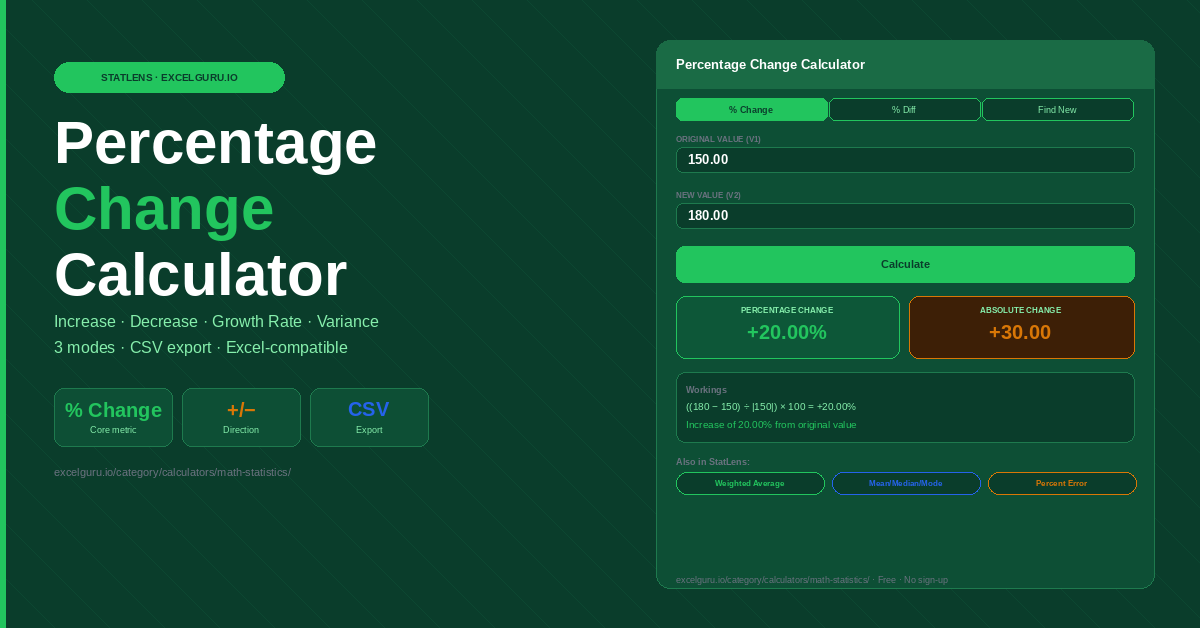
Enter two values and click Calculate. Handles increase, decrease, and negative values automatically.
How to Use the Percentage Change Calculator
Calculate percentage increase, decrease, growth rate, or percentage difference between any two values. Three modes cover every real-world scenario — from monthly revenue comparison to year-on-year KPI tracking.
Choose the right calculation mode
Percentage Change finds the increase or decrease from a starting value to an ending value. Direction matters here — revenue growing from AED 100K to AED 120K is a +20% change. Percentage Difference is symmetrical — it suits comparisons where neither value is definitively the starting point, such as comparing two vendors' quotes. Find New Value works in reverse: enter the original value and the known percentage to compute the resulting figure, useful for applying discounts or price increases.
Enter values and calculate
Type or paste values directly from Excel into the input fields. The calculator accepts decimals, negatives, and large numbers without reformatting. Click Calculate to see the result instantly. A workings panel shows the full formula applied, so you can verify every step and copy the calculation into a report.
Export and use the result
Results include the percentage change, the absolute difference, and a plain-language interpretation — increase, decrease, or no change. Click Download CSV to export the full calculation for inclusion in dashboards, audit trails, or management reports.
Percentage change divides the difference by the original value — it is directional and order-sensitive. Swapping V1 and V2 gives a different answer. Percentage difference divides by the average of both values — it is symmetrical and order-independent. Use percentage change when tracking the same thing over time. Percentage difference applies when comparing two separate entities with no clear starting reference.
Percentage Change Formula, Examples, and Business Applications
The percentage change formula, how to handle negative values and zero, worked examples across finance and operations, the Excel formula, and the critical difference between percentage change, percentage difference, and percentage points.
The percentage change formula
Percentage change measures how much a value has shifted relative to where it started. Results are always expressed as a percentage — positive for an increase, negative for a decrease. Using the absolute value in the denominator ensures that negative original values produce a correctly-signed result.
Percentage difference, by contrast, uses the average of both values as the denominator, making it symmetric. Swapping V1 and V2 produces the same answer — a useful property when neither value is definitively the reference.
Worked examples across business contexts
Revenue was AED 120,000 in January and AED 150,000 in February. What is the month-on-month growth?
Logistics costs dropped from AED 84,000 to AED 63,000 after renegotiating a supplier contract.
A team had 240 employees last year and 204 this year after a restructure. What is the percentage change?
A product costs AED 500. Management approves a 12% price increase. What is the new price?
Handling negative original values correctly
When the original value is negative — such as a loss position, negative temperature, or overdrawn account — the absolute value in the denominator prevents a sign flip. For example, if a division's loss improved from −AED 50,000 to −AED 30,000, the percentage change is ((−30,000 − (−50,000)) ÷ 50,000) × 100 = +40%. Without the absolute value, dividing by −50,000 would give −40%, which reverses the meaning entirely.
If V1 is zero, percentage change is mathematically undefined — division by zero has no result. When V1 is very small (close to zero), the percentage can reach thousands of percent from a tiny absolute change. In both cases, report the absolute change alongside the percentage, or use percentage difference instead. This calculator shows an error message when V1 is zero rather than producing a misleading result.
Excel formula for percentage change
In Excel, the standard percentage change formula between two cells is =(B2−A2)/ABS(A2), where A2 is the original value and B2 is the new value. Format the result cell as a percentage using Ctrl+Shift+% or the Number Format dropdown. The ABS() wrapper handles negative original values correctly — without it, Excel would produce a wrong sign when A2 is negative. Drag the formula downward for a full column and apply conditional formatting to colour-code increases green and decreases red automatically.
Additionally, for year-on-year comparisons in large datasets, combine this with =IFERROR((B2−A2)/ABS(A2), "N/A") to handle any zero-original rows gracefully rather than generating a division-by-zero error that breaks the entire column.
Percentage change vs percentage points — a critical distinction
A percentage point (pp) is the arithmetic difference between two percentage values. If a company's profit margin rises from 12% to 15%, it has increased by 3 percentage points — but by 25% in relative terms. Confusing these two is one of the most common errors in financial reporting and media coverage. This calculator computes relative percentage change. To find percentage point differences, simply subtract one percentage from the other directly.
Percentage change drives KPI cards, sparklines, and variance analysis in Excel dashboards. Common uses include month-on-month revenue comparison, budget vs actual variance, inventory shrinkage tracking, website traffic growth, and employee attrition rate. Each of these compares two values over time — exactly what this calculator handles in one click. For dashboards with many KPIs, pre-calculate percentage changes in a helper column and reference those values in your chart data series.
Benchmark: what counts as a meaningful percentage change?
Context determines significance. A 2% change in a government bond yield is enormous — it can reshape entire bond markets. The same 2% change in weekly website traffic is routine noise. Before reporting a percentage change, ask whether the absolute value behind the percentage is large enough to be practically significant. A 100% increase on a base of 10 visitors is just 10 more visitors. Always show both the absolute change and the percentage change together in reports so readers can calibrate importance themselves.
Frequently Asked Questions
Common questions about percentage change, percentage difference, growth rate calculations, and Excel implementation.