
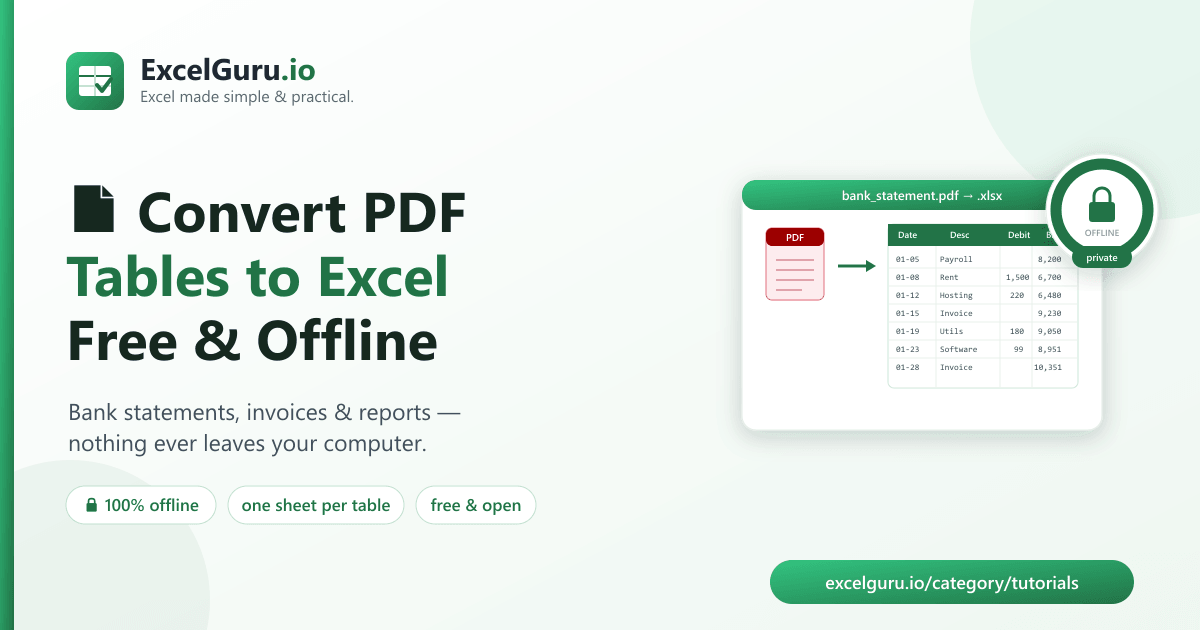
Excel PDF Table Extractor is a free, open-source tool that pulls tables out of a PDF and writes
them to a clean Excel file — entirely on your own computer. No upload, no account, no watermark.
Point it at a bank statement, invoice, or report, and get a formatted .xlsx (or CSVs) with
one command. It's the private answer to the internet's most-searched Excel chore: "how do I get this
PDF table into Excel?"
Key takeaways
- Retyping PDF tables by hand is slow and error-prone — and the free web converters make you upload sensitive documents to a stranger's server.
- This tool extracts tables offline; your data never leaves your machine.
- Each detected table becomes its own worksheet, auto-cleaned and formatted.
- Best for bank statements, invoices, and ruled/aligned reports (not scanned images).
- Free, open-source (MIT), downloadable from GitHub.
Why converting PDF to Excel is such a pain
A PDF is a picture of a page, not a spreadsheet. The rows and columns you see aren't really rows and columns to the computer — they're just text placed at coordinates. That's why copy-pasting a PDF table into Excel usually collapses everything into one column, or scatters numbers across the wrong cells. So people retype it by hand, which is slow and introduces mistakes into exactly the kind of data — financial figures — where mistakes hurt most.
The usual shortcut is a free "PDF to Excel" website. But look at what you're doing: uploading your bank statement, payroll, or client invoices to a server you don't control, often in exchange for an email address and a watermarked result. For anything financial or confidential, that's a real privacy problem — the very documents you most need in Excel are the ones you least want to hand to a random site.
A private, offline alternative
Excel PDF Table Extractor does the same job on your machine, with nothing transmitted. It uses a mature PDF-parsing library to detect the tables in the document, cleans up the cells (collapsing stray whitespace, dropping empty rows, squaring off the grid), and writes each table to its own worksheet with a styled, frozen header row.
| Feature | What it does |
|---|---|
| Offline & private | Runs locally — no upload, no account, no watermark. |
| One sheet per table | Each detected table lands on its own worksheet, named by page. |
| Auto-cleaning | Whitespace collapsed, empty rows removed, ragged rows padded to a rectangle. |
| CSV mode | --csv-dir writes one CSV per table instead of an xlsx. |
| Page ranges & strategies | --pages 1-3,5 and --strategy lines/text/auto for ruled vs. whitespace tables. |
How to download & set up (about 2 minutes)
Free and open-source on GitHub. You'll need Python 3.9+.
- Download the code (or Code → Download ZIP on GitHub):
git clone https://github.com/Synth88Labs/excel-pdf-extractor.git cd excel-pdf-extractor - Install the two dependencies (pdfplumber & openpyxl):
pip install -r requirements.txt - Convert your PDF to Excel:
python pdf_extractor.py statement.pdf -o statement.xlsx --strategy lines
⬇️ Get Excel PDF Table Extractor on GitHub (free)
A worked example
Running it on the bundled sample bank statement:
python pdf_extractor.py sample_data/bank_statement.pdf -o statement.xlsx --strategy lines

Excel PDF Table Extractor
  Found 1 table(s), 10 rows total
    Page1_Table1: 10 rows x 5 cols
  Wrote statement.xlsx
The five-column statement (Date, Description, Debit, Credit, Balance) comes across intact into a formatted worksheet — header frozen and styled, columns sized, empty cells squared off. What would have been ten minutes of careful retyping is a one-second command, and the numbers are exactly what the PDF said.
Getting the best results
- Ruled tables (visible borders, like most bank statements): use
--strategy lines. - Borderless tables (aligned by spacing): use
--strategy text. - Not sure? The default
autohandles most reports. - Nothing found? Your PDF is probably a scanned image — that needs OCR, which is out of scope.
Frequently asked questions
Is this PDF to Excel tool really free?
Yes — open-source under the MIT license, free for personal and commercial use, with no limits or watermarks.
Is it private? Does my PDF get uploaded?
Nothing is uploaded. The tool runs entirely on your computer and makes no network requests — ideal for bank statements and other sensitive documents.
Can it convert a scanned PDF?
No. Scanned (image-only) PDFs need OCR, which is out of scope. This tool targets text-based PDFs, which is the majority of statements, invoices, and reports.
What if my PDF has several tables or pages?
Each detected table becomes its own worksheet. Use --pages 1-3,5 to limit which pages are
scanned.
Can I get CSVs instead of Excel?
Yes — pass --csv-dir out/ to write one CSV per table.
The table came out messy — what can I do?
Switch strategies: --strategy lines for bordered tables, --strategy text for
whitespace-aligned ones. Most layout issues are fixed by choosing the right one.
Summary
Getting a table out of a PDF shouldn't mean retyping it by hand or uploading your finances to a random website. Excel PDF Table Extractor converts PDF tables to clean Excel, free and completely offline — one command, one private result. Download it, point it at your statement, and get your data into a spreadsheet where it belongs.