
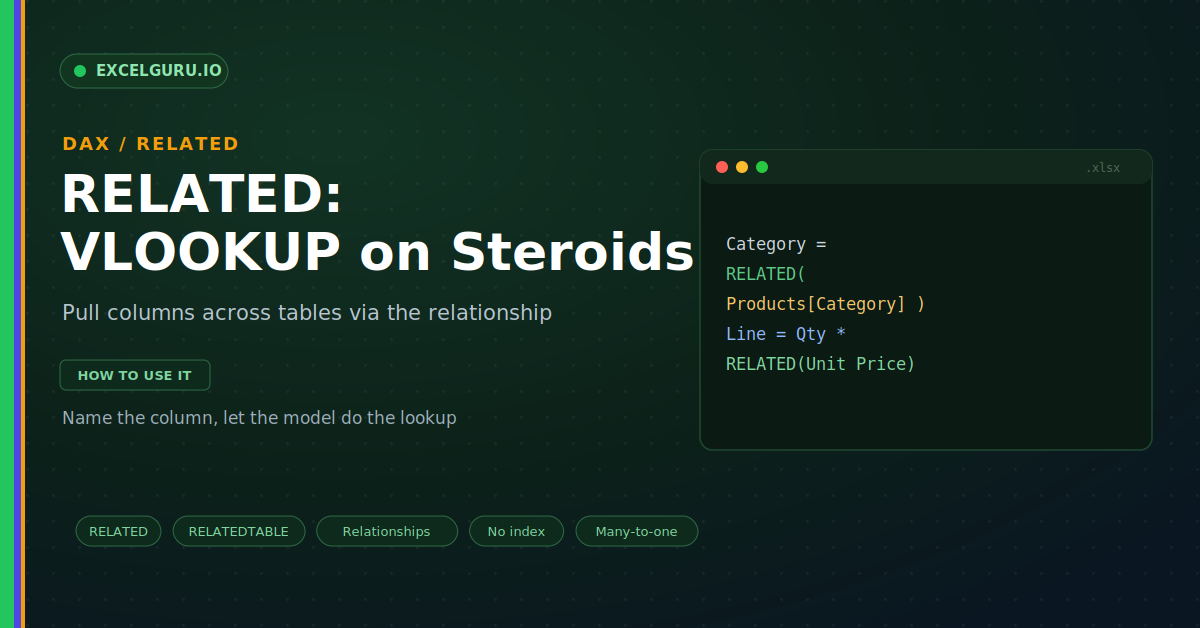
Your Sales table holds a ProductID, but not the product name or category. Those details sit in a separate Products table. In a worksheet, you would reach for VLOOKUP and wrestle with ranges and index numbers. Inside the Data Model, there is a cleaner way. RELATED pulls a column straight from a related table, by simply following the relationship you already built.
This guide shows how RELATED works and when to use it. First, it explains what the function fetches. Then it compares RELATED with VLOOKUP and shows real examples. RELATEDTABLE and a full troubleshooting section follow. By the end, you will link tables like a pro.
What RELATED Does
RELATED reaches into another table for a value. It follows an existing relationship to find it. So a sales row can grab its product category. The infographic below shows that trip.
Notice how little you have to tell it. You name only the column you want. RELATED handles the matching through the relationship. As a result, the detail lands right beside your data.
It Rides the Relationship
RELATED depends entirely on a relationship. The two tables must already be linked by a key. Then RELATED travels from the many side to the one side. Without that link, the function has nowhere to go.
RELATED Versus VLOOKUP
Both pull a value from another table. Yet the effort involved is worlds apart. VLOOKUP needs a range, an index, and a match flag. RELATED needs only the column name, as below.
Example 1: Pull a Category Into Sales
Start with the most common use. You want each sale to show its category. A calculated column with RELATED does it cleanly. Then you can slice sales by that category.
Example 2: Line Total With a Related Price
RELATED shines when you combine tables in math. Suppose the unit price lives in Products. You can multiply the sales quantity by that price. Consequently, a full line total appears per row.
RELATEDTABLE for the Other Direction
Sometimes you need to travel the other way. RELATEDTABLE moves from the one side to the many. It returns a whole table of matching rows. So you can count or sum them, as below.
Troubleshooting RELATED
All three problems below are the most common. Each has a clear cause and a quick fix.
RELATED returns an error or a blank
This almost always means the relationship is missing. RELATED cannot fetch a value with no link to follow. First, open the Power Pivot Diagram View. Then confirm a line joins Sales to Products on the key. If none exists, drag the key from one table to the other. Also check that the key values actually match on both sides. Once a valid relationship exists, RELATED starts returning values.
I am pulling from the wrong side
RELATED only travels from the many side to the one. So it reads a dimension from a fact table. It cannot pull many rows into a single row. If you need the reverse, use RELATEDTABLE instead. That function returns the related rows as a table. Then wrap it in COUNTROWS or SUMX to summarise. So match the function to the direction you need.
RELATED ignores an inactive relationship
Two tables can share more than one relationship. However, only one of them is active at a time. RELATED always follows the active relationship. So an inactive link is quietly skipped. To use an inactive one, switch to a measure with CALCULATE. Then add USERELATIONSHIP to activate the link you want. After that, the calculation follows the correct path.
Frequently Asked Questions
- What does the DAX RELATED function do?+It pulls a column value from a related table. First, it follows an existing relationship. Then it returns the matching value on that row. So it works like a VLOOKUP through the model.
- Is RELATED better than VLOOKUP?+For the Data Model, RELATED is far cleaner. It needs only the column name, not a range or index. Moreover, it survives when columns move. So it is more robust than a VLOOKUP.
- What is the difference between RELATED and RELATEDTABLE?+RELATED goes from the many side to the one. It returns a single value, like a category. RELATEDTABLE goes the other way and returns rows. So use it with COUNTROWS or SUMX.
- Why does RELATED return blank?+Usually there is no relationship to follow. So check the link in Diagram View first. Also confirm the key values match on both sides. Once the relationship is valid, the value appears.