
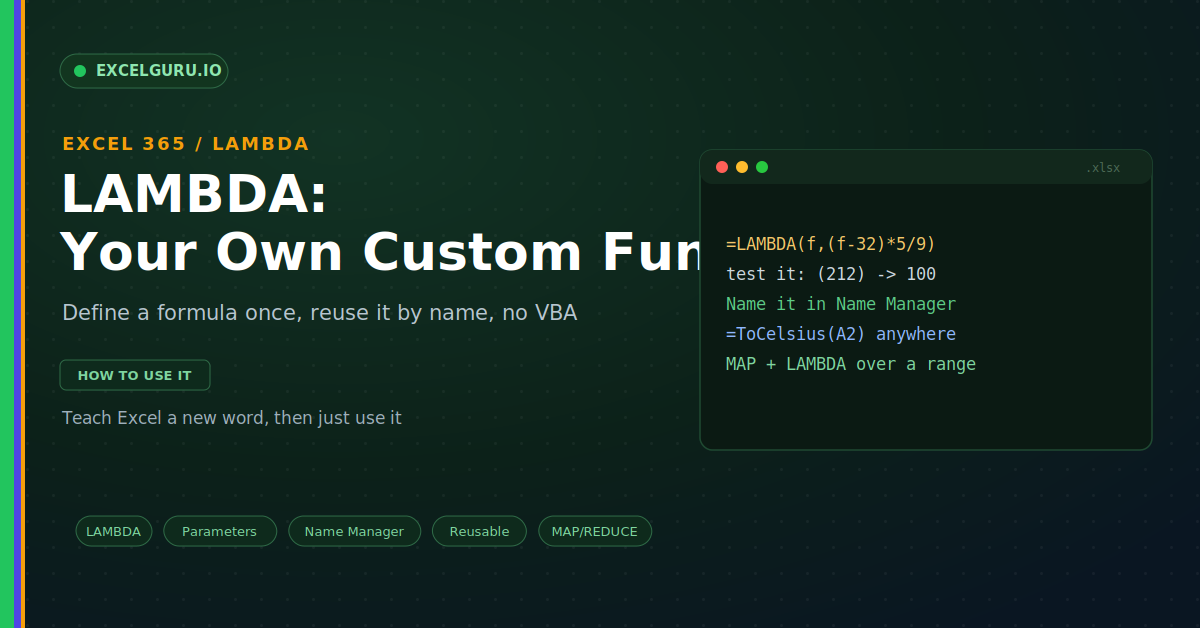
You have surely built a clever formula, then pasted it into a hundred cells. It works, until the logic needs a change. Now you must fix that formula in every single place. Miss one, and your numbers quietly go wrong. For years, the only real cure was VBA. The LAMBDA function offers a better way. It lets you define your own named function in plain Excel, then reuse it anywhere with no code at all.
Think of LAMBDA as teaching Excel a new word. You explain the recipe once and give it a name. After that, you just call the name. This guide walks you through it step by step, with clear examples throughout.
What LAMBDA Does
LAMBDA turns a formula into a reusable function. You wrap your logic and give it inputs. Then you name it, so you can call it by that name. So one tidy word replaces a long, repeated formula, as below.
The payoff is huge for messy workbooks. Your formulas become short and readable. Better still, the logic lives in one place. So a single edit updates every cell that uses it.
The Syntax: Parameters, Then Calculation
The LAMBDA syntax follows one simple rule. You list the inputs first, by name. Then you write the calculation as the final piece. So the order is always parameters, then the formula, as below.
Test It Before You Name It
Here is a neat trick that saves time. You can run a LAMBDA before naming it. Just add the inputs in brackets at the end. So you confirm it works first, then name it.
Name It to Reuse It
Naming the LAMBDA is what unlocks reuse. You store it in the Name Manager. From then on, it behaves like a built-in function. So you can call it on any sheet.
Example: A Two-Parameter Function
A LAMBDA can take more than one input. Suppose you often join a first and last name. You can build a FullName function once. Then a single call does the work every time.
Power Up Arrays with MAP
LAMBDA truly shines with the array helpers. Functions like MAP take a LAMBDA as input. MAP runs your function across a whole range. Then it spills the results, as below.
Other helpers work the same friendly way. REDUCE rolls a range into one result. SCAN and BYROW handle running totals and rows. So a small LAMBDA can drive powerful array logic.
Best Practices
A few habits keep your custom functions clean. They make names easy to read and share. They also prevent the common errors. So build them in from the start.
Troubleshooting LAMBDA
All three problems below are the most common. Each has a clear cause and a quick fix.
The cell shows a #NAME? error
This usually means Excel does not know the name. Perhaps the function was never saved, or it is misspelled. First, open the Name Manager and check the entry exists. Then confirm the spelling matches your formula exactly. Also make sure you use Excel 365, which supports LAMBDA. After that, the custom function resolves correctly.
The LAMBDA returns an error when tested
A test can fail for a simple reason. You may have forgotten the trailing inputs. Without the brackets and values, it has nothing to compute. First, add the inputs, like (212), at the very end. Then check the inputs match the parameter order. A swapped input often causes a wrong result. Fix the order, and the test returns the right value.
The name will not save
Excel rejects some names on purpose. A name cannot look like a cell address, such as C1. It also cannot contain spaces. First, choose a plain, descriptive name instead. Use letters, and join words with no spaces. Then check the name is not already in use. After that, the Name Manager accepts it.
Frequently Asked Questions
- What is the LAMBDA function in Excel?+It lets you build your own custom function. You define the logic in plain Excel, with no VBA. Then you name it and reuse it anywhere. So it works like a built-in function you made.
- How do I make a LAMBDA reusable?+Save it in the Name Manager under a clear name. Put the LAMBDA in the "Refers to" box. Then call that name in any cell. So it behaves like SUM or IF.
- Do I need VBA to use LAMBDA?+No, LAMBDA needs no code at all. You write it in Excel's own formula language. So it recalculates natively and travels with the file. That makes it simpler than a macro.
- Which Excel versions support LAMBDA?+LAMBDA is available in Excel 365 and Excel for the web. Older versions do not include it. So a shared file may not work on them. Check the version before relying on it.