
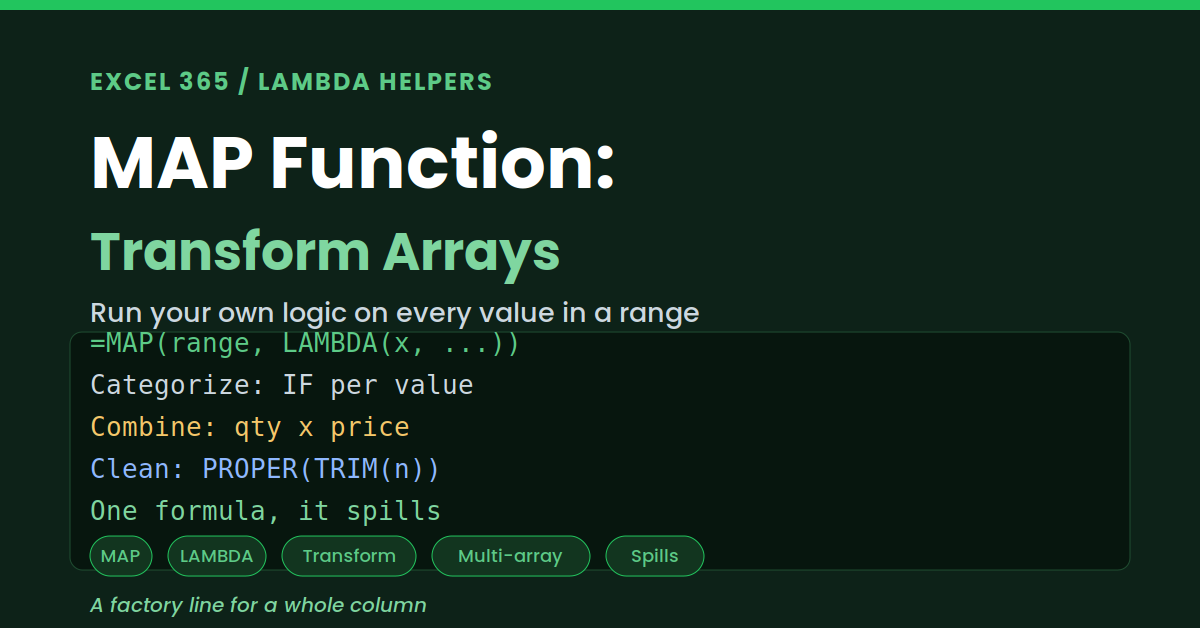
Excel makes simple column math easy. To add ten percent to a price list, you just multiply the range. But what if each cell needs real logic, not plain arithmetic? Say you want to label every sale as high or low. The old way was to write an IF formula, then drag it down hundreds of rows. That copied formula is fragile and clutters the sheet. The MAP function fixes this. It runs a LAMBDA on every value in a range and spills the results as one clean formula.
MAP is one of the LAMBDA helper functions in modern Excel. It pairs your own custom logic with a whole array. Think of it as a factory line for your data. Each value rolls in, gets processed, and rolls out changed. This guide explains how it works, with realistic examples. By the end, you will transform entire columns in a single step.
What MAP Does
MAP takes an array and a LAMBDA. It then applies that LAMBDA to each value in turn. The results come back in the same shape. So one formula transforms the whole range, as below.
The key idea is one value at a time. MAP hands each cell to your LAMBDA. Your LAMBDA returns a new value for it. As a result, the output matches the input size exactly.
The Syntax
The MAP syntax is short and logical. You list one or more arrays first. Then you finish with a LAMBDA as the last argument. So the pattern reads arrays, then the function.
Example: Categorize Every Value
Labelling data is a perfect first use. Suppose you want to flag large sales. A plain multiplication cannot make that choice. MAP with an IF handles it easily, as below.
Example: Combine Two Columns
MAP can process several arrays together. Imagine a quantity column and a price column. You want a line total for each row. MAP multiplies them position by position, as below.
Example: Clean a Column of Text
Messy text is another great fit. Names often arrive with odd spacing and casing. You can tidy the whole column at once. So a single MAP replaces a helper column.
Example: Calculate Tiered Commission
Commission rules are a natural fit for MAP. Higher sales often earn a higher rate. A plain multiplication cannot switch between rates. So an IF inside a LAMBDA does the work, and one formula pays the whole team.
You can extend this idea as far as you like. Nested IFs can add a third or fourth tier. A lookup can pull each rate from a rate table. So one MAP formula can hold a full pay scheme.
MAP Versus a Copied-Down Formula
You might ask why not just drag a formula. The difference is real and useful. A copied formula lives in every cell separately. A MAP formula lives in one cell only.
Pairs Well With Other Helpers
MAP belongs to a small family of helpers. Each one uses a LAMBDA in its own way. Together they cover most array tasks. So it helps to know the group.
Troubleshooting MAP
All three problems below are the most common. Each has a clear cause and a quick fix.
The arrays are different sizes
MAP needs every array to match in size. A quantity list of ten and a price list of nine will fail. So the formula returns an error. First, check that both ranges cover the same rows. Then align their start and end points exactly. Watch for a stray header or blank at an edge. After that, MAP pairs the values correctly.
The parameter count is wrong
The LAMBDA must match the number of arrays. Two arrays need two parameters, not one. So a mismatch throws an error at once. First, count the arrays in your MAP call. Then give the LAMBDA exactly that many parameters. Name them clearly, like q and p. After that, each array maps to its own input.
A #SPILL! error appears
MAP returns a full array of results. That array needs empty cells to fill. So a value in the way blocks the spill. First, click the cell to see the spill border. Then clear anything inside that outlined range. Also keep MAP out of a Table, which cannot spill. After that, the results land cleanly.
Frequently Asked Questions
- What does the MAP function do in Excel?+It applies a LAMBDA to every value in an array. Then it returns the results in the same shape. So it transforms a whole column in one formula. It can also combine several arrays at once.
- Can MAP use more than one array?+Yes, you can pass several arrays to MAP. The LAMBDA then needs one parameter for each. For example, it can multiply quantity by price. So it combines columns position by position.
- How is MAP different from dragging a formula?+A dragged formula sits in every cell alone. MAP lives in one cell and spills. So you edit the logic in a single place. That keeps a large sheet clean and reliable.
- Which Excel versions have MAP?+MAP is in Excel 365 and Excel for the web. Older versions do not include it. So a shared file may not work on them. Check the version before relying on it.