
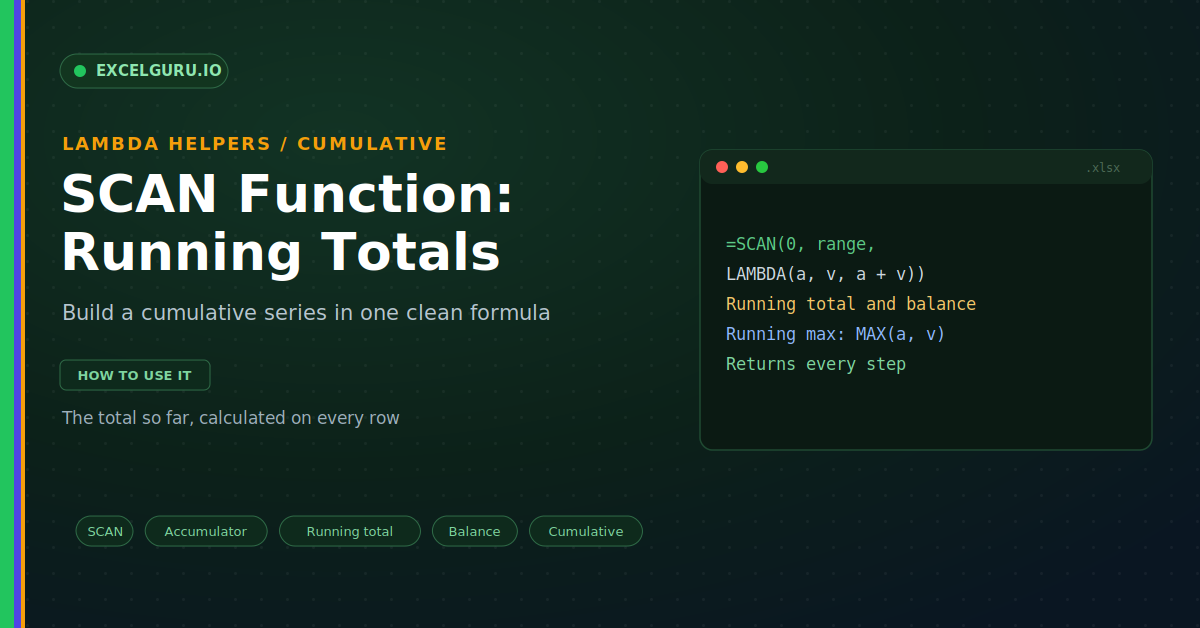
Running totals are everywhere in business. You track sales that build up over the year. A bank balance changes with each transaction. You follow cumulative units shipped, week by week. The classic trick was a formula like SUM of a growing range, dragged down every row. That approach is slow, fragile, and easy to break. The SCAN function replaces it. It builds the entire cumulative series in one clean formula.
SCAN is a LAMBDA helper made for step-by-step math. It walks through an array and remembers the total as it goes. This guide explains it with realistic, practical examples. By the end, running totals will take you seconds, not minutes.
What SCAN Does
SCAN processes an array one value at a time. After each value, it records the result so far. So it returns a whole column of intermediate totals. That makes it perfect for cumulative work, as below.
Notice the difference from a plain sum. A normal SUM gives only the final figure. SCAN gives every stage along the way. As a result, you see the total grow row by row.
The Syntax
The SCAN syntax has three simple parts. You give a starting value, then the array. Finally, you supply a LAMBDA with two parameters. So the order is initial, array, then the function.
How the Accumulator Works
The accumulator is the heart of SCAN. It holds the total between steps. Each pass adds the next value to it. Then it passes the new total onward, as below.
Example: A Running Sales Total
A cumulative sales column is the classic case. You want the total to date on every row. SCAN builds it from your amounts in one go. So there is nothing to drag or copy.
Example: A Running Bank Balance
Balances mix deposits and withdrawals. Deposits are positive and withdrawals are negative. SCAN adds each change to the balance. So the balance updates on every line, as below.
Example: A Running Maximum
SCAN is not only for addition. The LAMBDA can hold any logic you like. Swap the plus sign for a MAX. So you track the peak value reached so far.
SCAN Versus REDUCE
SCAN has a close cousin called REDUCE. Both walk an array with an accumulator. The difference is what they return. So knowing it helps you pick the right one.
Pairs Well With Other Helpers
SCAN belongs to a family of LAMBDA helpers. Each one handles arrays in its own way. Together they cover most repeating calculations. So it pays to know the whole set.
Troubleshooting SCAN
All three problems below are the most common. Each has a clear cause and a quick fix.
The totals start at the wrong number
The initial value sets the starting point. A wrong initial shifts every result. So a running total may begin too high. First, check the first argument in your SCAN. For a plain total, that value should be 0. For a balance, use the opening balance instead. After that, the series starts correctly.
The result is a single number
A single answer means you likely used REDUCE. REDUCE returns only the final total. So it looks like SCAN with the steps missing. First, confirm the function name is SCAN. Then check the array covers all your rows. After that, the full running series appears.
A #SPILL! error appears
SCAN returns a whole column of results. That column needs empty cells to fill. So content in the way blocks the spill. First, click the cell to see the spill outline. Then clear anything inside that range. Also keep SCAN out of a Table, which cannot spill. After that, the totals land cleanly.
Frequently Asked Questions
- What does the SCAN function do?+It builds a running or cumulative series from an array. After each value, it records the result so far. So it returns a whole column of totals. That makes running totals a one-formula task.
- How do I make a running total with SCAN?+Use =SCAN(0, range, LAMBDA(a, v, a + v)). The 0 sets the starting total. Then each value adds to the accumulator. So the column shows the total to date.
- What is the difference between SCAN and REDUCE?+SCAN returns every step as a full series. REDUCE returns only the final result. So use SCAN for a running trail. Use REDUCE for a single answer.
- Can SCAN do more than add numbers?+Yes, the LAMBDA can hold any logic. Swap the plus sign for MAX or MIN. So you can track a running peak or low. It can even build a running product.