
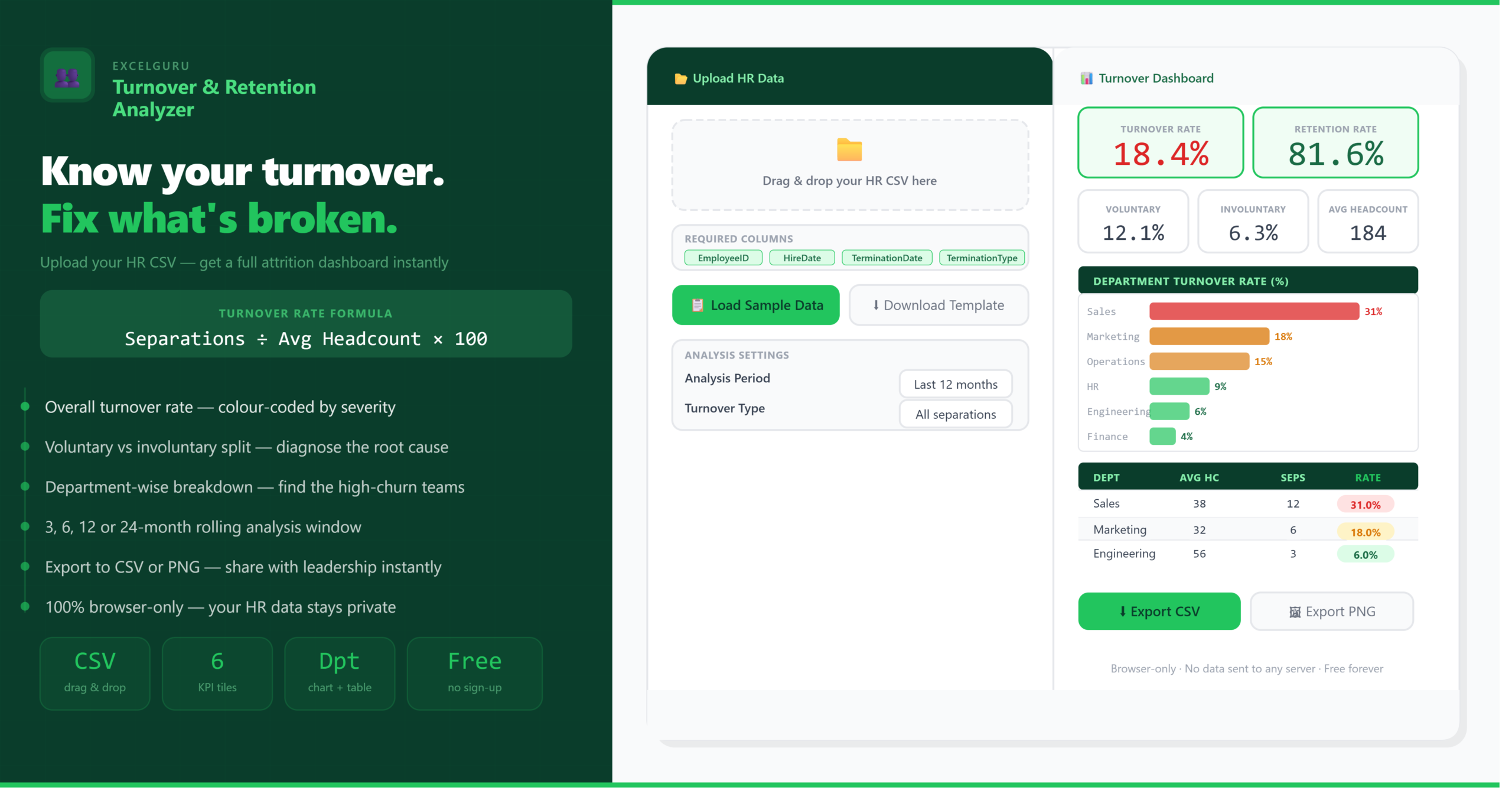
Upload your HR CSV or load sample data — your turnover dashboard appears here instantly.
✓ Employee retention rate (%)
✓ Voluntary vs involuntary split
✓ Department-wise breakdown
✓ Bar chart by department
✓ Export to Excel or PNG
| Department | Avg Headcount | Separations | Turnover Rate | Voluntary % |
|---|
All calculations use the standard HR formula: separations ÷ average headcount × 100. Results are estimates — validate against your HRIS records before reporting.
How to Use the Employee Turnover Rate Calculator
Three steps to your complete HR attrition dashboard — no formulas, no manual work, no data sent to any server.
Prepare and Upload Your HR CSV
Download the blank template to see the exact column structure your file needs. Five columns are required: EmployeeID, HireDate, TerminationDate, TerminationType, and Department. Leave TerminationDate blank for active employees. Set TerminationType to either Voluntary or Involuntary for each departed employee. Once your file is ready, drag and drop it onto the upload zone or click to browse. You can also load the built-in sample data to explore the dashboard immediately.
Set Your Analysis Period and Filters
Choose the rolling analysis window — 3, 6, 12, or 24 months — and filter by separation type if needed. The 12-month view is the standard for annual HR reporting and benchmarking. Filtering to Voluntary only helps you isolate culture and engagement issues. By contrast, filtering to Involuntary only surfaces performance management and restructuring patterns. Results update immediately when you change any setting, so you can explore different cuts of the same data without re-uploading.
Analyse the Dashboard and Export Results
Your right panel shows six key metrics — overall turnover rate, retention rate, voluntary and involuntary splits, average headcount, and total separations — alongside a bar chart comparing turnover rates across every department. Each department row includes a colour-coded rate pill so high-churn areas are immediately visible. Use the Export CSV button to pull the department table into Excel for further analysis, or Export PNG to capture the full dashboard as an image for presentations and reports.
The Complete Guide to Employee Turnover Rate and Retention Analysis (2026)
Everything HR professionals, people managers, and business leaders need to understand about measuring, interpreting, and acting on employee attrition data.
What is employee turnover rate?
The employee turnover rate is the percentage of workers who leave an organisation over a defined period — typically a rolling 12 months. It is one of the most widely tracked HR metrics because it reflects workforce stability, culture health, and the effectiveness of people management. A high turnover rate signals that employees are leaving faster than the business can sustainably replace them. Conversely, a very low rate can indicate stagnation or a reluctance to remove underperforming staff.
Turnover is distinct from attrition. Attrition usually refers to positions that are not refilled after a departure, whereas turnover implies replacement. In practice, both terms are often used interchangeably in HR reporting. What matters most is consistency — using the same definition across reporting periods so trends are comparable.
The employee turnover rate formula
The standard formula is: Turnover Rate = (Number of Separations ÷ Average Headcount) × 100. Average headcount is calculated by summing the number of active employees at the end of each month in the period and dividing by the number of months. This approach — used in this calculator — is more accurate than a simple start-plus-end divided by two, particularly for organisations with seasonal hiring patterns.
For example, if a company had an average of 200 employees over the past 12 months and 30 left during that period, the annual turnover rate is (30 ÷ 200) × 100 = 15%. According to Bureau of Labor Statistics data, the US national average sits at approximately 33% annually in 2026 when compounded from monthly separation rates. Industry benchmarks vary widely — retail and hospitality typically run 40–60%, while professional services and technology firms aim for 10–15%.
Using a simple start-of-year headcount as the denominator understates turnover for growing organisations and overstates it for shrinking ones. The monthly average method used in this calculator smooths out those distortions and produces a figure that is directly comparable to published industry benchmarks from SHRM, BLS, and Mercer — all of which use rolling average headcount.
Voluntary vs involuntary turnover — why the split matters
Voluntary turnover covers departures that employees initiate themselves — resignations, retirements, and personal relocations. A high voluntary rate often points to culture issues, compensation gaps, limited career development, or poor management. In contrast, involuntary turnover includes layoffs, performance-based terminations, and contract endings. A high involuntary rate may reflect aggressive performance management, restructuring, or hiring mismatches.
Separating the two gives HR teams a much cleaner diagnosis. An overall turnover rate of 20% reads very differently if 18% is voluntary (a culture crisis) versus 18% involuntary (a restructuring cycle). Consequently, this calculator tracks both figures independently so you can act on the right lever. The TerminationType column in your CSV drives this split — set it to either Voluntary or Involuntary for each departed employee.
What is employee retention rate?
Retention rate measures the proportion of staff who remain with the organisation over a given period. It is the natural counterpart to turnover rate. The simplest approach treats it as the inverse: Retention Rate = 100% − Turnover Rate. A more precise calculation uses starting headcount as the denominator: employees who remained ÷ starting headcount × 100.
High retention saves recruitment and onboarding costs, preserves institutional knowledge, and tends to correlate with stronger team performance and employee engagement. Research from Mercer estimates voluntary turnover costs organisations between 50% and 200% of the departing employee's annual salary once recruitment, training, and productivity loss are fully accounted for. For a company of 500 employees with a 15% voluntary turnover rate and an average salary of $60,000, that translates to a cost of $22.5 million to $90 million per year — a figure that makes retention investment straightforward to justify.
Industry research consistently estimates the fully-loaded cost of replacing one employee at 50–200% of their annual salary. This includes recruiter fees, job board spend, manager time spent interviewing, reduced productivity during the vacancy, onboarding time for the replacement, and the productivity ramp-up period that typically spans three to nine months. High-skill roles, senior positions, and specialised technical functions sit at the upper end of that range.
How to analyse turnover by department
Company-wide turnover figures can mask significant variation at the department level. A 12% overall rate might conceal a 35% rate in Sales and a 5% rate in Engineering. In practice, HR teams that track turnover by department can prioritise retention efforts where the cost and disruption are highest, rather than applying blanket policies that may not address the actual problem.
This calculator computes a separate turnover rate for each department in your CSV, using the department-specific average headcount rather than the company total. As a result, the rates are independently accurate and directly comparable. Departments with rates above 20% are highlighted in red, 10–20% in amber, and below 10% in green — giving you an immediate visual triage of where to focus.
Interpreting your results — what to do next
Once you have your turnover and retention figures, the next step is to compare them against relevant benchmarks. SHRM publishes annual average turnover rates by industry and company size. BLS JOLTS data provides monthly separation rates by sector. Mercer's Global Talent Trends report covers voluntary turnover specifically. If your rate sits materially above the industry median, dig into the voluntary component first — that is where engagement, compensation, and development interventions have the most impact.
- Below 10% — low attrition. Check that low rates are not masking retention of underperformers.
- 10–20% — moderate. Monitor closely and investigate any departments above 15%.
- 20–30% — elevated. Immediate investigation of voluntary drivers is warranted.
- Above 30% — high. Treat as a business risk requiring urgent people strategy review.
This tool processes all CSV data locally in your browser using JavaScript. No file is uploaded to any server. Employee records are never stored, transmitted, or logged anywhere outside your device. You can disconnect from the internet after the page loads and the calculator continues to work identically. This makes it safe to use with real HR data, including employee IDs, dates, and department classifications.
Frequently Asked Questions
Answers to the most common questions about calculating employee turnover rate and using this HR attrition tool.