
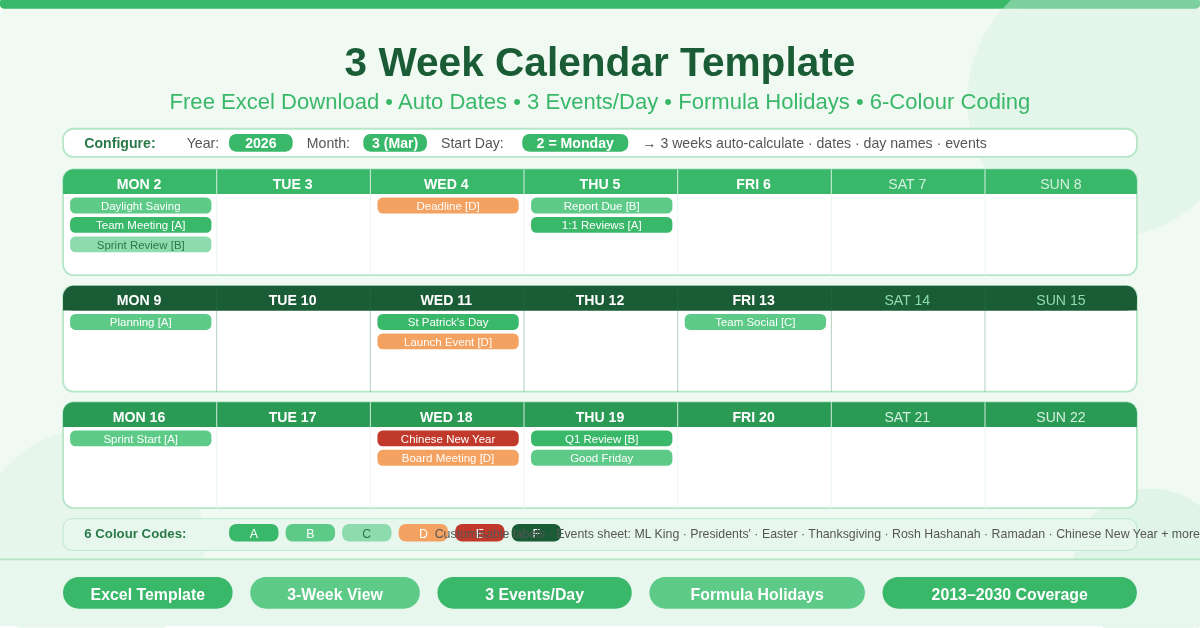
The 3 Week Calendar Template is a free Microsoft Excel workbook for planning across a rolling three-week window. It auto-populates dates, pulls holiday events from a formula-driven database, and colours events with a six-code system. Change three numbers — year, month, and start day — and the entire calendar rebuilds instantly.
This template suits teams and individuals who need a compact, printable planning view. The three-week span covers a standard sprint, a project phase, a school half-term, or a look-ahead window. There is no date to type. There is no holiday to look up. The formulas handle everything.
What Are the Two Sheets?
The workbook contains two sheets: Calendar and Events. Each sheet serves a distinct purpose. Together, they form a fully connected planning system.
The Calendar Sheet
The Calendar sheet is the visual planner. Three weeks of days appear left to right. Each column pair represents one day. The layout auto-generates from three configuration cells:
- Year — enter the year (for example, 2026)
- Month — enter the month number (1 for January, 12 for December)
- Start Day — enter 1 for a Sunday start or 2 for a Monday start
The calendar then calculates the correct starting date for the first week. Day names (MON, TUE, WED, and so on) and all date numbers populate from formulas. There is nothing to type into the calendar grid itself.
How Events Appear on the Calendar
Each day supports up to three event slots. These slots use INDEX/MATCH formulas to look up the Events sheet. They pull in any holiday or custom event name that matches the day’s date. When three events fall on the same date, all three appear automatically — side by side in the day column.
The Six-Colour Coding System
A colour coding system uses six codes: A, B, C, D, E, and F. Each code maps to a distinct colour. Entering a code in any event slot applies the corresponding colour to that event. Furthermore, the code table is editable. Teams can therefore define their own category labels — for example, A for Meetings, B for Deadlines, C for Holidays.
What Is on the Events Sheet?
The Events sheet is the holiday and event database. It holds formula-calculated dates for a comprehensive list of US public holidays and observances. It covers two years at a time — the current year and the next — for accuracy across year boundaries.
Fixed and Floating Public Holidays
Floating federal holidays recalculate when the year changes. These include Martin Luther King Jr. Day (3rd Monday in January), Presidents’ Day (3rd Monday in February), Memorial Day (last Monday in May), Labor Day (1st Monday in September), Columbus Day (2nd Monday in October), and Thanksgiving (4th Thursday in November).
Observances and Cultural Dates
In addition to federal holidays, the Events sheet also covers Mother’s Day, Father’s Day, Armed Forces Day, Parents’ Day, Grandparents’ Day, and Administrative Assistants’ Day. The Tax Filing Deadline adjusts automatically for weekends. Daylight Saving Time changes — both spring forward and fall back — are included as well.
Religious and International Dates
The template further includes Easter (calculated via the Gregorian algorithm), Good Friday, Ash Wednesday, Mardi Gras, Pentecost, and Rosh Hashanah. Ramadan start and end dates are pre-calculated through 2030. Chinese New Year is similarly pre-calculated through 2030 using a lookup table.
Adding Custom Events
Custom events are straightforward to add. Enter the event name in column A and the date in column G. When adding new rows, copy the formulas from columns H and I downward. This step preserves the duplicate-detection logic that prevents the same event from appearing more than once on a single day.
What Makes This Template Different?
Most Excel calendars require manual date entry every year. This template requires none. Change the year and every floating holiday recalculates immediately.
The Three-Week View
The three-week span is a deliberate design choice. A single-month view is often too broad for sprint planning or short-term scheduling. A single-week view, on the other hand, loses the look-ahead context needed for deadlines and dependencies. Three weeks therefore gives the right balance — enough range to see what is coming, yet compact enough to print on one page.
Three Events Per Day
Most simple calendars allow only one event label per date. This template, however, uses three separate INDEX/MATCH lookups per day. As a result, days with multiple events — a holiday that falls on a regular team meeting day, for example — show all of them without any manual editing.
Who Should Use This Template?
Project managers running two-week sprints will find the three-week view shows the current sprint plus a one-week look-ahead. Because public holidays appear automatically, capacity planning becomes straightforward.
HR and operations teams managing staffing around bank holidays will benefit most from the formula-driven holiday list. It eliminates the need to manually check and enter public holiday dates each year.
Teachers and school administrators planning half-term schedules, assessment periods, and events will use the configurable start day and printable layout. As a result, they can produce clean, shareable planning calendars with minimal effort.
Individuals and families wanting a compact printed planner with holidays already marked will find the template ready to use immediately. Simply enter the month and year, and the calendar is done.
How to Use the Template
Open the Calendar sheet first. Enter the year, the month number, and the start day preference. The three-week grid populates immediately.
Next, open the Events sheet to review which holidays are already calculated. Add custom events by entering the name and date in a new row. Copy the formulas from an existing row in columns H and I to maintain the duplicate detection logic.
Finally, return to the Calendar sheet. Custom events and holidays will appear automatically in the correct day cells. Apply colour codes from the six-code system to categorise events visually by type.
Conclusion
The 3 Week Calendar Template is a smart, formula-powered rolling planner in Excel. It provides auto-calculated dates for three weeks, up to three events per day via INDEX/MATCH lookups, and a holiday database covering floating and fixed US holidays from 2013 through 2030. The configurable year, month, and start day setting, combined with the six-colour event coding system, make it flexible for any planning context. Download it and start using a calendar that updates itself.