
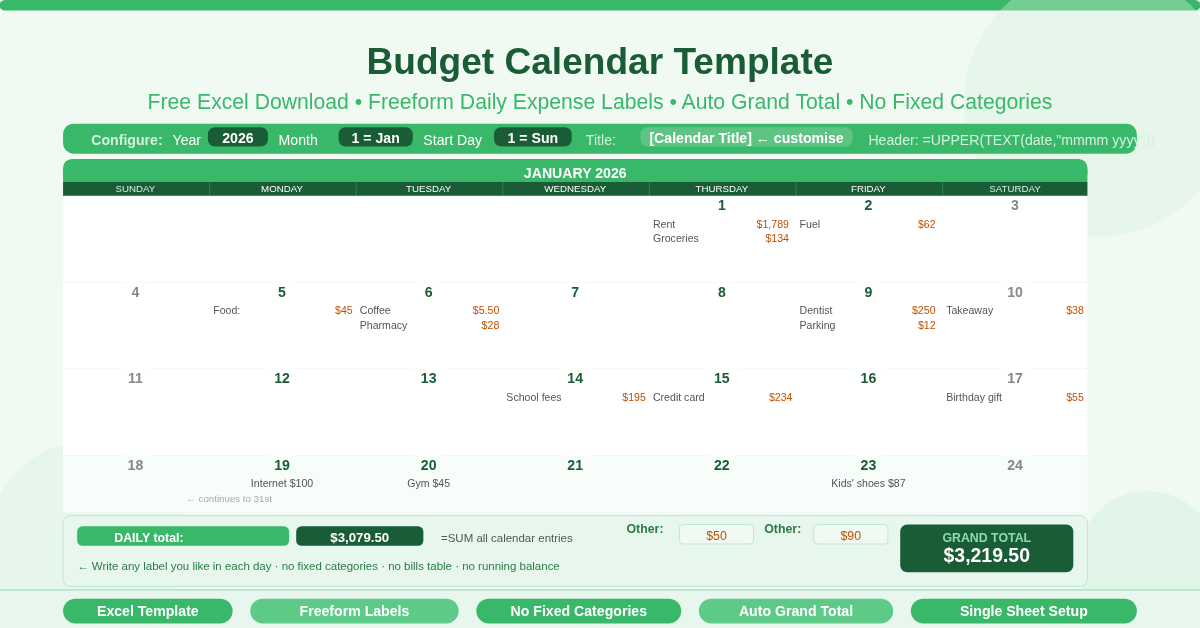
The most common reason budgets fail is complexity. When a budgeting system demands weekly reconciliation, category maintenance, and formula management, most people abandon it within a fortnight. The Budget Calendar Template takes the opposite approach. It gives you a monthly calendar grid, a blank space on every date, and one grand total at the bottom. Write in what you spend and where. That is the entire system.
This approach works because it maps spending to the moment it happens. A budget recorded on the day of purchase is more accurate and more honest than one reconstructed from memory at month end. Furthermore, the calendar format makes patterns visible in a way that a spreadsheet list cannot. A row of expensive Saturdays, a quiet mid-month stretch, a clustered bill week — these patterns emerge naturally when spending is recorded on a calendar rather than in a transaction log.
The Template is a free Microsoft Excel workbook with a single sheet and a straightforward structure. It requires no accounting knowledge, no formula editing, and no setup beyond entering the year, month, and start day.
What Does the Template Contain?
The workbook has one sheet: BudgetCalendar. The entire layout — calendar grid, expense entry rows, and totals section — sits on a single printable page.
The Calendar Grid
This Sheet displays the chosen month in a 7-column layout with one column per day of the week. Each day block spans several rows, giving space for multiple labeled expense entries beneath the date number. The grid covers five to six weeks, enough to display any month of the year regardless of which day it starts on. The month title auto-generates from the Year and Month inputs using =UPPER(TEXT(B7,”mmmm yyyy”)) — so the header always reads correctly for whatever month is set.
The Expense Entry Rows
Each day has multiple open rows for freeform expense entries. Each row has two cells: a narrow label cell on the left and a wider amount cell on the right. There are no fixed categories and no dropdown menus. Type any label you want — “Fuel”, “Lunch”, “Kids’ shoes”, “Pharmacy”, “Birthday gift” — and the amount beside it. Add as many rows per day as needed by inserting new rows within the day’s block.
The sample data in the template demonstrates this clearly. Monday of the first week shows “Food: $45” on one row and “Mortgage $1,789” on the rows below. These two entries sit in the same day column, labeled freehand, with no connection to any bills table or category system. That freedom is a feature, not an oversight.
The Totals Section
Below the calendar grid, the template provides a two-part totals section.
- The DAILY total at G45 uses a SUM formula that covers every amount cell across every week row in the calendar. This gives the total of all entries recorded directly on the calendar dates — your day-by-day spending in aggregate.
- Two Other fields below the DAILY total accept any amounts that did not fit the calendar — for example, direct debits processed outside normal business days, or lump-sum payments entered after the fact. The sample entries show $50 and $90 in the Other fields.
- The TOTAL in cell M55 combines the DAILY figure and all Other entries into a single grand total for the month using =SUM(M45:N54, I45:J54). This is the one number that tells you exactly what you spent in the total month.
How Is This Different from the Daily Balance Calendar?
The Budget Calendar and the Budget Calendar with Daily Balance are designed for different budgeting styles. Understanding the distinction helps you choose the right tool.
What the Budget Calendar Does
The Budget Calendar is a spending recorder. It captures what you actually spent, day by day, with a label you choose at the time of entry. It produces a monthly total. It does not predict your balance, track recurring bills automatically, or connect to previous months. It answers one question: how much did I spend this month, and on what?
What the Daily Balance Calendar Does
The Daily Balance version is a cash flow planner. It connects to a recurring bills table, calculates a running account balance on every date, and chains months together so the end balance of January becomes the start balance of February. It answers a different question: what will my balance be on any given day?
The Budget Calendar is the right tool when you want simplicity. It is better for tracking actual spending after it happens, for people who do not want to maintain a bills table, and for anyone whose financial life is straightforward enough that a monthly total is all they need. Consequently, it is also a better fit for printing and filling in by hand, for students managing simple budgets, and for small businesses recording project costs month by month.
How Do You Set Up and Use This Template?
Setup takes under two minutes. Open the file and enter three values at the top of the sheet: the Year in cell B2, the Month number in cell E2, and the Start Day in cell H2 (1 for Sunday, 2 for Monday). The calendar grid and month header update immediately.
Replace the [Calendar Title] placeholder in cell A5 with a title that suits your use — your name, the project name, or the month label.
Then start entering expenses on the correct dates. For each expense, type a label in the left cell of the row and the amount in the right cell. Label your entries as specifically or as broadly as you like. Some people write “Groceries”, “Fuel”, and “Eating out” as separate entries. Others simply write “Spending” and a total for the day. Both approaches work equally well, because the template applies no rules to what you enter.
At the end of the month, review the DAILY total, add any Other amounts that were not recorded on the calendar, and read the TOTAL figure in M55. That is your monthly spend.
What Makes Freeform Labelling Powerful?
Most budget templates force you to pre-define your spending categories before the month begins. This creates an immediate problem: real spending rarely matches a category list set up in advance. A car repair does not fit neatly into “Transport” when you budgeted that category for fuel. A child’s unexpected school supply list does not have a category. A work expense reimbursed later creates an awkward negative entry in a fixed-category system.
Freeform labelling removes all of these problems. Write exactly what the expense was. Do not fit it into a box. At month end, you have a calendar full of honest, specific entries that reflect what actually happened — not a set of categories with unexplained variances.
Moreover, freeform entries on a calendar are naturally self-explanatory when reviewed later. “Dentist $250 — Monday the 12th” is far more readable than a transaction in a “Health” category with no further context. This makes monthly review faster and annual review genuinely useful.
Who Is This Template For?
- Individuals tracking personal spending who find complex budgeting apps and spreadsheets overwhelming will find this template refreshingly simple. Enter the month, write in what you spend, and get a total. Nothing else is required.
- Students managing a first budget benefit from the calendar format, which makes the connection between spending and time viscerally clear. Seeing three consecutive days of restaurant entries in the same week is immediately more impactful on a calendar than the same total buried in a category summary.
- Freelancers and self-employed people tracking project expenses for a specific month will use the Other fields for irregular items and the calendar for day-to-day costs. The grand total provides the monthly expense figure they need for invoicing or tax records.
- Small business owners tracking a single cost center — a vehicle, a project, a staff member’s expenses — will use the customizable title field to label the calendar and record costs as they occur. The single-sheet, single-total design suits this use case precisely.
- Anyone who tried a complex budgeting system and gave up will find the Budget Calendar an honest, no-pressure alternative. It does not demand perfect categorization, daily reconciliation, or forward planning. It simply records what happened and tells you the total.
How to Get the Most From This Template
Enter expenses on the day they occur, not at the end of the week. The fresher the entry, the more accurate the label and the more useful the calendar becomes as a spending diary.
Use specific labels. “Costa Coffee $4.50” is more useful than “Coffee”. “School uniform $87” is more useful than “Kids”. Specificity makes the monthly review genuinely informative rather than a blur of undifferentiated spending.
Print it out and keep it visible. The Budget Calendar was designed with printing in mind. A printed copy on a desk, kitchen counter, or office wall is a constant, low-effort prompt to record spending in the moment.
Use the Other section for any amounts that arrive outside your normal spending pattern — an unexpected refund, a large annual payment, or a cash withdrawal you cannot otherwise account for. These entries flow into the grand total alongside the calendar entries.
Conclusion
The Budget Calendar Template is an Excel monthly expense calendar built for people who want simplicity above all else. Write a label and an amount on the correct date for every expense you make. The template totals everything automatically at month end. There are no categories, no recurring bills table, no running balance, and no month chaining. There is only a calendar, a space to write what you spent, and a total. Download it, open it to this month, and start recording your spending today.