
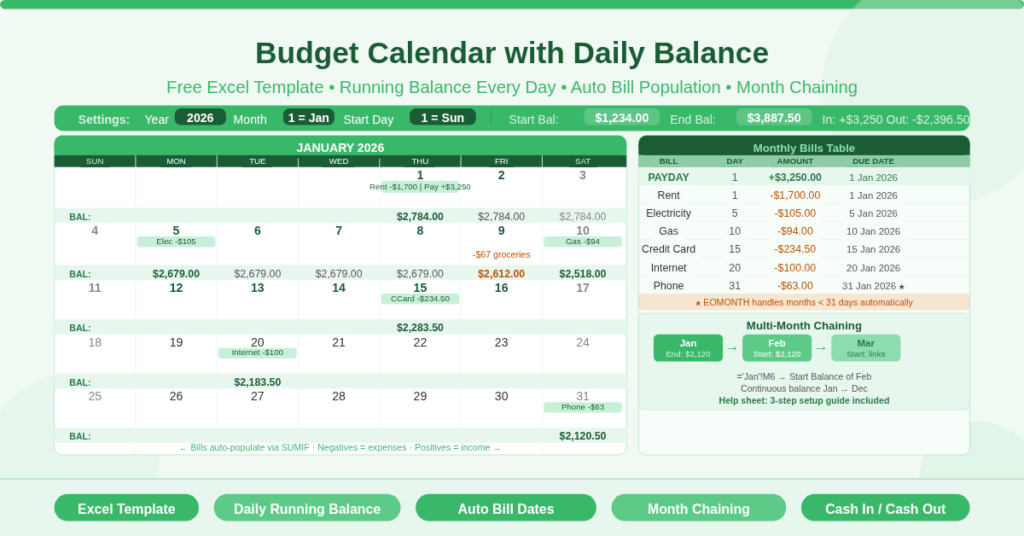
Most budgeting templates show you where your money went after the fact. This template shows you where your money stands every single day of the month. That difference is fundamental to staying in control of your cash flow.
When you can see your account balance on every calendar date, you can answer questions that monthly summaries cannot. Will my balance drop below zero before payday arrives? Which week is tightest? Can I afford an unexpected expense on the 18th? A running daily balance makes these answers visible at a glance — and that visibility is what prevents overdrafts, missed payments, and financial surprises.
The Budget Calendar with Daily Balance is a free Microsoft Excel template that delivers exactly this view. It combines a monthly calendar grid with an automatically updating running balance on every row, a recurring bills table that auto-populates due dates, a monthly summary panel, and a multi-month chaining system that links each month’s end balance to the next month’s start.
Explore calendar suite.
What Does the Template Include?
The workbook contains two sheets. The Month sheet is the working calendar where budgeting happens. The Help sheet provides a three-step setup guide covering recurring bills, start balance entry, and multi-month chaining.
The Month Sheet at a Glance
The Month sheet is a single-page monthly calendar with a layout that differs fundamentally from standard calendar templates. Each week row in the calendar contains two sub-rows: a date row showing the day numbers, and a running balance row labelled BAL: that shows the cumulative account balance after all entries on that date.
The top of the sheet holds the configuration inputs — Year, Month, and Start Day — that control the calendar grid. To the right of the grid sits the Monthly Bills table, which drives the automatic bill population. Above the bills table is the Summary Panel, which displays the Start Balance, End Balance, total Cash In, and total Cash Out for the month at a glance.
The Help Sheet
The Help sheet explains the setup process in three clear steps: enter monthly bills, enter a start balance, and make copies of the Month worksheet for each month of the year. This guidance is particularly valuable for new users unfamiliar with the multi-month chaining system.
How Does the Daily Running Balance Work?
The daily running balance is the template’s defining feature. Understanding it fully explains why this approach is more powerful than a standard monthly budget.
The BAL: Row
Every week in the calendar has a BAL: row beneath the date row. This row calculates the cumulative account balance for each day in that week. The formula carries the balance from the previous day, adds any bills scheduled for the current date via SUMIF, and includes any daily expenses or income entered manually into the day’s cells.
The result is a live, real-time balance number beneath every date. If Rent of -$1,700 hits on the 1st, the balance on day 1 immediately reflects that deduction. If Payday of +$3,250 also falls on the 1st, both are included. The balance flows forward automatically through every subsequent day, so you always know exactly where you stand.
Entering Daily Transactions
Enter daily expenses and income directly into the open cells within each day column. Use negative values for expenses and positive values for income. For example, entering -45 on a Wednesday adds a $45 expense to that day. The BAL: row beneath that week automatically recalculates to reflect the new entry.
The template supports multiple entries per day. If Monday has both a grocery run and a fuel top-up, enter both amounts in Monday’s column cells. The daily balance row sums them correctly, alongside any scheduled bills, into a single running balance figure.
Why Daily Visibility Matters
Most people experience cash flow stress mid-month, not at month end. Bills cluster around the 1st and the 15th. Payday arrives on specific dates. A monthly total hides these timing pressures entirely. The daily balance reveals them clearly. Seeing that Wednesday the 3rd carries a balance of $412 while rent hit on the 1st tells you exactly how much buffer you have — and whether you can absorb any unplanned spending before payday refills the account.
How Does the Monthly Bills Table Work?
The Monthly Bills table sits to the right of the calendar grid and is one of the most time-saving features in the template. It replaces the need to manually enter recurring payments into the calendar each month.
Entering Recurring Bills
The bills table has four columns: BILL (the name), DAY (the day of month due), AMOUNT (negative for expenses, positive for income), and DUE DATE (calculated automatically).
Enter each recurring item once. The template comes pre-loaded with seven sample entries to illustrate the format: Credit Card (-$234.50 due on the 15th), Rent (-$1,700 due on the 1st), Electricity (-$105 due on the 5th), Gas (-$94 due on the 10th), Phone (-$63 due on the 31st), Internet (-$100 due on the 20th), and Payday (+$3,250 on the 1st). Replace these with your own bills and income.
How the Due Date Formula Works
The Due Date column calculates each bill’s actual date for the current month using a formula that references the Year and Month settings at the top of the sheet. The formula also handles edge cases — if a bill is due on the 31st and the current month only has 30 days, the formula automatically assigns it to the last day of the month using EOMONTH. This prevents errors and ensures every bill lands on a valid date.
How Bills Appear on the Calendar
Once entered, each bill’s amount appears automatically in the correct day column on the calendar via SUMIF formulas. The SUMIF looks up each calendar date against the Due Date column and pulls the corresponding amount into the day. As a result, you never manually enter a recurring bill into the calendar. Change the Month setting and all bill dates shift to the new month automatically.
How Does the Summary Panel Work?
The Summary Panel in the top-right area of the Month sheet gives a high-level overview of the month’s finances in four figures.
Start Balance is the opening account balance for the month. Enter this manually for the first month. For subsequent months, it links automatically to the previous month’s End Balance via a cell reference formula.
End Balance is the closing balance after all bills and daily entries. It equals the final daily balance on the last day of the month. This figure is what links to the next month’s Start Balance.
Cash In totals all positive values entered across the month — both from the Monthly Bills table (such as Payday) and any positive daily entries. It uses a SUMIF to sum only values greater than zero across the entire month.
Cash Out totals all negative values — both scheduled bills and daily expenses. It uses a SUMIF to sum only values less than zero. Together, Cash In and Cash Out give you a clear split of total inflows and outflows for the month without any manual calculation.
How Do You Chain Months Together?
The multi-month chaining system is what transforms this from a single-month tool into a year-round budgeting system.
After setting up the Month sheet, make a copy of it and rename the copies for each month — for example, Jan, Feb, Mar, and so on. In each new month’s sheet, change the Year and Month inputs. The bills and calendar update automatically. Then link the Start Balance of each month to the End Balance of the previous month using a simple cell reference.
The Help sheet describes this formula: =’Jan’!M6 entered into February’s Start Balance cell pulls January’s End Balance directly. The chain then extends through every month of the year. As a result, every month starts exactly where the previous one ended, giving you a continuous, unbroken running balance across the entire year.
How to Set Up the Template in Three Steps
Step 1 — Enter your monthly bills. Replace the sample bill entries in the Monthly Bills table with your own recurring payments and income. Enter each bill’s name, due day, and amount. Negative amounts are expenses; positive amounts are income.
Step 2 — Enter your Start Balance. Type your current account balance into the Start Balance cell. This anchors the daily running balance calculations for the entire month.
Step 3 — Duplicate the sheet for each month. Right-click the Month tab and select Move or Copy to create a duplicate. Rename it for the relevant month. Update the Year and Month inputs. Link the Start Balance to the previous sheet’s End Balance using a cell reference. Repeat for every month of the year.
Who Should Use This Template?
Individuals managing a single account who want to track daily spending against a running balance will find this template more actionable than any monthly budget summary. Seeing the balance drop below a comfortable threshold mid-month triggers spending awareness in a way that end-of-month reports do not.
Freelancers and self-employed people with irregular income and variable expense timing will use the daily balance view to plan around lean periods. Knowing exactly when income arrives and when bills hit makes it possible to schedule larger expenses around comfortable balance windows.
Households tracking joint finances will find the bill table and payday entry system useful for a shared account. All recurring obligations are visible in one place, and both partners can see the same daily balance without needing to reconcile separate records.
Anyone building a financial habit from scratch will appreciate the three-step setup process documented on the Help sheet. The template is designed to be used, not just downloaded — it provides enough structure to get started immediately without requiring accounting knowledge.
Conclusion
The Budget Calendar with Daily Balance is an Excel budgeting tool that puts a live running account balance on every date of every month. Recurring bills populate automatically from a single entry table. Daily income and expenses flow into the running balance the moment they are entered. The Summary Panel tracks total Cash In and Cash Out for the month. And a multi-month chaining system keeps the balance rolling continuously from January through December. Download it today and see your money not just as monthly totals — but as a daily story of exactly where you stand.