
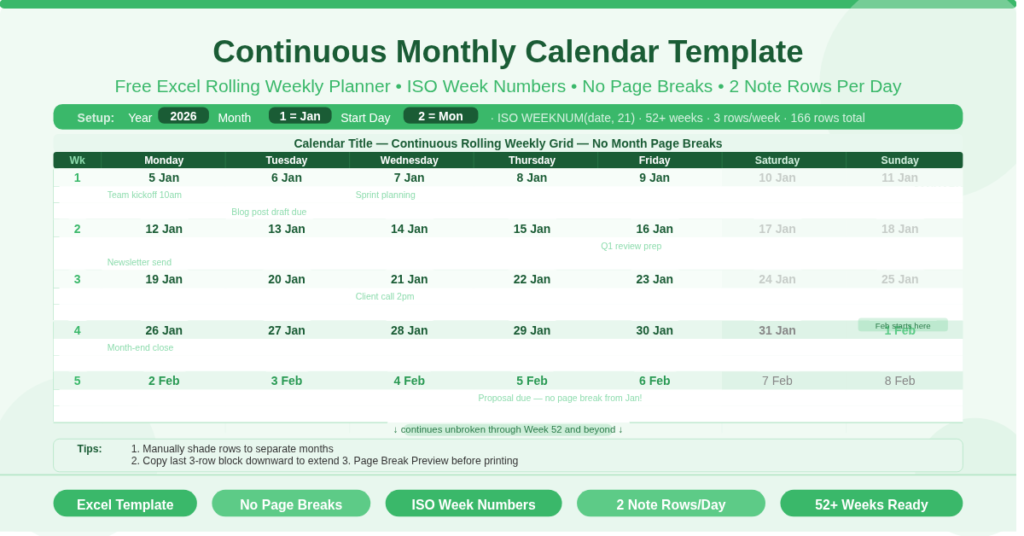
Most calendar templates force you to flip between monthly pages whenever a project crosses a month boundary. A task that spans the last week of March and the first week of April sits on two separate sheets, making it awkward to plan, review, and print. A continuous monthly calendar solves this by removing the page break entirely.
This free Excel Continuous Monthly Calendar Template displays every week of the year as an unbroken, scrollable list — one week block flowing directly into the next. There are no monthly dividers, no sheet-switching, and no gaps at month boundaries. Simply scroll down to see any week in context, whether it sits in the middle of a month or straddles two of them. This makes it one of the most practical planning tools for anyone who thinks in weeks rather than months.
Download the template, set the year and start month, and your full-year rolling weekly calendar is ready in seconds.
What Is the Continuous Monthly Calendar Template?
The Continuous Monthly Calendar Template is a free Microsoft Excel workbook with a single sheet named Calendar. It displays a full year’s worth of weeks in a continuous, top-to-bottom list — 52 or more consecutive week blocks, each flowing directly into the next without any monthly page breaks.
Unlike traditional calendar templates that dedicate one sheet or one page to each month, this template treats the year as a single unbroken timeline. Each week occupies three rows: one row showing the ISO week number and the seven date numbers, and two open rows for notes beneath each day. The result is a planner that works naturally with project timelines, sprint schedules, academic terms, and any planning horizon that does not respect calendar-month boundaries.
The template suits planners, project coordinators, teachers, freelancers, and anyone who has ever been frustrated by a monthly grid that cuts a working week in half.
How Is the Template Structured?
The Three-Row Week Block
Every week in the continuous calendar occupies exactly three rows. The first row displays the ISO week number in column A, followed by the seven date numbers running across the remaining columns — one date per day, Monday through Sunday by default. The second and third rows beneath each date row are open writing space for notes, events, tasks, or appointments.
This structure means each week has two lines of note space per day. For planners who write brief daily entries, two lines is enough for most purposes. For busier periods, the template tip suggests extending the layout by copying the three-row week block and pasting additional rows below.
The ISO Week Number Column
Column A on every date row displays the ISO 8601 week number using =WEEKNUM(B8, 21). ISO week numbers are the international standard for week identification — week 1 is the week that contains the first Thursday of the year, and weeks run Monday to Sunday. This is the convention used in business planning, project management, academic scheduling, and most European and international contexts.
Having the week number on every row makes it straightforward to reference a specific planning week by number — for example, “launch in week 22” or “submit by week 47” — without counting from the start of a month. This is particularly useful when coordinating with teams, agencies, or clients who use week-number references in their own planning systems.
The Day Columns
Each day of the week uses a pair of adjacent columns — a narrow date column showing the date number and a wider writing column for entries. Seven days appear across the full width of the sheet, from Monday on the left to Sunday on the right (or Sunday to Saturday if Start Day is set to 1). The layout is clean and consistent across every week row in the calendar.
How Do the Three Configuration Inputs Work?
Three inputs at the top of the Calendar sheet control the entire layout.
Year (cell C3) sets the calendar year. The default is 2026. Changing this updates every date number in every week block across all 166 rows of the sheet instantly.
Month (cell G3) sets which month the calendar begins from. Entering 1 starts from January. Entering 9 starts from September, which suits academic year planners or anyone using a non-January planning cycle. The date formula for the first week anchors to the first day of this month, then calculates backwards to find the Monday (or Sunday) that begins that week.
Start Day (cell K3) controls whether weeks begin on Monday (2) or Sunday (1). The template defaults to 2 — Monday — consistent with ISO week numbering. Changing this to 1 shifts all week rows to a Sunday-to-Saturday layout.
How Do You Separate Months Visually?
The continuous calendar does not automatically separate months with dividers or colour bands. This is intentional — automatic month separators would either break the continuous scroll or require complex formula logic. Instead, the template provides a practical tip: manually apply a background colour to the rows of a new month to create a visible distinction.
This approach is more flexible than automatic separators. You choose which colour to use, how strongly to mark the transition, and whether to highlight the first day of the month, the entire week row, or only specific columns. A subtle shade change between months is often all that is needed to keep the calendar visually clear without disrupting the continuous layout.
How Do You Extend the Calendar?
The template ships with 166 rows — enough for a full calendar year. To extend it further, follow the built-in tip: copy the last three-row week block and paste it below. The date formulas in the new rows automatically continue from the week above, maintaining the unbroken sequence. Add as many additional weeks as your planning horizon requires.
This extendability makes the template useful for multi-year rolling plans, long-term project timelines, and academic calendars that run across two calendar years. The formula logic is identical in every row, so copying preserves the full structure.
Practical Use Cases for a Continuous Weekly Calendar
Project management: Map deliverables, milestones, and review dates across a project timeline without losing track of week boundaries. The ISO week number column makes it easy to communicate timelines using week numbers rather than specific dates.
Academic planning: Semester schedules, assignment deadlines, and exam windows often span two or three months. A continuous calendar captures these spans in one unbroken view without flipping between October, November, and December grids.
Content publishing: Editorial calendars for blogs, newsletters, and social media often plan in weekly batches. The two note rows per day provide enough space to log planned and published pieces side by side.
Sprint-based teams: Software development and agile teams that work in weekly sprints will find the ISO week structure familiar and practical. Each sprint maps directly to a week row, and the week number provides an instant sprint reference.
Personal productivity: Weekly planners who review their week before Monday and plan tasks day by day will appreciate the uncluttered two-note-row structure — enough space for priorities without the noise of a fully designed planner page.
How to Print the Continuous Calendar
Printing a continuous calendar requires a small amount of setup. Use View > Page Break Preview to see exactly how the calendar breaks across print pages and adjust accordingly. This is the third built-in tip on the sheet. Dragging the page break indicators allows you to ensure each printed page ends cleanly at a week boundary rather than mid-week.
For a year-view printout, landscape orientation and smaller font sizes work best. Alternatively, print a rolling 13-week quarter at a time by selecting the relevant rows before printing.
Download and Get Started Today
The Continuous Monthly Calendar Template is free to download and works in any version of Microsoft Excel. Open the file, set your Year, Month, and Start Day, optionally apply colour shading to mark month transitions, and begin planning.
If you work with fixed monthly grids and find them limiting, this continuous weekly calendar is worth switching to. It removes the friction of month-by-month navigation and gives you a clean, unbroken view of your entire year — exactly as your plans actually unfold.
Download the free Continuous Monthly Calendar Template now and take a better approach to week-by-week planning.