
Every organisation sets a budget at the start of the year. The numbers look reasonable on paper. Then the year begins. Invoices arrive. Purchases happen. Charitable commitments accumulate. By mid-year, many finance teams discover that actual spending has drifted significantly from the original plan — and they only find out because someone had to manually compile the figures.
A general ledger with built-in budget comparison closes that gap. It connects every transaction to a G/L code, rolls those transactions into monthly totals, compares those totals against the annual budget, and shows exactly how much budget remains — by account, by month, and in percentage terms. You always know where you stand. No manual compilation required.
This free Excel General Ledger with Budget Comparison Template delivers exactly that system. It is a fully connected, formula-driven workbook with five dedicated sheets. Download it, enter your budget figures and transactions, and your organisation has a real-time financial tracking system in place immediately.
Explore other financial and budgeting Excel Templates.
What Is the General Ledger with Budget Comparison Template?
This template is a five-sheet Microsoft Excel workbook that functions as a complete expense management and budget tracking system. Each sheet serves a distinct purpose, and all five connect to each other through structured Excel table formulas — primarily SUMIF and SUMIFS — so that data entered in one sheet flows automatically into the summaries across the others.
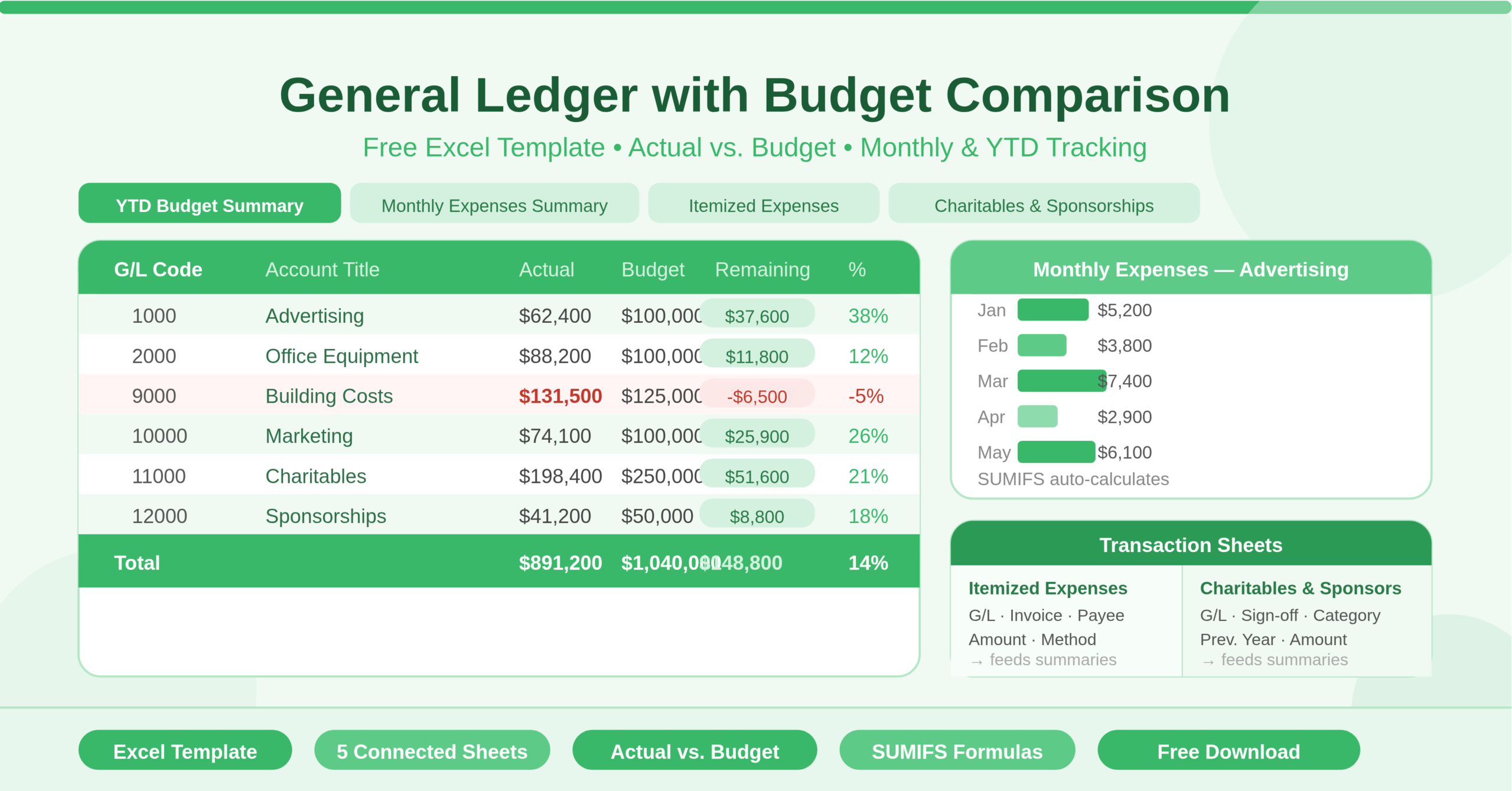
The YTD Budget Summary sheet shows year-to-date actual spending versus budget for each G/L account. It calculates the remaining dollar amount and remaining percentage automatically. The year updates dynamically using TODAY(), so the summary always reflects the current financial year.
The Monthly Expenses Summary sheet breaks spending down by month — January through December — for each G/L account. SUMIFS formulas pull from both the Itemized Expenses and Charitables and Sponsorships sheets simultaneously, combining all transaction types into a unified monthly view. A slicer lets users filter by account title for focused analysis.
The Itemized Expenses sheet is the transaction log for standard purchases. Each row captures the G/L code, invoice date, invoice number, requested by, check amount, payee, check use, method of distribution, and file date. This level of detail supports audit trails, accounts payable workflows, and expense policy compliance.
The Charitables and Sponsorships sheet is a dedicated log for charitable contributions and sponsorships. It captures additional fields specific to these transaction types — including previous year contribution, what the payment is used for, who signed it off, and the category. This separation keeps charitable spending clearly distinct from operational expenses.
The Learn Excel sheet provides resource links for users who want to deepen their Excel skills — covering formulas, pivot tables, charts, macros, and VBA.
Who Can Use This Template?
This template suits any organisation that tracks expenses against a budget using general ledger codes. Small and medium businesses that manage their own bookkeeping will find it a practical alternative to expensive accounting software for internal expense tracking. Finance managers at nonprofits, schools, associations, and corporate departments will appreciate the structured separation of charitable and operational spending.
Accountants and bookkeepers supporting multiple clients can use the template as a client-ready reporting tool. The YTD Budget Summary gives management a clean one-page view of financial performance. The monthly breakdown lets finance teams spot spending trends and flag problem areas before they become year-end surprises.
The template is particularly well-suited to organisations that make charitable donations and sponsorships as part of their annual budget. Having a dedicated sheet for these transactions — complete with sign-off tracking and category classification — supports both internal governance and external reporting requirements.
Freelancers and sole traders who want a more structured approach to expense tracking than a simple spreadsheet will also find value in this template. Even without complex accounting systems, they can use the G/L code structure to categorise spending and compare it against a plan.
Key Features of the General Ledger with Budget Comparison Template
The standout feature is the live Actual vs. Budget comparison in the YTD Budget Summary sheet. For each of the 12 G/L accounts — Advertising, Office Equipment, Printers, Server Costs, Supplies, Client Expenses, Computers, Medical Plan, Building Costs, Marketing, Charitables, and Sponsorships — the sheet shows actual spend pulled automatically from the transaction sheets, the annual budget entered by the user, the remaining dollar amount, and the remaining percentage. All four columns update the moment you add a new transaction.
- The SUMIFS formula engine in the Monthly Expenses Summary is the technical heart of the workbook. For each account and each month, it queries both the Itemized Expenses table and the Charitables and Sponsorships table simultaneously, filters by G/L code and date range, and returns the combined total. This means a single data entry point — the transaction sheets — drives every summary automatically.
- The dynamic year calculation uses YEAR(TODAY()) to determine the current financial year. Date range formulas across the Monthly Expenses sheet adjust accordingly. You never need to manually update year references when the calendar rolls over.
- The SUBTOTAL formulas in the Total rows of both summary sheets respect any filters or slicers applied to the data. If you filter the Monthly Expenses Summary to show only one account, the Total row instantly reflects only the visible rows — making filtered analysis accurate and effortless.
The Itemized Expenses table captures nine fields per transaction. This level of detail supports accounts payable workflows, budget owner reporting, and audit preparation. The structured table format also means new rows added to the transaction sheets feed directly into all SUMIFS formulas without any formula adjustment.
The Charitables and Sponsorships sheet adds fields specific to this spending category — previous year contribution, usage description, sign-off authority, and distribution method. This makes it a governance tool as well as a financial record. Organisations with formal approval processes for charitable giving can use it to document compliance.
How to Use the General Ledger with Budget Comparison Template
Start with the YTD Budget Summary sheet. The G/L codes and account titles are pre-populated. Enter your annual budget figure for each account in the Budget column. These are the only hardcoded inputs the summary sheet needs — every other figure derives from the transaction sheets.
Next, open the Itemized Expenses sheet. For each purchase or expense, add a new row to the table. Enter the G/L code that matches the account in the YTD Budget Summary, the invoice date, invoice number, amount, payee, and the remaining fields relevant to your process. As soon as you save the row, the Monthly Expenses Summary and YTD Budget Summary update automatically.
For charitable contributions and sponsorships, open the Charitables and Sponsorships sheet and log each transaction there instead. Use G/L code 11000 for Charitables and 12000 for Sponsorships to match the pre-configured accounts. Again, all summaries update immediately.
Check the Monthly Expenses Summary sheet regularly throughout the year. It gives you a month-by-month breakdown of spending per account. Use the built-in slicer to filter by account title when you want to focus on a single cost area. The Total row at the bottom shows full-year spending per account in the rightmost column.
Return to the YTD Budget Summary sheet for management reporting. The Remaining $ and Remaining % columns tell you at a glance which accounts are on track, which are ahead of pace, and which may need attention before year end.
How to Modify the Template
The template adapts well to different organisation sizes and chart of accounts structures. To add new G/L accounts, insert a new row in the YTD Budget Summary table and the Monthly Expenses Summary table. Assign a new G/L code and account title. Copy the SUMIF formula from an adjacent row in the YTD sheet, and copy the SUMIFS formula pattern from an adjacent row in the Monthly sheet. New transactions coded to the new G/L will then flow into both summaries automatically.
- To rename existing accounts, update the account title in the YTD Budget Summary and Monthly Expenses Summary sheets. The formulas reference G/L codes, not account names, so renaming titles does not break any calculations.
- To add more transaction types beyond itemized expenses and charitable giving, create a new sheet modelled on the Itemized Expenses sheet. Include at minimum a G/L Code column and an amount column with a date column. Then update the SUMIFS formulas in the Monthly Expenses Summary to include the new table as an additional data source.
- To add department or cost centre tracking, insert a Department column in the transaction sheets and add a corresponding SUMIFS filter in the Monthly Expenses Summary. This turns the template into a departmental expense tracker without restructuring the existing formula logic.
Advanced users can add a budget variance chart linked to the YTD Budget Summary. A simple clustered bar chart showing Actual versus Budget per account gives management a visual dashboard that updates automatically as new transactions are entered.
Why a Connected General Ledger Matters
Manual expense tracking — entering data in one place and copying totals into another — is one of the most common sources of financial reporting errors. Figures get transcribed incorrectly. Summaries go stale between updates. Version control breaks down when multiple people work from different copies of the same spreadsheet.
A connected workbook eliminates these risks. Data entered once flows to every summary automatically. There is one version of the truth, always current, always consistent. This is what the formula architecture in this template delivers — without requiring a database, a server, or specialist software.
For organisations with formal budget accountability — where department heads are expected to stay within their annual allocations — a real-time Remaining % column is particularly powerful. It creates visibility without requiring finance to produce manual reports on demand. Budget owners can check their own status at any time by opening the workbook.
The separation of charitable and sponsorship transactions into a dedicated sheet also reflects best practice for governance and compliance. Many auditors and board committees expect these expenditures to be tracked separately from operational costs, with clear sign-off records. This template provides that structure out of the box.
Conclusion
The General Ledger with Budget Comparison Template is one of the most capable free Excel finance templates available. It connects transaction-level detail to monthly summaries and year-to-date budget comparisons through a formula architecture that updates automatically with every new entry. It covers 12 G/L accounts across operational expenses and charitable giving, separates transaction types into dedicated sheets, and gives management a clear real-time view of actual versus budget performance. Download it, enter your budget figures, start logging transactions, and your organisation has a professional financial tracking system running in Excel today.