
You check your bank account on the 15th, and the balance looks healthy. Then rent hits on the 16th, followed by three subscription renewals. Suddenly you are scrambling. The problem is not a lack of money. The problem is a lack of visibility across different spending categories that hit on different dates.
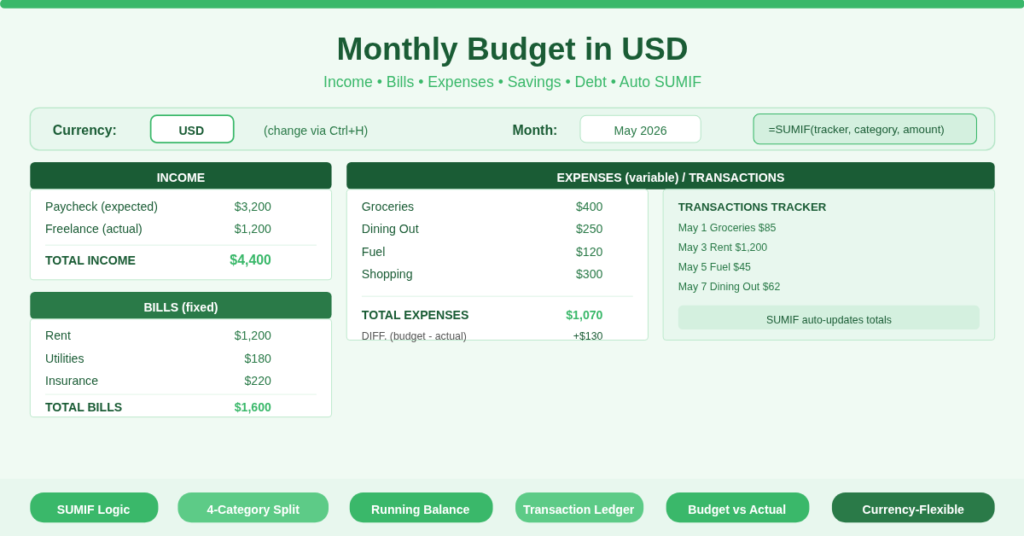
The monthly budget in USD template solves this by combining income tracking, bills calendar, variable expenses, savings goals, debt payments, and a transaction ledger in one Excel workbook. Automatic SUMIF formulas pull every transaction into the right category. You see where each dollar goes before you spend it.
What Is the Monthly Budget in USD Template?
This template is a complete personal finance dashboard built for USD users. It serves anyone who wants to stop guessing their monthly cash flow: renters, homeowners, freelancers, families, and students.
The workbook contains one master sheet with six interconnected sections:
- Income – track expected vs. actual earnings from multiple sources
- Bills – fixed monthly obligations with due dates
- Expenses – variable spending like groceries, fuel, dining out
- Savings – set aside money for goals or emergencies
- Debt – monitor loan payments and credit card balances
- Transactions Tracker – log every single transaction, and the template automatically categorizes it using SUMIF formulas
Furthermore, the template includes a Daily Spendings running balance and a Spending Overview that shows budget vs. actual for each category group. Every section delivers a clear message about your financial health.
SUMIF Formulas That Auto‑Categorizes Transactions
The most powerful feature lives in the TRANSACTIONS TRACKER (rows 38–998). You enter every financial transaction with a date, amount, and a BUDGET NAME (e.g., “Rent”, “Groceries”, “Paycheck”). Then the template does the rest.
Here is how it works. In the BILLS section, each row has a formula like this in the ACTUAL column (cell G18):
=IF(C18=””,””,SUMIF($G$38:$G$998,C18,$D$38:$D$998))
The formula scans the entire transaction tracker (column G for budget names, column D for amounts). When it finds a matching name (e.g., “Rent”), it sums all corresponding amounts. Consequently, every time you log a rent payment in the tracker, the Bills section updates automatically. No manual recalculations. No copy‑paste errors.
Similarly, the EXPENSES and SAVINGS sections use identical SUMIF logic. The template teaches you this pattern, so you can add new categories anytime.
Complete Breakdown of Bills, Expenses, Savings, and Debt
Unlike basic budget templates that lump everything into “expenses,” this template separates your money into four distinct categories. Each category tells a different story.
BILLS – Fixed obligations that stay the same each month (rent, mortgage, utilities, insurance, phone). The message: “These are non‑negotiable. Pay them first.”
EXPENSES – Variable spending you control (groceries, dining out, fuel, shopping, home, gifts, pets, health). The message: “This is where you find savings. Reduce here to increase savings.”
SAVINGS – Money you keep for future goals (emergency fund, vacation, down payment). The message: “Treat savings like a bill. Pay yourself first.”
DEBT – Loan payments and credit card balances. The message: “Track what you owe separately from living costs.”
Each section has its own BUDGET, ACTUAL, and DIFF. columns. The DIFF. column (budget minus actual) shows you exactly where you over‑spent or under‑spent. Red numbers signal a problem. Green numbers show progress.
Daily Spendings Running Balance
The DAILY SPENDINGS section (rows 106–136) gives you a day‑by‑day view of your cash flow. It uses SUMIFS formulas to calculate total spent and total income for each date.
Look at row 107 for example:
- SPENT = SUMIFS($D$38:$D$998,$B$38:$B$998,P107) – adds all transaction amounts from the tracker that match the date in P107.
- INCOME = SUMIFS($S$3:$S$5,$Q$3:$Q$5,P107) – adds any expected income for that date.
- BALANCE = previous day’s balance – spent + income.
This running balance updates automatically as you add transactions. Therefore, you never wonder, “What will my balance be on the 25th after all bills clear?” The template shows you today.
How to Change Currency from USD to Another Currency
The template is set to USD by default, but changing it takes less than one minute.
Step 1 – Replace all dollar symbols
Press Ctrl + H (Find and Replace). Find $ and replace with your currency symbol (e.g., €, £, ¥). Do this across the entire sheet.
Step 2 – Update number formatting
Select all columns containing currency values (columns D, F, G, L, M, R, S, etc.). Right‑click → Format Cells → Currency → choose your local currency symbol and decimal places.
Step 3 – Adjust formula references if needed
The formulas use SUMIF and SUMIFS which are currency‑agnostic. They work with any numeric value. No formula changes are required.
Pro tip: Save a copy as “Monthly Budget in EUR” after making the change, so you never have to repeat the process.
How Each Section Delivers a Financial Message
- LEFT TO SPEND (B2) – Shows how much remains after all budgeted expenses. A negative number means you are budgeting more than you earn. A positive number means you have room to save or spend.
- TOTAL INCOME (F4) – Your expected earnings. Compare this to TOTAL EXPENSES (J4). If expenses exceed income, reduce variable expenses immediately.
- BALANCE OVERVIEW – The template includes a visual “BUDGET (LEFT) VS ACTUAL (RIGHT)” comparison. This tells you if your planned spending matches reality.
- WHERE MOST OF MY MONEY GOES – A sorted list that ranks your actual expenses by percentage of income. This pinpoints the top three categories draining your wallet.
- SPENDING OVERVIEW (bottom) – Summarizes total Bills, Expenses, Savings, and Debt into one row. The message: “Your entire monthly budget condensed into four numbers.”
Practical Use Cases
Renter with variable freelance income – Use the income section to track three different clients. The DAILY SPENDINGS running balance helps you schedule rent payments around irregular paydays.
Family with two incomes and shared bills – Log every grocery trip and utility payment in the Transactions Tracker. The SUMIF formulas automatically split categories, so you never argue about who spent what.
Student on a fixed stipend – Focus on the EXPENSES section. Reduce dining out and shopping to keep the DIFF. column positive each month. The debt section helps you plan student loan payments after graduation.
Debt repayment enthusiast – Use the DEBT section to set aggressive budget targets. The “DIFF.” column shows how much extra you paid above the minimum. The running balance confirms you can afford the extra payment.
Retiree on fixed income – Rely on the BILLS section to ensure essential costs never exceed your pension. The savings section tracks withdrawals from retirement accounts separately from living expenses.
How to Set Up and Start Using the Template
Follow these steps to have your budget running in under 15 minutes:
- Download the Excel file from the link below. Open it and delete the sample transactions in rows 38–998 (keep the headers).
- Go to the income section (rows 3–6). Replace “Paycheck”, “Side Hustle”, “Other Income” with your actual sources. Enter expected monthly amounts.
- Move to the BILLS section (rows 17–33). List each fixed bill and its due date. Enter the budgeted amount.
- In the EXPENSES section (rows 17–33), set monthly limits for groceries, dining out, fuel, etc. Start with realistic numbers based on last month’s spending.
- Set savings and debt targets in their respective sections.
- Log every transaction as it happens in the TRANSACTIONS TRACKER: date, amount, and the exact budget name (e.g., “Rent” or “Groceries”).
- Review the DAILY SPENDINGS balance daily. Check the SPENDING OVERVIEW weekly to catch overspending early.
The template saves automatically. Refresh formulas by pressing F9 or simply closing and reopening the file.
Download Your Free Monthly Budget in USD Template
Stop wondering where your money went. Start telling every dollar where to go. Download the free monthly budget in USD template below. It works with Excel 2016, 2019, 365, and Google Sheets (with minor array formula adjustments). The SUMIF formulas, running balance, and category breakdowns work immediately.