
Benefits are a major cost and a major perk, yet enrollment often lives in a tangle of forms. Knowing who has what, and what it costs, gets surprisingly hard.
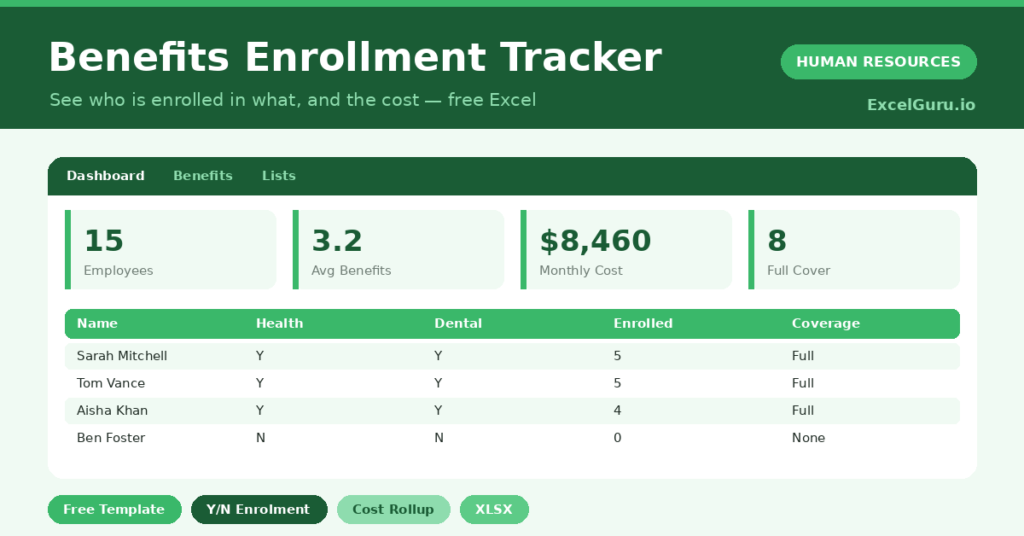
This free benefits tracker brings clarity. You mark each enrollment, and the sheet counts benefits, calculates the cost and shows coverage. You will also find realistic sample data already inside the file. Therefore, you can explore every formula, dropdown and chart first, and then replace the samples with your own records in minutes.
Below, we explain the formulas, the workflow, and how to adapt the tracker to your own plans.
What Is a Benefits Enrollment Tracker?
A benefits enrollment tracker records which benefits each employee has chosen. It covers health, dental, vision, life and retirement.
It then counts each person’s benefits and totals the employer cost. As a result, you can see both coverage and cost in one place. Instead of digging through forms, you get one clear summary per employee.
Why Does Tracking Benefits Matter?
Benefits drive both employee satisfaction and a large slice of cost. Poor tracking leads to errors, gaps in cover and budget surprises.
A clear tracker keeps both sides under control. Therefore, you can confirm everyone is covered and forecast the cost accurately. It also makes renewal season far less stressful. Seeing the cost per person helps you plan the benefits budget with confidence.
Why Use This Template?
A clear tracker keeps benefits organised. In particular, this one helps you:
- Record each employee’s enrollments.
- Count the benefits each person has.
- Calculate the employer cost per person.
- See total benefits cost at a glance.
- Spot anyone with little or no coverage.
What’s Inside the Template?
The workbook has four tabs:
- How to Use — a built-in guide.
- Dashboard — enrollment, cost and coverage KPIs.
- Benefits — one row per employee.
- Lists — the dropdowns and benefit costs.
What Formulas Does the Template Use?
The tracker uses dependable Excel formulas:
| Formula | What it does |
| =COUNTIF(benefits, “Y”) | Counts each person’s enrollments. |
| =(Health=”Y”)*400 + (Dental=”Y”)*50 + … | Calculates the employer monthly cost. |
| =IF(Enrolled>=4,”Full”,…) | Assigns a coverage level. |
| =COUNTIF(Health,”Y”) | Counts enrollment in each benefit. |
| =SUM(Monthly Cost) | Totals the benefits cost. |
How Do You Use the Template?
The tracker is quick to maintain. Just follow these steps:
- Open the Benefits tab and list your employees.
- Mark each benefit Y or N.
- Let the count, cost and coverage calculate.
- Check the costs on the Lists tab match your plan.
- Find anyone with no coverage.
- Review enrollment and cost on the Dashboard.
What Are the Best Use Cases?
The tracker fits many teams, such as:
- HR teams managing benefit plans.
- Finance teams forecasting benefit cost.
- Small businesses without an HR system.
- Managers checking team coverage.
- Anyone preparing for a renewal window.
How Can You Modify the Template?
You can tailor it freely. To change the plans, rename the benefit columns and update the costs on the Lists tab.
You can also add an employee-contribution column to show the split.
Moreover, the sheet covers 40 employees by default, and you can copy the formula row downward for more.
What Mistakes Should You Avoid?
A few habits weaken the tracker. Therefore, avoid these common mistakes:
- Letting enrollment data fall out of date.
- Using costs that no longer match the plan.
- Missing employees who never enrolled.
- Storing the file without proper access control.
Tips to Get the Most From It
- Update enrollment at every renewal window.
- Keep the benefit costs current on the Lists tab.
- Follow up with anyone showing no coverage.
- Treat the file as confidential personal data.
Frequently Asked Questions
How is the employer cost calculated?
Each benefit has a set monthly cost on the Lists tab. The sheet adds up the cost of whatever each employee is enrolled in.
Can I change the benefits offered?
Yes. Rename the benefit columns and update the costs to match your own plan, and the totals adjust automatically.
What does the coverage level show?
It summarises how many benefits each person has, from Full to None, so you can quickly see who may be under-covered.
Does it handle employee contributions?
It focuses on employer cost. You can add a contribution column if you want to show the split between employer and employee.
Does it work in Google Sheets?
It does, with minor adjustments to formatting after importing.
Download the Template and Get Started
Clear benefits tracking keeps staff covered and costs predictable. This tracker handles both with ease.
Download the Benefits Enrollment Tracker and organize your benefits today.