
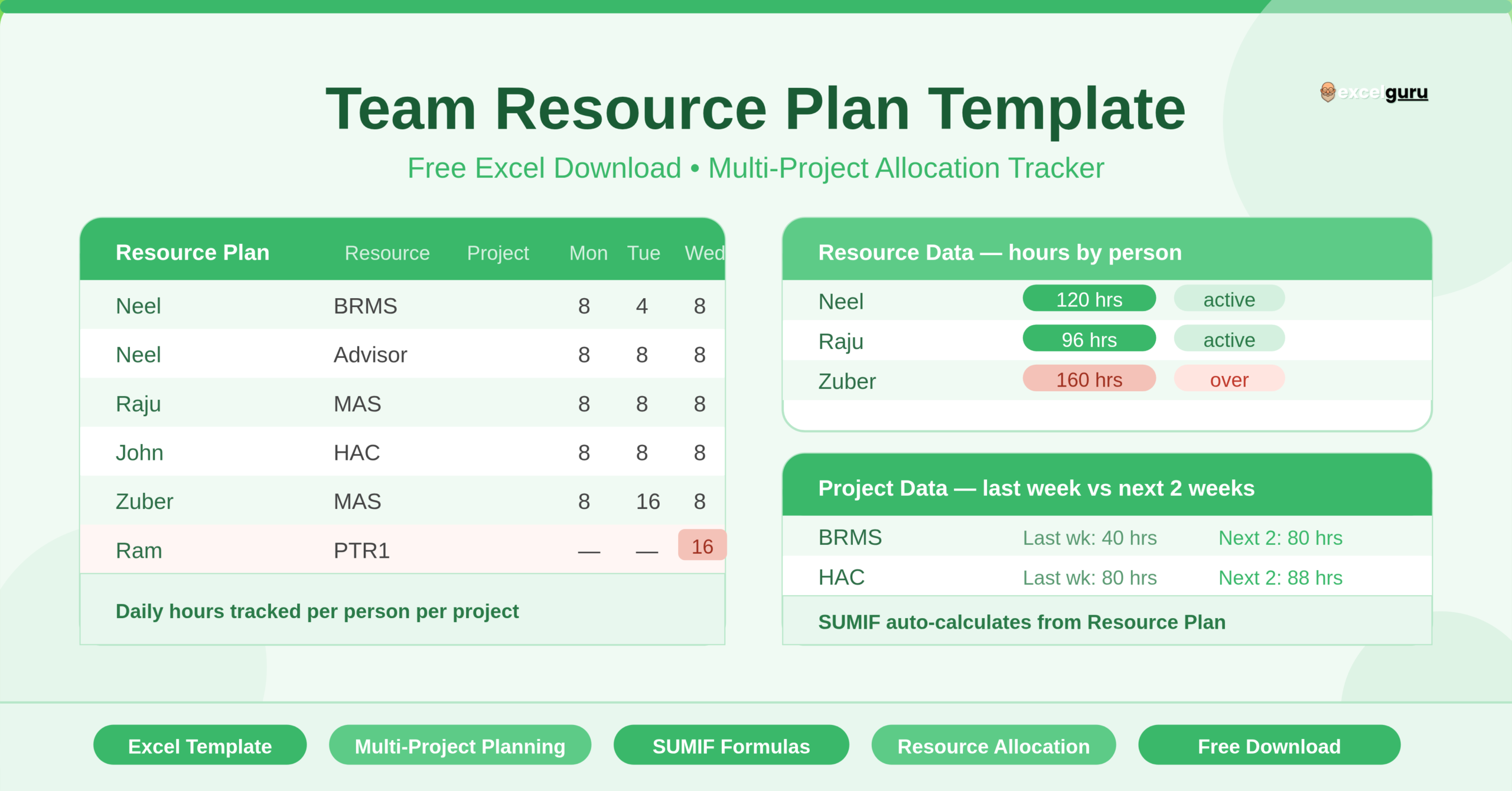
The Team Resource Plan Template is a structured Microsoft Excel workbook that helps managers plan and track how team members spend their hours across multiple projects. It works on a daily basis. You enter each team member’s name, the project they work on, and the number of hours they log each day. The template then calculates totals automatically — by person and by project — across a rolling date range.
The workbook contains four sheets, each serving a distinct purpose. The Resource Plan sheet is where you enter all allocation data. The Resource Data sheet summarises total hours per team member across the date range. The Project Data sheet summarises total hours per project, split into last week and next two weeks. The Config sheet holds your standard hours-per-day and hours-per-week settings, which drive calculations across the workbook.
Who Can Use This Template?
This template suits anyone who manages people across multiple concurrent projects. Project managers running parallel workstreams will find it especially useful. Operations managers, resource managers, PMO leads, and team leads in agencies, IT departments, consulting firms, and corporate environments can all put it to use immediately.
It works well for teams of any size. The template includes sample data for team members across five projects — BRMS, Advisor, MAS, PTR1, and HAC — making the structure easy to understand at a glance. Teams in software development, finance, marketing, and professional services will relate to this multi-project allocation model right away.
Freelancers managing multiple clients can also adapt it. Any scenario where one person works across more than one engagement, and you need a clear daily view of where their hours go, is a perfect fit for this template.
Key Features of the Team Resource Plan Template
The most powerful feature of this template is its use of SUMIF formulas across the Resource Data and Project Data sheets. These formulas pull data directly from the Resource Plan sheet. When you add or update an entry in the Resource Plan, every summary sheet updates instantly. You never need to manually total hours or copy data between sheets.
- The Resource Data sheet gives you a per-person view. For each team member, it shows their total allocated hours for every day in the date range. This makes it easy to spot overloaded individuals or gaps in utilisation at a glance.
- The Project Data sheet gives you a per-project view. It breaks each project’s total hours into two useful buckets: last week and the next two weeks. This helps managers assess whether upcoming projects have enough resource coverage before the week begins.
- The date row auto-populates across all sheets. The start date in the Resource Plan drives all subsequent dates using simple increment formulas. Change the start date once, and the entire calendar updates across the workbook.
- The Config sheet stores your standard daily and weekly hour values — 8 hours per day and 40 hours per week by default. Centralising these settings means you update them in one place, and any formula referencing them adjusts automatically.
How to Use the Team Resource Plan Template
Start by opening the Config sheet. Check that the hours-per-day and hours-per-week values match your organisation’s working standards. Update them if needed.
Next, go to the Resource Plan sheet. Enter the start date for your planning period in cell C1. The rest of the date row fills in automatically from that point. Then enter each resource’s name in column A and the project they are working on in column B. For each day they work on that project, enter the number of hours in the corresponding date column.
If a team member works on two different projects in the same period, add a separate row for each project assignment. The SUMIF formulas in the Resource Data and Project Data sheets handle multiple rows per person correctly — they sum all matching entries automatically.
Once you enter data in the Resource Plan, switch to the Resource Data sheet to review per-person hour totals. Switch to the Project Data sheet to review per-project totals and check upcoming resource coverage. No additional steps are needed — both summary sheets update in real time.
How to Modify the Template
The template adapts easily to your team size and planning horizon. To add more team members, insert new rows in the Resource Plan sheet and add the corresponding name to the Resource Data sheet. Copy the SUMIF formulas across the new row in the Resource Data sheet to ensure the person appears in the summary.
To add more projects, follow the same approach in the Project Data sheet. Add the project name in column A and copy the SUMIF formulas from an existing project row across the new row.
To extend the date range, add more date columns to the Resource Plan sheet by continuing the increment formula pattern already in place. Then extend the formula ranges in the Resource Data and Project Data sheets to cover the new columns.
If your team works part-time or uses different daily hour targets for different roles, update the Config sheet accordingly. You can also add a second config row for part-time staff and reference it in specific formula rows.
Advanced users can add conditional formatting to the Resource Plan sheet. Highlight cells where daily hours exceed 8 to flag potential overallocation instantly. This takes under two minutes and adds a strong visual layer to your planning view.
Why Resource Planning in Excel Matters
Many teams still manage resource allocation through emails, whiteboards, or scattered spreadsheets. This creates blind spots. Managers miss overallocation until a team member burns out. Projects go under-resourced because no one had a consolidated view of where hours were going.
A structured resource plan solves this. It gives every manager a single source of truth for who is working on what, and when. Decisions around hiring, task reassignment, and deadline setting all improve when they rest on real hour data rather than rough estimates.
Excel remains the most accessible tool for this job. Most teams already use it. There is no software to install, no licence to buy, and no learning curve beyond the spreadsheet itself. This template gives you a professional resource planning system in a tool your team already knows.
Conclusion
The Team Resource Plan Template brings clarity and control to multi-project staffing. It tracks daily hours per person, summarises totals by resource and by project, and updates automatically as you enter data. Any manager running a team across more than one project will save time and avoid costly allocation mistakes with this template in place. Download it, configure your hours, enter your team’s assignments, and your resource plan is ready to use within minutes.