
Ask any manager what happens when vacation planning is dis-organized and the answer is always the same. Two people book the same week off. A critical deadline lands during a key employee’s absence. Nobody has a clear view of who is in, who is out, and when coverage gaps appear. The result is stress, missed work, and reactive decisions that could have been avoided.
A simple, shared vacation schedule solves all of this. It gives managers a clear overview of team availability throughout the year. It helps employees plan around each other. And it creates a written record of approved leave that both HR and payroll teams can refer to at any time.
This free Excel Vacation Schedule Template is exactly that tool. It is simple, clean, and ready to use in minutes. Download it, add your team’s names, and start logging leave today.
What Is the Vacation Schedule Template?
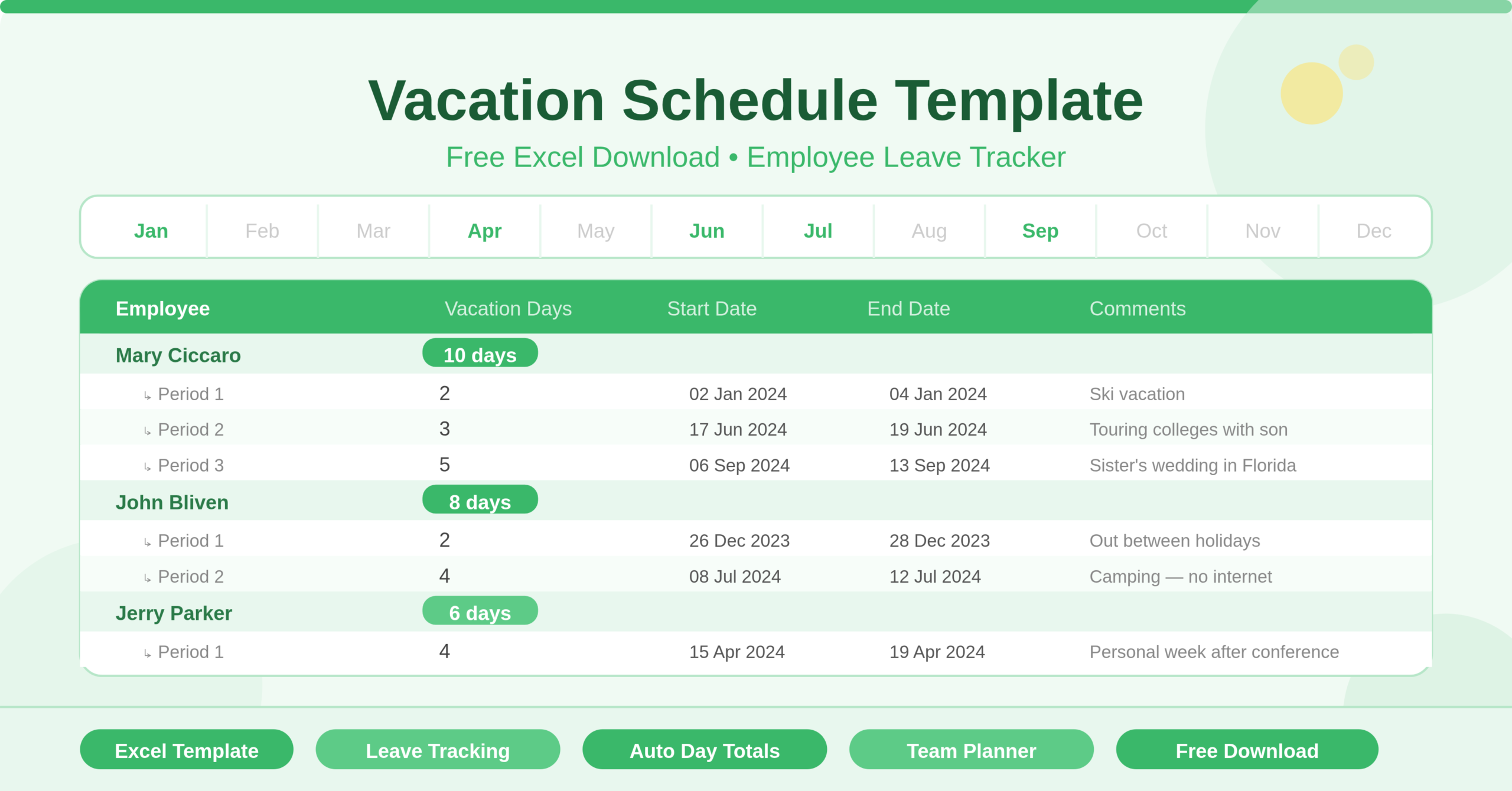
The Vacation Schedule Template is a single-sheet Microsoft Excel workbook. It tracks every employee’s vacation period in one structured table. Each employee gets their own grouped block of rows. The top row of each block displays the employee’s name and a running total of their vacation days for the year — calculated automatically. The rows below capture each individual leave period with a start date, end date, number of days taken, and a comments field for context.
The template comes pre-filled with three sample employees — Mary Ciccaro, John Bliven, and Jerry Parker — each with multiple vacation entries and real-life comments like “Ski vacation,” “Camping with no internet access,” and “Personal week after APAC conference.” These examples show exactly how to structure entries and make the template immediately intuitive to use.
The comments column is one of the most practical features. It records the reason for leave and any availability notes — for example, “Available by mobile, limited email” or “home project (tentative).” This context helps managers plan coverage without needing to chase employees for details.
Who Can Use This Template?
This template suits any manager, HR professional, or team lead who needs to track employee leave. Small business owners managing a handful of staff will find it the easiest possible way to keep vacation records without investing in HR software. Department managers in larger organizations can use it to maintain a team-level view of leave that sits alongside any central HR system.
HR administrators who handle leave approvals, payroll adjustments, and compliance reporting will appreciate having a clean, consolidated record in Excel. Because Excel is universally available, sharing the schedule with finance, operations, or senior leadership requires no special software or access permissions.
Freelance team leads managing contractors on project-based work can also adapt the template to track unavailability periods. Any situation where you need to know when someone is away — and for how long — is a valid use case for this template.
Key Features of the Vacation Schedule Template
The standout feature is the automatic vacation day total. Each employee’s top row uses a SUM formula to add up all the individual day counts from their leave entries below. When you add a new vacation period, the total updates instantly. You never need to manually count days or risk an arithmetic error in your records.
- The grouped employee structure keeps the schedule clean and readable. Each employee occupies a clearly defined block of rows. Scanning down the sheet gives you an immediate picture of how many leave periods each person has taken and when they fall throughout the year.
- The Start Date and End Date columns give precise boundary information for every leave period. This makes it straightforward to check for scheduling conflicts — for example, spotting two team members booked off during the same week before it becomes a problem.
- The Comments column adds a practical layer of context to every entry. Beyond just logging dates and days, it captures what the employee is doing and how reachable they will be. This is especially valuable in smaller teams where coverage is tight and knowing someone is “available by mobile” versus “camping with no internet” makes a real operational difference.
The template supports multiple leave periods per employee within the same year. There is no limit to the number of rows you can add under each employee’s block. This makes it suitable for tracking the full annual leave entitlement across multiple bookings, not just a single holiday per person.
How to Use the Vacation Schedule Template
Open the template and locate the first employee block. Replace “Mary Ciccaro” in the employee’s name cell with your first team member’s name. The row immediately below is ready for the first leave entry. Enter the number of vacation days in column C, the start date in column D, the end date in column E, and any relevant notes in the Comments column F.
To add a second leave period for the same employee, use the next row in their block. Enter the days, dates, and comment as before. The SUM formula in the employee’s name row automatically includes the new entry in the running total.
To add a new employee, copy an existing employee block — select all rows belonging to one employee, right-click, and insert copied rows below the last existing block. Replace the name and clear the existing data entries. The SUM formula adjusts automatically to cover the new block’s rows.
Repeat this process for every team member. As the year progresses, add new leave entries as employees book time off. The schedule builds into a complete annual leave record without any additional effort.
How to Modify the Template
The template is straightforward to adapt for different team sizes and leave policies. To track additional leave types beyond standard vacation — such as sick leave, parental leave, or unpaid leave — add a new column between the Vacation Days and Start Date columns. Label it with the leave type and apply the same SUM formula pattern in the employee’s name row.
- To add a leave balance column, insert a new column after the Vacation Days total. Enter each employee’s annual entitlement as a fixed number. Then add a simple formula that subtracts the total days taken from the entitlement to show the remaining balance. This turns the schedule into a real-time leave balance tracker with no extra effort.
- To color-code leave types or periods, use Excel’s conditional formatting tool. Apply a background colour to rows where leave falls during critical project periods or use different colors to distinguish vacation from sick leave or public holidays. This makes the schedule much easier to scan in team meetings.
- Advanced users can add a summary sheet that pulls the total vacation days per employee from each block using a SUMIF formula. This gives HR or management a one-page overview of total leave taken across the team for the year — useful for payroll reconciliation and planning purposes.
For teams that operate across multiple departments, duplicate the sheet tab for each department and maintain a separate schedule per team. A master summary sheet can then consolidate totals from each tab into a single organizational view.
Why a Shared Vacation Schedule Matters
Leave management is one of those tasks that feels minor until it goes wrong. A missed handover because no one knew someone was off. A client-facing deadline missed because two senior team members were away at the same time. A payroll discrepancy because vacation days were logged inconsistently across different systems.
A shared, structured vacation schedule prevents all of these. It creates transparency — every team member can see who is away and when. It supports better planning — managers can identify coverage gaps before they become problems. And it creates a reliable record — HR and payroll have a single source of truth for leave taken throughout the year.
For small businesses, a simple Excel schedule is often all that is needed. There is no subscription cost, no onboarding, and no learning curve. Every manager already knows how to open an Excel file. That familiarity makes adoption instant and ensures the schedule gets used.
Conclusion
The Vacation Schedule Template is a simple, practical Excel tool that brings order to team leave management. It tracks multiple leave periods per employee, calculates total days automatically, records context in a comments field, and scales easily as your team grows. Whether you manage three people or thirty, this template gives you a clear, shared view of who is away and when — all in a file your entire team can open without any special software. Download it, add your team’s names, and take the guesswork out of vacation planning today.