
Most people start the week with good intentions. There are tasks to complete, meetings to attend, and goals to hit. But without a clear visual plan, days blur together. Important tasks get pushed aside. Time disappears into reactive work. By Friday, the to-do list looks much the same as it did on Monday.
A weekly schedule solves this. It gives your week a visible structure. You can see what is planned, when it happens, and where gaps exist. That visibility alone changes how you work. When your plan is written down and organised by day and time, you stop reacting and start directing your own time.
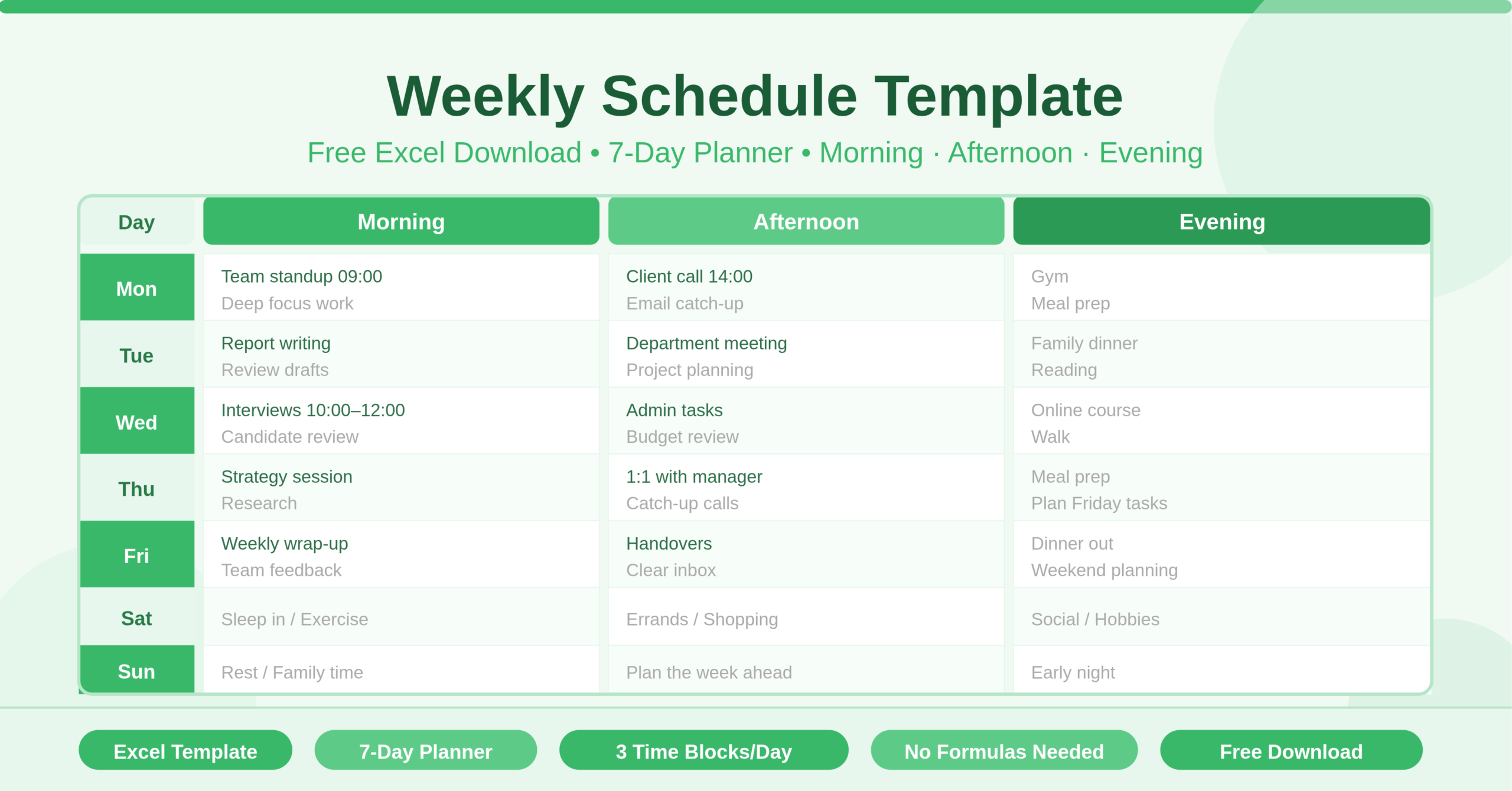
This free Excel Weekly Schedule Template makes weekly planning simple and immediate. It covers all seven days across three time periods — Morning, Afternoon, and Evening. Download it, fill in your week, and take back control of your time.
What Is the Weekly Schedule Template?
The Weekly Schedule Template is a single-sheet Microsoft Excel workbook built as a clean, visual weekly planner. The sheet is laid out in a grid structure that covers every day of the week — Sunday through Saturday — each divided into three clear time blocks: Morning, Afternoon, and Evening.
Each day occupies its own section of the grid with multiple rows for planning detail. The three time block headers — Morning, Afternoon, and Evening — run across the top of the sheet, and each day’s rows align beneath them. This creates a compact, scannable layout where an entire week of planned activities fits on a single screen.
The template has no formulas. It is a pure planning tool. You type your tasks, appointments, activities, or notes directly into each cell. The structure is already in place — all you do is fill it in. This makes it one of the fastest templates to start using with zero setup required.
Who Can Use This Template?
The Weekly Schedule Template works for virtually anyone who needs to organise their time across a full week. Its simplicity and flexibility make it useful in both professional and personal contexts.
Professionals will find it useful for mapping out their working week — scheduling meetings, deep work sessions, deadlines, and recurring tasks across each day. Knowing at a glance that Tuesday afternoon is blocked for a client presentation, or that Thursday morning is reserved for focused writing, makes the whole week more intentional.
Managers and team leads can use it to plan team schedules, assign shift coverage across morning, afternoon, and evening periods, or coordinate weekly activities across a small group. Printing or sharing the filled template gives the team a shared view of the week ahead.
Students benefit greatly from a structured weekly planner. Fitting lectures, study sessions, assignment deadlines, and personal commitments into a visual grid helps students balance academic demands without losing track of what needs to happen and when.
Parents managing family schedules can use the Evening column for household tasks, school pickups, extracurricular activities, and appointments. The seven-day structure covers weekends too — often the busiest planning period for families.
Freelancers and self-employed professionals who manage their own time without external structure will find a weekly schedule particularly valuable. It creates the discipline of a working week without requiring a corporate calendar system.
Key Features of the Weekly Schedule Template
The defining feature of this template is its three time-block structure. Dividing each day into Morning, Afternoon, and Evening reflects the natural rhythm of most people’s days. It is more intuitive than an hour-by-hour breakdown and more useful than a single daily column. You know immediately which part of the day an activity belongs to.
- The template covers all seven days of the week, including Saturday and Sunday. Many scheduling tools default to a Monday-to-Friday view. This template recognises that weekends are often as busy as weekdays — especially for parents, students, freelancers, and shift workers — and gives them equal planning space.
- Each day section provides multiple rows per time block. This means you are not limited to a single activity per period. You can list several tasks, add notes, or break a block into sub-tasks without running out of space. The grid accommodates as much or as little detail as your planning style requires.
- The layout is print-friendly. The grid structure and clear day labels make the template easy to print and stick on a wall, pin to a noticeboard, or keep at a desk. Many people find a printed weekly schedule more effective than a digital one because it is always visible without opening an app or a screen.
Because the template uses no formulas, there is nothing to break, no errors to troubleshoot, and no Excel expertise required. Anyone who can type in a cell can use this template immediately. This makes it accessible to every member of a team or household regardless of their Excel comfort level.
How to Use the Weekly Schedule Template
Open the template and start with the day that begins your week. If your week starts on Monday, scroll to the Monday section and begin there. If you prefer a Sunday start, the template begins with Sunday at the top.
For each day, work across the three time blocks — Morning, Afternoon, and Evening. In each block, type the activities, tasks, appointments, or commitments planned for that period. You can enter a single item per row or use multiple rows to break down a block into more detail.
Use the Morning block for activities that happen before midday — early meetings, focused work sessions, school runs, exercise, or commuting. Use the Afternoon block for the main body of the working day — project work, client calls, lessons, or errands. Use the Evening block for post-work activities — family time, personal commitments, study sessions, or preparation for the following day.
Work through all seven days until the full week is mapped out. Once complete, you have a clear visual overview of everything planned. Review the schedule at the start of each day to orient yourself and adjust as needed.
At the end of each week, save a copy of the completed schedule as a record if useful, clear the entries, and fill in the new week. Over time you will develop a planning rhythm that makes the start of each week faster and more structured.
How to Modify the Template
The Weekly Schedule Template is intentionally simple, which makes it very easy to customise. You can adapt it in minutes without any advanced Excel knowledge.
- To rename the time blocks, click on the Morning, Afternoon, or Evening header cells and type your preferred labels. Teams that work in shifts might replace these with Early Shift, Day Shift, and Night Shift. Students might use Before Class, In Class, and After Class. The labels are just text — change them to suit your context.
- To add a time column, insert a narrow column before the Morning section and label it with specific hours — for example, 6 AM to 12 PM, 12 PM to 6 PM, and 6 PM to 12 AM. This turns the template from a loose three-block planner into a more structured hourly scheduler for those who need tighter time management.
- To colour-code activities, select a cell or range, open Excel’s fill colour tool, and choose a colour. You can create a simple colour system — for example, green for work tasks, blue for personal activities, orange for appointments, and yellow for deadlines. Apply this consistently and the weekly view becomes a colour-coded map of your time at a glance.
- To add a priorities section, insert a few rows at the top of the sheet above the day grid. Label them “Top 3 Priorities This Week” and use them to capture your most important focus areas before filling in the daily detail. This keeps your weekly planning anchored to what matters most.
Advanced users can duplicate the sheet tab to create a new copy each week, renaming each tab with the week’s date. This builds an archive of weekly schedules over time — useful for reviewing how time was spent, identifying recurring patterns, and improving planning accuracy week by week.
Why Weekly Planning Works
Research on productivity consistently points to one finding: people who plan their week in advance get more done and feel less stressed than those who plan day-to-day or not at all. A weekly view gives you enough scope to see the full shape of your commitments. It lets you spot conflicts before they happen. It helps you make deliberate decisions about where your time goes rather than letting circumstances decide for you.
The Morning, Afternoon, Evening structure also aligns with how energy typically flows through a day. Many people do their best thinking in the morning. Afternoons often suit collaborative or administrative work. Evenings work well for lighter tasks or preparation. Planning with these natural rhythms in mind — rather than treating all hours as equal — leads to better outcomes with less effort.
Weekly planning does not need to be complicated. A simple grid, filled in consistently at the start of each week, is enough to transform how you experience your time. This template provides exactly that grid — nothing more, nothing less.
Conclusion
The Weekly Schedule Template is a clean, flexible Excel planner that organises your entire week across Morning, Afternoon, and Evening time blocks for all seven days. It requires no formulas, no setup, and no Excel expertise. Whether you are a professional, student, parent, manager, or freelancer, it gives you a clear visual structure to plan your week with intention. Download it, fill in your week, and make every day count.