
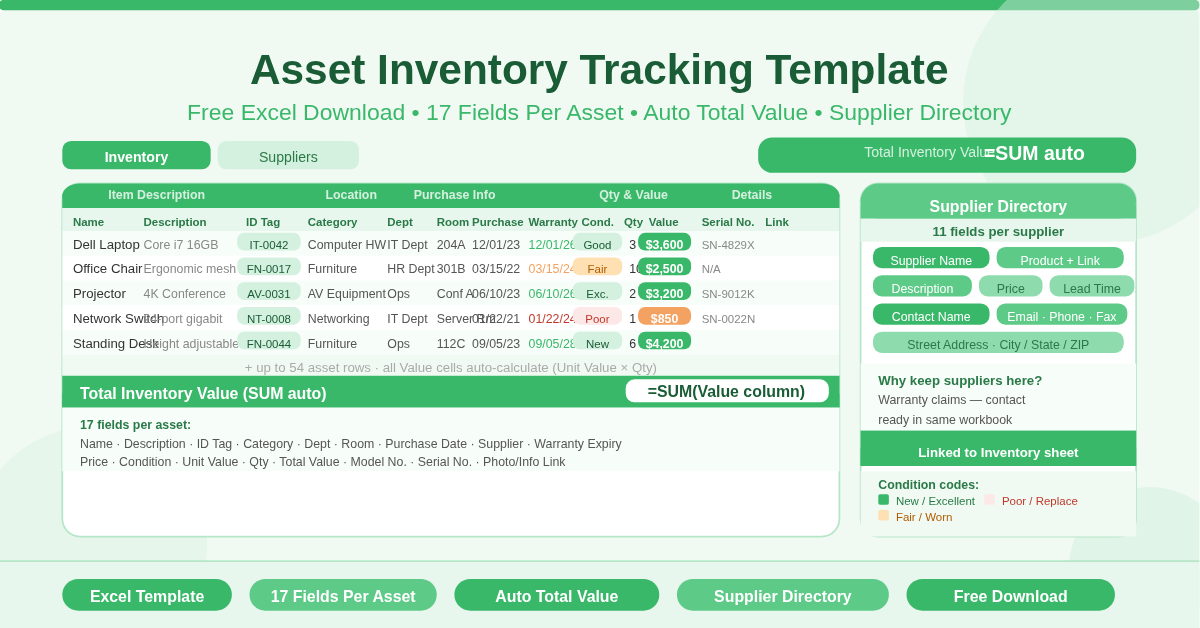
The Asset Inventory Tracking Template is a free Microsoft Excel workbook for tracking physical assets owned by a business. It covers everything from individual item details and purchase information to location, condition, and total inventory value — all in two organised sheets.
The Inventory sheet is the core register. Each row represents one asset. The Suppliers sheet holds a complete directory of all suppliers associated with those assets. Together, they give any organisation a single source of truth for its physical asset base.
Who Needs an Asset Inventory Tracker?
Any business that owns physical assets benefits from tracking them formally. Small offices, schools, warehouses, clinics, and workshops all accumulate equipment over time. Without a register, assets go missing, warranties expire unnoticed, and audits become stressful.
Finance teams need asset records for depreciation calculations and balance sheet valuations. IT managers need them to track hardware by location and serial number. Operations managers use them to plan maintenance and replacements. Facilities teams rely on them to know exactly what is in each room.
This template serves all of these needs without requiring specialised software.
The Inventory Sheet — 17 Fields Per Asset
Each asset row captures 17 fields across five logical groups:
Item Description
- Name — the asset’s common name
- Description — a free-text detail field
- ID Tag — a unique identifier such as a barcode or asset tag number
- Category — for example, Computer Hardware, Office Furniture, or Lab Equipment
Location
- Dept/Area — the department or area where the asset is used
- Room — the specific room or location within a facility
Purchase Information
- Date — the date of purchase
- Supplier — the vendor name, linked to the Suppliers sheet
- Warranty Expiration — the date the warranty ends
- Price — the original purchase price
Quantity and Value
- Condition — current state of the asset
- Unit Value — current value per unit
- Qty — number of units
- Value — automatically calculated as Unit Value × Qty
Item Details
- Model No. — manufacturer model number
- Serial No. — unique serial number for the physical unit
- Photo/Info Link — a URL or file path to supporting documentation
The Total Inventory Value at the top right sums all Value cells automatically. Every time you add an asset or update a quantity, the total refreshes instantly.
The Suppliers Sheet — Complete Vendor Directory
The second sheet is a dedicated supplier directory. Each row covers one supplier with 11 fields:
- Supplier Name
- Product
- Product Link (website)
- Description
- Price
- Lead Time (days)
- Contact Name
- Phone number
- Fax number
- Street Address and City/State/ZIP
Having supplier information alongside asset records is genuinely useful. When a warranty claim is needed, the contact is already in the same workbook. When a replacement is required, the lead time is visible immediately. No hunting through email threads or filing cabinets.
How to Use the Template
Open the Inventory sheet and update the Company name in cell B3. The date in B4 updates automatically to today’s date each time the file is opened.
Work through the asset rows starting from row 8. Enter each asset’s name, description, and ID tag. Add the category, department, and room. Fill in the purchase date, supplier name, and warranty expiration. Enter the price, condition, unit value, and quantity. The Value column calculates automatically.
Move to the Suppliers sheet and add a row for each vendor. Fill in all contact and product details. Reference these supplier names in the Inventory sheet for a consistent link between the two sheets.
Review the Total Inventory Value figure at the top of the Inventory sheet regularly. It gives an instant financial snapshot of the organisation’s physical asset base.
How to Modify the Template
Add new asset rows by inserting them above row 61. Copy the Value formula from an existing row into the new row’s Value column.
Add new categories by simply typing them in the Category column. Consistent naming across rows enables filtering by category — useful for viewing all IT equipment or all furniture at once.
Add conditional formatting to the Warranty Expiration column to highlight assets where the warranty expires within 30 or 60 days. This turns the tracker into a proactive maintenance planning tool.
Link the Photo/Info Link column to scanned purchase receipts, product manuals, or images stored in a shared drive. This transforms each asset row into a complete digital record.
Why Track Assets in Excel?
Dedicated asset management software exists — but it comes with licensing costs, learning curves, and implementation time. For most small and medium businesses, a well-structured Excel workbook delivers the same essential functionality for free.
This template provides a professional, audit-ready asset register that can be shared, printed, filtered, and updated by anyone with basic Excel skills. No training required. No subscription needed. Just download, customise, and start tracking.
Conclusion
The Asset Inventory Tracking Template gives any organisation a clear, structured register of its physical assets. Seventeen fields per item, automatic total inventory value, a complete supplier directory, and support for up to 54 assets out of the box. Download it today and know exactly what your business owns, where it is, and what it is worth.