
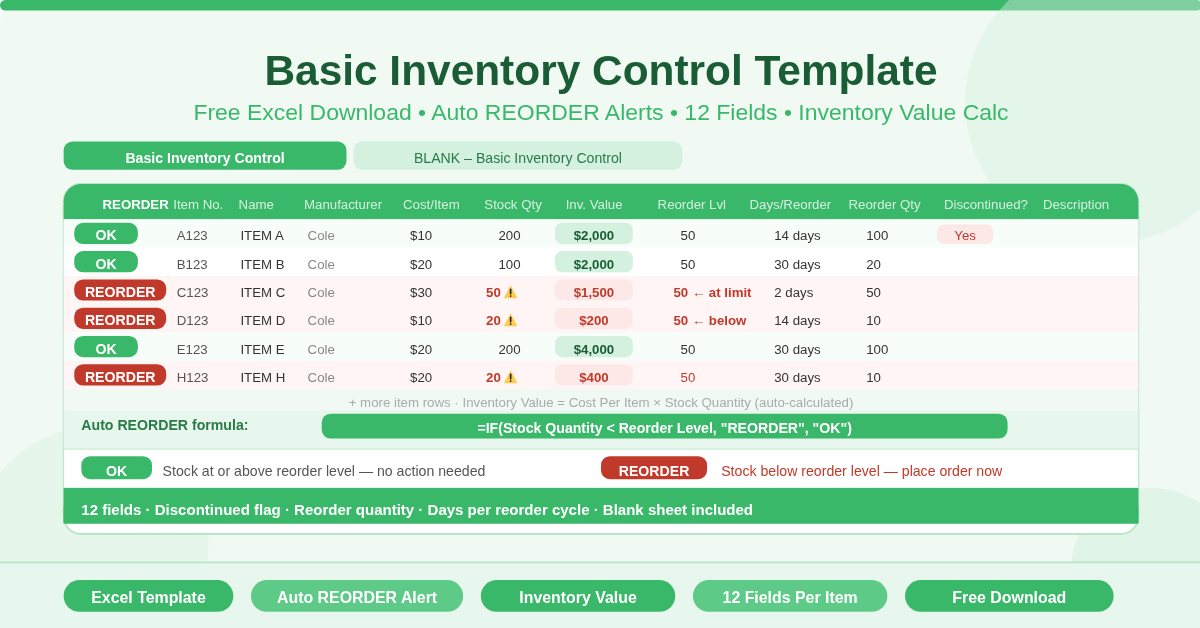
The Basic Inventory Control Template is a free Microsoft Excel spreadsheet for tracking stock levels and managing reorder decisions. It monitors every item in your inventory against a set reorder threshold. When stock drops below that threshold, the template automatically displays a REORDER alert. When stock is sufficient, it shows OK.
Two sheets are included in the workbook. The first sheet contains sample data so you can see the template in action immediately. The second is a clean blank version — ready for your own inventory data.
What Does the Template Track?
Each item row captures 12 fields across the inventory table:
Item Identification
- Item No. — a unique code for each product
- Name — the item’s common name
- Manufacturer — the supplier or brand
- Description — a free-text field for additional detail
Stock and Value
- Cost Per Item — the unit purchase cost
- Stock Quantity — current units on hand
- Inventory Value — automatically calculated as Cost Per Item × Stock Quantity
Reorder Management
- Reorder Level — the stock quantity that triggers a reorder alert
- Days Per Reorder — how many days the reorder cycle takes
- Item Reorder Quantity — how many units to order when restocking
Status Flags
- REORDER (auto-fill) — displays REORDER if stock falls below the reorder level, OK if stock is sufficient
- Item Discontinued? — marks items no longer being ordered
How Does the Automatic REORDER Alert Work?
The REORDER column uses an IF formula on every row:
=IF(Stock Quantity < Reorder Level, “REORDER”, “OK”)
No manual checking is needed. Update the Stock Quantity column and the REORDER status refreshes instantly. Items below their reorder threshold display REORDER. Items at or above the threshold display OK.
This is the most operationally valuable feature of the template. It turns a static list into a live alert system. Managers can scan the REORDER column at any time to see exactly which items need to be ordered — without reading through every row.
Who Should Use This Template?
Retail and wholesale businesses tracking product stock across multiple SKUs will find the reorder alert and reorder quantity fields immediately practical. Set the reorder level once per item and the template monitors stock against it automatically.
Warehouses and distribution centres managing large item catalogues can use the template as a lightweight stock management tool. The Days Per Reorder field helps teams time purchase orders ahead of stockouts.
Small businesses and startups that cannot yet justify dedicated inventory software will find this template gives them 90% of the functionality they need — for free, in a tool they already use.
Office managers tracking consumables such as stationery, cleaning supplies, or kitchen stock can use it to ensure items are reordered before they run out.
The Item Discontinued flag is particularly useful for businesses with evolving product lines. Flagging discontinued items keeps them visible in the register without requiring deletion, which preserves historical records.
How to Use the Template
Open the blank sheet and start entering your inventory. For each item, fill in the Item No., Name, Manufacturer, and Description. Enter the Cost Per Item and current Stock Quantity. The Inventory Value column calculates automatically.
Set a Reorder Level for each item — the minimum stock quantity you want to hold before ordering more. Enter the Days Per Reorder to document how long each item takes to arrive after ordering. Add the Item Reorder Quantity to record the standard order size.
The REORDER column updates immediately. Any item whose Stock Quantity falls below its Reorder Level shows REORDER in red. Check this column regularly — or filter it to show only REORDER items — to identify what needs purchasing.
Mark items no longer being stocked as Yes in the Item Discontinued column. This keeps them in the record without triggering unnecessary reorder alerts.
How to Modify the Template
Add more item rows by inserting them within the existing table. The formulas in the REORDER and Inventory Value columns extend automatically to new rows.
Add a Supplier column to link each item to a vendor. Combine this with a supplier contact sheet for a full procurement reference in one workbook.
Apply conditional formatting to the REORDER column to highlight REORDER cells in red and OK cells in green. This makes the stock status visual and instantly readable without scanning text.
Create a summary row at the bottom that totals Inventory Value across all items. This gives a live total stock valuation that updates whenever quantities change.
Conclusion
The Basic Inventory Control Template delivers a complete stock management system in a single Excel sheet. Automatic REORDER alerts, instant inventory value calculation, reorder quantity tracking, and a discontinued item flag — all ready to use without any setup. Download it, enter your items, and never run out of stock unexpectedly again.