
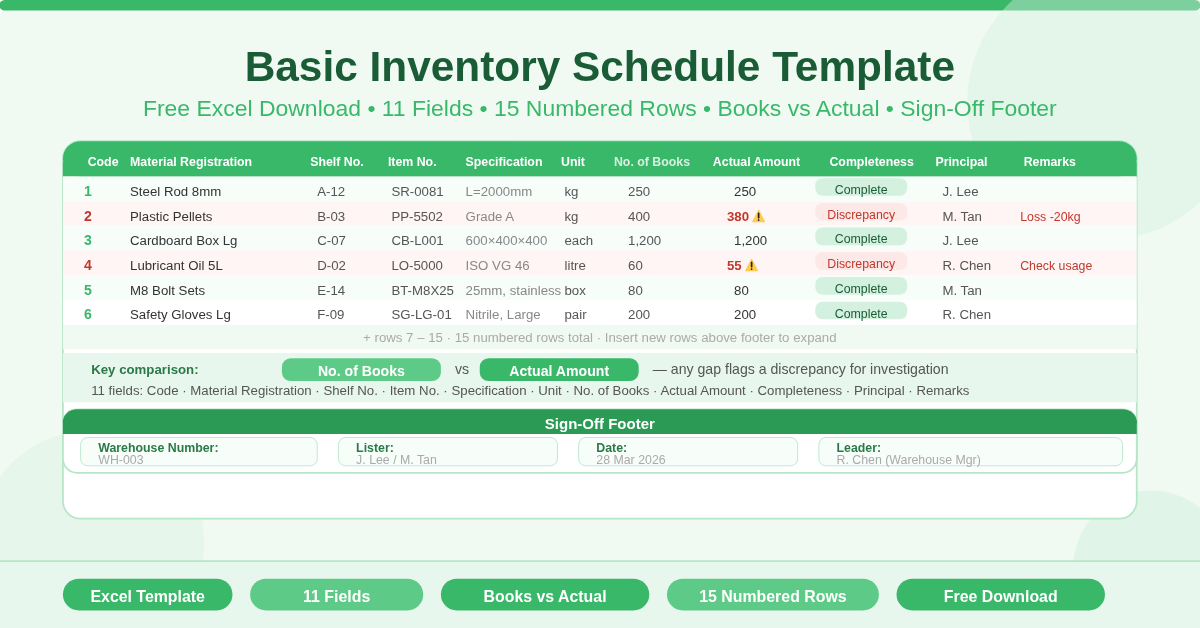
The Basic Inventory Schedule Template is a free Microsoft Excel spreadsheet for conducting structured warehouse or stockroom inventory counts. It provides a pre-numbered list of 15 item rows, 11 data fields per item, and a formal sign-off footer — giving any inventory team a ready-to-use count sheet that captures both the recorded and physical quantities for each item.
The template is designed for clarity and speed. Every column has a specific purpose. The numbered rows keep the count organised. The footer confirms who conducted the count, which warehouse it covers, and when it took place.
What Does the Inventory Schedule Track?
Eleven columns capture the complete picture for each inventory item:
- Code — a sequential row number (1 through 15) that keeps the count ordered and easy to reference
- Material Registration — the item name or material description as registered in the system
- Shelf Number — the specific shelf where the item is stored
- Item Number — the item’s unique identification number or SKU
- Specification — technical detail, variant, or size description
- Unit — the unit of measure (each, kg, box, litre, etc.)
- Number of Books — the quantity recorded in the accounting or inventory management system
- Actual Inventory Amount — the physical count quantity recorded during the stock take
- Completeness — a status field indicating whether the item count is complete or has discrepancies
- Principal — the person responsible for that item or category
- Remarks — a free-text field for any notes, explanations, or follow-up actions
The most operationally important comparison is between Number of Books and Actual Inventory Amount. The Number of Books is what the system says should be there. The Actual Inventory Amount is what the physical count finds. Any difference between these two fields requires investigation and resolution — and the Remarks column is where that documentation begins.
What Is the Sign-Off Footer?
A four-field footer sits at the bottom of the sheet, below the 15 item rows:
- Warehouse Number — identifies which warehouse or storage location the count covers
- Lister — the person who conducted the physical count
- Date — the date the inventory schedule was completed
- Leader — the supervisor or manager who oversees and approves the count
This sign-off section creates a formal, auditable record of who performed the count and when. It is standard practice in warehouse management to require both a lister and a leader signature on inventory documents. The template makes this easy — simply complete the footer fields before filing or submitting the completed schedule.
Who Should Use This Template?
- Warehouse supervisors managing periodic stock takes will find the numbered row structure keeps counts organised and reduces counting errors. Each item has a clear, dedicated row and the sequential numbering makes it easy to cross-check items.
- Small business owners conducting their own inventory counts without dedicated warehouse management software will find this template provides everything they need in one printable, fillable sheet.
- Logistics and distribution teams tracking stock across multiple warehouse locations can use one sheet per location — with the Warehouse Number footer field identifying each count uniquely.
- Finance and accounting teams supporting stock valuation or audit processes will value the side-by-side Number of Books versus Actual Inventory Amount columns. These directly support the reconciliation work that follows any formal stock count.
- Manufacturing operations tracking raw materials, components, and consumables can use the Specification column to distinguish between variants of the same item — for example, different sizes or grades of the same material.
How to Use the Template
Open the sheet and start at row 3. For each item being counted, enter the Material Registration name, Shelf Number, Item Number, Specification, and Unit in the appropriate columns. Enter the Number of Books from your inventory system. During the physical count, record the Actual Inventory Amount in the field of the same name.
Use the Completeness column to flag whether each item count is finished and verified. Use the Remarks column to note any discrepancies, damaged goods, missing items, or follow-up actions required.
When the count is complete, fill in the footer. Enter the Warehouse Number, the name of the Lister, the date, and the Leader’s name. File or submit the completed sheet as part of your inventory documentation.
How to Modify the Template
Add more item rows by inserting new rows above row 18 — the footer row. Update the Code column numbering to keep the sequence continuous.
Add a Difference column between Number of Books and Actual Inventory Amount using a simple subtraction formula. This makes discrepancies immediately visible without manual comparison.
Add a Status column using an IF formula — for example, displaying “Match” when book and actual quantities agree, and “Discrepancy” when they differ. This gives a quick visual scan of which items need follow-up.
For multi-warehouse operations, save a separate copy of the sheet for each warehouse. File them together as a complete inventory count package with each sheet identified by its Warehouse Number.
Conclusion
The Basic Inventory Schedule Template gives any warehouse, stockroom, or storage operation a clean, structured inventory count sheet in Excel. Eleven fields per item, 15 pre-numbered rows, a formal sign-off footer, and enough flexibility to extend for larger inventories. Download it, fill in the count, and close your next stock take with a complete, signed record.