
A Bill of Materials (BOM) is a structured list of every component, part, and material required to build or assemble a product. It documents what each part is, how many are needed, where they come from, and what they cost. Engineers, manufacturers, product designers, and procurement teams use BOMs to plan production, manage sourcing, and control costs.
Without a BOM, assembly processes rely on informal knowledge. Parts get missed. Costs are difficult to estimate. Changes are hard to track. A formal BOM solves all of these problems in one document.
This free Excel Bills of Material Template gives any team a professional, ready-to-use BOM in minutes.
What Is the Bills of Material Template?
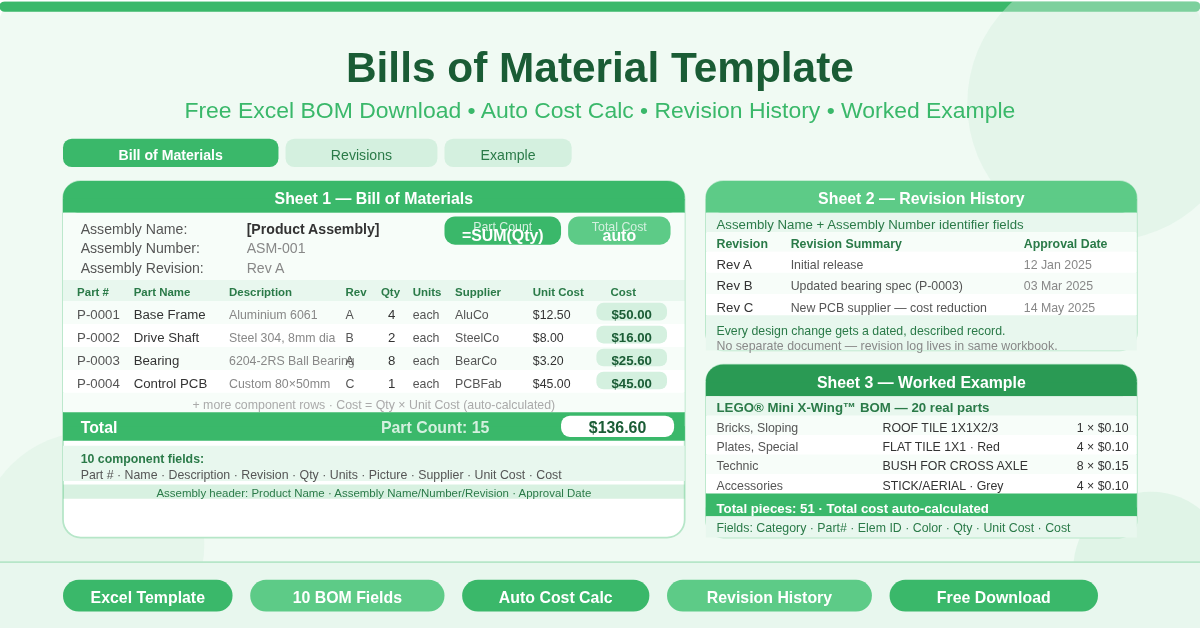
The Bills of Material Template is a three-sheet Microsoft Excel workbook. It includes a clean BOM sheet for documenting any assembly, a Revision History sheet for tracking changes over time, and a fully worked Example sheet showing a real BOM for a LEGO Mini X-Wing build.
Sheet 1 — Bill of Materials
The main BOM sheet captures all assembly-level metadata at the top of the sheet:
- Product Name — the finished product being documented
- Assembly Name — the specific sub-assembly if applicable
- Assembly Number — a unique identifier for the assembly
- Assembly Revision — the current revision number
- Approval Date — the date the BOM was approved
- Part Count — auto-calculated total quantity across all component rows
- Total Cost — auto-calculated sum of all component costs
Below the header, the component table lists every part with 10 fields:
- Part # — the part number
- Part Name — the name of the component
- Description — additional detail about the part
- Revision — the part’s own revision number
- Qty — quantity required in the assembly
- Units — the unit of measure (each, pack, kg, etc.)
- Picture — a field for an image or reference link
- Supplier — the vendor supplying the part
- Unit Cost — cost per unit
- Cost — automatically calculated as Qty × Unit Cost
The Part Count and Total Cost fields in the header use SUBTOTAL formulas that reference the component table. Both update automatically as parts are added or quantities are changed.
Sheet 2 — Revision History
The Revision History sheet provides a formal change log for the assembly. It captures the Assembly Name and Assembly Number as identifiers, then lists each revision with three fields:
- Revision — the revision identifier
- Revision Summary — a description of what changed
- Approval Date — when the revision was approved
Tracking revisions is essential for any product that evolves over time. Manufacturing errors, component substitutions, design improvements, and regulatory changes all generate BOM revisions. This sheet keeps the complete change history alongside the BOM itself — no separate document needed.
Sheet 3 — Example BOM
The Example sheet shows a fully populated BOM for a LEGO Mini X-Wing model. It demonstrates how the template works in practice. The example uses these fields alongside the standard BOM columns:
- Category — the type of component (Bricks Sloping, Plates, Plates Special, Technic, Accessories)
- Elem ID — the element identifier
- Color — the specific color of each piece
Real part numbers, quantities, unit costs, and descriptions are populated throughout. Total pieces and total cost calculate automatically from the table. This example makes the template immediately understandable — even for first-time BOM users.
Who Should Use This Template?
- Manufacturers and production teams building products from sourced components will use the BOM sheet as their definitive parts list. It feeds procurement, production planning, and costing workflows.
- Engineers and designers documenting new product assemblies will find the revision history sheet invaluable. Every design change gets a dated, described record.
- Procurement teams will use the Supplier and Unit Cost fields to support sourcing decisions and cost negotiations. Total Cost gives an immediate bill-of-materials cost for each assembly.
- Hobbyists and makers building custom products — electronics, models, furniture, or craft kits — can use the template to document component lists and estimate build costs accurately.
How to Use the Template
Open the Bill Of Materials sheet and fill in the header fields — product name, assembly name, assembly number, and revision. Then work through the component table, adding one row per part. Enter the part number, name, description, quantity, supplier, and unit cost. The Cost column calculates automatically. Part Count and Total Cost in the header update instantly.
Use the Revisions sheet whenever a design change is made. Add a new row with the revision number, a summary of what changed, and the approval date.
Refer to the Example sheet for guidance on structure and field usage at any time.
Conclusion
The Bills of Material Template gives any team a professional, structured component register in Excel. Automatic cost calculations, revision tracking, and a real-world worked example make it one of the most complete free BOM templates available. Download it and bring formal BOM discipline to your next product build.