
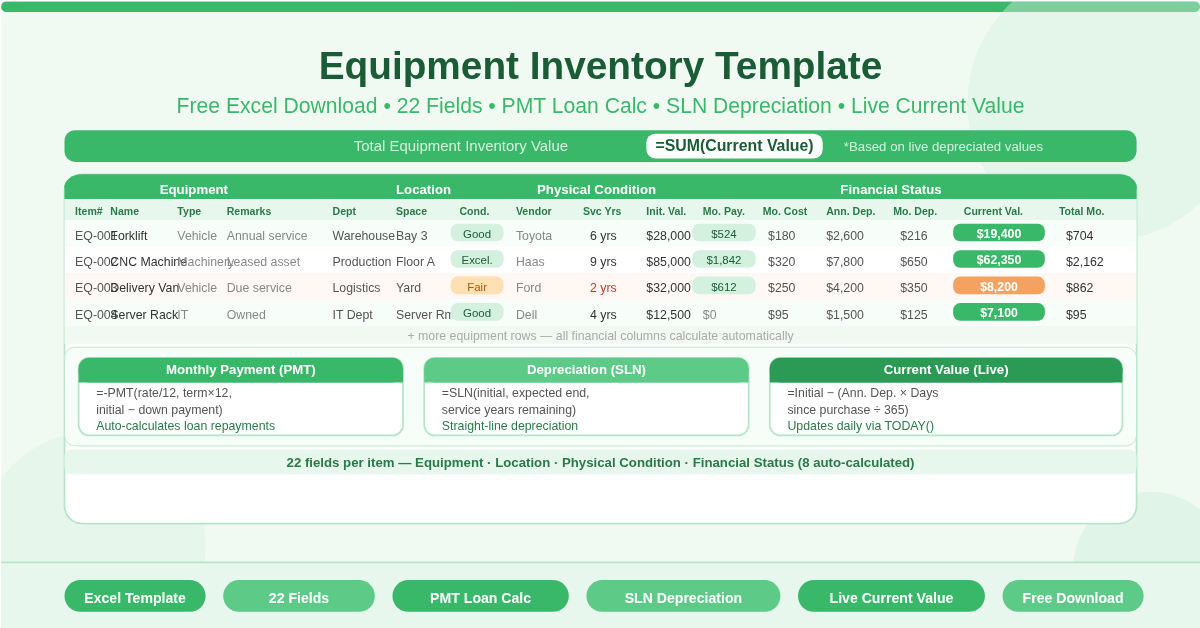
The Equipment Inventory Template is a free Microsoft Excel spreadsheet for managing the complete lifecycle of business equipment. It tracks physical details, location, condition, and financial status — including loan calculations, depreciation, and running costs — all in one sheet.
The template is organized into four column groups: Equipment, Location, Physical Condition, and Financial Status. Together, they give any business a complete picture of every piece of equipment it owns or leases — what it is, where it is, what state it is in, and what it is worth right now. A Total Equipment Inventory Value figure at the top sums the current value of all items automatically.
What Are the 22 Fields?
Lets talk about the 22 different fields that comes in this template;
Equipment (Identification)
- Item No. — unique identifier
- Name — equipment name
- Description — free-text detail
- Type — equipment category
- Remarks — additional notes
Location
- Department — the department using the equipment
- Space — the specific room, area, or bay
Physical Condition
- Condition — current physical state
- Vendor — the supplier or manufacturer
- Service Years Remaining — estimated useful life remaining
- Date of Purchase / Lease — when the item was acquired
Financial Status
This is where the template’s power lies. Eight financial fields calculate automatically from six inputs:
Inputs you enter:
- Initial Value — purchase or lease price
- Down Payment — upfront payment made
- Loan Term in Years — length of the financing period
- Rate of Loan — annual interest rate
- Monthly Cost of Operation — running costs such as maintenance, fuel, or servicing
- Expected Value at Loan-Term End — estimated residual value
Automatically calculated:
- Monthly Payment — uses Excel’s PMT function to calculate the exact loan repayment based on initial value, down payment, loan term, and interest rate
- Total Monthly Cost — sums monthly payment and monthly cost of operation
- Annual Straight Line Depreciation — uses Excel’s SLN function to calculate annual depreciation from initial value, expected end value, and service years remaining
- Monthly Straight Line Depreciation — divides annual depreciation by 12
- Current Value — subtracts accumulated depreciation from initial value based on the number of days elapsed since purchase, using TODAY() to keep the figure live
How Does the Current Value Formula Work?
The Current Value field uses this logic:
Current Value = Initial Value − (Annual Depreciation × Days Since Purchase ÷ 365)
Excel’s TODAY() function provides the current date automatically. Each time the workbook is opened, the current value of every item updates to reflect the exact number of days since purchase. No manual updates are needed.
This means the Total Equipment Inventory Value at the top of the sheet reflects the real-time depreciated value of all equipment — not an outdated figure from when the item was first entered.
Who Should Use This Template?
- Operations managers overseeing fleets of machinery, vehicles, or IT equipment will use the financial columns to understand the true monthly cost of running each asset — and plan replacement timelines based on current value and service years remaining.
- Finance teams preparing balance sheet valuations or depreciation schedules will find the SLN-based depreciation and live current value fields provide audit-ready figures without requiring separate calculations.
- Small businesses that own financed equipment — vehicles, commercial kitchen equipment, medical devices, or manufacturing machinery — will use the PMT-based monthly payment calculator to track loan obligations alongside operating costs in one place.
- Facilities managers tracking department-level equipment across multiple locations will use the Department and Space fields to maintain a complete location register alongside the financial data.
How to Use the Template
Enter each piece of equipment as a new row. Fill in the identification fields — item number, name, description, type, and remarks. Add the department and space location. Record the physical condition, vendor, service years remaining, and date of purchase or lease.
In the Financial Status section, enter the initial value, down payment, loan term, rate of loan, monthly cost of operation, and expected value at loan-term end. All calculated fields update instantly — monthly payment, total monthly cost, annual and monthly depreciation, and current value all appear without any additional steps.
The Total Equipment Inventory Value at the top of the sheet sums all current values automatically.
How to Modify the Template
Add new equipment rows within the existing table. All formulas extend automatically to new rows.
Add a Replacement Flag column that compares current value to a threshold — for example, flagging items whose current value has dropped below 20% of initial value. This turns the register into a proactive replacement planning tool.
Add a Insurance Value column that links to the current value field. As depreciation runs, the insurance reference figure stays current.
Conclusion
The Equipment Inventory Template is one of the most capable free Excel equipment registers available. It combines a full physical asset register with automatic loan payment calculation, straight-line depreciation, and live current value tracking — across 22 fields per item. Download it and know the true financial position of every piece of equipment your business owns.