
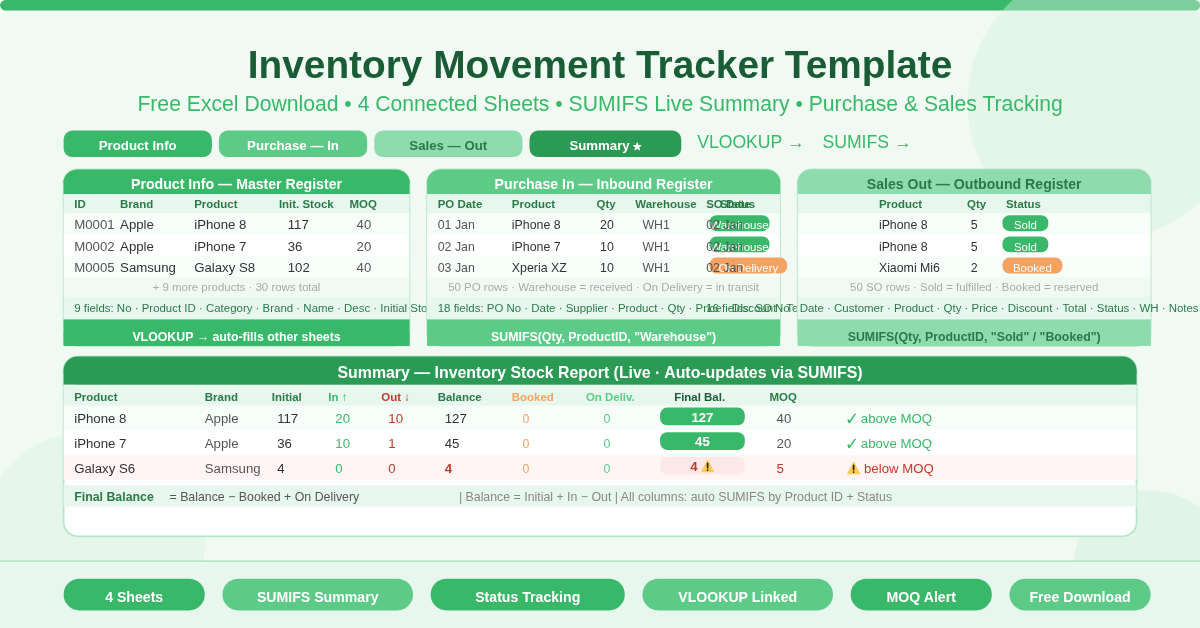
The Inventory Movement Tracker Template is a free four-sheet Microsoft Excel workbook for tracking inventory across its full movement lifecycle — from purchase receipt through to customer sale. It connects a product master, purchase register, and sales register through SUMIFS and VLOOKUP formulas to produce a live stock balance report that updates automatically with every transaction.
This is one of the most capable free inventory templates available in Excel. It handles up to 30 products, 50 purchase transactions, and 50 sales transactions out of the box — with status tracking on both inbound and outbound movements.
What Are the Four Sheets?
Sheet 1 — Product Info
The Product Info sheet is the master product register. Each row defines one product with eight fields:
- No — sequential row number
- Product ID — unique identifier (for example, M0001)
- Product Category — the product type (for example, Mobile Phone)
- Brand — the manufacturer or brand name
- Product Name — the specific model
- Product Description — additional detail
- Initial Stock — opening stock at the start of the tracking period
- First Purchase Date — the date of the first purchase for this product
- MOQ — the Minimum Order Quantity threshold for this product
The sample data includes 12 mobile phone products across six brands — Apple (iPhone 8, 7, 6s, 6), Samsung (Galaxy S8, S7, S6), Google (Pixel 2), LG (G6), HTC (U11), Xiaomi (Mi6), and Sony (Xperia XZ). Every other sheet pulls product details from here automatically via VLOOKUP.
Sheet 2 — Purchase In
The Purchase In sheet is the inbound transaction register. Each row captures one purchase order with 18 fields:
- PO Number, PO Date, Supplier ID, Supplier Name
- Product ID (which triggers VLOOKUP to fill Category, Brand, and Name automatically)
- Quantity, Price per Unit, Total Discount, Total Price
- Delivery Date, Warehouse location, Status (Warehouse or On Delivery), Received Date, Notes
The Status field is critical. Transactions marked Warehouse are counted as received into stock. Transactions marked On Delivery are counted as pending stock not yet received. The Summary sheet uses these statuses to separate confirmed stock from in-transit stock.
Sheet 3 — Sales Out
The Sales Out sheet is the outbound transaction register. Each row captures one sales order with 16 fields:
- SO Number, SO Date, Customer ID, Customer Name
- Product ID (VLOOKUP fills Category, Brand, and Name)
- Quantity, Price per Unit, Total Discount, Total Price
- Status (Sold or Booked), Warehouse location, Notes
Transactions marked Sold are deducted from stock balance. Transactions marked Booked are counted as reserved — committed to a customer but not yet fulfilled. This distinction lets the Summary sheet report both the current warehouse balance and the true available stock after reservations.
Sheet 4 — Summary (Inventory Stock Report)
The Summary sheet is the live dashboard. It shows the reporting period dates and, for every product, nine calculated columns:
- Initial — opening stock from Product Info
- In — total units received (status = Warehouse), via SUMIFS
- Out — total units sold (status = Sold), via SUMIFS
- Balance — calculated as Initial + In − Out
- Booked — total units reserved (status = Booked), via SUMIFS
- On Delivery — total units in transit (status = On Delivery), via SUMIFS
- Final Balance — calculated as Balance − Booked + On Delivery
- MOQ — minimum order quantity from Product Info
Product category, brand, and name pull automatically from the Product Info sheet. The reporting period shows the date range from the earliest to the latest transaction date across both the Purchase In and Sales Out sheets.
How Does the Data Flow Between Sheets?
Every row on the Purchase In and Sales Out sheets requires only a Product ID entry. VLOOKUP formulas on both transaction sheets then automatically pull the Category, Brand, and Name from the Product Info sheet. This keeps data entry consistent and eliminates the risk of product name mismatches.
The Summary sheet uses SUMIFS formulas to aggregate quantities from the transaction sheets by Product ID and Status. These formulas update instantly whenever a new transaction is added — no manual refresh or recalculation needed.
Who Should Use This Template?
Retail businesses managing a product catalogue will use the three-sheet transaction flow to track every purchase receipt and sale against a live stock balance. The Booked status handles pre-orders without losing visibility of true warehouse stock.
Wholesale and distribution businesses tracking goods between purchase orders and customer fulfilment will find the On Delivery and Booked statuses essential. These two fields reveal the true stock position — what is physically in the warehouse, what is committed to customers, and what is en route from suppliers.
Small electronics retailers, modelled by the template’s sample data (mobile phones across multiple brands), will find the product-level summary immediately practical. MOQ flags draw attention to any product whose balance approaches the minimum reorder threshold.
Inventory managers at any level will use the Summary sheet as a daily stock health check — scanning Final Balance figures against MOQ thresholds to identify purchase orders that need to be placed.
How to Use the Template
Start with the Product Info sheet. Enter each product with its ID, category, brand, name, initial stock, first purchase date, and MOQ. Use a consistent ID format such as M0001.
Add purchase receipts to the Purchase In sheet. Enter the PO number, date, supplier, and Product ID. The product details fill automatically. Set the Status to Warehouse for received stock or On Delivery for in-transit stock.
Record sales to the Sales Out sheet. Enter the SO number, date, customer, and Product ID. Set the Status to Sold for fulfilled orders or Booked for reserved stock.
Open the Summary sheet to review the live stock position. Check Final Balance against MOQ for every product and initiate purchase orders as needed.
Conclusion
The Inventory Movement Tracker Template delivers a complete, connected purchase-to-sales inventory system in Excel. Four linked sheets, SUMIFS-powered live balance calculations, dual status tracking for both inbound and outbound movements, and a real-time Summary report for every product. Download it and manage your entire inventory movement workflow in one workbook.