
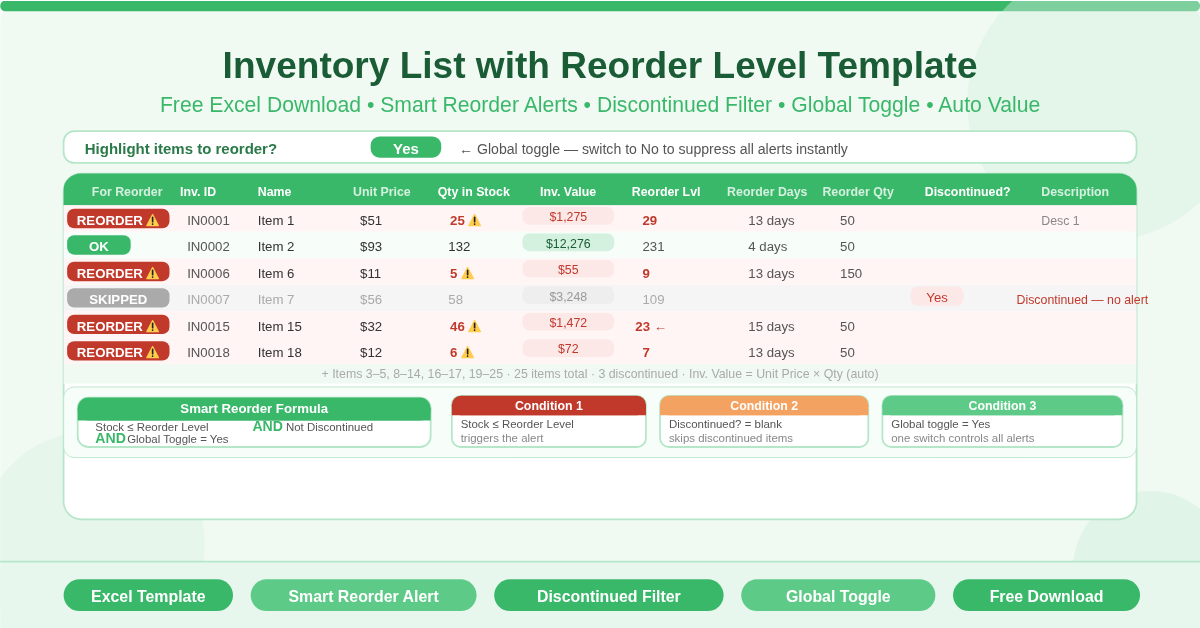
The Inventory List with Reorder Level Template is a free Microsoft Excel spreadsheet for tracking stock levels with intelligent reorder alerts. It monitors 25 inventory items, calculates inventory value automatically, and flags items for reorder using a smart formula that respects discontinuation status and responds to a global on/off toggle.
This template goes further than a basic reorder checker. Most reorder alerts fire whenever stock drops below a threshold — even for items that are no longer being stocked. This template is smarter. The reorder flag only activates when three conditions are all true simultaneously: stock is at or below the reorder level, the item has not been discontinued, and the global highlight setting is switched on.
What Does the Template Track?
Eleven columns capture the complete picture for every item:
- For Reorder — an auto-filled alert column using the smart reorder formula
- Inventory ID — a unique identifier for each item (IN0001 through IN0025)
- Name — the item name
- Description — additional item detail
- Unit Price — cost per unit
- Quantity in Stock — current stock level
- Inventory Value — automatically calculated as Unit Price × Quantity in Stock
- Reorder Level — the stock threshold that triggers a reorder alert
- Reorder Time in Days — how many days the reorder cycle takes
- Quantity in Reorder — the standard order quantity when restocking
- Discontinued? — a Yes/blank field marking items no longer being ordered
How Does the Smart Reorder Formula Work?
The For Reorder column uses this logic on every row:
=IF(Qty in Stock ≤ Reorder Level) AND (Discontinued? = blank) AND (Highlight toggle = Yes)
All three conditions must be true for the alert to fire. This means:
- An item with stock below its threshold but marked as Discontinued will not trigger a reorder alert. There is no point ordering an item that is no longer in the catalogue.
- An item at or below its threshold with no discontinuation flag will trigger — but only if the global toggle at the top of the sheet is set to Yes.
- Setting the toggle to anything other than Yes suppresses all reorder highlights across every row simultaneously.
This design gives managers two layers of control. The per-item Discontinued flag handles individual products. The global toggle handles the whole list — useful when performing batch updates or importing new stock data and wanting to suppress alerts temporarily.
The Global Highlight Toggle
A cell at the top of the sheet asks: Highlight items to reorder? The value in the adjacent cell controls all For Reorder alerts simultaneously.
Set it to Yes to activate visual highlighting for every item that meets the reorder condition. Change it to anything else to switch all highlights off. No formulas need editing — one cell controls the entire system.
This is a genuinely useful feature during inventory updates. When entering a large batch of new stock quantities, setting the toggle to No suppresses intermediate alert states. Once all quantities are entered, switching back to Yes gives an immediate, accurate view of which items need ordering.
Who Should Use This Template?
Retail and wholesale stock managers who carry a mix of active and discontinued products will find the built-in discontinuation logic eliminates false reorder alerts for items no longer being sourced.
Purchasing and procurement teams will use the Reorder Time in Days and Quantity in Reorder columns to plan orders ahead of stockouts. An item with a 15-day reorder time needs to be ordered well before it runs out — not the day stock hits zero.
Small business owners managing inventory manually — without a dedicated stock management system — will find this template provides all the essential functionality they need. The global toggle makes it practical to use during active stock updates without being distracted by transient alert states.
Operations managers responsible for multiple product lines will appreciate having discontinued items visible in the register without those items generating unnecessary alerts. The full history stays intact while active management focuses only on live products.
How to Use the Template
Enter each item in the Inventory List table. Give every item a unique Inventory ID, a name, a description, and a unit price. Enter the current Quantity in Stock for each item.
Set the Reorder Level for each item — the minimum stock quantity before ordering is needed. Enter the Reorder Time in Days and Quantity in Reorder to document your sourcing parameters.
For items that are no longer being ordered, enter Yes in the Discontinued column. This removes them from reorder consideration without deleting the record.
Set the global toggle at the top of the sheet to Yes to activate visual reorder alerts. Items at or below their reorder level that are not discontinued will immediately highlight.
Conclusion
The Inventory List with Reorder Level Template delivers a professional, intelligent stock management tool in Excel. Smart reorder alerts that exclude discontinued items, a global highlight toggle, automatic inventory value calculation, reorder time and quantity tracking, and 25 ready-to-use item rows. Download it and bring precision to your reorder decisions from day one.