
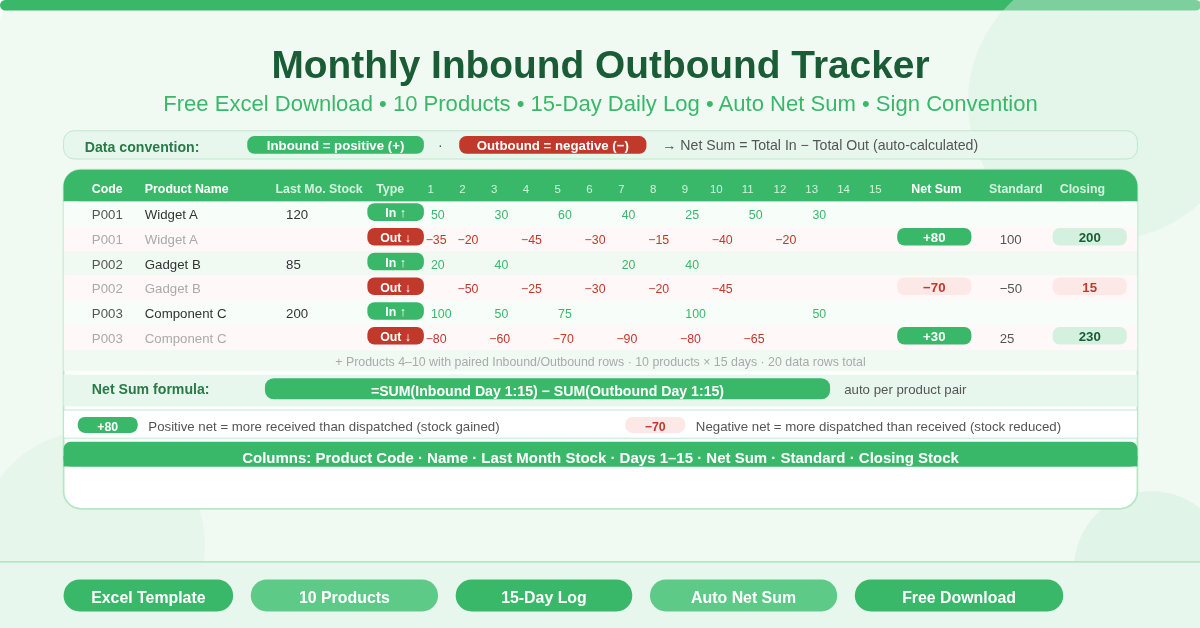
The Monthly Inbound Outbound Tracker is a free Microsoft Excel spreadsheet for recording daily stock movements — goods coming in and goods going out — across a monthly period. It organises up to 10 products in paired rows, tracks movement across 15 days, and calculates a net sum for each product automatically.
The template uses a simple, consistent data convention: inbound quantities are entered as positive numbers and outbound quantities are entered as negative numbers. This sign-based approach makes the data unambiguous and enables straightforward net calculation without separate formulas for each movement type.
How Is the Template Structured?
The single-sheet layout organises data in a clear grid:
Columns
- Product Code — a unique code for each product
- Product Name — the item name
- Last Month Stock — the closing stock from the previous month, used as the opening balance
- Day 1 through Day 15 — one column per working day for daily movement entries
- Sum — automatically calculated as total Inbound minus total Outbound for the period
- Standard — a reference column for the target or benchmark stock level
The day columns are numbered 1 through 15 across the top of the sheet. Each day column accepts a single entry per row — the inbound quantity for that day on the Inbound row, and the outbound quantity on the Outbound row.
Rows
Each product occupies two adjacent rows:
- Inbound row — for daily receipts, returns, or other stock additions
- Outbound row — for daily shipments, issues, or other stock reductions
Ten product pairs are included in the template, giving capacity for up to 10 distinct products in a single monthly sheet.
How Does the Net Sum Calculate?
The Sum column uses this formula for each product pair:
=SUM(Inbound Day 1:Day 15) − SUM(Outbound Day 1:Day 15)
Since outbound values are entered as negative numbers, the formula effectively adds all inbound quantities and subtracts all outbound quantities. The result is the net stock movement for the month — how much stock increased or decreased relative to the opening balance.
Adding Last Month Stock to the Net Sum gives the current closing stock for each product. This running balance approach makes it easy to carry forward figures month by month.
What Is the Standard Column?
The Standard column sits to the right of the Sum column. It holds a reference figure for each product — typically the target stock level, minimum holding quantity, or a benchmark set at the start of the month.
Comparing the Sum figure against the Standard reveals whether actual stock movement met, exceeded, or fell short of the planned level. This simple comparison supports basic inventory performance monitoring without requiring complex formulas.
Who Should Use This Template?
Warehouse and logistics teams tracking daily receipts and dispatches will find the day-by-day column structure maps directly to a daily stock movement log. Updating the sheet each day takes seconds per product.
Manufacturing operations monitoring raw material consumption and replenishment can use one template per product category. The 15-day span covers a standard two-week production cycle or a half-month reporting period.
Retail and distribution businesses running mid-month stock reviews will find the 15-day format ideal for a fortnight-at-a-glance view. Compare the Sum figure to Last Month Stock to assess net change at any point during the period.
Small business owners who need a lightweight daily stock log — without the complexity of a multi-sheet system — will find this template covers the core use case cleanly. Enter figures each day, review the Sum at month-end.
How to Use the Template
Enter your company name in the Company field at the top of the sheet. Enter the product code and product name for each item in the left columns. Fill in the Last Month Stock value for each product — this is the opening balance.
Each day, enter the quantity received in the Inbound row for that day’s column. Enter the quantity dispatched or issued as a negative number in the Outbound row. For example, if 50 units were received on Day 3, enter 50 in the Inbound row. If 30 units were shipped, enter −30 in the Outbound row.
The Sum column updates automatically after each entry. Review it against the Standard column to track performance against targets.
At month-end, note the closing stock (Last Month Stock + Sum) and carry it forward as the opening balance for the following month.
How to Modify the Template
Extend the day columns beyond 15 by inserting new columns between Day 15 and the Sum column. Update the SUM formula range to include the new columns.
Add more product rows by inserting paired Inbound/Outbound rows above the last product pair. Copy the Sum formula from an existing row into the new row.
Add a Closing Stock column to the right of Standard using =Last Month Stock + Sum. This gives a direct closing balance figure without manual calculation.
Conclusion
The Monthly Inbound Outbound Tracker gives any team a fast, clean daily stock movement log in Excel. Paired inbound and outbound rows for 10 products, 15-day columns, automatic net sum, and a standard reference column — all in one sheet. Download it, enter your opening balances, and track every day’s stock movements with no complexity and no setup time.