
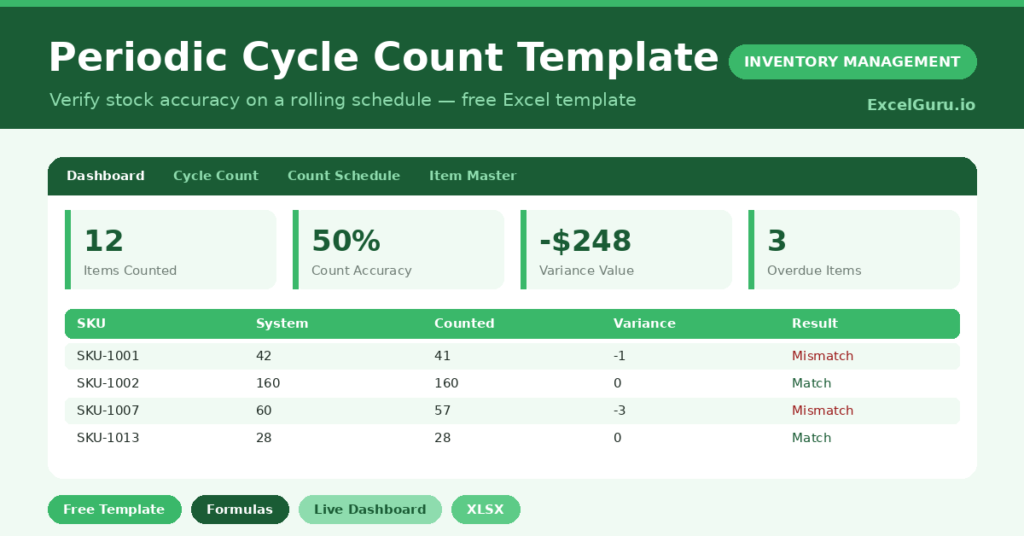
Counting your entire warehouse in one go is exhausting, and it usually still misses errors. So most teams switch to cycle counting instead. Cycle counting checks a small slice of stock on a regular schedule, which keeps records accurate all year round. This free periodic cycle count template brings that method into Excel. You enter what you physically count, and the sheet works out the rest. It calculates variance, flags mismatches, and shows your count accuracy on a live dashboard. Below, you will find a full walkthrough. We cover what the template includes, the formulas behind it, the best ways to use it, and how to adapt it to your own stockroom.
What Is a Periodic Cycle Count Template?
A periodic cycle count template is a structured spreadsheet for verifying inventory in small, repeated batches. Rather than a single annual stock take, you count a few items each day or week. The template compares your physical count with the quantity your system shows. Then it highlights any difference, known as the variance. As a result, you catch errors early and fix them before they grow.
Why Use This Template Instead of a Manual Count?
Manual counts are slow, and they rarely show patterns. This template removes that friction in several ways:
- It calculates variance and variance value automatically, so you never reach for a calculator.
- It ranks items by ABC class, which helps you count high-value stock more often.
- It schedules counts for you and flags anything overdue.
- It tracks count accuracy over time on a clear dashboard.
- It is free, offline, and easy to share with your team.
What’s Inside the Template?
The workbook contains six tabs, and each one has a single job:
- How to Use — a plain-English guide built into the file.
- Dashboard — live KPIs plus accuracy and variance charts.
- Cycle Count — the daily working sheet where you enter counts.
- Count Schedule — cadence by ABC class, with overdue alerts.
- Item Master — your full product list and system quantities.
- Lists — the dropdown values and count-frequency settings.
What Formulas Does the Template Use?
Every calculation is a standard Excel formula, so nothing is hidden. Here are the key ones and what they do:
| Formula | What it does |
| =VLOOKUP(SKU, Item Master, 7, FALSE) | Pulls the system quantity for the SKU you typed. |
| =Counted – System | Returns the variance in units (negative means a shortfall). |
| =Variance * Unit Cost | Converts the unit variance into a dollar value. |
| =Variance / System | Shows the variance as a percentage of system stock. |
| =IF(Variance=0,”Match”,”Mismatch”) | Flags whether the count agreed with the system. |
| =COUNTIF(Result,”Match”)/(Match+Mismatch) | Calculates your overall count accuracy. |
| =Last Count Date + Frequency | Works out the next due date for each item. |
| =IF(Days<0,”Overdue”,IF(Days<=7,”Due soon”,”On track”)) | Sets the schedule status from the due date. |
Using this template for periodic cycle count
Getting started takes only a few minutes. Just follow these steps given below:
- Open the Item Master tab and enter your SKUs, costs, ABC class, and current system quantities.
- Go to the Count Schedule tab and add the last count date for each item.
- On count day, open the Cycle Count tab and type the date, SKU, and counted quantity.
- Let the template fill in the description, system quantity, variance, and result.
- Check the Dashboard to review accuracy and investigate every mismatch.
- Once you resolve a difference, set the Status to Approved or Adjusted.
What Are the Best Use Cases?
This template suits any business that holds physical stock. For example, it works well for:
- Retail stockrooms that need accurate shelf counts before reorders.
- Warehouses running ABC-based cycle counting programs.
- E-commerce sellers reconciling pick locations with their platform.
- Manufacturers tracking raw materials and finished goods.
- Small businesses that cannot justify full inventory software yet.
How Can You Modify the Template?
The template is flexible, and changes are simple. To add more products, just type below the last row of the Item Master; the formulas already reach row 203.
You can also change the count frequency. Open the Lists tab and edit the days for each ABC class. Likewise, you can rename the dropdown options to match your own statuses or locations.
Finally, you can extend the count rows. Copy the last formula row on the Cycle Count tab downward, and the dashboard will include the new entries automatically.
Tips to Get the Most From It
- Count Class A items first, because they carry the most value.
- Investigate large variances on the same day, while the trail is fresh.
- Update the last count date after every cycle, so the schedule stays accurate.
- Review the accuracy trend weekly, and set a target such as 98 percent.
Frequently Asked Questions
Below are some frequently asked questions and queries related to this template;
What is the difference between cycle counting and a full stocktake?
A full stocktake counts everything at once, usually once a year. Cycle counting checks a small portion of stock on a regular cycle. Therefore, it spreads the workload and keeps records accurate all year.
How often should I run a cycle count?
It depends on item value. Count high-value Class A items monthly, Class B quarterly, and Class C twice a year. The template applies these intervals for you, although you can change them on the Lists tab.
Will the template work in Google Sheets?
Yes, with minor tweaks. Most formulas import cleanly, but you should re-check the dropdowns and conditional formatting after importing the file.
Do I need any Excel experience to use it?
No. You only type into the amber cells, and the formulas handle every calculation. The built-in How to Use tab guides you through each step.
Download the Template and Get Started
Cycle counting only works when it is easy and consistent. This template removes the friction, so your team can count a little and often. Download the Periodic Cycle Count Template, open the How to Use tab, and run your first count today. Your inventory accuracy will thank you.