
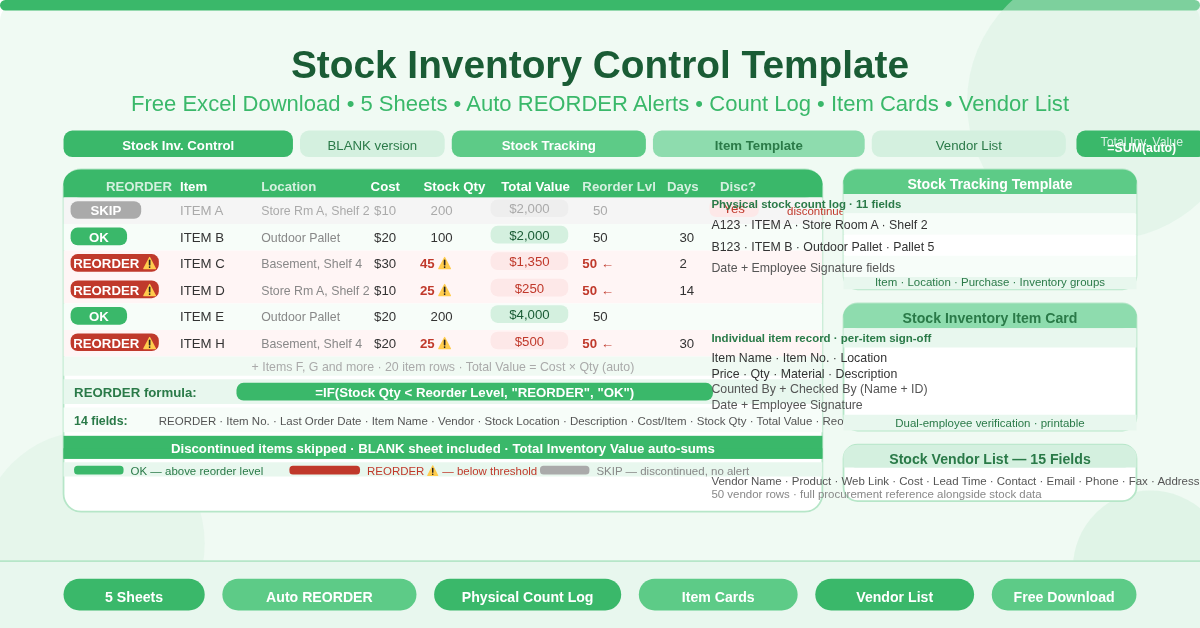
The Stock Inventory Control Template is a free five-sheet Microsoft Excel workbook for managing stock from daily control through to physical counts and vendor management. It combines an operational stock register with supporting tools for counting, item documentation, and supplier tracking — all in one connected workbook.
Five sheets serve distinct purposes. Two versions of the control register are included — one pre-filled with sample data, one blank and ready to use. Three supporting sheets handle physical stock tracking, individual item documentation, and vendor contacts.
What Are the Five Sheets?
Sheet 1 — Stock Inventory Control (Sample Data)
The main control sheet tracks up to 20 stock items. Each row captures 14 fields:
- REORDER (auto-fill) — displays REORDER or OK automatically
- Item No. — unique identifier
- Date of Last Order — most recent purchase date
- Item Name — product name
- Vendor — supplier name
- Stock Location — specific shelf or pallet location
- Description — item detail
- Cost Per Item — unit purchase cost
- Stock Quantity — current units on hand
- Total Value — automatically calculated as Cost Per Item × Stock Quantity
- Reorder Level — stock threshold that triggers an alert
- Days Per Reorder — lead time for the reorder cycle
- Item Reorder Quantity — standard order quantity when restocking
- Item Discontinued? — flags items no longer being ordered
The Total Inventory Value at the top sums all Total Value cells automatically.
The REORDER formula fires when Stock Quantity falls below Reorder Level:
=IF(Stock Quantity < Reorder Level, “REORDER”, “OK”)
Items marked Discontinued are excluded from active reorder consideration. Sample data shows stock locations including Store Room A, Outdoor Pallet, and Basement shelves — giving a realistic multi-location warehouse example straight out of the box.
Sheet 2 — BLANK Stock Inventory Control
An identical blank version of the control sheet with all formulas intact and no sample data. This is the working version — add your own items, and every formula activates immediately.
Sheet 3 — Stock Tracking Template
A physical stock count sheet for use during periodic inventory takes. Each row captures 11 fields across four groups:
Item — Item No., Item Name, Description
Stock Location — Area, Shelf/Bin
Purchase — Vendor, Vendor Item No., Unit
Inventory — Quantity, Item Area, Item Shelf/Bin
A date field and employee signature field sit at the top of the sheet. These create an auditable record of who conducted the count and when.
Sheet 4 — Stock Inventory Item Template
An individual item card for detailed per-item documentation. It captures:
Item Info — Item Name, Item No., Location, Price, Item Quantity, Material, Description
Employee Info — Counted By (Employee Name and ID), Checked By (Employee Name and ID), Date, Employee Signature
Use one item card per item for high-value or frequently audited stock. Print it for paper-based counts or use it digitally as a sign-off record.
Sheet 5 — Stock Vendor List
A complete supplier directory. Each vendor row captures 15 fields:
Vendor — Vendor Name, Product Name, Web Link, Description, Cost, Lead Time in Days
Contact — Contact Name, Email Address, Phone, Fax, Mailing Address, City, State, ZIP, Country
Fifty rows of vendor data are supported. Having vendor lead times and contact details in the same workbook as the stock register simplifies reorder decisions. When stock hits a reorder threshold, the supplier contact is a tab away.
Who Should Use This Template?
Retail and wholesale businesses managing stock across multiple locations — store rooms, pallets, basements — will find the Stock Location field and the multi-sheet structure cover both the control and physical counting workflows in one system.
Warehouse supervisors conducting periodic stock takes will use the Stock Tracking Template for physical counts and the Item Template for individual high-value item sign-offs. The employee signature field on both sheets creates a documented audit trail.
Procurement and purchasing teams will maintain the Vendor List as their supplier reference. Reorder lead times and direct contact details sit alongside the stock data they inform.
Small businesses running their first formal stock management system will appreciate the sample data in Sheet 1 — it demonstrates exactly how the formulas work before any data is entered.
How to Use the Template
Open the BLANK sheet and start entering stock items. Give each item an Item No., name, and description. Add the vendor, stock location, and cost per item. Enter the current stock quantity — Total Value calculates instantly.
Set a Reorder Level for each item. The REORDER column activates immediately and flags any item already below the threshold.
Use the Stock Tracking Template during physical counts. Fill in the date and assign the counting employee. Record physical quantities for each item row by row.
For individual high-value items, use the Item Template. Complete the item info and employee sign-off fields and file the completed card with your audit documentation.
Maintain the Vendor List with supplier details as they change. Keep lead times current — they directly inform the Days Per Reorder column on the control sheet.
Conclusion
The Stock Inventory Control Template delivers a complete five-sheet stock management system in Excel. Auto REORDER alerts, total inventory value, discontinued item handling, a physical count log with employee sign-off, individual item documentation cards, and a full vendor directory. Download it today and bring structure to every stage of your stock management workflow.