
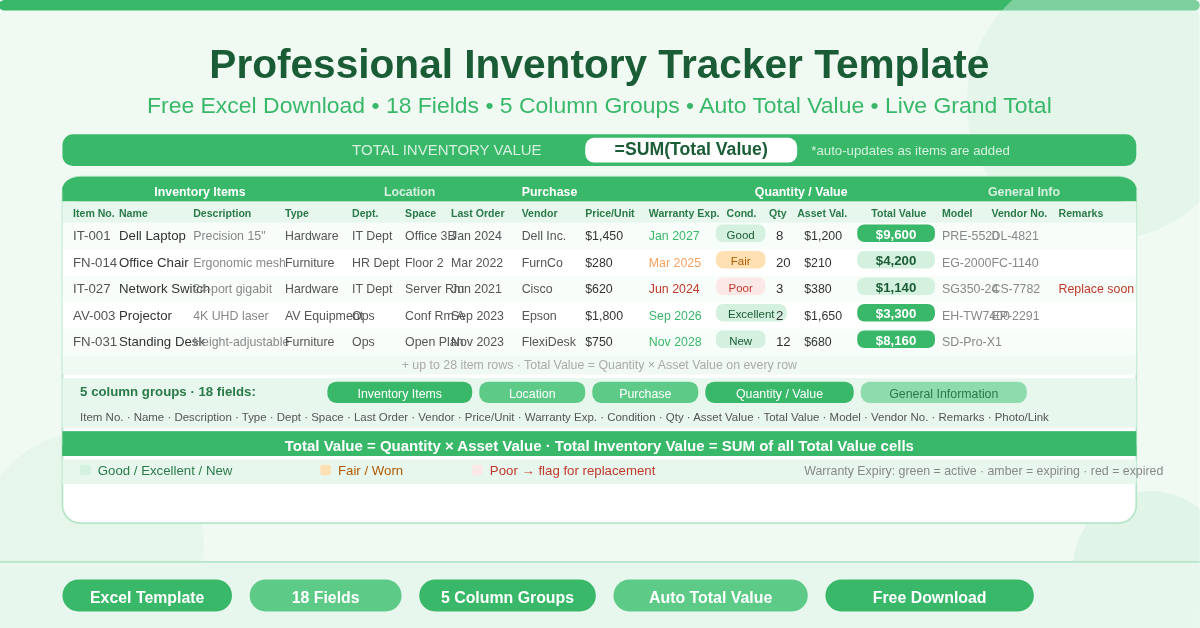
The Professional Inventory Tracker Template is a free Microsoft Excel spreadsheet for managing a complete inventory register. It records every item with detailed identification, location, purchase, and valuation data — while automatically calculating Total Value per item and summing everything into a live Total Inventory Value at the top of the sheet.
The template is designed for professional use — businesses, departments, facilities teams, and finance functions that need a structured, auditable asset or stock register in a single, shareable Excel file. Eighteen fields cover every dimension of an inventory item, from the department it sits in to its warranty expiry date and photograph link.
What Are the 18 Fields?
The template organizes its 18 columns into five logical groups:
Inventory Items (Item Identification)
- Item No. — a unique identifier for each item in the register
- Name — the item name
- Description — a free-text detail field
- Type — the category or type of item
Location
- Department — the department or area where the item is used
- Space — the specific room, bay, or location within the department
Purchase
- Date of Last Order — when the item was most recently ordered or purchased
- Vendor — the supplier name
- Purchase Price Per Item — the cost paid per unit
- Warranty Expiry Date — the date the warranty expires
Quantity / Value
- Condition — the current condition of the item
- Quantity — the number of units held
- Asset Value — the current value per unit
- Total Value — automatically calculated as Quantity × Asset Value
General Information
- Model — the model number or version
- Vendor No. — the vendor’s own reference number for the item
- Remarks — a free-text notes field
- Photograph / Link — a link to a photo or digital record of the item
The Total Value column calculates automatically for every row. Enter the Quantity and Asset Value — the Total Value appears instantly and updates whenever either figure changes.
The Total Inventory Value at the top of the sheet sums all Total Value cells. This figure reflects the complete monetary value of every item in the register and updates in real time as items are added or values are changed.
Who Should Use This Template?
Operations managers overseeing physical assets across multiple departments will find the Department and Space fields keep every item precisely located. Filtering by department gives an instant view of all assets in a specific area.
Finance and accounting teams preparing asset valuations for balance sheet purposes will use the Asset Value, Quantity, and Total Value fields to build an auditable fixed asset schedule. The Total Inventory Value at the top provides the headline figure for reporting.
IT managers tracking hardware assets — laptops, monitors, servers, printers, network equipment — will use the Vendor, Purchase Price, Warranty Expiry, and Model fields to maintain a complete IT asset register. The Photograph/Link field supports linking to device photos or serial number records.
Facilities and maintenance teams responsible for office equipment, tools, furniture, and infrastructure assets will find the Condition, Warranty Expiry, and Remarks fields valuable for planning maintenance and replacement cycles.
Small businesses needing their first formal asset register will appreciate the ready-to-use structure. No setup required — enter an item, and every formula works immediately.
How to Use the Template
Start at the top of the sheet and work down the item rows. For each asset or stock item, enter the Item No. and Name. Add the Description and Type in the next two columns.
Fill in the Location group — Department and Space — so every item has a precise physical location on record.
In the Purchase group, enter the Date of Last Order, Vendor name, Purchase Price Per Item, and Warranty Expiry Date.
Enter the Condition and Quantity for the item. Then enter the Asset Value — the current per-unit value. The Total Value column calculates instantly as Quantity × Asset Value.
Complete the General Information fields — Model, Vendor No., Remarks, and a Photograph or Link — for any items where this detail adds value.
The Total Inventory Value at the top updates automatically with every item added.
How to Modify the Template
Add more item rows by inserting new rows within the table above the last row. The Total Value formula extends automatically to new rows.
Apply conditional formatting to the Warranty Expiry Date column to highlight items whose warranty expires within 30 or 60 days. This turns a static date field into a proactive maintenance alert.
Add a Depreciation column using a simple formula — for example, Purchase Price minus a percentage per year based on the item age. This supports straightforward book value tracking alongside the Asset Value field.
Add a Category filter using Excel’s built-in table filter on the Type column. Filtering by category makes it easy to generate a view of all IT equipment, all furniture, or all machinery without building a separate report.
Conclusion
The Professional Inventory Tracker Template delivers an audit-ready asset and stock register in a single Excel sheet. Eighteen fields across five column groups, automatic Total Value per item, live Total Inventory Value across all items, and support for up to 28 records out of the box. Download it and bring professional structure to your inventory management from the first entry.