
Project scheduling consumes hours that project managers do not have. Enter a task duration, look up the calendar, count forward through working days, skip the weekend, check for public holidays, write the end date, copy it to the next task’s start date — and repeat twenty times. By the time the schedule is complete, three tasks have changed and the whole process starts again.
A project duration calculator replaces this cycle entirely. Enter the effort in days and the number of people doing the work. The duration calculates itself. Enter the predecessor task number. The start date sets itself from the previous task’s end. The end date calculates using Excel’s WORKDAY function — skipping weekends and every public holiday in your list. The Gantt chart draws itself across 54 weekly columns without any manual formatting.
This free Excel Project Duration Calculator Template does all of this automatically for up to 20 concurrent tasks, across five project phases, with a resource type dropdown, a predecessor chain, and a built-in public holiday exclusion list.
Download the free Project Duration Calculator Template and build your next project schedule in the time it used to take to calculate one task.
What Is the Project Duration Calculator Template?
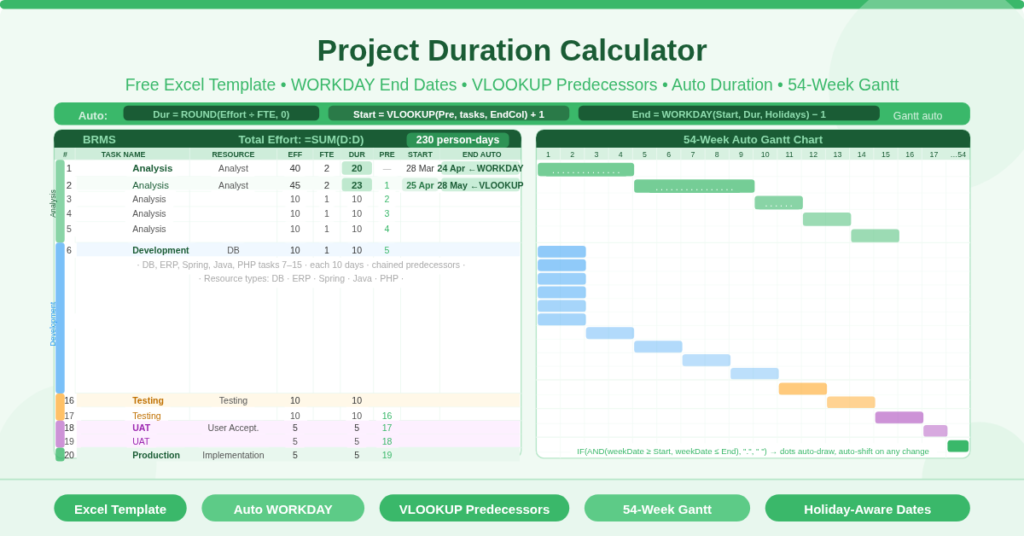
The Project Duration Calculator is a free Microsoft Excel workbook with two sheets. The Planning sheet is the working environment — a task table with auto-calculated durations, dates, and a 54-week visual Gantt chart. The Data sheet holds the configuration: a public holidays list and a resource type dropdown menu.
The template is built for a software project named BRMS, with 20 tasks spanning five phases — Analysis, Development, Testing, UAT, and Production. The phases and tasks are replaceable. The formula architecture, however, is the template’s core value: a fully automated chain from effort input to Gantt bar output that requires no manual date calculations at any step.
Total project effort displays at the top using =SUM(D:D) — always reflecting the current sum of all task effort entries.
The Eight-Column Task Structure
Every task in the Planning sheet occupies one row with eight columns. Five columns accept manual input. Three columns calculate automatically.
Manual Input Columns
- # (Task Number) provides a unique reference ID for each task. Predecessor relationships use this number to look up the predecessor task’s end date via VLOOKUP.
- Task Name holds the phase or task description. The sample organizes tasks by phase: Analysis tasks 1–5, Development tasks 6–15, Testing tasks 16–17, UAT tasks 18–19, and Production task 20.
- Resource Type is a dropdown field fed by the Data sheet’s resource type list. Available types include Java, PHP, ERP, DB, Spring, Testing, Analyst, User Acceptance, and Implementation. Selecting from the dropdown ensures consistency — no free-text spelling variants that break filters or reports.
- Effort (Days) is the total effort in person-days for the task. The first task (Analysis, row 3) requires 40 effort-days. The second requires 45. Development and Testing tasks each carry 10 effort-days. UAT tasks carry 5 days. Production carries 5 days. Replace these with your actual estimates.
- FTE is the number of full-time-equivalent resources working on the task simultaneously. Entering 2 means two people share the work, halving the calendar duration.
- Pre (Predecessor) is the task number of the task that must finish before this one begins. Task 2 has predecessor 1 (it starts when task 1 ends). Task 3 has predecessor 2. This field drives the automatic start date calculation via VLOOKUP.
Auto-Calculated Columns
- Dur Auto (Duration) divides effort by FTE using =ROUND(D/E, 0). A task with 40 effort-days and 2 FTE produces a duration of 20 working days. Change the FTE and the duration recalculates instantly without any manual adjustment.
- Start uses VLOOKUP to find the predecessor’s end date and adds one working day: =VLOOKUP(predecessor, $A$2:$I$210, 9) + 1. The first task in the chain has a manually entered start date — March 28, 2016 in the sample. Every subsequent task calculates its start from the previous task’s auto-calculated end date. Changing any task’s duration ripples through every downstream start date automatically.
- End Auto uses Excel’s WORKDAY function: =WORKDAY(Start, Duration, Data!F:F) – 1. WORKDAY counts forward from the start date by the exact number of working days in the duration, skipping Saturdays, Sundays, and every date listed as a public holiday in the Data sheet. Subtracting 1 gives the last working day of the task rather than the first day after it ends.
How the Predecessor Chain Works
The predecessor system is what makes this a true project duration calculator rather than a simple task list. It chains every task’s start date to the completion of a specified earlier task — automatically and without any manual date entry.
The VLOOKUP formula =VLOOKUP(G4, $A$2:$I$210, 9) + 1 looks up the value in the Pre column (G4) within the task table’s first column (task numbers), then returns the value from the ninth column (End Auto). Adding 1 converts the predecessor’s end date to the next day, which becomes the current task’s start date.
When the effort or FTE on any task changes, the duration updates. The end date updates. The VLOOKUP in the next task’s Start column picks up the new end date and updates that task’s start. That task’s end date updates. The change propagates through the entire project schedule automatically, all the way to the final Production task. No manual date adjustments. No cascading errors.
How the WORKDAY End Date Calculation Works
The WORKDAY function is the engine behind the accurate end date calculation. Standard calendar arithmetic adds days without any awareness of weekends or holidays. WORKDAY knows about both.
=WORKDAY(H3, F3, Data!F2:F21) – 1 works as follows: starting from the task’s start date (H3), WORKDAY counts forward exactly F3 working days. Working days exclude Saturdays and Sundays automatically. The third argument, Data!F2:F21, points to the public holiday list in the Data sheet. WORKDAY also skips any dates in that range when counting forward. The final -1 adjusts the result from “the first day after the task” to “the last day of the task.”
The Data sheet supports up to 20 public holiday entries. Add any relevant dates — bank holidays, company shutdowns, regional observances — and every task’s end date in the Planning sheet recalculates to exclude them. Resource types are also maintained in the Data sheet and fed to the Resource Type dropdown in the Planning sheet via Excel’s data validation.
How the Gantt Chart Works
The Gantt chart is the Planning sheet’s most visually distinctive feature. It spans 54 weekly columns (weeks 1 through 54) to the right of the task data columns. Each column header is a date, calculated by adding 7 days to the previous column: =J2+7, =K2+7, and so on, anchored to the first task’s start date.
Each Gantt cell contains a formula: =IF(AND(weekDate >= taskStart, weekDate <= taskEnd), “.”, ” “). When the column’s week date falls within a task’s start and end date range, the cell displays a dot. When the date is outside the range, the cell displays a space. This creates a visual dot-matrix bar across the weeks that a task is active.
The result is a full Gantt chart that requires no manual formatting and no chart building. Change a task’s duration and the dots in its row shift to reflect the new dates. Adjust the predecessor on any task and the dots shift for that task and every downstream task simultaneously.
Practical Use Cases
Software project managers scheduling development sprints, testing phases, and UAT windows will find the five-phase structure (Analysis → Development → Testing → UAT → Production) immediately applicable to a standard software delivery lifecycle. The resource type dropdown covers the most common development roles in the sample — Java, PHP, ERP, DB, Spring — and is easily extended.
IT program managers overseeing multiple related projects will adapt the template for each workstream, using the predecessor chain to model dependencies within each workstream and the 54-week Gantt to visualize delivery timelines across the program.
Operations and transformation project managers running change program without a dedicated PM tool subscription will use the WORKDAY-driven date calculations to produce schedules that account for public holidays and organizational shutdowns — accuracy that simple calendar arithmetic cannot provide.
Resource managers modelling the impact of headcount changes will use the FTE column to instantly see how adding or removing a person from a task affects the end date and all downstream tasks — without rebuilding the schedule from scratch.
Freelancers and independent consultants who need to present a structured project timeline to clients will use the Gantt output as a professional visual deliverable without purchasing specialist scheduling software.
How to Set Up Your Own Project
Open the workbook. On the Data sheet, enter your project’s public holidays in the holiday date column and replace or extend the resource type list with the roles relevant to your project.
On the Planning sheet, replace the project name (BRMS) in cell A1 with your project name. Clear the 20 sample task rows and enter your own tasks: task number, task name, resource type, effort in days, FTE, and predecessor. Enter a start date for task 1. All subsequent start dates, end dates, and durations calculate automatically.
Review the Gantt chart immediately to the right of the task data. The dots represent active weeks for each task. The 54-week span (columns J to BK) accommodates projects up to approximately one year in length. Extend the date row and formula columns further right for longer projects by copying the rightmost Gantt columns.
Download the Free Project Duration Calculator Template
Scheduling 20 tasks manually takes hours. This template does it automatically — WORKDAY end dates, predecessor-driven start dates, auto-calculated durations, and a 54-week dot-matrix Gantt chart — from nothing but effort, FTE, and a predecessor number per task.
Download the free Project Duration Calculator Template now and build a complete, formula-driven project schedule in minutes.