
Sometimes the direction of a number does not matter, only its size. A budget can be over or under, yet the gap is what you report. Measurements can miss high or low, but the error is still an error. A distance is never negative, whichever way you travel. In each case, the minus sign just gets in the way. The ABS function handles this neatly. It strips the sign and returns the plain magnitude of a number.
ABS is short for absolute value, a basic maths idea. It answers one question: how far is this from zero? This guide explains it with realistic examples. By the end, you will measure differences without worrying about signs.
What ABS Does
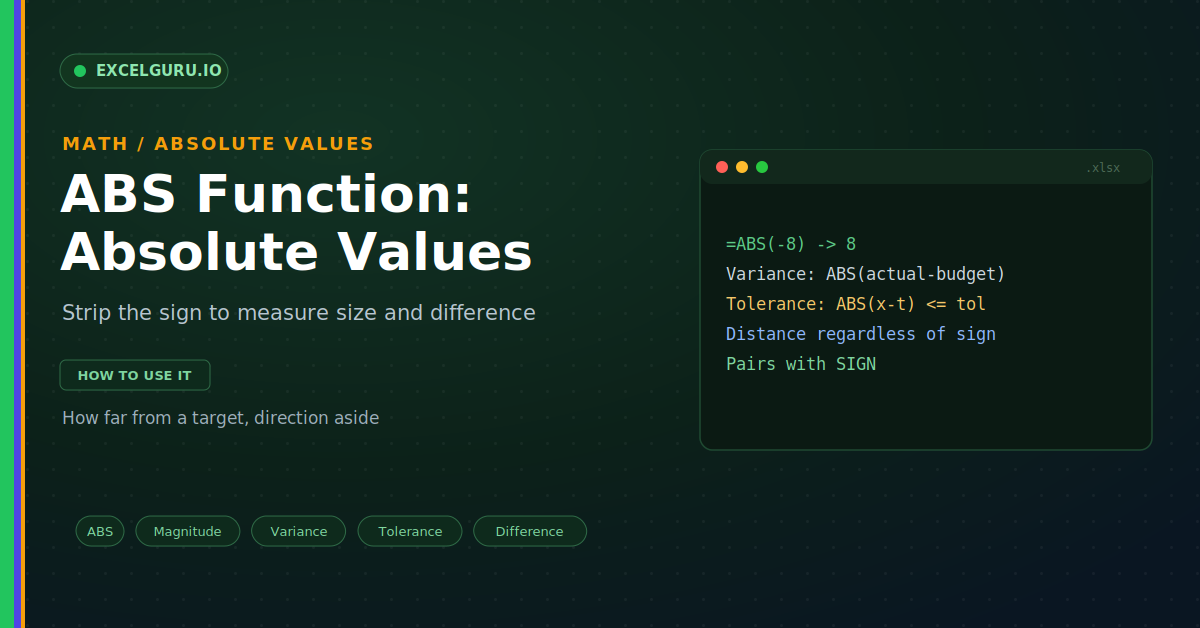
ABS takes any number and removes its sign. A negative eight becomes a positive eight. A positive eight stays exactly as it is. So the result is never negative, as below.
Think of it as the distance from zero. Both minus eight and plus eight sit eight steps away. ABS reports that distance and ignores the direction. As a result, you always get a clean, positive size.
The Syntax
The ABS syntax is about as simple as it gets. You give it a single number. Excel returns that number without its sign. So there is only one argument to supply.
Example: Variance Between Actual and Budget
Reporting variance is the classic ABS job. A plain subtraction can come out negative. That negative sign confuses a simple size report. So ABS gives the gap as a positive figure, as below.
Example: A Tolerance Check
Quality checks often allow a small margin. A part may sit slightly above or below target. You only fail it if the error is too big. So ABS tests the size of the miss, as below.
Example: Mean Absolute Deviation
ABS shines in a common statistics measure. Mean absolute deviation averages the size of errors. You take each difference, drop the sign, then average. So SUMPRODUCT and ABS do it in one formula.
Pairs Well With SIGN
ABS has a useful companion called SIGN. ABS keeps the size and drops the sign. SIGN keeps the sign and drops the size. Together they let you rebuild or inspect a number.
Troubleshooting ABS
All three problems below are the most common. Each has a clear cause and a quick fix.
A #VALUE! error appears
This means the input is not a number. ABS needs a numeric value to work on. So a word or stray text triggers the error. First, click the referenced cell and check its contents. Look for text or a number stored as text. Then convert it to a real number. After that, ABS returns a clean result.
Only the first value is converted
You may want ABS across a whole range at once. A plain subtraction of two ranges can misbehave. So wrap the difference inside SUMPRODUCT for totals. It applies ABS to every pair, then adds them. Alternatively, use ABS in a spilled array formula. After that, the entire range is handled.
The result should stay negative
ABS always returns a positive value by design. So it will hide a genuine loss or shortfall. First, decide whether you truly need the sign. If a loss should show as negative, skip ABS there. Keep ABS only where the size is the point. After that, your figures read as intended.
Frequently Asked Questions
- What does the ABS function do?+It returns the absolute value of a number. That means the size, with the sign removed. For example, =ABS(-8) returns 8. So the result is never negative.
- How do I show variance as a positive number?+Wrap the subtraction in ABS. Use =ABS(Actual - Budget) for the gap. So it stays positive whether over or under. That makes a variance report much clearer.
- Can ABS work on a whole range?+Yes, but pair it with SUMPRODUCT for a total. Use =SUMPRODUCT(ABS(range1 - range2)). So it applies ABS to each pair, then adds them. A spilled array formula also works.
- What is the difference between ABS and SIGN?+ABS returns the size without the sign. SIGN returns the sign without the size. So ABS(-8) is 8, while SIGN(-8) is -1. Together they describe a number fully.