
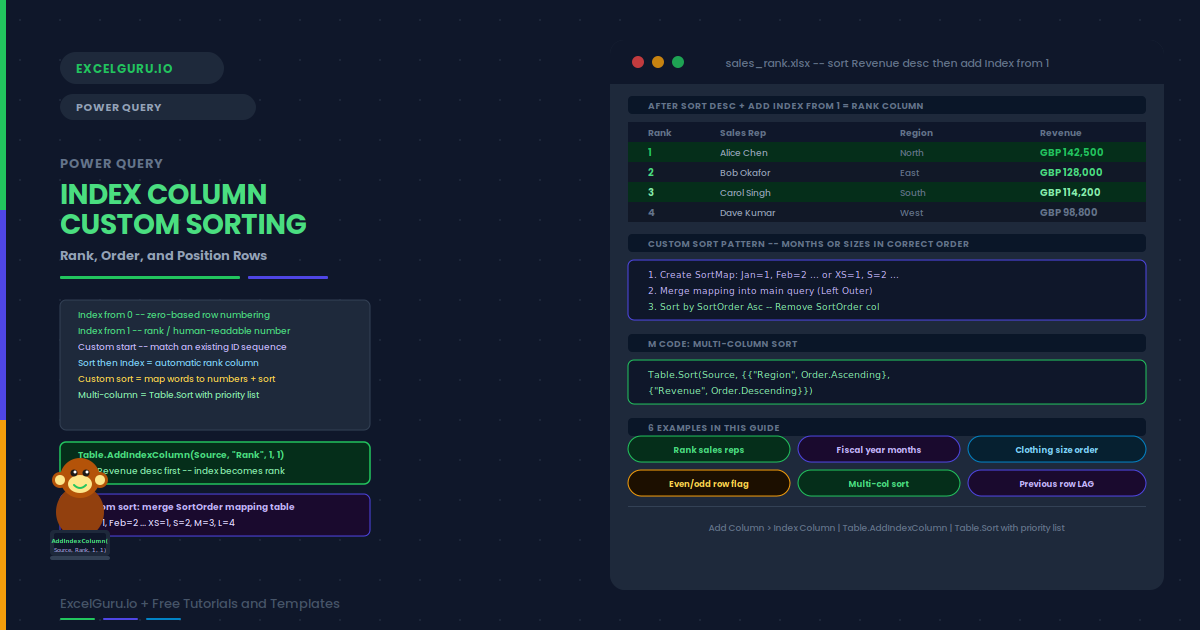
Power Query loads your data in whatever order it arrives. Sometimes that order is random, sometimes it reflects insertion time, and sometimes you need a precise sequence for downstream logic. Index columns add a sequential number to every row, giving you a stable row identity that survives refreshes and transformations. Combine that index with a custom sort, and you control the exact row order of your output table — even when the source data never has a consistent order.
This guide covers adding Index columns from 0, 1, or a custom start, using the index for row-number calculations, building custom sort sequences with a helper mapping table, sorting by multiple columns, and six worked examples. These include ranking sales reps, applying fiscal-year month ordering, sorting sizes (S, M, L, XL) correctly, and creating a row-position flag for alternating-row logic.
What Is an Index Column and When Do You Need One?
An Index column adds a sequential integer to each row. By default it starts at 0 (zero-based) or 1 (one-based). You can also set a custom start value and step size. The Index column is the only reliable row identifier in Power Query because Power Query tables have no inherent row numbers — rows have no fixed position until you explicitly create one.
Index columns are useful in several scenarios. First, they give you a stable row ID for the "keep last occurrence" deduplication trick. Second, they let you calculate row-relative values such as "value of previous row" using a self-merge on index minus one. Third, they let you flag alternating rows (even vs odd index) for colour-banding or sampling. Fourth, combined with a sort, they provide a ranking column for your output.
| Index start | Common use | Add Column → option |
|---|---|---|
| From 0 | Zero-based programming logic; modulo calculations | Index Column → From 0 |
| From 1 | Human-readable row numbers; ranking | Index Column → From 1 |
| Custom | Match an existing ID sequence; skip numbers | Index Column → Custom... |
How Does Custom Sorting Work in Power Query?
Power Query sorts by columns using the standard Ascending/Descending controls. However, these only sort alphabetically or numerically. For semantic orderings — such as months (Jan, Feb, Mar) or sizes (S, M, L, XL) — alphabetical sort gives the wrong result. The solution is to create a sort-order mapping table: a small table that assigns a number to each value (Jan=1, Feb=2, Mar=3, etc.), merge it into the main query, sort by the number column, and then remove the number column. This leaves the data sorted semantically without the number appearing in the output.
Examples 1–4: Index and Sorting in Practice
After sorting a sales table by Revenue descending, adding an index from 1 creates a clean rank column. The highest earner gets rank 1, the second highest gets rank 2, and so on. This rank column updates on every refresh as the data changes.
A fiscal year starting in April means April=1, May=2 ... March=12. Alphabetical or calendar sorting gives the wrong sequence. A mapping table assigns the correct fiscal position to each month name, which is merged into the query, sorted, and then removed.
Alphabetically, XL sorts before XS and XXL sorts last. The correct logical order is XS, S, M, L, XL, XXL. Specifically, a sort-mapping table with numeric assignments (XS=1, S=2, M=3, L=4, XL=5, XXL=6) solves this cleanly. After merging, sorting by the numeric column, and removing it, the output shows sizes in the correct physical order.
An index from 0 combined with a modulo operation flags every other row. This is useful for alternating colour-band logic, extracting every second row for sampling, or assigning rows to two groups for an A/B test. The Number.Mod function applies modulo arithmetic in a custom column.
Examples 5–6: Multi-Level Sort and Row-Relative Calculations
Clicking sort buttons in sequence in Power Query applies sorts one-at-a-time, which reverses the previous sort. The correct approach is to use the Table.Sort M function with multiple sort keys listed in order of priority. This applies all sort levels simultaneously.
Power Query has no native LAG function like SQL. However, you can replicate it by merging the table against itself on index minus one. The current row (index=N) joins to the previous row (index=N-1), bringing in the prior period’s value as a new column. This enables month-over-month or day-over-day change calculations.
Common Issues and How to Fix Them
Index column resets or changes after refresh
If the index numbers change after a refresh, the source data order changed. The Index column reflects the current query output order, not the source row order. To get a stable index, add a sort step before the Index column step so the sort order is locked. Alternatively, if the source data has its own stable ID column, use that instead of Power Query’s generated index.
Sorting by month name gives alphabetical not chronological order
Power Query sorts text alphabetically. "August" sorts before "January" alphabetically. To sort chronologically, use a mapping table (as shown in Example 2) that assigns a number to each month name. Merge the mapping, sort by the numeric column, and remove it. Additionally, if your date column is a proper Date type rather than a text string, sorting directly on the Date column will give the correct chronological order without a mapping table.
Frequently Asked Questions
-
How do I add a row number column in Power Query?+Go to Add Column → Index Column. Choose From 0 (starts at zero), From 1 (starts at one), or Custom (set your own start and step). The index reflects the current row order in the query. To create a ranking, first sort the table by the value you want to rank, then add the index. The index then represents the rank position for each row.
-
How do I sort by a custom order like month names or clothing sizes?+Create a small mapping table in Power Query that assigns a number to each value in your custom order (e.g. Jan=1, Feb=2, or XS=1, S=2, M=3). Merge this mapping table into your main query on the text column. Sort by the numeric sort-order column. Then remove the sort-order column. The table is now sorted in your custom logical sequence without the number appearing in the output.
-
How do I sort by multiple columns at the same time?+In the Power Query ribbon, Ctrl-click columns in the desired sort priority order and apply the sort direction. Alternatively, use the M code Table.Sort function with multiple pairs: Table.Sort(Source, {{"Region", Order.Ascending}, {"Revenue", Order.Descending}}). This sorts by Region first, then by Revenue within each region. Applying sort buttons sequentially without Ctrl replaces the previous sort rather than adding to it.
-
Does the index column change when the data is refreshed?+Yes, if the source row order changes between refreshes. The Index column numbers are generated based on the row order at the time of the index step. To get a stable index, add a Sort step before the Index step so the row order is deterministic. If your source data has its own stable ID or row number, use that instead of Power Query’s generated index for joins or row-relative calculations.