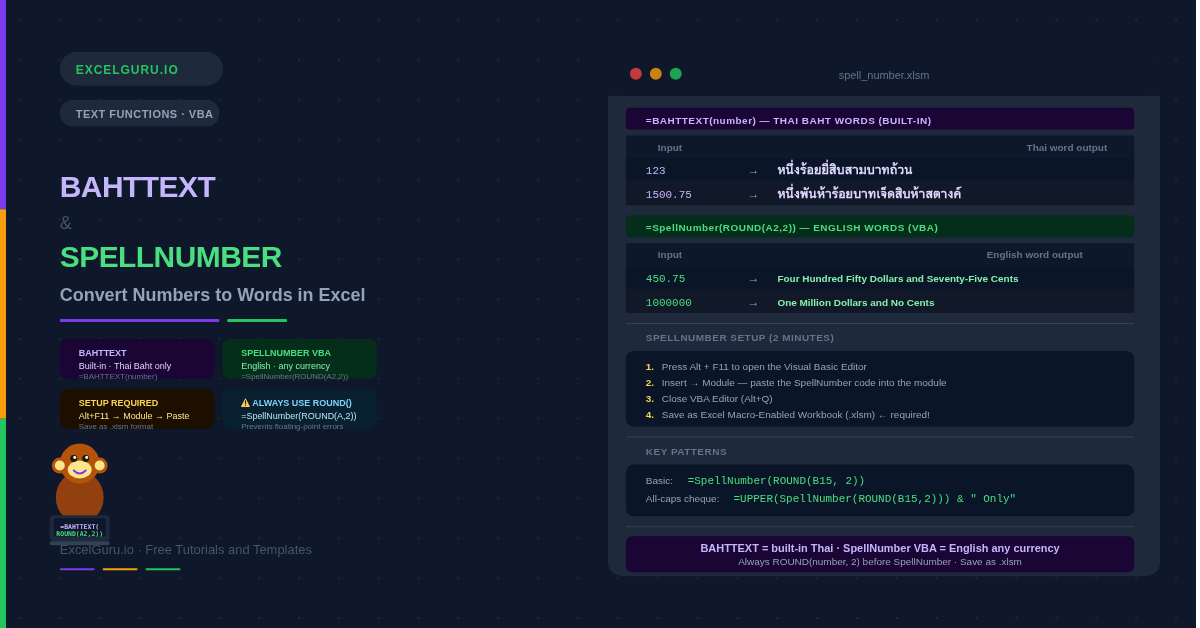
Legal documents, cheques, and invoices often need amounts written out in words — "Four Hundred and Fifty Dollars and Seventy-Five Cents Only". Excel does not provide a built-in English spell-number formula. It does, however, provide two routes to this result: BAHTTEXT, a native function that converts numbers to Thai Baht words, and SpellNumber, a VBA user-defined function that Microsoft published specifically for English number-to-words conversion.
This guide covers both approaches in full. You will find the exact steps to install SpellNumber, the complete VBA code, all BAHTTEXT examples, and a comparison of every method available today — including the modern GOOGLETRANSLATE workaround and LAMBDA-based alternatives.
Availability: BAHTTEXT is available in all Excel versions from Excel 2003 onwards. SpellNumber is a VBA user-defined function — it requires adding code to the workbook and saving as .xlsm. It works on Windows Excel only, not Excel for the Web or Excel on iPad/iPhone without additional configuration.
What Is the BAHTTEXT Function?
BAHTTEXT is a native Excel function that converts a number to Thai text in the Baht currency format. It is the only built-in Excel function that converts numbers to spoken words in any language. Consequently, it has also become the foundation for creative workarounds that translate the Thai output into English. Additionally, BAHTTEXT works in every Excel version from 2003 onwards without any setup.
=BAHTTEXT(number)
| Argument | Required? | What it does |
|---|
| number | Required | The number to convert to Thai Baht text. Can be a cell reference, a hardcoded number, or a formula result. Decimals are treated as satang (the Thai sub-unit). The result is always a text string. |
The function uses Unicode Thai characters for output. The result is only readable if the workbook is opened on a system with Thai font support — which all modern Windows and Mac systems provide by default.
Examples 1–3: BAHTTEXT in Practice
1
Basic BAHTTEXT — convert numbers to Thai Baht words
BAHTTEXT produces Thai text for whole numbers and decimals. Whole numbers produce the word for the integer. Decimals produce the satang (sub-unit) amount as well. The output always includes the ฿ Baht word at the end.
A — Number
B — BAHTTEXT(A)
Meaning
123
หนึ่งร้อยยี่สิบสามบาทถ้วน
One hundred twenty-three Baht
1500.75
หนึ่งพันห้าร้อยบาทเจ็ดสิบห้าสตางค์
1,500 Baht 75 Satang
0.50
ห้าสิบสตางค์
Fifty Satang
Convert the number in A2 to Thai Baht text:
=BAHTTEXT(A2)
Hardcoded number directly in the formula:
=BAHTTEXT(1500.75)
→ หนึ่งพันห้าร้อยบาทเจ็ดสิบห้าสตางค์ (One thousand five hundred Baht seventy-five Satang)
Use with a formula result — e.g. a SUM:
=BAHTTEXT(SUM(B2:B10))
→ Converts the total of B2:B10 to Thai words automatically
2
BAHTTEXT on a Thai invoice — stamp a total in words
Thai accounting standards require invoices and receipts to include the total amount in written Thai words — the same convention that cheques use in English. BAHTTEXT automates this field directly from the numeric total, eliminating manual entry errors.
B12 holds the invoice total. Place the BAHTTEXT result in the words field:
The cell auto-updates whenever the total changes.
=BAHTTEXT(B12)
Combine with a label — prefix the Thai words with a label cell:
"จำนวนเงิน: " is "Amount:" in Thai.
"จำนวนเงิน: " & =BAHTTEXT(B12)
Round to two decimal places before converting — prevents satang rounding errors:
ROUND ensures the text matches the displayed invoice total.
=BAHTTEXT(ROUND(B12, 2))
3
BAHTTEXT + GOOGLETRANSLATE — convert Thai words to English
Google Sheets (not Excel) supports a GOOGLETRANSLATE function. Combining it with BAHTTEXT converts the Thai output to English words. This approach is creative but impractical for production use — it requires Google Sheets, depends on an internet connection, and the translation is not always financially precise.
Google Sheets only — not available in Excel.
BAHTTEXT converts the number to Thai words.
GOOGLETRANSLATE then converts Thai → English.
This produces approximate English words for the amount.
In Google Sheets (not Excel):
=GOOGLETRANSLATE(=BAHTTEXT(A2), "th", "en")
→ For 1500.75, produces approximately:
"One thousand five hundred baht seventy-five satang"
Limitations of this approach:
1. Only works in Google Sheets — not in Excel.
2. Requires an internet connection (calls Google Translate API).
3. Uses "baht" and "satang" instead of "dollars" and "cents".
4. Translation accuracy is not guaranteed for legal documents.
5. SpellNumber VBA is more reliable for English financial documents.
Do not use GOOGLETRANSLATE for legal documents: Machine translation of currency amounts is not reliable enough for cheques, contracts, or official financial documents. Use SpellNumber VBA for English-language financial documents — it produces precise, consistent results without relying on external services.
How to Set Up SpellNumber in Excel
SpellNumber is a VBA user-defined function published by Microsoft. It is not built into Excel — you must add it to each workbook that needs it. The setup takes about two minutes. Furthermore, once added, you use SpellNumber exactly like any built-in formula.
Step-by-Step Installation
-
1
Open the workbook that needs SpellNumber. Press Alt + F11 to open the Visual Basic Editor.
-
2
In the VBA Editor menu, click Insert → Module. A blank module window appears.
-
3
Copy the SpellNumber code from the block below and paste it into the blank module window.
-
4
Close the VBA Editor (Alt + Q or click the X button).
-
5
Save the workbook as Excel Macro-Enabled Workbook (.xlsm). Click File → Save As → choose .xlsm format. Regular .xlsx files cannot store VBA code.
-
6
In any worksheet cell, type =SpellNumber(A1) (replace A1 with the cell holding your number) and press Enter.
──────────────────────────────────────────────────────────
SPELLNUMBER VBA CODE — Paste into a new VBA Module (Alt+F11 → Insert → Module)
Source: Microsoft Support (modified for clarity)
──────────────────────────────────────────────────────────
Option Explicit
Function SpellNumber(ByVal MyNumber)
' Declare variables for the dollar and cent portions of the number.
Dim Dollars, Cents, Temp
Dim DecimalPlace, Count
ReDim Place(9) As String
Place(2) = " Thousand "
Place(3) = " Million "
Place(4) = " Billion "
Place(5) = " Trillion "
MyNumber = Trim(Str(MyNumber))
DecimalPlace = InStr(MyNumber, ".")
If DecimalPlace > 0 Then
Cents = GetTens(Left(Mid(MyNumber, DecimalPlace + 1) & "00", 2))
MyNumber = Trim(Left(MyNumber, DecimalPlace - 1))
End If
Count = 1
Do While MyNumber <> ""
Temp = GetHundreds(Right(MyNumber, 3))
If Temp <> "" Then Dollars = Temp & Place(Count) & Dollars
If Len(MyNumber) > 3 Then
MyNumber = Left(MyNumber, Len(MyNumber) - 3)
Else
MyNumber = ""
End If
Count = Count + 1
Loop
Select Case Dollars
Case "" : Dollars = "No Dollars"
Case "One" : Dollars = "One Dollar"
Case Else : Dollars = Dollars & " Dollars"
End Select
Select Case Cents
Case "" : Cents = " and No Cents"
Case "One" : Cents = " and One Cent"
Case Else : Cents = " and " & Cents & " Cents"
End Select
SpellNumber = Dollars & Cents
End Function
Private Function GetHundreds(ByVal MyNumber)
Dim Result As String
If Val(MyNumber) = 0 Then Exit Function
MyNumber = Right("000" & MyNumber, 3)
If Mid(MyNumber, 1, 1) <> "0" Then
Result = GetDigit(Mid(MyNumber, 1, 1)) & " Hundred "
End If
If Mid(MyNumber, 2, 1) <> "0" Then
Result = Result & GetTens(Mid(MyNumber, 2))
Else
Result = Result & GetDigit(Mid(MyNumber, 3))
End If
GetHundreds = Result
End Function
Private Function GetTens(TensText)
Dim Result As String
Result = ""
If Val(Left(TensText, 1)) = 1 Then
Select Case Val(TensText)
Case 10: Result = "Ten"
Case 11: Result = "Eleven"
Case 12: Result = "Twelve"
Case 13: Result = "Thirteen"
Case 14: Result = "Fourteen"
Case 15: Result = "Fifteen"
Case 16: Result = "Sixteen"
Case 17: Result = "Seventeen"
Case 18: Result = "Eighteen"
Case 19: Result = "Nineteen"
End Select
Else
Select Case Val(Left(TensText, 1))
Case 2: Result = "Twenty "
Case 3: Result = "Thirty "
Case 4: Result = "Forty "
Case 5: Result = "Fifty "
Case 6: Result = "Sixty "
Case 7: Result = "Seventy "
Case 8: Result = "Eighty "
Case 9: Result = "Ninety "
End Select
Result = Result & GetDigit(Right(TensText, 1))
End If
GetTens = Result
End Function
Private Function GetDigit(Digit)
Select Case Val(Digit)
Case 1: GetDigit = "One"
Case 2: GetDigit = "Two"
Case 3: GetDigit = "Three"
Case 4: GetDigit = "Four"
Case 5: GetDigit = "Five"
Case 6: GetDigit = "Six"
Case 7: GetDigit = "Seven"
Case 8: GetDigit = "Eight"
Case 9: GetDigit = "Nine"
Case Else: GetDigit = ""
End Select
End Function
──────────────────────────────────────────────────────────
Examples 4–6: SpellNumber in Practice
4
Basic SpellNumber — whole and decimal amounts in English words
Once installed, SpellNumber works like any built-in function. Pass a cell reference and it returns the number spelled out in English as Dollars and Cents. It handles whole numbers, decimals, zeros, and large amounts through trillions.
450.75
Four Hundred Fifty Dollars and Seventy-Five Cents
1000
One Thousand Dollars and No Cents
0
No Dollars and No Cents
1000000
One Million Dollars and No Cents
Basic usage — after installing the VBA code and saving as .xlsm:
=SpellNumber(A2)
→ "Four Hundred Fifty Dollars and Seventy-Five Cents" (for 450.75)
Use on a calculated total — spell out a SUM result:
Always ROUND first so the words match the displayed amount.
=SpellNumber(ROUND(SUM(B2:B20), 2))
Always use ROUND(number, 2) inside SpellNumber for financial amounts.
SpellNumber reads full decimal precision — 450.756 becomes "Seventy-Five Cents"
only if the third decimal doesn't push the cent count above 75.
ROUND(450.756, 2) = 450.76 → "Seventy-Six Cents" — the correct result.
Always wrap in ROUND(number, 2) for financial accuracy: SpellNumber reads the raw underlying precision, not the displayed value. A cell showing "$450.76" may contain 450.756789 internally. SpellNumber then produces "Seventy-Five Cents" — wrong by one cent. ROUND(A2, 2) before SpellNumber ensures the words always match what is displayed.
5
SpellNumber on an invoice — cheque-style amount in words
The most common use for SpellNumber is generating the written-out amount line on invoices, payment vouchers, and cheques. Furthermore, combining SpellNumber with UPPER produces the all-capitals style that many finance teams specifically require.
B15 holds the invoice total. Place the spelled amount in the words field:
=SpellNumber(ROUND(B15, 2))
→ "Four Hundred Fifty Dollars and Seventy-Five Cents"
All-capitals version — common for cheques and formal vouchers:
=UPPER(=SpellNumber(ROUND(B15, 2)))
→ "FOUR HUNDRED FIFTY DOLLARS AND SEVENTY-FIVE CENTS"
Add "Only" at the end — standard in many financial jurisdictions:
Concatenate the suffix after SpellNumber's output.
=SpellNumber(ROUND(B15, 2)) & " Only"
→ "Four Hundred Fifty Dollars and Seventy-Five Cents Only"
Conditional guard — return a blank if the cell is empty:
Prevents "No Dollars and No Cents" appearing on unused invoice rows.
=IF(B15=0, "", =SpellNumber(ROUND(B15, 2)))
6
Customise SpellNumber for other currencies
The Microsoft SpellNumber code uses "Dollars" and "Cents" by default. Changing the currency name requires editing two lines in the VBA code. This makes the function suitable for pounds, euros, rupees, or any other currency your organisation uses.
In the VBA module, find these two lines and change the currency words:
For British Pounds — change "Dollars" to "Pounds" and "Cents" to "Pence":
Case "One" : Dollars = "One Pound"
Case Else : Dollars = Dollars & " Pounds"
Case "One" : Cents = " and One Penny"
Case Else : Cents = " and " & Cents & " Pence"
For Euros — change to "Euro" / "Euros" and "Cent" / "Cents":
(Note: "Euro" is also the plural in many EU style guides.)
Case "One" : Dollars = "One Euro"
Case Else : Dollars = Dollars & " Euros"
Case "One" : Cents = " and One Cent"
Case Else : Cents = " and " & Cents & " Cents"
For Indian Rupees — change to "Rupee" / "Rupees" and "Paisa" / "Paisas":
Case "One" : Dollars = "One Rupee"
Case Else : Dollars = Dollars & " Rupees"
Case "One" : Cents = " and One Paisa"
Case Else : Cents = " and " & Cents & " Paisas"
✓
Save the workbook after any change to the VBA code. The function updates immediately in all cells. You can also create multiple versions of the function in the same module — for example, SpellNumberUSD, SpellNumberGBP, and SpellNumberEUR — and use them side by side in the same workbook.
Examples 7–8: Modern Alternatives
Formula-Only and Add-In Approaches
7
LAMBDA-based SpellNumber — no VBA required (Excel 365)
Excel 365 introduced LAMBDA, which allows creating reusable custom functions without VBA. A full number-to-words LAMBDA is complex to build, but a simplified version covering 1 to 999 is achievable. For production use, the VBA approach remains more practical. However, LAMBDA has one key advantage: it works in Excel for the Web and on Mac, where VBA macro execution is restricted.
Simplified LAMBDA approach — for Excel 365 only.
This example handles single-digit and teen numbers (1–19) as a foundation.
A full 0–999,999,999 LAMBDA is several hundred characters long.
The approach below shows the structural pattern.
Store each number-word lookup in a named range or use CHOOSE:
CHOOSE(A2, "One","Two","Three","Four","Five","Six","Seven","Eight","Nine")
For a practical no-VBA solution in Excel 365, consider these options:
1. Microsoft Store add-ins (search "Spell Number" in Insert → Add-ins)
2. Excel Labs or other free add-ins with SpellNumber support
3. Power Automate flow that writes spelled values to the sheet
4. A pre-built LAMBDA from the Excel community (search "SpellNumber LAMBDA")
For Google Sheets users — a simpler approach using GOOGLETRANSLATE and BAHTTEXT:
This is the most accessible formula-only option for basic amounts.
=GOOGLETRANSLATE(=BAHTTEXT(A2), "th", "en")
Google Sheets only. Not suitable for legal documents.
8
Comparison — choosing the right method for your use case
Four methods exist for converting numbers to words in Excel. Each has a different profile of compatibility, effort, and output quality. Choosing the right one depends on your Excel version, whether VBA is available, and whether the output is for a legal document or an informal summary.
──────────────────────────────────────────────────────────
METHOD COMPARISON SUMMARY
──────────────────────────────────────────────────────────
BAHTTEXT (built-in)
Output: Thai language, Baht currency
Requires: Nothing — built into all Excel versions
Good for: Thai financial documents, Thai invoices
Not for: English documents
Formula: =BAHTTEXT(A2)
SpellNumber VBA (Microsoft UDF)
Output: English, Dollars and Cents (or any currency after editing)
Requires: Alt+F11 setup, .xlsm file format, Windows Excel
Good for: Cheques, invoices, payment vouchers, legal documents
Not for: Excel for Web, Excel for Mac without macros enabled
Formula: =SpellNumber(ROUND(A2, 2))
BAHTTEXT + GOOGLETRANSLATE (Google Sheets workaround)
Output: Approximate English (Thai currency names remain)
Requires: Google Sheets, internet connection
Good for: Rough informal conversions
Not for: Legal documents, offline use, Excel
Formula: =GOOGLETRANSLATE(BAHTTEXT(A2), "th", "en")
LAMBDA or Add-in (Excel 365 / modern)
Output: Varies by implementation
Requires: Excel 365, or a specific add-in installed
Good for: Formula-only environments where VBA is blocked
Not for: Earlier Excel versions without an add-in
Formula: Varies — check the specific add-in syntax
──────────────────────────────────────────────────────────
Common Issues and How to Fix Them
SpellNumber shows #NAME? error
The VBA code is not installed in the current workbook. SpellNumber is workbook-specific — it must be added to each file that needs it. Open the VBA Editor (Alt+F11), insert a new module, paste the code, close the editor, and save as .xlsm. Additionally, check that macros are enabled in Trust Center settings (File → Options → Trust Center → Trust Center Settings → Macro Settings → Enable all macros).
SpellNumber produces wrong cent amount
The cell contains more decimal places than displayed. For example, a cell showing "$450.75" may hold 450.7499999 internally due to floating-point precision. SpellNumber reads the raw value and may produce "Seventy-Four Cents" instead of "Seventy-Five". Fix this by always wrapping the argument in ROUND: =SpellNumber(ROUND(A2, 2)). This ensures the word output matches the rounded displayed amount.
File cannot be saved with SpellNumber
Excel shows "The following features cannot be saved in a macro-free workbook" when trying to save as .xlsx. This is expected — VBA code requires the .xlsm format. Click "No" to keep the current format, then go to File → Save As and choose "Excel Macro-Enabled Workbook (.xlsm)". The SpellNumber function will then persist across future sessions.
SpellNumber is workbook-specific — not global to Excel: Unlike built-in functions, SpellNumber only works in the workbook where the VBA code is installed. If you copy a SpellNumber formula to a different workbook, it shows #NAME? until the VBA code is also added there. To use it in many files, add the code to your Personal Macro Workbook (PERSONAL.XLSB) so it is available in all workbooks on that machine.
Frequently Asked Questions
-
Does Excel have a built-in function to convert numbers to words in English?+
No. Excel does not have a native English number-to-words function. BAHTTEXT converts to Thai only. For English, Microsoft publishes the SpellNumber VBA macro as an official solution — but it must be manually added to each workbook. In Excel 365, add-ins from the Microsoft Store can also provide this capability without VBA. There is no native formula-only solution in standard Excel that covers the full range of English number-to-words conversion.
-
How do I install SpellNumber in Excel?+
Press Alt+F11 to open the Visual Basic Editor. Go to Insert → Module to create a blank module. Paste the SpellNumber VBA code into the module. Close the editor with Alt+Q. Save the workbook as an Excel Macro-Enabled Workbook (.xlsm) — regular .xlsx files cannot store VBA code. Then use =SpellNumber(A1) in any cell, where A1 contains the number to convert.
-
What does BAHTTEXT do and when should I use it?+
BAHTTEXT converts a number to Thai text in the Baht currency format. Use it for Thai-language financial documents — invoices, receipts, and payment vouchers that need the total expressed in Thai words, which is a standard accounting requirement in Thailand. BAHTTEXT is not suitable for English documents. For English, use SpellNumber VBA instead.
More Questions About SpellNumber and BAHTTEXT
-
Can I change SpellNumber to use Pounds or Euros instead of Dollars?+
Yes. Open the VBA module (Alt+F11, find the SpellNumber module) and change the currency words in the Select Case blocks near the bottom of the SpellNumber function. Replace "Dollars" and "Cents" with your currency name and sub-unit name. For British pounds, use "Pounds" and "Pence". For euros, use "Euros" and "Cents". Save the workbook after editing and the function updates immediately.
-
Does SpellNumber work in Excel for Mac or Excel for the Web?+
SpellNumber uses VBA, which is not supported in Excel for the Web (browser-based Excel Online). On a Mac, VBA can run if macros are enabled, but the setup experience differs slightly — Alt+F11 opens the VBA Editor on Mac as well, using the Option key instead. For environments where VBA is not available, consider an add-in from the Microsoft AppSource store, or a LAMBDA-based implementation from the Excel community.
-
Why does SpellNumber give me the wrong cent amount?+
SpellNumber reads the full underlying number, not the rounded displayed value. A cell formatted to show "$450.75" may contain 450.7499999 due to floating-point arithmetic. SpellNumber then produces "Seventy-Four Cents" instead of "Seventy-Five". The fix is always to wrap the argument in ROUND: =SpellNumber(ROUND(A2, 2)). This ensures the number passed to SpellNumber has exactly two decimal places, matching the rounded display value.