
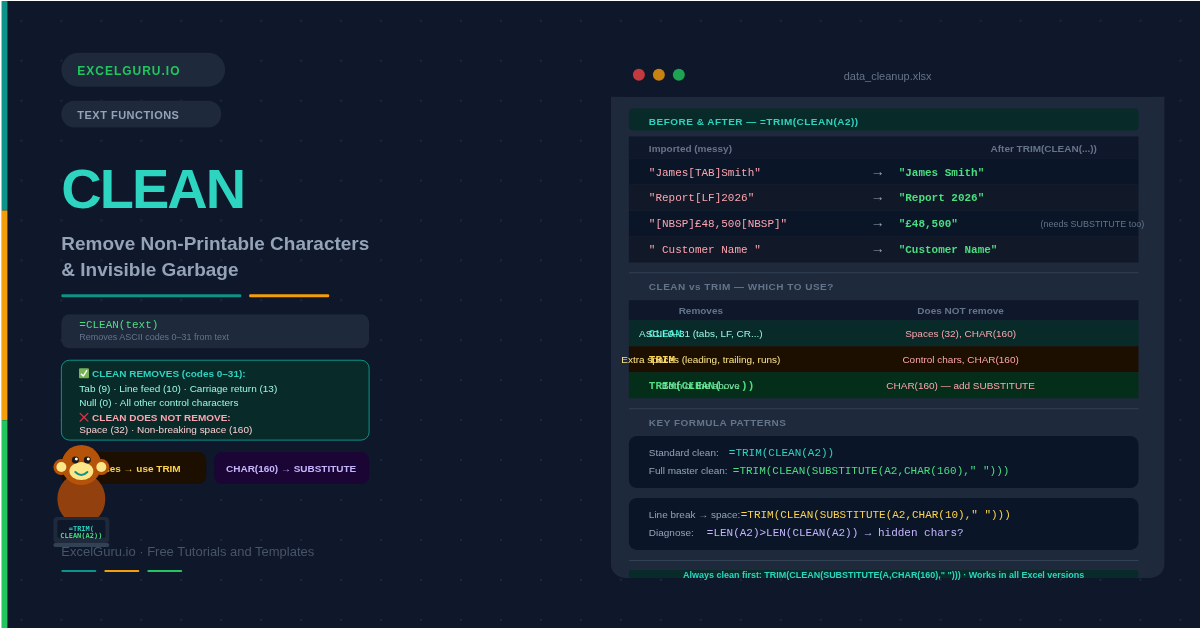
Invisible characters break formulas silently. You import data from a database, a web scrape, or a legacy system, and everything looks fine — until VLOOKUP returns #N/A on values that are clearly there, COUNTIF counts zero for strings that visibly match, and numbers refuse to calculate. The culprit is almost always non-printable characters hiding inside the cells. The CLEAN function removes them in one step, stripping ASCII control characters that TRIM cannot touch.
CLEAN works on ASCII codes 0 through 31 — tab characters, carriage returns, line feeds, and other invisible control codes that database exports and web-pasted content routinely inject into cells. Furthermore, combining CLEAN with TRIM and SUBSTITUTE covers virtually every invisible garbage scenario you will encounter in real-world data work.
What Is the CLEAN Syntax?
CLEAN accepts a single argument — the text to clean.
| Argument | Required? | What it does |
|---|---|---|
| text | Required | The text string to clean. Can be a cell reference, a hardcoded string in double quotes, or a formula that returns text. CLEAN scans the string and removes any character whose ASCII code falls between 0 and 31 (inclusive). All other characters are preserved unchanged. |
What Characters Does CLEAN Remove?
CLEAN removes the first 32 characters in the 7-bit ASCII table — codes 0 through 31. These are control characters from the original computing era. Most are invisible on screen. Consequently, they are easy to miss visually but cause significant problems in formulas and data comparisons.
| ASCII Code | Character name | Removed by CLEAN? | Common source |
|---|---|---|---|
| 0 | Null character | ✅ Yes | Database NULL values imported as text |
| 9 | Horizontal tab | ✅ Yes | TSV files, copied from spreadsheet cells |
| 10 | Line feed (LF) | ✅ Yes | Unix line breaks, Excel cell line breaks (Alt+Enter) |
| 13 | Carriage return (CR) | ✅ Yes | Windows line breaks (CR+LF), older system exports |
| 1–8, 11–12, 14–31 | Other control chars | ✅ Yes | Legacy system exports, PDFs, web scraping |
| 32 | Regular space | ❌ No — use TRIM | Spaces between words, leading/trailing spaces |
| 127 | Delete character | ❌ No — use SUBSTITUTE | Specific legacy systems |
| 160 | Non-breaking space | ❌ No — use SUBSTITUTE | Web-pasted content, HTML |
How Is CLEAN Different from TRIM?
CLEAN and TRIM solve different but related problems. They are frequently confused because both deal with invisible content. However, each one targets a completely different category of character.
| Function | What it removes | What it does NOT remove |
|---|---|---|
| CLEAN | Non-printable control characters (ASCII 0–31) — line feeds, carriage returns, tabs, null characters | Spaces (ASCII 32), non-breaking spaces (ASCII 160), any character above code 31 |
| TRIM | Leading spaces, trailing spaces, and runs of multiple spaces between words (reduces to one space each) | Non-printable characters, non-breaking spaces — TRIM is strictly space-only |
| CLEAN + TRIM | Everything above: control characters AND excess spaces — the standard starting formula for any data clean-up | Non-breaking spaces (code 160) — add SUBSTITUTE for complete coverage |
Examples 1–4: Core Cleaning Tasks
Database exports and CSV files routinely embed control characters inside text fields. CLEAN removes them all in a single formula. The cleaned result looks identical to the original on screen — but now formulas, lookups, and comparisons work correctly.
CLEAN removes non-printable characters. TRIM removes extra spaces. Together they handle the full range of invisible damage that database exports and web-pasted data routinely contain. This combination is the standard starting formula for any imported text column. Apply CLEAN first, then wrap with TRIM.
Non-breaking spaces (CHAR(160)) are the most stubborn invisible character in Excel. They appear when you paste content from websites, HTML tables, or PDFs. They look like regular spaces on screen, but TRIM ignores them because they are code 160 — above CLEAN's range. Consequently, SUBSTITUTE must handle them explicitly.
Excel's Alt+Enter creates a line break inside a cell using CHAR(10) — a line feed character. These appear as visible line breaks in Wrap Text mode. However, they break VLOOKUP, EXACT, and text comparisons because the cell value contains a hidden character. CLEAN removes them instantly.
Examples 5–8: Advanced Combinations
Diagnosing, Comparing, and Converting Cleaned Data
Before cleaning a dataset, it helps to understand which cells are affected and what characters are causing the problem. Three functions work together for diagnosis: LEN reveals whether CLEAN changes the character count, CODE identifies the first suspicious character, and EXACT confirms whether two apparently identical cells are actually different.
Two lists from different systems often appear to contain identical values but produce mismatches in VLOOKUP or COUNTIF. The reason is usually different invisible characters in each source. Cleaning both sides before comparing removes this source of false negatives entirely.
Numbers imported from databases frequently arrive as text — and hidden control characters make them even harder to convert. CLEAN removes the invisible characters first. Then VALUE or a double-negative converts the cleaned string to a real number that SUM, AVERAGE, and other aggregate functions can use.
For heavily contaminated data — web scrapes, legacy exports, or multi-system imports — a single layered formula handles all common invisible characters in one pass. This is the formula to apply when you do not know exactly which characters are present and want the most comprehensive clean possible.
Common CLEAN Issues and How to Fix Them
CLEAN did not fix the problem — spaces still remain
CLEAN only removes ASCII codes 0–31. Spaces (code 32) require TRIM. Non-breaking spaces (code 160) require SUBSTITUTE. If a cell still misbehaves after CLEAN, check the character code with =CODE(LEFT(A2,1)). A result of 32 means TRIM is needed. A result of 160 means SUBSTITUTE(A2, CHAR(160), "") is needed. A result between 0 and 31 means CLEAN should handle it — confirm by checking whether LEN(CLEAN(A2)) differs from LEN(A2).
Line break removal joins words without a space
CLEAN removes CHAR(10) line feeds but does not replace them with a space. Consequently, "John" and "Smith" separated by a line break become "JohnSmith" after CLEAN. Fix this by using SUBSTITUTE to replace the line break with a space before CLEAN runs: =TRIM(CLEAN(SUBSTITUTE(A2, CHAR(10), " "))). This inserts a space where the line break was, then TRIM collapses any double-spaces.
Numbers cleaned by CLEAN are still stored as text
CLEAN returns a text string even when the input looks like a number. The green triangle error indicator and left-aligned display confirm text storage. Wrap the formula in VALUE() to convert: =VALUE(TRIM(CLEAN(A2))). Additionally, remove any currency symbols or thousands separators with nested SUBSTITUTE calls before VALUE() attempts the conversion.
Frequently Asked Questions
-
What does the CLEAN function do in Excel?+CLEAN removes the first 32 non-printable characters in the 7-bit ASCII table — codes 0 through 31 — from a text string. These include tab characters (code 9), line feeds (code 10), carriage returns (code 13), null characters (code 0), and other invisible control characters that database exports and web-pasted content routinely embed in cells. CLEAN does not remove spaces (code 32) or non-breaking spaces (code 160) — use TRIM and SUBSTITUTE for those.
-
What is the difference between CLEAN and TRIM?+CLEAN removes non-printable control characters (ASCII codes 0–31), such as line feeds, carriage returns, and tab characters. TRIM removes extra spaces — leading spaces, trailing spaces, and multiple consecutive spaces between words. They target completely different character types. TRIM cannot remove a line feed, and CLEAN cannot remove a space. Consequently, combining both functions as =TRIM(CLEAN(A2)) is the standard starting formula for any imported text, as it covers both categories of invisible damage.
-
Why does TRIM not remove the invisible characters in my data?+TRIM only removes regular spaces (ASCII code 32). If a cell has extra whitespace that TRIM does not fix, the characters are likely non-printable control characters (codes 0–31) or non-breaking spaces (code 160). Use =CODE(LEFT(A2, 1)) to identify the first character code. If the result is between 0 and 31, use CLEAN. If it is 160, use SUBSTITUTE(A2, CHAR(160), ""). For complete coverage, combine all three: =TRIM(CLEAN(SUBSTITUTE(A2, CHAR(160), " "))).
More Questions About CLEAN
-
How do I remove non-breaking spaces that CLEAN cannot fix?+Non-breaking spaces have ASCII code 160, which is outside CLEAN's 0–31 range. Use SUBSTITUTE with CHAR(160) to replace them: =SUBSTITUTE(A2, CHAR(160), " "). This swaps each non-breaking space with a regular space. Then wrap with TRIM to remove any extra spaces the substitution leaves behind: =TRIM(SUBSTITUTE(A2, CHAR(160), " ")). For the most complete cleanup, use all three functions together: =TRIM(CLEAN(SUBSTITUTE(A2, CHAR(160), " "))).
-
Can I use CLEAN to remove line breaks from cells?+Yes. Excel's Alt+Enter line break is CHAR(10) — a line feed character within CLEAN's 0–31 range. =CLEAN(A2) removes it directly. However, CLEAN replaces the line break with nothing rather than a space, so words that were separated by a line break will merge together. To preserve the word boundary, use SUBSTITUTE to replace the line break with a space first: =TRIM(CLEAN(SUBSTITUTE(A2, CHAR(10), " "))). For Windows-style CR+LF line breaks, add a second SUBSTITUTE for CHAR(13) as well.
-
Does CLEAN work on numbers?+CLEAN accepts numbers as input but converts them to text before processing. A genuine number in A1 passed through CLEAN returns the text representation of that number. More usefully, CLEAN handles text-formatted numbers that contain hidden characters — cleaning them first, then using VALUE() to convert the result back to a real number: =VALUE(TRIM(CLEAN(A2))). This is the correct order for fixing text-formatted numbers imported from external systems with embedded control characters.