
Key takeaways
- The reliable way to compare two spreadsheets is to match rows by a key, not to scroll and squint.
- Excel Compare is free and open-source (MIT), built in Python with
pandas. - It reports added, removed, and changed rows — with the exact old → new value for each change.
- It also flags schema changes (columns added or removed between files).
- Output is a multi-sheet Excel report: Summary, Added, Removed, Changed.
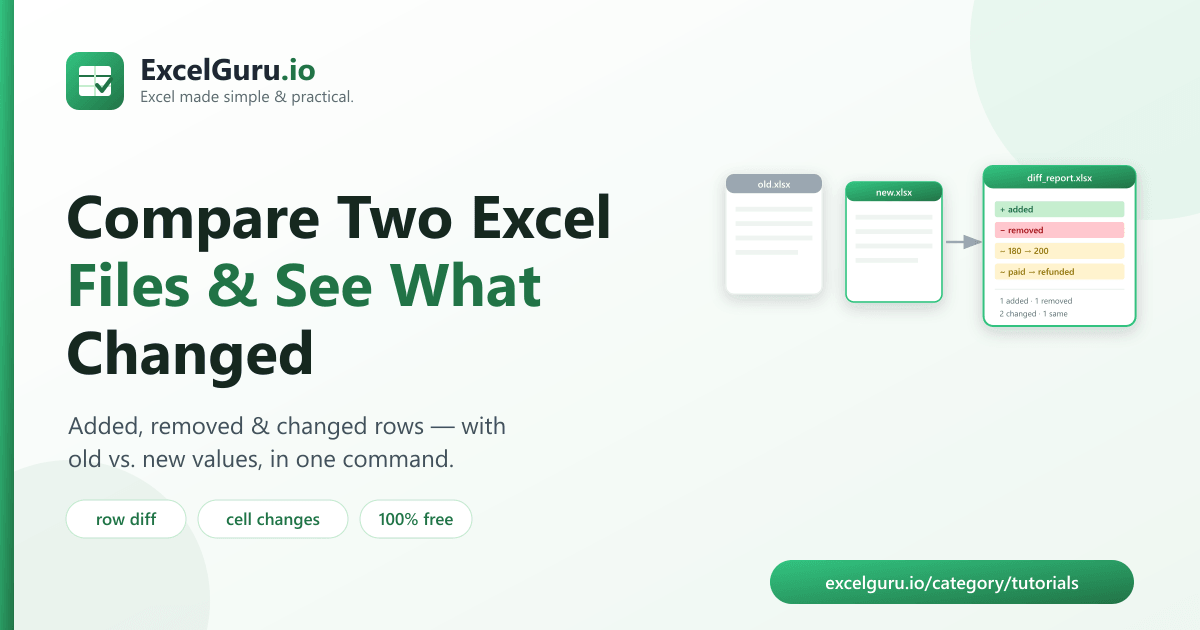
To compare two Excel files, run a free tool called Excel Compare, which matches rows by a key column and reports exactly what changed — added rows, removed rows, and changed cells with their old and new values. It writes a clean multi-sheet Excel report in one command, so you never have to eyeball two spreadsheets side by side again.
Why comparing spreadsheets by eye fails
You get a new version of a file — an updated price list, a refreshed export, a colleague's edits — and you need to know what actually changed. Scrolling through two sheets side by side is slow and unreliable: a single changed cell in row 4,000 is impossible to spot, and reordered rows make a visual comparison meaningless.
The dependable approach is to match each row by a unique key (an order ID, SKU, email) and compare field by field. That's exactly what this tool does.
How to install the tool (2 minutes)
You need Python 3.9 or newer. Clone the repository and install its dependencies:
git clone https://github.com/Synth88Labs/excel-tool-compare.git
cd excel-tool-compare
pip install -r requirements.txt
Get Excel Compare on GitHub (free)
How to compare two Excel files — step by step
Step 1 — Pick the key column
Choose the column that uniquely identifies each row — an order_id, sku,
email, or similar. This is how the tool matches rows between the two files.
Step 2 — Run the comparison
Pass the old file, the new file, and the key column:
python compare_excel.py old.xlsx new.xlsx --key order_id -o diff_report.xlsxThe tool prints a summary and writes diff_report.xlsx.
Step 3 — Read the report
You'll see a console summary like this:
Comparison complete:
  Added:     1
  Removed:   1
  Changed:   2 rows (3 cell changes)
  Unchanged: 1
The Excel report has four sheets: Summary, Added,
Removed, and Changed — where each row is one change:
order_id | column | old_value | new_value.
What the report shows
| Sheet | Contents |
|---|---|
| Summary | Counts: added, removed, changed, unchanged, cell changes, and any column (schema) changes |
| Added | Full rows present in the new file but not the old |
| Removed | Full rows present in the old file but not the new |
| Changed | One row per changed cell: key, column, old value, new value |
Real work use cases
- Price list updates — see exactly which prices changed between versions.
- Data reconciliation — compare a system export against last month's snapshot.
- Reviewing edits — find what a colleague changed in a shared workbook.
- Inventory & catalog changes — track added, discontinued, and updated SKUs.
- Audit trails — produce a clear record of what changed and when.
Common mistakes to avoid
- Choosing a non-unique key. If the key repeats, matching is ambiguous. Use a truly unique column (or clean duplicates first).
- Comparing files with different keys. Both files must share the same key column name for the match to work.
- Ignoring schema changes. If a column was renamed, it shows up as one column removed and another added — check the Summary sheet.
- Formatting-only differences. The tool compares values as text, so
1000and1,000read as different. Clean formatting first for a true value comparison.
Frequently asked questions
How do I compare two Excel files and highlight the differences?
Run python compare_excel.py old.xlsx new.xlsx --key COLUMN -o diff_report.xlsx. The tool
matches rows by the key column and writes a report of added, removed, and changed rows with old and
new values.
Can I compare two CSV files the same way?
Yes. It reads .csv, .xlsx and .xls files, so you can compare
any mix of them.
What does the "key" column do?
The key uniquely identifies each row (like an order ID). The tool uses it to match the same record across both files so it can detect cell-level changes.
Does it show the old and new values?
Yes. The Changed sheet lists every changed cell with its key, column, old value, and new value.
Is Excel Compare free?
Yes. It's open-source under the MIT license, free for personal and commercial use. The source is on GitHub.
Do I need Excel installed?
No. It reads and writes files with Python libraries, so it works without Microsoft Excel installed.
What if the two files have different columns?
The tool compares the columns they share and flags any columns that exist in only one file on the Summary sheet.
Summary
Comparing spreadsheets by eye is slow and misses changes. Excel Compare matches rows by a key and reports exactly what changed — added, removed, and changed cells with old vs. new values — in one command. It's free, open-source, and works without Excel installed.