
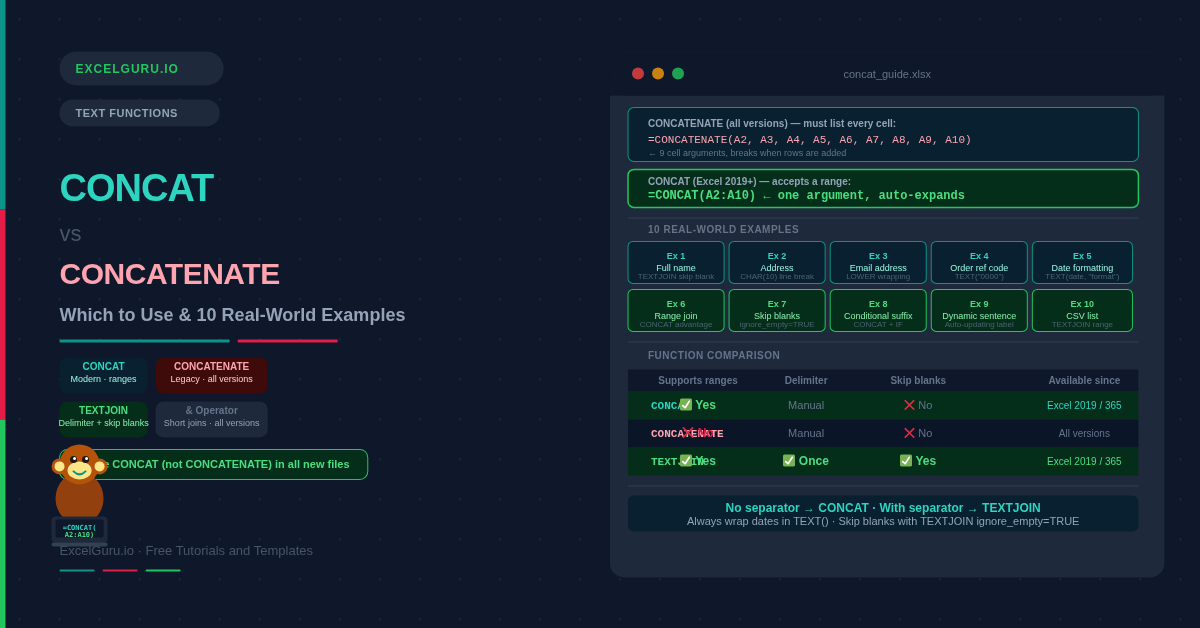
Excel has four ways to join text — the ampersand operator (&), CONCATENATE, CONCAT, and TEXTJOIN — and choosing the wrong one leads to long, fragile formulas that break when data changes. The short answer is simple: use CONCAT instead of CONCATENATE in all new files. CONCAT supports ranges, is shorter to type, and does everything CONCATENATE does. Furthermore, when you need a separator between values, use TEXTJOIN instead.
This guide explains each method clearly, compares them side by side, and walks through 10 practical examples you can use immediately. Consequently, you will never need to count commas in a CONCATENATE formula again.
What Are the Four Ways to Concatenate in Excel?
Each method has a specific strength. Understanding when to use each one prevents the most common mistakes and keeps formulas readable.
| Method | & operator | CONCATENATE | CONCAT | TEXTJOIN |
|---|---|---|---|---|
| Supports ranges | ❌ No | ❌ No | ✅ Yes | ✅ Yes |
| Custom delimiter | Manual — add between each value | Manual — add between each value | Manual — add between each value | ✅ Write once |
| Skip blank cells | ❌ No | ❌ No | ❌ No | ✅ Yes (ignore_empty) |
| Available since | All versions | All versions | Excel 2019 / 365 | Excel 2019 / 365 |
| Best for | Short, ad hoc joins | Legacy compatibility only | Joins without a delimiter | Joins with a delimiter |
What Is the Syntax for Each Function?
CONCAT and CONCATENATE share similar syntax. TEXTJOIN adds two arguments before the text values.
Examples 1–5: Everyday Concatenation Tasks
Joining a first and last name is the most common concatenation task. All four methods work, but the ampersand is the most readable for this simple case. TEXTJOIN is particularly useful here because it can skip the middle name if the cell is blank.
Address fields often include blank cells — for instance, a missing second address line. TEXTJOIN with ignore_empty=TRUE handles this cleanly. Additionally, CHAR(10) creates a line break so the address appears across multiple lines in one cell (requires Wrap Text to be enabled).
Building email addresses from first name, last name, and domain is a common HR and IT task. CONCAT keeps the formula short. Wrapping with LOWER ensures the output is always lowercase — email addresses are case-insensitive but inconsistent capitalisation looks unprofessional.
Examples 4 and 5: Working with Numbers and Dates
Order reference codes typically combine a region prefix, a year, and a sequence number. CONCAT joins all three parts cleanly. TEXT() formats the number with leading zeros. Consequently, the code always has a consistent, fixed-length format.
Dates are stored as serial numbers in Excel. Passing a date cell directly to CONCAT produces a number like 46118 instead of a readable date. The fix is to wrap the date in TEXT() first and specify the format you want. This pattern applies to all four concatenation methods.
Examples 6–10: Advanced Concatenation Techniques
CONCATENATE cannot accept a range — you must list every cell individually. CONCAT, by contrast, accepts a single range argument. This is the single most important practical difference between the two functions.
When data has gaps, CONCAT produces double separators — for example, "London, , EC1A". TEXTJOIN eliminates this entirely. Setting ignore_empty to TRUE skips any blank cells in the range. As a result, the output is always clean regardless of which optional fields the user leaves empty.
Nesting IF inside CONCAT adds text conditionally. This pattern is useful for status labels, exception flags, and any case where the output string should change based on the data in another cell.
Examples 9 and 10: Dynamic Labels and Lists
Inserting live cell values into a sentence template is a powerful reporting technique. The resulting cell reads like natural language and updates automatically whenever the source data changes. CONCAT handles this naturally by mixing text strings and cell references in any order.
Turning a column of values into a single comma-separated list is something CONCATENATE and CONCAT cannot do efficiently. TEXTJOIN was designed specifically for this pattern — it accepts the entire range and writes the separator just once. This is the clearest reason to use TEXTJOIN over CONCAT.
=TEXTJOIN(", ", TRUE, tblAttendees[Name]) expand automatically when rows are added — the formula never needs editing as the list grows.
Which Function Should You Use?
A single decision tree covers almost every scenario. First, ask whether the file needs to work in Excel 2016 or earlier. If yes, use CONCATENATE or the ampersand. If not, use CONCAT or TEXTJOIN depending on whether you need a separator.
The Decision Tree
Two or three values without a separator → use the ampersand (&). Many values or a range without a separator → use CONCAT. Any number of values with a consistent separator → use TEXTJOIN. Backward compatibility with Excel 2016 required → use CONCATENATE or the ampersand. Additionally, whenever blank cells might produce double separators, TEXTJOIN with ignore_empty=TRUE is always the safest choice.
Common Concatenation Problems and How to Fix Them
Date shows as a number instead of a date
Dates are stored as serial numbers internally. CONCAT and the ampersand convert them directly — producing results like "46118" instead of "07-Apr-2026". Fix this by wrapping the date cell in TEXT() before concatenating: =CONCAT(A2, " — ", TEXT(B2, "dd-mmm-yyyy")). The TEXT format string controls how the date appears in the output.
Double separators from blank cells
CONCAT and the ampersand do not skip blank cells. Consequently, a blank middle-name cell produces "Sarah Jones" (double space) or "London, , EC1A" (double comma). Switch to TEXTJOIN with ignore_empty=TRUE, or wrap each optional field in IF: IF(B2<>"", " " & B2, "").
#VALUE! error from CONCAT
CONCAT returns #VALUE! when the combined string exceeds 32,767 characters — Excel's cell limit. This is uncommon in normal use but can happen when joining large ranges. Additionally, TEXTJOIN has the same limit. Split the join into smaller segments or reconsider whether a single cell is the right place for very long strings.
Frequently Asked Questions
-
What is the difference between CONCAT and CONCATENATE?+CONCAT is the modern replacement for CONCATENATE. The two functions produce identical results when given individual cell references. The key difference is that CONCAT accepts ranges — you can write =CONCAT(A2:A10) to join ten cells in one argument. CONCATENATE cannot accept ranges and requires you to list every cell individually. CONCAT is available in Excel 2019, Excel 2021, Excel 2024, and Microsoft 365. CONCATENATE works in all Excel versions. For new files, always use CONCAT.
-
When should I use TEXTJOIN instead of CONCAT?+Use TEXTJOIN whenever you need a separator between the joined values — a comma, space, hyphen, or any other character. CONCAT has no delimiter argument, so you must manually add separators between every value, which is tedious and error-prone. TEXTJOIN also has a built-in option to skip blank cells automatically (ignore_empty=TRUE). Specifically, the comma-separated list use case (Example 10) and the blank-safe address join (Example 7) are TEXTJOIN's strongest scenarios.
-
Why does my concatenated date show as a number?+Excel stores dates as serial numbers internally — for example, 07 April 2026 is stored as 46118. When you pass a date cell to CONCAT or use the ampersand, Excel converts the serial number to text rather than the formatted date. The fix is to wrap the date in TEXT() with your desired format: =CONCAT("Report: ", TEXT(B2, "dd-mmm-yyyy")). The format string inside TEXT() controls how the date appears — use "dd/mm/yyyy", "mmmm d, yyyy", or any valid format.
More Questions About Excel Concatenation
-
Is the ampersand (&) faster than CONCAT?+For short joins of two or three values, the ampersand is marginally faster because it uses fewer function-call overheads. In practice, the difference is imperceptible unless you have hundreds of thousands of rows recalculating simultaneously. For readability, use whichever feels cleaner for the specific formula. The ampersand is often easier to read for short joins; CONCAT is clearer when mixing many values and static strings.
-
Can CONCAT join numbers and text together?+Yes. CONCAT automatically converts numbers to text during concatenation. For example, =CONCAT("Order #", 42) produces "Order #42". However, the number is converted using its raw stored value — formatting applied in the cell (such as currency or decimal places) is not preserved. To control number formatting in the output, wrap the number in TEXT() first: =CONCAT("Total: £", TEXT(C2, "#,##0.00")) produces "Total: £1,234.56".
-
Does TEXTJOIN work in Google Sheets?+Yes. TEXTJOIN, CONCAT, and CONCATENATE all work in Google Sheets with identical syntax. The ampersand operator also works identically. One small difference: Google Sheets does not have Flash Fill (Excel's Ctrl+E pattern-filling shortcut), but all formula-based concatenation approaches work the same way across both platforms.