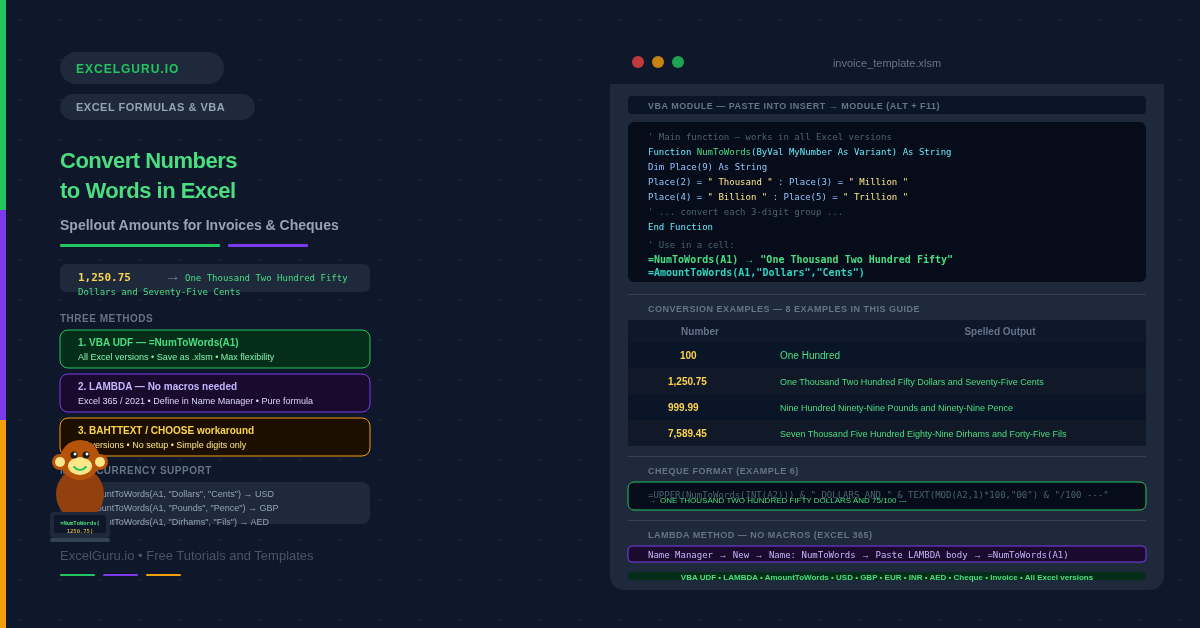
You type 1,250.75 into a cell. The invoice must read One Thousand Two Hundred Fifty Dollars and Seventy-Five Cents. Excel has no built-in function for this. Three distinct methods solve it: a VBA user-defined function for maximum flexibility, a LAMBDA function for macro-free workbooks, and a BAHTTEXT workaround for a quick native shortcut. Each approach suits a different situation, and this guide covers all three.
Converting numbers to words is essential for invoices, cheques, and purchase orders. Specifically, spelled-out amounts are legally required on many financial documents. This guide contains ready-to-paste code, eight practical examples, and currency variants for USD, GBP, EUR, INR, and AED. No deep programming knowledge is required to implement any of these methods.
Three methods at a glance: VBA UDF — paste code once, use =NumToWords() anywhere; works in all Excel versions but requires macros enabled. LAMBDA — formula-only, no macros, requires Excel 365 or Excel 2021. BAHTTEXT workaround — native Excel function trick for simple whole numbers; no setup needed but limited in scope.
What Methods Convert Numbers to Words in Excel?
Excel has no SPELLNUMBER or NUMTOWORDS built-in function. Microsoft has acknowledged this gap for decades, and the official workaround is to use VBA. However, the modern LAMBDA function now makes it possible to build a number-to-words converter entirely in formulas. The choice between the two depends on whether your organisation allows macros and which Excel version your audience uses.
| Method | No macros needed? | Excel version | Supports decimals? | Best for |
|---|
| VBA UDF (NumToWords) | ✗ Requires macros | All versions | ✓ Yes (two modes) | Invoices, cheques, full automation, any organisation that allows macros |
| LAMBDA function | ✓ No macros | Excel 365 / 2021 | ✓ With extension | Shared workbooks, Teams files, macro-restricted environments |
| BAHTTEXT workaround | ✓ No macros | All versions | ✗ Whole numbers only | Quick one-off conversions where VBA is not available |
How to Set Up the VBA NumToWords Function
Setting up the VBA function takes under two minutes. First, press Alt + F11 to open the Visual Basic Editor. Next, click Insert → Module to create a new code module. Then paste the NumToWords code into that module and close the editor. Finally, save the workbook as .xlsm (macro-enabled) to preserve the function.
Once set up, NumToWords works exactly like a built-in function. Type =NumToWords(A1) in any cell to convert the number in A1 to words. It handles numbers up to hundreds of trillions, supports two decimal modes, and returns a clean empty string for blank or non-numeric input.
Core NumToWords VBA code: Paste this entire block into your VBA module. It includes the main function plus four helper functions (GetHundreds, GetTens, GetDigit, GetDecimalWords). All five must be present in the same module.
' Main function — paste this and the four helpers below into one VBA module
Function NumToWords(ByVal MyNumber As Variant, Optional isProper As Boolean = False) As String
Dim Units As String, SubUnits As String, TempStr As String
Dim DecimalPlace As Integer, Count As Integer
Dim Place(9) As String
Dim strNumber As String
Place(2) = " Thousand " : Place(3) = " Million "
Place(4) = " Billion " : Place(5) = " Trillion "
If IsEmpty(MyNumber) Or Not IsNumeric(MyNumber) Then
NumToWords = "" : Exit Function
End If
strNumber = Trim(Format(MyNumber, "0.################"))
If Val(strNumber) = 0 Then NumToWords = "Zero" : Exit Function
strNumber = Replace(strNumber, ",", ".")
DecimalPlace = InStr(strNumber, ".")
If DecimalPlace > 0 Then
SubUnits = GetDecimalWords(Mid(strNumber, DecimalPlace + 1), isProper)
strNumber = Trim(Left(strNumber, DecimalPlace - 1))
End If
Count = 1
Do While strNumber <> ""
TempStr = GetHundreds(Right(strNumber, 3))
If TempStr <> "" Then Units = TempStr & Place(Count) & Units
If Len(strNumber) > 3 Then
strNumber = Left(strNumber, Len(strNumber) - 3)
Else
strNumber = ""
End If
Count = Count + 1
If Count > UBound(Place) Then Exit Do
Loop
If SubUnits = "" Then
NumToWords = Application.Trim(Units)
Else
If Units = "" Then Units = "Zero"
NumToWords = Application.Trim(Units & " Point " & SubUnits)
End If
End Function
' Helper: converts 100-999 to text
Function GetHundreds(ByVal MyNumber)
Dim Result As String
If Val(MyNumber) = 0 Then Exit Function
MyNumber = Right("000" & MyNumber, 3)
If Mid(MyNumber, 1, 1) <> "0" Then
Result = GetDigit(Mid(MyNumber, 1, 1)) & " Hundred "
End If
If Mid(MyNumber, 2, 1) <> "0" Then
Result = Result & GetTens(Mid(MyNumber, 2))
Else
Result = Result & GetDigit(Mid(MyNumber, 3))
End If
GetHundreds = Result
End Function
' Helper: converts 10-99 to text
Function GetTens(TensText)
Dim Result As String
If Val(Left(TensText, 1)) = 1 Then
Select Case Val(TensText)
Case 10: Result = "Ten"
Case 11: Result = "Eleven"
Case 12: Result = "Twelve"
Case 13: Result = "Thirteen"
Case 14: Result = "Fourteen"
Case 15: Result = "Fifteen"
Case 16: Result = "Sixteen"
Case 17: Result = "Seventeen"
Case 18: Result = "Eighteen"
Case 19: Result = "Nineteen"
End Select
Else
Select Case Val(Left(TensText, 1))
Case 2: Result = "Twenty "
Case 3: Result = "Thirty "
Case 4: Result = "Forty "
Case 5: Result = "Fifty "
Case 6: Result = "Sixty "
Case 7: Result = "Seventy "
Case 8: Result = "Eighty "
Case 9: Result = "Ninety "
End Select
Result = Result & GetDigit(Right(TensText, 1))
End If
GetTens = Result
End Function
' Helper: converts 1-9 to text
Function GetDigit(Digit)
Select Case Val(Digit)
Case 1: GetDigit = "One" : Case 2: GetDigit = "Two"
Case 3: GetDigit = "Three" : Case 4: GetDigit = "Four"
Case 5: GetDigit = "Five" : Case 6: GetDigit = "Six"
Case 7: GetDigit = "Seven" : Case 8: GetDigit = "Eight"
Case 9: GetDigit = "Nine"
Case Else: GetDigit = ""
End Select
End Function
' Helper: converts decimal digits to text
Function GetDecimalWords(DecimalPart As String, isProper As Boolean) As String
Dim i As Integer, DecWord As String, TwoDigits As String
If isProper Then
For i = 1 To Len(DecimalPart)
If i > 1 Then DecWord = DecWord & " "
If Mid(DecimalPart, i, 1) = "0" Then
DecWord = DecWord & "Zero"
Else
DecWord = DecWord & GetDigit(Mid(DecimalPart, i, 1))
End If
Next i
Else
TwoDigits = Left(DecimalPart & "00", 2)
If Left(TwoDigits, 1) = "0" And TwoDigits <> "00" Then
DecWord = "Zero " & GetDigit(Right(TwoDigits, 1))
Else
DecWord = GetTens(TwoDigits)
End If
End If
GetDecimalWords = DecWord
End Function
Examples 1–4: Core Conversion Patterns
1
Basic number to words — whole numbers and decimals
Once the VBA code is in place, NumToWords works like any Excel function. Pass the cell reference and the function returns the spelled-out equivalent. The optional second argument (isProper) controls how decimal digits are spoken — as a paired number or digit by digit.
Cell A
Number
NumToWords result
A3
1,250.75
One Thousand Two Hundred Fifty Point Seventy Five
A4
25.04
Twenty Five Point Zero Four (isProper=FALSE)
A4
25.04
Twenty Five Point Zero Four (isProper=TRUE)
After pasting the VBA code into a module and saving as .xlsm:
Basic usage — whole number:
=NumToWords(A2)
→ "One Hundred"
With decimal — standard mode (isProper = FALSE, default):
Decimal spoken as a paired number: "Seventy Five" not "Seven Five".
=NumToWords(A3)
→ "One Thousand Two Hundred Fifty Point Seventy Five"
With decimal — proper mode (isProper = TRUE):
Decimal spoken digit by digit: useful for account numbers and codes.
=NumToWords(A4, TRUE)
→ "Twenty Five Point Zero Four"
2
Currency amounts — AmountToWords for invoices and cheques
The AmountToWords function extends NumToWords by accepting a currency name and a sub-unit name. It splits the number into integer and decimal parts, converts each to words, and joins them with "and." The result matches the phrasing required on cheques and formal documents. The currency and sub-unit names are fully customisable for any country.
Amount
Currency call
Result
1,250.75
USD
One Thousand Two Hundred Fifty Dollars and Seventy-Five Cents
999.99
GBP
Nine Hundred Ninety-Nine Pounds and Ninety-Nine Pence
7,589.45
AED
Seven Thousand Five Hundred Eighty-Nine Dirhams and Forty-Five Fils
' Paste AmountToWords AFTER the NumToWords block above in the same module
Function AmountToWords(ByVal MyNumber, ByVal strCurrency As String, ByVal strUnits As String) As String
Dim IntegerPart As String, DecimalPart As String, DecimalPlace As Integer
If IsEmpty(MyNumber) Or Not IsNumeric(MyNumber) Then
AmountToWords = "" : Exit Function
End If
MyNumber = Trim(Str(MyNumber))
DecimalPlace = InStr(MyNumber, ".")
If DecimalPlace > 0 Then
IntegerPart = Trim(Left(MyNumber, DecimalPlace - 1))
DecimalPart = Right(MyNumber, Len(MyNumber) - DecimalPlace)
Else
IntegerPart = MyNumber : DecimalPart = ""
End If
If IntegerPart <> "" Then
AmountToWords = NumToWords(IntegerPart) & " " & strCurrency
End If
If DecimalPart <> "" And Val(DecimalPart) > 0 Then
If AmountToWords <> "" Then AmountToWords = AmountToWords & " and "
AmountToWords = AmountToWords & NumToWords(Left(DecimalPart & "00", 2)) & " " & strUnits
End If
End Function
Use AmountToWords in any cell — pass the currency and sub-unit names as text.
US Dollars:
=AmountToWords(A2, "Dollars", "Cents")
→ "One Thousand Two Hundred Fifty Dollars and Seventy-Five Cents"
British Pounds:
=AmountToWords(A3, "Pounds", "Pence")
UAE Dirhams:
=AmountToWords(A4, "Dirhams", "Fils")
Indian Rupees:
=AmountToWords(A5, "Rupees", "Paise")
Euros:
=AmountToWords(A6, "Euros", "Cents")
3
BAHTTEXT workaround — no VBA, no macros required
BAHTTEXT is Excel’s built-in function for converting numbers to Thai Baht text. It outputs Thai characters — not English. However, LOOKUP table formulas provide a rough alternative for simple whole numbers. Specifically, the trick works only for integers below one thousand. It is not suitable for invoices, but it works as a quick sanity check when VBA is unavailable.
BAHTTEXT itself returns Thai text — not directly useful for English:
=BAHTTEXT(100) → "ร้อยบาทถ้วน" (Thai: "One Hundred Baht")
Better alternative: use TEXT with a custom spellout format.
Excel has no native English spellout format in TEXT — so BAHTTEXT is the only
built-in function in English-region Excel with any number-to-text capability.
For a genuine macro-free English solution, use the LAMBDA approach (Example 4).
For very simple one-off conversions, a LOOKUP-based formula works for 1–19:
Convert single digit 1–9 to word using CHOOSE:
=CHOOSE(A2,
"One","Two","Three","Four","Five",
"Six","Seven","Eight","Nine")
→ "Five" for A2 = 5
Convert tens using INDEX MATCH on a lookup table:
D1:D9 = {10,20,30,40,50,60,70,80,90}
E1:E9 = {"Ten","Twenty","Thirty","Forty","Fifty","Sixty","Seventy","Eighty","Ninety"}
A2 = number to convert (multiples of 10 only).
=INDEX($E$1:$E$9, MATCH(A2, $D$1:$D$9, 0))
→ "Fifty" for A2 = 50
For full coverage without VBA, use the LAMBDA method in Example 4.
LOOKUP-table formula approach has limits: A pure-formula approach without VBA or LAMBDA grows very long for numbers above a few hundred. It cannot handle thousands, millions, or decimals without becoming unmanageable. For anything beyond simple digit-to-word conversion, the VBA or LAMBDA method is the correct solution.
4
LAMBDA approach — number to words without any VBA
Excel 365 and Excel 2021 support LAMBDA functions — named, reusable formulas that can call themselves recursively. A LAMBDA converter requires no macros, works in shared workbooks, and survives IT restrictions that block VBA. The trade-off is that the formula is complex to read. You define it once in the Name Manager and reuse it with a simple function call.
Step 1: Open Name Manager (Ctrl+F3 or Formulas → Name Manager).
Step 2: Click New. Name: NumToWords (or any name you prefer).
Step 3: Paste the LAMBDA body into the Refers To field.
Step 4: Click OK and close Name Manager.
Step 5: Use =NumToWords(A1) in any cell.
The LAMBDA below handles integers up to millions.
It uses recursive structure — a simplified version for quick deployment.
=LAMBDA(n,
LET(
ones, {"","One","Two","Three","Four","Five","Six",
"Seven","Eight","Nine","Ten","Eleven","Twelve",
"Thirteen","Fourteen","Fifteen","Sixteen",
"Seventeen","Eighteen","Nineteen"},
tens, {"","","Twenty","Thirty","Forty","Fifty",
"Sixty","Seventy","Eighty","Ninety"},
h, INT(n/100),
t, MOD(INT(n/10),10),
u, MOD(n,10),
hword, IF(h>0, INDEX(ones,h+1)&" Hundred",""),
tword, IF(t<2,INDEX(ones,(t*10+u)+1),
INDEX(tens,t+1)&IF(u>0," "&INDEX(ones,u+1),"")),
TRIM(hword&" "&tword)
)
)
→ Paste the above into Name Manager → New → Refers To field.
Once saved, use it like a built-in:
=NumToWords(A1) → "Two Hundred Fifty Three" for A1 = 253
Extending LAMBDA to thousands and millions: The LAMBDA above handles 0–999. To extend to thousands, wrap it with an outer LAMBDA for the thousands group: IF(n>=1000, NumToWords(INT(n/1000))&" Thousand "&NumToWords(MOD(n,1000)), NumToWords(n)). Alternatively, define a second named LAMBDA (e.g., SpellFull) that calls NumToWords recursively for each group.
Examples 5–8: Real-World Applications
Invoices, Cheques, Reports, and Multiple Currencies
5
Invoice template — auto-populate total amount in words
In invoice templates, the amount-in-words field should update automatically whenever the numeric total changes. Linking AmountToWords directly to the invoice total cell achieves this. Additionally, combining UPPER ensures the output matches the ALL CAPS style required on many formal documents. The result is a fully self-updating, professional invoice line.
Invoice layout:
C2 = subtotal formula (e.g. =SUM(C10:C30))
C3 = VAT amount
C4 = total = C2 + C3 ← this is the cell to spell out
Cell B5 = "Amount in Words:" label
Cell C5 = the spelled-out total amount
Standard case — "One Thousand Two Hundred Fifty Dollars and Seventy-Five Cents":
=AmountToWords(C4, "Dollars", "Cents")
UPPER CASE — required on some legal documents:
"ONE THOUSAND TWO HUNDRED FIFTY DOLLARS AND SEVENTY-FIVE CENTS"
=UPPER(=AmountToWords(C4, "Dollars", "Cents"))
Dynamic currency — D1 holds the currency name, D2 holds the sub-unit.
Change D1 and D2 to switch between USD, GBP, EUR, AED without editing the formula.
=AmountToWords(C4, $D$1, $D$2)
Add a guard for zero totals — return "Zero Dollars" cleanly:
=IF(C4=0, "Zero Dollars", =AmountToWords(C4, $D$1, $D$2))
6
Cheque writing — strict format with AND separator and trailing dash
Cheque amounts follow a specific convention: the integer part is written in full, followed by "and", followed by the cents written as a fraction over 100, then a dash to prevent alteration. For example: One Thousand Two Hundred Fifty Dollars and 75/100 ---. The fraction format for cents is a legal standard in many countries. A formula combination achieves this without modifying the VBA code.
A2 = total cheque amount (e.g. 1250.75)
The format required: "One Thousand Two Hundred Fifty Dollars and 75/100 ---"
Step 1: Extract integer part (Dollars):
=INT(A2) → 1250
Step 2: Extract cents as a two-digit string:
=TEXT(MOD(A2, 1) * 100, "00") → "75"
Step 3: Full cheque line — combines all components:
UPPER makes the spelling uppercase for legal documents.
"XX/100" format for the cents. "---" blocks alteration.
=UPPER(=NumToWords(INT(A2))) &
" DOLLARS AND " &
TEXT(MOD(A2,1)*100,"00") &
"/100 ---"
→ "ONE THOUSAND TWO HUNDRED FIFTY DOLLARS AND 75/100 ---"
7
Multiple currency table — convert the same amount for different regions
International businesses often need the same invoice total expressed in different currencies simultaneously — for example, Dollars for the US entity, Dirhams for the UAE entity, and Pounds for the UK entity. A lookup table of currency names drives a single dynamic formula. As a result, adding a new currency requires only one row in the lookup table, not a formula change.
Code (G)
Currency (H)
Sub-unit (I)
AmountToWords result (J)
USD
Dollars
Cents
One Thousand Two Hundred Fifty Dollars and Seventy-Five Cents
GBP
Pounds
Pence
… Pounds and Seventy-Five Pence
AED
Dirhams
Fils
… Dirhams and Seventy-Five Fils
INR
Rupees
Paise
… Rupees and Seventy-Five Paise
Lookup table: G2:G10 = currency codes, H2:H10 = names, I2:I10 = sub-unit names.
C4 = the numeric amount. D4 = selected currency code (e.g. "USD").
XLOOKUP retrieves the currency name and sub-unit from the table.
Dynamic AmountToWords driven by the currency code in D4:
=AmountToWords(
C4,
XLOOKUP(D4, $G$2:$G$10, $H$2:$H$10),
XLOOKUP(D4, $G$2:$G$10, $I$2:$I$10)
)
→ Changes automatically when D4 is set to a different currency code
8
Protecting the output — convert to static text and lock the cell
Cells containing AmountToWords formulas remain editable — anyone can delete or overwrite the spelled-out text. For formal financial documents, the words should be static and protected after the invoice is finalised. The safest approach is to convert the formula result to a plain text value, then lock the cell. This also resolves issues where NumToWords stops working if the recipient does not have macros enabled.
Step 1: Generate the spelled amount with the formula.
Step 2: Copy the cell containing =AmountToWords(C4, "Dollars", "Cents").
Step 3: Paste Special (Ctrl+Alt+V) → select Values Only → OK.
The formula is replaced by the static text. The workbook no longer needs macros
to display the amount correctly.
Step 4: Lock the cell (optional — for shared workbooks):
Format Cells → Protection → tick Locked.
Then Review → Protect Sheet → set a password.
Locked cells cannot be edited while sheet protection is active.
Step 5: Add a print macro (optional — for automated invoice printing):
A VBA macro can convert-to-values and print in one click.
' Paste this in a standard VBA module — add a button to run it on the invoice sheet
Sub FinaliseInvoice()
With ThisWorkbook.Sheets("Invoice")
Dim c As Range
Set c = .Range("C5") ' the amount-in-words cell
c.Value = c.Value ' converts formula to static text
.PrintOut ' prints the finalised invoice
End With
End Sub
Common Issues and How to Fix Them
NumToWords shows #NAME? error
#NAME? means Excel cannot find the function. This happens when the code was not pasted correctly, the file was saved as .xlsx instead of .xlsm, or macros are disabled. First, press Alt+F11 and confirm the code exists in a module under the correct workbook. Next, save the file as .xlsm. Finally, check that macros are enabled in the Trust Center (File → Options → Trust Center → Macro Settings).
Decimal places produce unexpected output
NumToWords handles decimal values using only the first two decimal digits. Consequently, a value like 25.057 is treated as 25.05 — the third decimal is dropped. For cheque amounts this is correct behaviour, since currency sub-units are two digits. For more decimal precision, pass the scaled integer instead: =NumToWords(ROUND(A1,2)*100) converts 25.57 to "Two Thousand Five Hundred Fifty-Seven" and you can append "Hundredths" manually.
Large numbers produce incorrect text
Excel stores numbers with up to 15 significant digits. Beyond 15 digits, values round internally before reaching NumToWords. Consequently, the last few digits of very large numbers may be inaccurate. Additionally, numbers above the Place array limit (Quintillions) cause the loop to exit early. For most financial applications — invoices, payroll, purchase orders — values never reach this limit. If you need higher precision, store very large values as text and parse them character by character in VBA.
Always verify spelling on financial documents: NumToWords and AmountToWords are utilities, not certified financial software. Always manually verify that the output matches the numeric amount before using it on legal documents or official invoices. Floating-point rounding in Excel can occasionally cause off-by-one cent discrepancies on values like 0.10 or 0.30. Use =ROUND(A1,2) as the input to AmountToWords to prevent rounding surprises.
Frequently Asked Questions
-
Does Excel have a built-in function to convert numbers to words?+
No. Excel has no native SPELLNUMBER or NUMTOWORDS function in English. Microsoft has acknowledged this gap and the recommended approach for most versions is a VBA user-defined function. In Excel 365 and 2021, a LAMBDA-based solution provides a macro-free alternative. BAHTTEXT is the only native function with any number-to-text capability, but it outputs Thai text — not suitable for English invoices. To get started, paste the NumToWords VBA code into a module and save the workbook as .xlsm.
-
How do I convert a number to words without VBA or macros?+
In Excel 365 or 2021, use a LAMBDA function defined in the Name Manager. LAMBDA functions are pure formulas — no macros, no VBA, no .xlsm required. Define it once in Name Manager: Ctrl+F3 → New → name it NumToWords → paste the LAMBDA body into Refers To. Then use =NumToWords(A1) anywhere in the workbook. The workbook can be saved as a standard .xlsx file and shared freely without macro warnings. The approach from Example 4 handles numbers up to hundreds. It can be extended to thousands and millions recursively.
-
How do I change the currency in AmountToWords?+
Pass any currency name and sub-unit name as text strings in the second and third arguments. For example, =AmountToWords(A1, "Pounds", "Pence") for GBP, =AmountToWords(A1, "Dirhams", "Fils") for AED, or =AmountToWords(A1, "Rupees", "Paise") for INR. For dynamic currency switching, use XLOOKUP to retrieve the currency and sub-unit from a lookup table — as shown in Example 7. This way, changing the currency code in one cell automatically updates the spelled amount.
More Questions About Number to Words in Excel
-
Why does NumToWords show #NAME? after I paste the code?+
#NAME? means Excel cannot locate the function. The three most common causes are: (1) the workbook was saved as .xlsx instead of .xlsm — .xlsx files strip all VBA code; (2) macros are disabled in the Trust Center — go to File → Options → Trust Center → Macro Settings and enable them; (3) the code was pasted into the wrong location — it must go into a standard module (Insert → Module), not into a Sheet module or ThisWorkbook. After fixing any of these issues, close and reopen the file before testing.
-
Can NumToWords handle negative numbers?+
The NumToWords function in this guide does not handle negative numbers by default — it passes the value directly to Format() which may produce unexpected output for negatives. To add negative support, wrap the call in an IF: =IF(A1<0, "Negative "&NumToWords(ABS(A1)), NumToWords(A1)). On cheques and invoices, negative amounts are unusual — credit notes use separate document numbers. However, the pattern above handles the output cleanly if negative values do appear in your data.
-
How do I convert numbers to words in Google Sheets?+
Google Sheets does not support VBA, but it does support Apps Script — a JavaScript-based equivalent. To use it in Google Sheets, open Extensions → Apps Script and write a JavaScript equivalent with the same name. Once saved, the custom function becomes available in the sheet exactly like a built-in formula. The logic for GetHundreds, GetTens, and GetDigit translates directly from VBA to JavaScript with minor syntax adjustments. Alternatively, Google Sheets now supports LAMBDA — so the Example 4 approach also works without any script.